Wrapping text in a cell
Wrap text in a cell
Fit your data to the column width using the Wrap Text option.
- Select a cell, a range of cells, or the whole worksheet.
- Open the Cell settings panel by
- tapping the
 icon at the top or bottom toolbar, or
 - tapping the Cell option in the pop-up menu.
- tapping the
- Tap the
 arrow to the right of the
  Text Format section to open the Text Format panel.
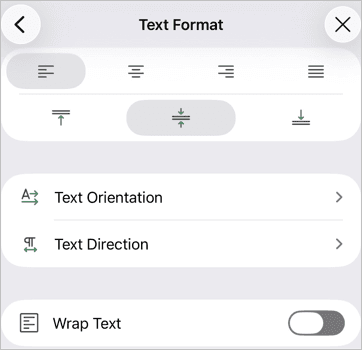
- Swipe up to see the
 Wrap Text switcher and turn it on.
 - Return to the previous screen by tapping the
 arrow on the left and close the cell settings panel by tapping the
  icon.
icon.
If you change the column width, data wrapping adjusts automatically.
You can also select a cell or cell range and tap the Wrap option from the pop-up menu. When data wrapping is enabled, the Unwrap option becomes available in the pop-up menu.
Article with the tag:
Browse all tags