Setting font type, size, and color
Format all text in a cell
- Select a cell, a range of cells, or the whole worksheet.
-
Open the Cell settings panel by
- tapping the
 icon at the top toolbar, or
 - tapping the Cell option in the pop-up menu.
- tapping the
-
Use the options in the Cell settings panel:
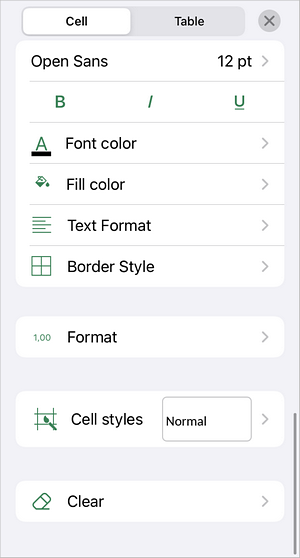
-
To change the Font Name or Size, tap the
 arrow next to the 11 pt menu item:
- In the Size section, tap the
 or
or  icons to decrease or increase the current value, or use the slider.
 - Select one of the fonts from the list of the available ones.
- In the Size section, tap the
-
To change the font decoration, use one of the following options:
 Bold — tap this icon to make the selected text bold.
 Italic — tap this icon to italicize the selected text, giving it a slight rightward slant.
 Underline — tap this icon to underline the selected text with a line running beneath the letters.
 Strikethrough — tap this icon to cross out the selected text with a line running through the letters.
-
To change the Font Color, tap the arrow next to the
 Font Color section. Choose a color from the Theme colors, Standard colors, or create your own Custom Color.
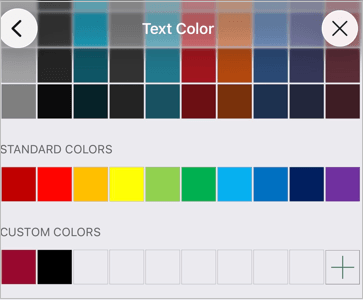
To add a new Custom Color, follow these steps:
- Go to the Add Custom Color menu.
- Using the color palette, choose the necessary color and select its hue level.
- Tap the confirm button to apply the color to the selected text. The added color will also be placed in the Custom Colors section, where the recently used custom colors are located.
- To clear formatting, tap the
 Clear icon and choose All or Text.
-
To change the Font Name or Size, tap the
Format the selected part of text
To format a specific part of text within a cell, select the necessary text and use the icons on the Text formatting toolbar above the keyboard.
- Tap the icon and select one of the following options: Bold, Italic, Underline, and Strikethrough.
- Text Color — is used to change the color of the characters in the text. Tap this icon to open the color palettes window (swipe up to see more colors). Select the necessary color on the Theme Colors or Standard Colors palette, or create your own Custom Color.
Article with the tag:
Browse all tags