Navigating through your spreadsheet
Navigate through your spreadsheet
To navigate between sheets, use the sheet navigation panel below the current worksheet. Tap the necessary sheet tab to switch to the sheet.

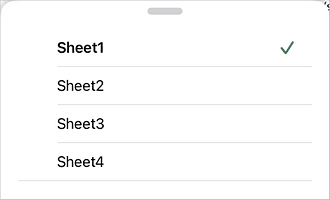
You can also use the List view to navigate through your sheets more easily. Tap the  List view button and select the necessary sheet from the list. The selected sheet will be opened. This option may come in handy when the workbook contains a lot of sheets.
- To scroll a sheet, swipe up, down, left, or right.
- To zoom in, use the stretch gesture: place two fingers on the screen and move them apart. The indicator displays the current zoom value as you move your fingers until you reach the maximum zoom level.
- To zoom out, use the pinch gesture: place two fingers on the screen and move them together. The indicator displays the current zoom value as you move your fingers until you reach the minimum zoom level.
Article with the tag:
Browse all tags