Managing data in rows/columns
Manage data in rows and columns
To clear data within a row or column, tap its heading. In the pop-up menu that appears, tap the Clear option. Alternatively, tap the  icon in the top toolbar and swipe up to the Clear option.
Select the type of data you want to remove:
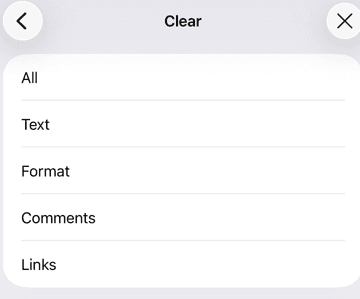
- All — removes everything including text, formatting, comments, and links.
- Text — removes the text only.
- Format — clears the formatting. Text and formulas will remain.
- Comments — removes any comments within the selected row or column.
- Links — removes links within the selected row or column.
To cut, copy, or paste data, tap the row or column heading to select its contents and use the corresponding options from the pop-up menu. For more details, refer to the Selecting, cutting, copying, and AutoFilling cell data article.
Article with the tag:
Browse all tags