Changing application settings
Change application settings
To access the Spreadsheet Editor advanced settings:
- Tap the
 Tools icon in the right corner of the top toolbar.
 - Tap the arrow next to the
 Spreadsheet Setup menu item.
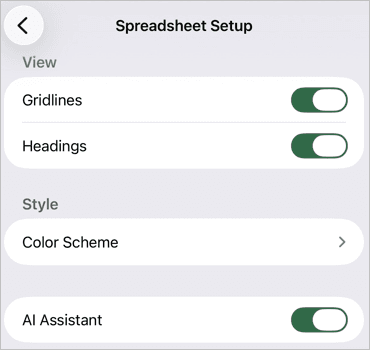
The following settings are available:
-
View — controls which interface elements are visible:
- Gridlines — enabled by default; disable to hide the lines around cells.
- Headings — enabled by default; disable to hide the column headings at the top and row headings on the left.
-
Style — adjusts the appearance of worksheet elements:
- Color Scheme — change the default color palette used for fonts, backgrounds, autoshapes, and charts.
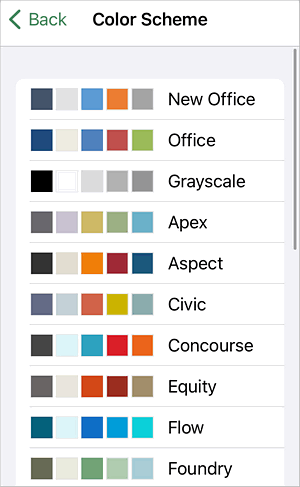
- Color Scheme — change the default color palette used for fonts, backgrounds, autoshapes, and charts.
- AI Assistant — enable this option to access AI-powered features such as writing assistance, AutoFill, and more.
Article with the tag:
Browse all tags