Aligning data in cells and setting text orientation
Align data in cells
You can align your data within a cell horizontally and vertically.
- Select a cell, a range of cells, or the whole worksheet.
- Open the Cell settings panel by
- tapping the
 icon at the top toolbar, or
 - tapping the Cell option in the pop-up menu.
You can also use the quick panel to access the Horizontal and Vertical alignment settings via the Alignment icon:

- tapping the
- Tap the
 icon to the right of the
  Text Format section.
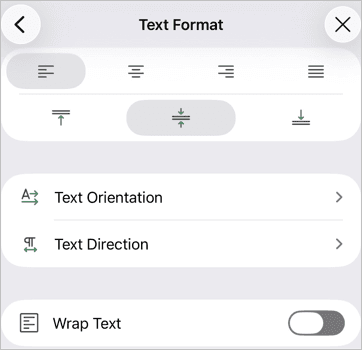
- Select one of the alignment options:
- Horizontal alignment:
- tap the Align Left menu item to line up the text by the left side of the cell (the right side remains unaligned).
- tap the Align Center
 menu item to line up the text by the center of the cell (the right and the left sides remain unaligned).
 - tap the Align Right
 menu item to line up the text by the right side of the cell (the left side remains unaligned).
 - tap the Justify menu item to line up the text by both the left and the right sides of the cell (additional spacing is added where necessary to keep the alignment).
- tap the Align Left
- Vertical alignment:
- tap the Align Top
 menu item to align data to the top of the cell.
 - tap the Align Middle
 menu item to align data to the middle of the cell.
 - tap the Align Bottom
 menu item to align data to the bottom of the cell.
- tap the Align Top
- Text Orientation — tap this option and choose one of the following:
 Horizontal Text — to place the text horizontally (default option).
 Angle Counterclockwise — to place the text from the bottom left corner to the top right corner of a cell.
 Angle Clockwise — to place the text from the top left corner to the bottom right corner of a cell.
 Vertical Text — to place the text vertically.
 Rotate Text Up — to place the text from bottom to top of a cell.
 Rotate Text Down — to place the text from top to bottom of a cell.
- Horizontal alignment:
Tap the  arrow to return to the previous screen, then tap the
  icon to close the Cell settings panel.
Article with the tag:
Browse all tags