Adding links
Add a link
- Select the cell where you want to add the link.
- Tap the
 icon at the top toolbar to open the object insertion panel, switch to the
  tab, and select the
  Link option.
 - In the Link Settings screen that appears, fill in the link parameters:
-
Link Type — choose the type of link you want to add:
-
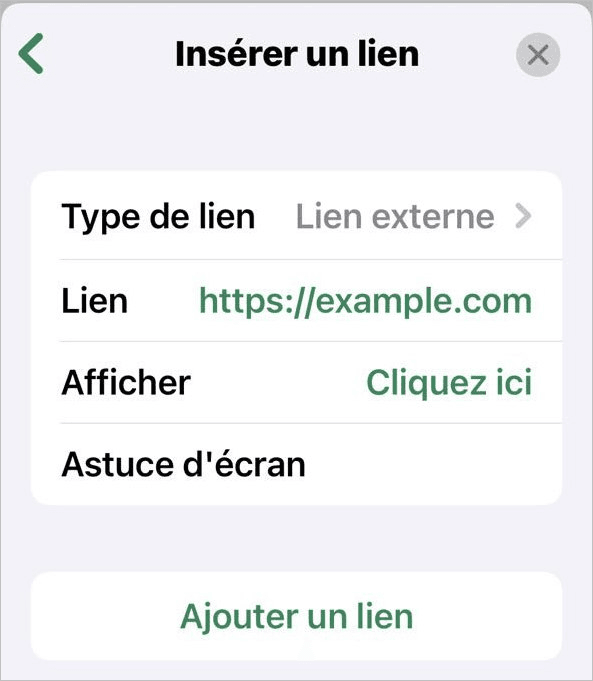
External Link is selected by default. Use it to link to an external website. Enter the URL in the format http://www.example.com in the Link field.
-
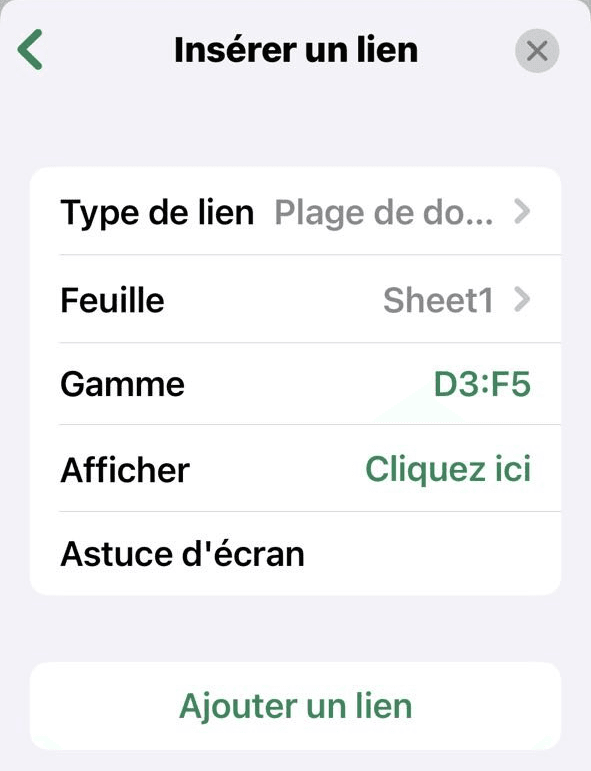
Internal Data Range lets you link to a cell range within the same spreadsheet. Tap it to select it, then return to the previous screen using the
 Back arrow. Choose the Sheet name from the list and enter a cell Range in the format A1:B1.
-
External Link is selected by default. Use it to link to an external website. Enter the URL in the format http://www.example.com in the Link field.
-
Display — the text that will appear as the clickable link.
If the selected cell already has text in it, it will automatically appear in this field.
- Screen Tip — a short note displayed when the link is tapped.
-
Link Type — choose the type of link you want to add:
- Tap Add Link.
To open the link, touch and hold the cell until the pop-up menu appears and tap Open Link.
Clear link formatting
- Select the cell that contains the link and tap the
 Edit option in the top toolbar.
 - Tap the
 Clear option.
 - Tap the Links menu item.
Edit or remove a link
- Select the cell that contains the link and tap the Link option in the pop-up menu.
-
In the Edit Link screen that opens, do one of the following:
- Edit the details and tap Edit Link to save.
- Tap Delete Link to remove it.
Article with the tag:
Browse all tags