Saving/exporting/printing your PDF
Save the PDF
To save the changes you made:
- Tap the
 icon in the left corner of the top toolbar to exit the PDF Editor.
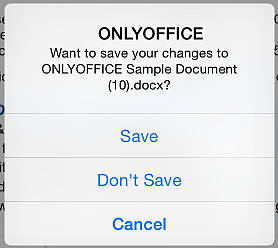
 - Tap the Save option in the dialog window that appears.
Save a copy
To save a copy of the PDF in a selected format:
- Tap the
 Tools icon in the right corner of the top toolbar.
 - Tap the
 Save a Copy menu item.
 - Tap one of the available file formats: DOCX, PDF.
- Select the location where you want to save the file: On Device, Files, ONLYOFFICE, or a connected cloud storage.
Export the PDF
To export the PDF in a selected format:
- Tap the
Tools icon in the right corner of the top toolbar.
- Tap the
 Export menu item.
 - Tap one of the available file formats: DOCX, PDF.
- In the iOS share window that appears, select an app or a recent contact to share the file with.
Print out the PDF
- Tap the
Tools icon in the right corner of the top toolbar.
- Select the
 Print menu item.
 -
Specify the necessary print options:
- Printer — tap to select an available AirPrint printer.
-
Copies — set the required number of copies using the
 and
and
 icons.
 - Range — tap to open the range submenu and select All Pages or set a custom page range manually.
- Paper Size — select one of the available paper formats: A3, A4, B5, JIS B5, Legal, Letter, Tabloid.
-
Layout — tap to expand the layout options:
- Pages per Sheet — select the number of PDF pages to print on a single sheet: 1, 2, 4, 6, 9, 16, or Print As Booklet.
- Border — select a border style for pages printed on a sheet: None, Single Hairline, Single Thin Line, Double Hairline, Double Thin Line.
- Flip Horizontally — enable or disable this switcher to mirror the page horizontally.
- Tap Print in the top right corner.
The PDF file will be printed out.
Article with the tag:
Browse all tags