Setting page parameters
Document setup
To adjust document display settings:
- Tap the
 Tools icon in the right corner of the top toolbar.
 -
Select the
 Document Setup menu item, then adjust the following options:
- Color Scheme — select a color scheme to change the Theme Colors palette for document elements such as fonts, backgrounds, tables, autoshapes, and charts. The following schemes are available: Aspect, Blue Green, Blue II, Blue Warm, Blue, Grayscale, Green Yellow, Green, Marquee, Median, Office 2007-2010, Office 2013-2022, Office, Orange Red, Orange, Paper, Red Orange, Red Violet, Red, Slipstream, Violet II, Violet, Yellow Orange, Yellow, New Office.
- Nonprinting Characters — toggle the switcher to display or hide nonprinting symbols in the document text.
- Word Counter — toggle the switcher to display or hide the word counter.
Set page parameters
To set page orientation, size, margins, or other layout options:
- Tap the
Tools icon in the right corner of the top toolbar.
-
Select the
 Layout menu item, then tap one of the following options:
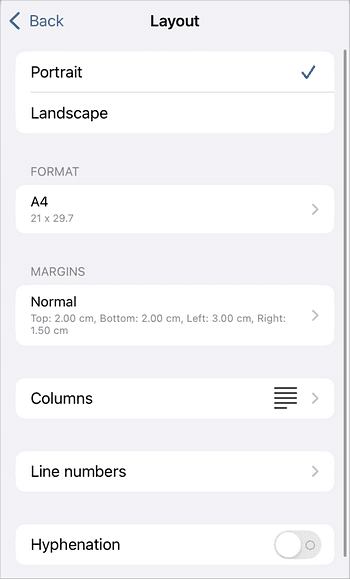
- The default orientation type is Portrait that can be switched to Landscape.
- FORMAT — to change the default page size. Tap the arrow next to this menu item and select the preset size you need: US Letter, US Legal, A4, A5, B5, Envelope #10, Envelope DL, Tabloid (27.94 × 43.17), A3, Tabloid (30.48 × 45.71), ROC 16K, Envelope Choukei 3, Super B/A3, A6, A2, A1, A0.
- MARGINS — to set the page margins. The following presets are available: Normal, US Normal, Narrow, Moderate, Wide. Select Set custom margins to define your own margin values.
-
Columns — to specify a type of multi-column layout:
- One — single-column layout (default).
- Two — two columns of the same width.
- Three — three columns of the same width.
- Left — two columns: a narrow column on the left and a wide column on the right.
- Right — two columns: a narrow column on the right and a wide column on the left.
- Line numbers — to add line numbers to your document. The following options are available: None, Continuous, Restart each page, Restart each section.
- Hyphenation — toggle the switcher to enable automatic hyphenation. Hyphenation is used to separate words at the end of lines with a '-' sign in a linguistically correct way.
All these parameters are applied to the entire document. If you need to set different orientation, margins, or size for separate parts of your document, please refer to the Inserting section breaks guide.
Article with the tag:
Browse all tags