Manipulating objects
Resize objects
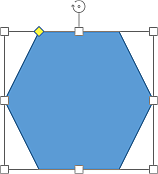
To change the autoshape/image/chart size, touch and drag one of the resize handles
 situated on the object edges.
Move objects
To alter the autoshape/image position, touch the border of the object and drag it to the necessary position.
When you move an object, guide lines are displayed to help you position the object on the page precisely.
Rotate objects
To rotate the autoshape/image, touch the rotation handle
 and drag it clockwise or counterclockwise.
Reshape autoshapes
When modifying some shapes, for example Figured arrows or Callouts, the yellow reshaping handle
 is also available. It allows to adjust some aspects of the shape, for example, the length of the head of an arrow.
Arrange several objects
If you have several objects overlapped, you can arrange their order:
- Tap the necessary object to select it.
- Tap the
 icon at the top toolbar.
 - Tap the arrow next to the Arrange menu item.
-
Select the desired arrangement option:
-
 Bring to Foreground — to move the selected object in front of all other objects.
 -
 Send to Background — to move the selected object behind all other objects.
 -
 Bring Forward — to move the selected object by one level forward as related to other objects.
 -
 Send Backward — to move the selected object by one level backward as related to other objects.
-