Protecting documents with a password
Protect documents with a password
To protect your documents in the Document Editor:
- Tap the
 Tools icon in the right corner of the top toolbar.
 - Tap the
 Protection menu option.
 - Choose whether you want to Encrypt File or to Protect Document.
To encrypt a file and to restrict unauthorized access to it:
- Tap the Encrypt File menu item.
- Enter the required password and verify it.

Please note that the password cannot be restored. Please keep it in a safe place so as not to forget it.
- Tap the Save button in the top right corner.
To protect a document and restrict access rights to it:
- Tap the Protect Document menu item.
- Enable the Set password switcher. Enter the required password and verify it.
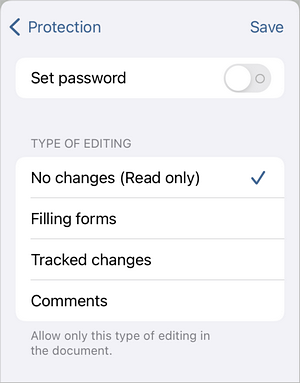
Please note that the password cannot be restored. Please keep it in a safe place so as not to forget it.
- Choose the allowed editing rights for the document: No changes (Read only), Filling forms, Tracked changes or Comments.
- Tap the Save button in the top right corner.
Next time you open this document you will need to enter the password.

Change the password
To change the password in the Document Editor:
- Tap the
Tools icon in the right corner of the top toolbar.
- Tap the
Protection menu option.
- Enter and verify the new password in the corresponding protection section.
- Tap the Save button in the top right corner.
Delete the password
To remove password protection from the Document Editor:
- Tap the
Tools icon in the right corner of the top toolbar.
- Tap the
Protection menu option.
- Disable the Set password switcher in the corresponding protection section.
- Tap the Save button in the top right corner.
Unprotect the document
To remove access restrictions from a protected document:
- Tap the
Tools icon in the right corner of the top toolbar.
- Tap the
Protection menu option.
- Tap the Unprotect menu option.
- Enter the password into the Unprotect Document window and tap OK.
Article with the tag:
Browse all tags