Creating a Table of Contents
Create a Table of Contents
A table of contents contains a list of all the chapters (sections, etc.) in a document and displays the page numbers where each chapter begins. It allows you to easily navigate through a multi-page document and quickly jump to the required part of the text.
The table of contents is generated automatically on the basis of the document headings formatted using built-in styles. This makes it easy to update the table of contents without having to edit the headings and change the page numbers manually if the text of the document has been changed.
To create a table of contents:
- Format the headings in your document using one of the predefined styles. By default, you can use the Heading 1 through Heading 9 styles. To learn more, please refer to the Apply formatting presets guide.
- Place the cursor where you want the table of contents to be inserted.
- Tap the
 icon at the top toolbar to open the new object insertion panel.
 - Switch to the Other tab.
-
Select the
 Table of Contents option and choose the display style:
- WITH PAGE NUMBERS — inserts a table of contents with page numbers next to each heading.
- WITH BLUE LINKS — inserts a table of contents with clickable links instead of page numbers.
The table of contents will be added at the current cursor position.
Adjust the table of contents appearance
- Tap the table of contents to select it.
- Tap the
 icon at the top toolbar to open the settings panel.
 -
Tap the Table of Contents tab to adjust the following options:
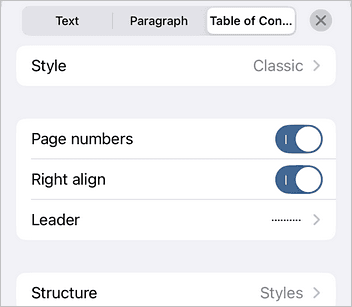
- Style — select the desired appearance of the table of contents. The following styles are available: Simple, Online, Standard, Modern, Classic.
- Page numbers — toggle the switcher to display or hide page numbers.
- Right align — toggle the switcher to align page numbers on the right side of the page.
- Leader — select the type of leader (the line of characters that fills the space between a heading and its page number): None, Dots, Hyphens, or Continuous Line.
-
Structure — specify what to include in the table of contents:
- Levels — specify the number of heading levels to include.
- Styles — select which styles to include. A list of all available styles opens; check the styles you want to include and set how many occurrences of each style should appear in the table of contents.
Refresh the table of contents
After editing your document, e.g., adding new headings, reordering sections, or changing the text, the table of contents may need to be updated. To refresh it:
- Tap the table of contents to select it.
- Tap the
icon at the top toolbar to open the settings panel.
- Tap the Table of Contents tab.
- Tap the Refresh button.
Navigate using headings
Once headings are added to your document, you can use them to quickly jump to any section without scrolling.
- Tap the
 Tools icon at the top toolbar.
 - Select the
 Headings option.
 - Tap the necessary heading in the list to jump to that section in the document.
Remove the table of contents
To remove the table of contents:
- tap it to select it and use the Delete option from the pop-up menu, or
-
tap the
icon at the top toolbar to open the settings panel and tap the Delete Table of Contents button.