Applying formatting presets
Apply formatting presets
To apply one of the available text formatting presets:
- Place the cursor within the paragraph you need, or select several paragraphs you want to apply one of the formatting presets to.
- Open the Paragraph Settings panel by
- tapping the
 icon at the top toolbar, or
 - tapping the Paragraph option in the pop-up menu.
- tapping the
-
Select the preset you need from the Paragraph Styles list (swipe up to see more styles).
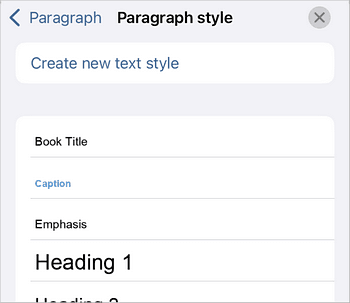
The following formatting presets are available: Book Title, Caption, Emphasis, Heading 1 through Heading 9, Intense Emphasis, Intense Quote, Intense Reference, List Paragraph, No Spacing, Normal, Quote, Strong, Subtitle, Subtle Emphasis, Subtle Reference, Title.
To create a custom text style, tap the Create new text style option at the top of the list. Specify the following:
- Title — enter a name for the new style.
- Next Paragraph Style — select the style that will be applied to the next paragraph automatically. You can choose Same as created new style or any of the available presets.
Article with the tag:
Browse all tags