Applying font decoration styles
Apply font decoration styles
You can format the text using the text formatting toolbar at the bottom of the screen or using the text settings panel.
Select the text you want the formatting to be applied to and use the corresponding icons on the formatting toolbar below.

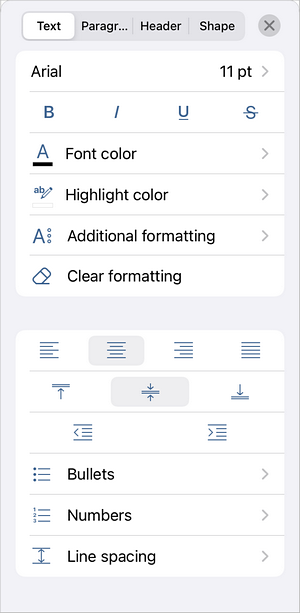
It's also possible to change font properties via the text settings panel. Open the settings panel by tapping the  icon at the top toolbar.
On the Text tab, use one of the available settings:
-
 Bold — tap this icon to make the font bold giving it more weight.
 -
 Italic — tap this icon to make the font italicized giving it some right side tilt.
 -
 Underline — tap this icon to make the text underlined with the line going under the letters.
 -
 Strikethrough — tap this icon to make the text struck out with the line going through the letters.
Tap the  icon at the text formatting toolbar or the
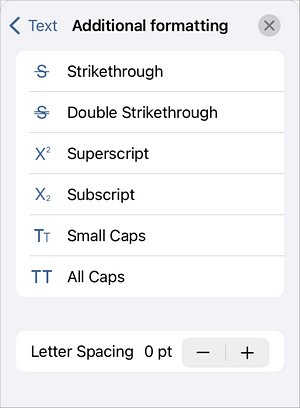
  Additional formatting menu item and use one of the following options:
-
Strikethrough — is used to make the text struck out with the line going through the letters.
-
 Double strikethrough — is used to make the text struck out with the double line going through the letters.
 -
 Superscript — is used to make the text smaller and place it to the upper part of the text line, e.g. as in fractions.
 -
 Subscript — is used to make the text smaller and place it to the lower part of the text line, e.g. as in chemical formulas.
 -
 Small Caps — is used to make lowercase letters appear as smaller uppercase letters.
 -
 All Caps — is used to make all letters upper case.
 - Letter Spacing — is used to set the space between the characters. Tap
 or
or
 icons to decrease or increase the current value.
Tap the  Clear formatting menu item to clear your text of all the additional formatting.
Article with the tag:
Browse all tags