Adding links
Add a link
- Place the cursor where you want the link to be added or select the text passage that will get clickable.
- Tap the Add link option from the pop-up menu or do the following:
- tap the
 icon at the top toolbar to open the new object insertion panel,
 - switch to the
 Other tab,
 - select the
 Link option.
- tap the
- After that the Insert Link screen will appear where you can specify the link parameters:
- Link — enter a URL in the format http://www.example.com.
-
Display — enter a text that will get clickable and lead to the web address specified in the upper field.
If you've selected a text passage before tapping the
icon, the Display field will be filled with the selected text fragment. - ScreenTip — enter a text that will become visible in a small pop-up window that provides a brief note or label pertaining to the link being pointed to.
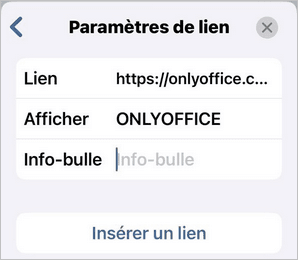
- Tap Insert Link.
To follow the added link, touch and hold until the pop-up menu with the Open Link option appears, then tap it.
Edit or remove the added link
- Select the link and tap the Link option in the pop-up menu.
-
In the Link Settings screen that opens, perform the actions you need:
- edit your data and tap the Edit Link option to save the changes.
- use the Delete Link option to delete the added link.
Article with the tag:
Browse all tags