Inserting page breaks
Insert a page break at the current cursor position
- Tap the
 icon at the top toolbar to open the new object insertion panel.
 - Switch to the Other tab.
- Select the
 Page Break option.
Insert a page break before the selected paragraph
- Put the cursor within the paragraph you need.
-
Open the Paragraph Settings panel by
- tapping the
 icon at the top toolbar, or
 - tapping the Paragraph option in the pop-up menu.
- tapping the
- Tap the Advanced settings menu item.
- Turn the Page Break Before option on.
Adjust other pagination options
The Advanced settings section of the Paragraph Settings panel contains three more pagination options. Swipe up to see them:
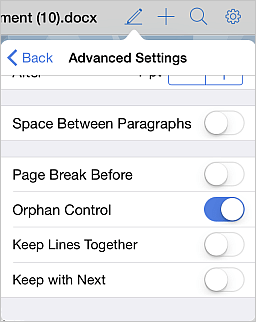
- Orphan Control — is turned on by default and used to prevent a single line of the paragraph (the first or last) from appearing at the top or bottom of the page.
- Keep Lines Together — is used to keep lines together so that only whole paragraphs will be moved to the new page (i.e. there will be no page break between the lines within a single paragraph).
- Keep with Next — is used to prevent a page break between the selected paragraph and the next one.
Article with the tag:
Browse all tags