Database connection
Connect an external database to store form submission results collected from Form Filling Rooms. MySQL and SQLite are currently supported.
Enabling database connection
To connect an external database,
-
Go to Settings > Integration > Third-party services.
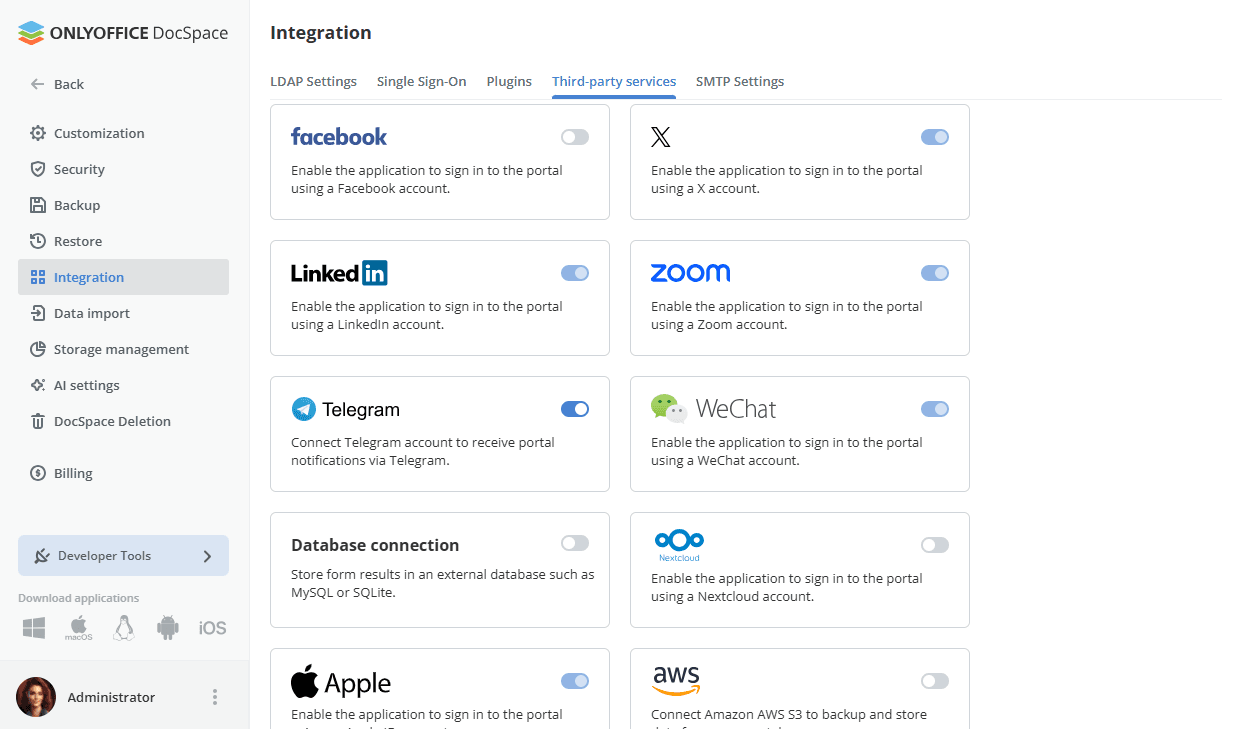
- Scroll down to Database connection and click the toggle to open the connection dialog.
-
Fill in the connection details:
- Database type — select MySQL or SQLite from the dropdown.
- Host — enter the hostname or IP address of the database server.
- Port — enter the port number used by the database server.
- Database name — enter the name of the database where form results will be stored.
- User — enter the database user account name.
- Password — enter the password for the database user account.
- Use SSL — check this option to encrypt the connection to the database server.
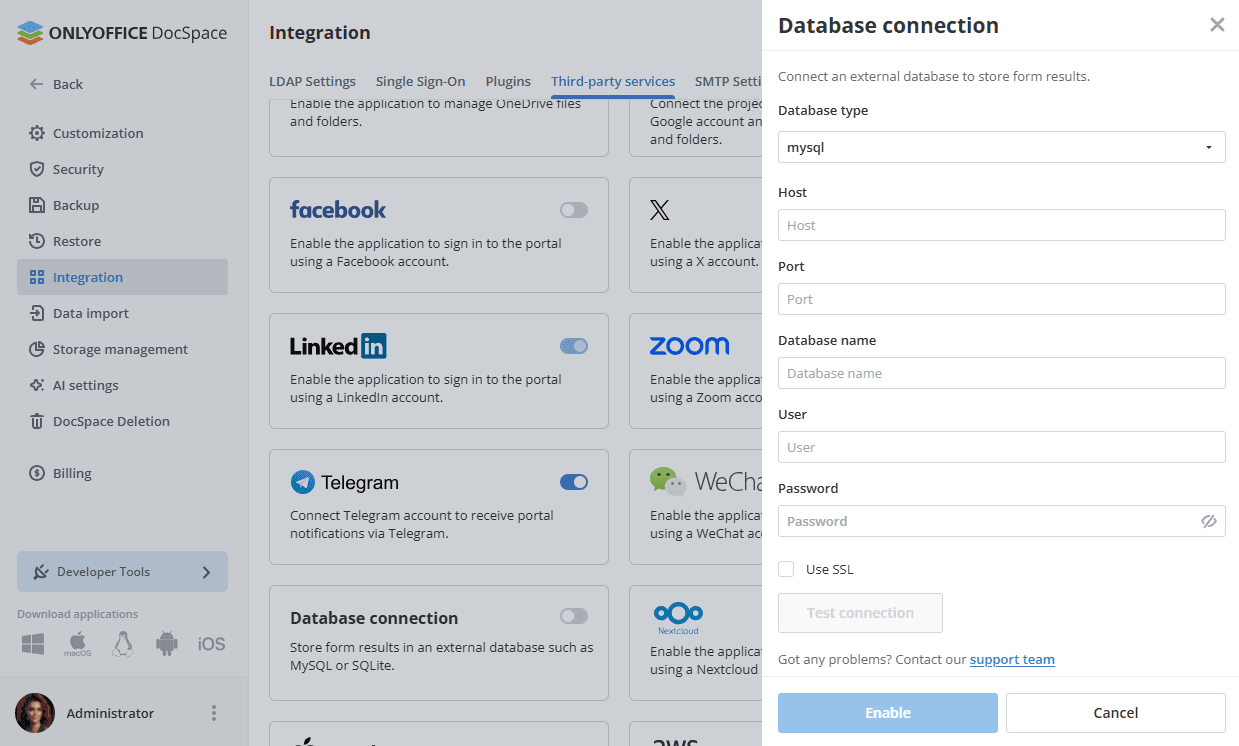
- Click Test connection to verify that DocSpace can reach the database with the provided credentials.
- Click the Enable button to save the settings and activate the integration.
If you run into any issues during setup, use the Contact our support team link at the bottom of the dialog.
Exporting form results to the database
Once the database connection is enabled, you can configure individual Form Filling Rooms to export their results to it automatically.
To set this up when creating a new Form Filling Room,
- Go to the Rooms section on the left.
- Use the New room button in the upper left corner or the
 Plus icon above the list of rooms.
 - Select Form Filling Room.
- Enter the room name and configure any other options as needed.
-
Turn on the Export results to the database switcher.
A table will be created in the connected database for each standard form in the room immediately after a copy is filled out or on a schedule.
- Click Create.
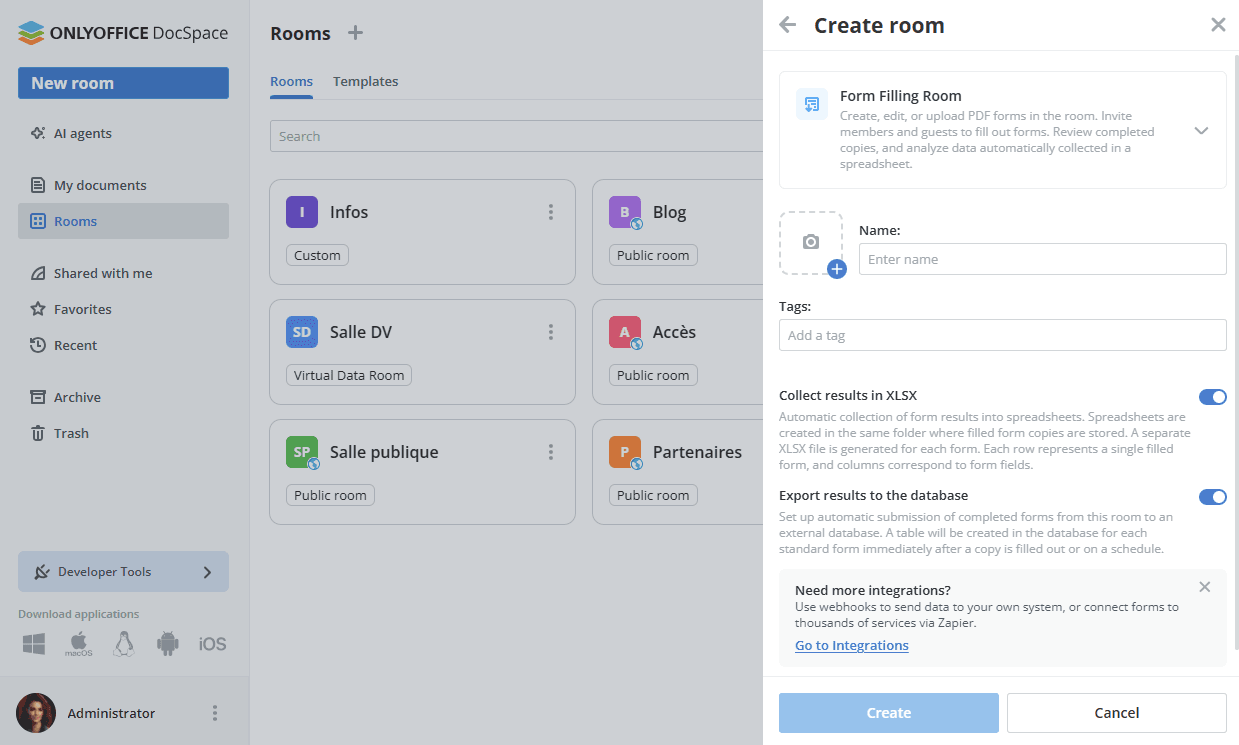
The Export results to the database option is only available when a database connection has been configured in Integration settings. If the option is not visible, check that the connection is active under Settings -> Integration -> Third-party services.
For more details about Form Filling Rooms, read this article.
Article with the tag:
Browse all tags