Exporting a presentation as an animation or video
Exporting presentation
The Presentation Editor allows you to export your presentation as an animation or a video.
To export a presentation as an animation or video:
- Click the File tab of the top toolbar.
- Select the Download as option.
- Choose Animated or Video.
In the desktop editors, go to the File tab → Export to access the feature.
The export window opens, containing two tabs: Animation and Video.
Animation tab
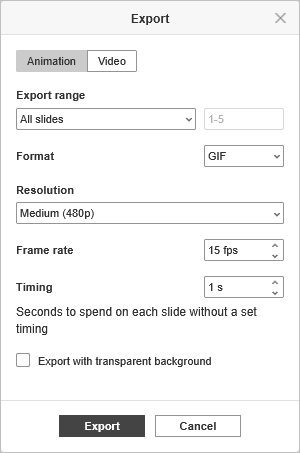
The Animation tab offers the following settings:
- Export range - choose which slides to export: All slides, Current slide, Selected slides, or Custom slides. Selecting Custom slides enables the field to the right, where you can enter the slide numbers manually, e.g., 1,3,5-7. This field is not editable for the other options.
- Format - choose the export file format: GIF or WEBP.
- Resolution - choose the resolution of the exported file: Small (240p), Medium (480p), Large (720p), or Extra Large (1080p).
- Frame rate - enter the frame rate value (fps) manually. The default value is 15.
- Timing - enter the number of seconds to spend on each slide that doesn't have a set timing. The default value is 1 second.
- Check the Export with transparent background box to export the animation with a transparent background.
Video tab
The Video tab offers the following settings:
- Export range - choose which slides to export: All slides, Current slide, Selected slides, or Custom slides. Selecting Custom slides enables the field to the right, where you can enter the slide numbers manually, e.g., 1,3,5-7. This field is not editable for the other options.
- Format - choose the export file format: MP4 or WEBM.
- Resolution - choose the resolution of the exported file: Standard (480p), HD (720p), Full HD (1080p), or Ultra HD (4K).
- Timing - enter the number of seconds to spend on each slide that doesn't have a set timing. The default value is 1 second.
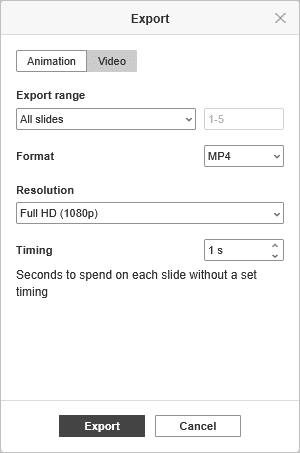
Once the settings are configured, click the Export button to save the file.
Article with the tag:
Browse all tags