Text Cleaner: Removing formatting from pasted text
Clean up pasted and imported text in the Document Editor using the  Text Cleaner plugin. It removes unwanted formatting while preserving document structure, making it a smarter alternative to the standard clear-formatting tool. Use it to clean up copied web content, standardize internal documentation, polish emails, and prepare academic or technical texts.
The plugin is compatible with ONLYOFFICE Document Editor 7.0 and later on Windows, macOS, and Linux. Please refer to the GitHub page of the plugin to learn more.
Opening Text Cleaner
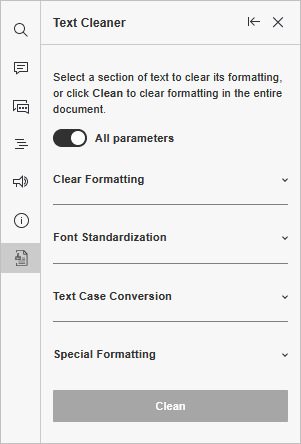
To open the plugin, switch to the Plugins tab and click Text Cleaner. The plugin interface appears in the left sidebar with the available options selected by default.
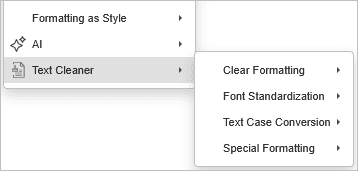
You can also access some actions directly from the context menu by right-clicking in the document.
Using Text Cleaner
- Select the text you want to clean. To apply cleaning to the entire document, leave no text selected.
-
Use either the plugin panel or the context menu to apply the required action:
- Plugin panel: In the left sidebar, the available tools are grouped into accordion sections. Choose the options you need, then click the Clean button. To apply all available cleaning options at once, use Select All.
- Context menu: Right-click the selected text, find the Text Cleaner section, and click the action you want to apply.
After processing, the plugin shows two buttons:
- New Cleaning — starts a new cleanup session and clears the previous selection.
- Revert to Original — restores the text to its state before cleaning.
Available tools
Text Cleaner provides four groups of tools: