Chinese Convertor: Converting text and adding Pinyin
Overview
The Chinese Convertor plugin for ONLYOFFICE handles two tasks: converting text between Simplified and Traditional Chinese scripts, and generating inline Pinyin annotations. It runs in the Document Editor, Spreadsheet Editor, and PDF Editor.
Script conversion
You can convert selected text between Simplified and Traditional Chinese in either direction. Select a passage, pick the conversion you need, and the text updates instantly.
Pinyin annotation
The plugin generates Pinyin readings and places them in parentheses directly after each character. For instance, 你好 becomes 你(nǐ)好(hǎo). This makes it a practical tool for anyone producing language-learning content, annotated reading materials, or pronunciation guides. When you no longer need the annotations, a single action strips them out and restores the clean text.
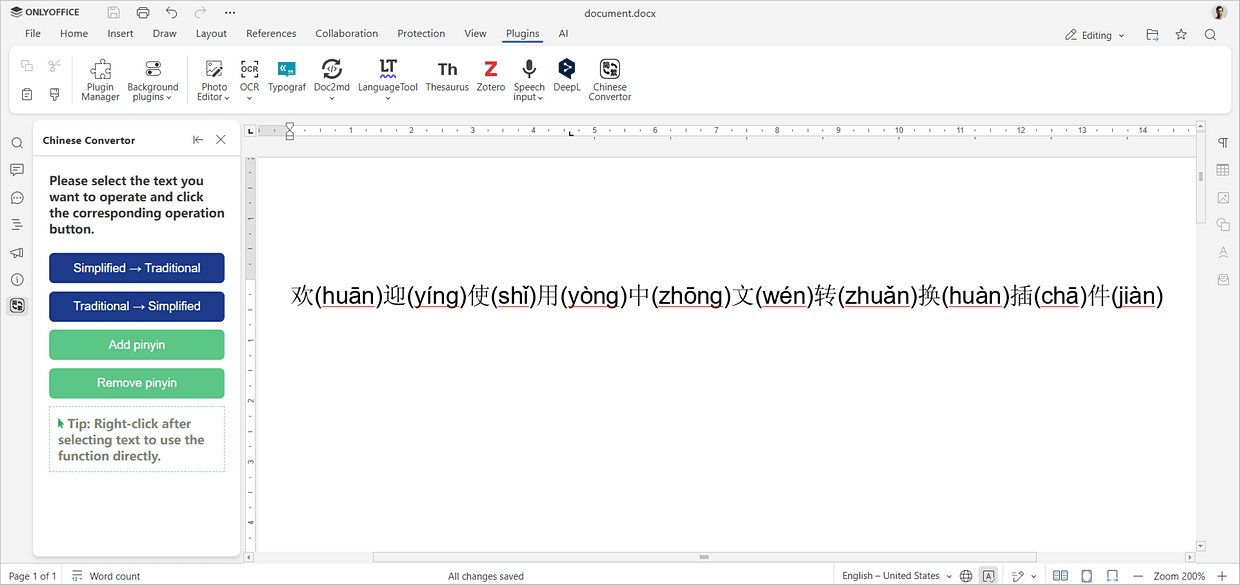
Accessing the plugin
There are two ways to use the plugin once installed:
- Side panel — open Chinese Convertor from the toolbar to get a dedicated panel on the left side of the editor with all four actions laid out clearly.
- Context menu — right-click any selected Chinese text to access the conversion options directly, which is faster when you already know what you need.
Both methods lead to the same four actions:
- Convert Select to Traditional
- Convert Select to Simplified
- Add pinyin
- Remove pinyin
Installation
From the Plugin Manager
- Open the Plugins tab in ONLYOFFICE and launch the
 Plugin Manager.
 - Go to the Marketplace tab.
- In Categories, select Special abilities (or All plugins).
- Search for Chinese Convertor.
- Click Install.