Android: Enabling AI in ONLYOFFICE Documents
Enabling AI assistant
ONLYOFFICE empowers users to tailor AI tools to their unique workflows. The AI assistant provides easy access to AI features through the AI Chat section, allowing you to connect AI models from different providers and use them for various tasks.
Please note that by default, AI is not connected to the editors for security reasons.
To connect an AI model:
- Tap
 AI Chat in the bottom navigation bar.
 - If no AI models are connected, tap Add provider.
-
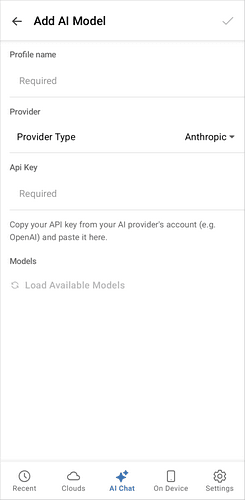
Fill in the following fields:
- Profile name - enter a name for the AI model profile.
- Provider - select your AI provider from the drop-down list. The following providers are supported: OpenAI, Anthropic, Google, Mistral, Grok, and DeepSeek.
- API Key - paste the API key from your AI provider's account.
- Models - tap Load Available Models to retrieve the models available from the selected provider, then select your desired model.
- Tap the
 icon in the top-right corner of the screen to save the model and complete the connection process.
Using AI assistant
To use the AI assistant:
- Tap AI Chat in the bottom navigation bar.
-
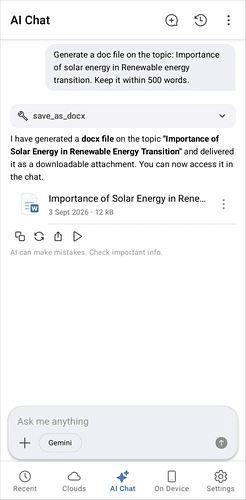
Describe the file you want to create in the Ask me anything field. For example:
- "Create a project proposal document with sections for objectives, timeline, and budget."
- "Make a 5-slide presentation introducing our Q3 marketing plan."
- "Build a spreadsheet to track monthly expenses with categories and a totals row."
-
Optionally, you can attach a file, image, or photo for additional context.
- Tap the
 icon next to the input field.
 - Select Add File to attach a file.
- Select Add Images to attach images.
- Select Take photo to take and attach a photo.

- Tap the
The AI assistant also provides several predefined tasks, such as Summarize, Draft email, Help me write, and Brainstorm.
Managing AI assistant
You can manage your connected AI models from the AI Models settings page.
- Tap the
 icon in the top-right corner of the AI Chat tab and tap AI Settings.
 -
Tap the icon next to a connected AI model to access the following options:
- Edit Model - change the profile name, provider, or selected model. Tap Load Available Models to select a different model from the same provider.
- Delete Model - remove the AI model from the list.
- To add another AI model, tap the button in the top-right corner of the AI Models screen.
- To access the AI Chat history, tap the
 icon in the AI Chat tab.
Warning
AI-generated content may not always be accurate or complete. It is processed by an AI service of your choosing. ONLYOFFICE assumes no responsibility for the accuracy or completeness of AI-generated content. Please review and verify any critical information before relying on it.
Article with the tag:
Browse all tags