Plugin manager
Introduction
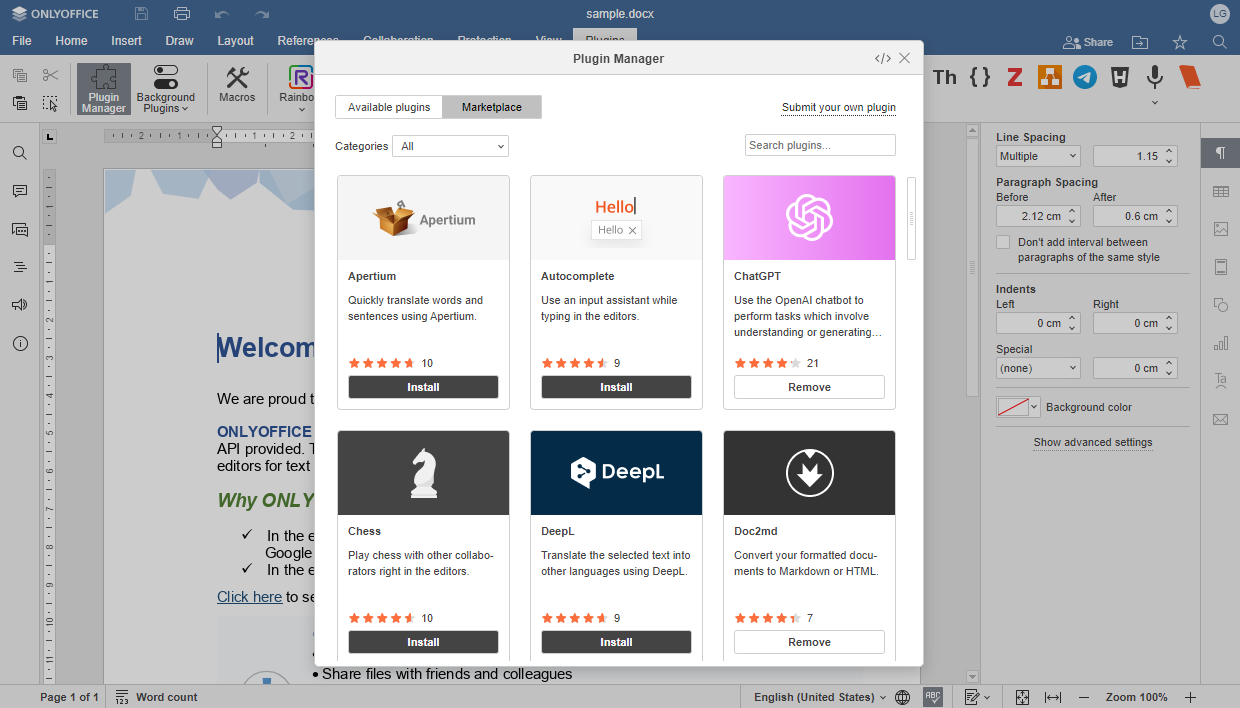
Plugin manager allows you to look through all available plugins and quickly install and update them, as well as submit your own.
To access the plugin manager, go to the Plugins tab of the editor and click the  Plugin Manager icon.
The Plugin Manager window lists every plugin in a single view. Use the panel on the left to filter the list by Installed plugins, by available Updates, or by category.
Filtering plugins
The left-hand panel of the Plugin Manager window gives you three ways to filter down the plugin list:
- Installed section shows only the plugins currently installed in the editor.
- Updates section shows the plugins that have a newer version available.
- Categories section lists the following: By ONLYOFFICE, Recommended, Work, Entertainment, Communication, Special abilities, and Developer tools. You can see a count of plugins for each category. You can also click All plugins to browse the full catalog.
Use the Search plugins... field in the top right corner of the window to find a specific plugin by name.
Installing, removing, and submitting plugins
Each plugin appears as a card showing its icon, name, developer, description, and rating. Plugins developed by ONLYOFFICE display a  checkmark.
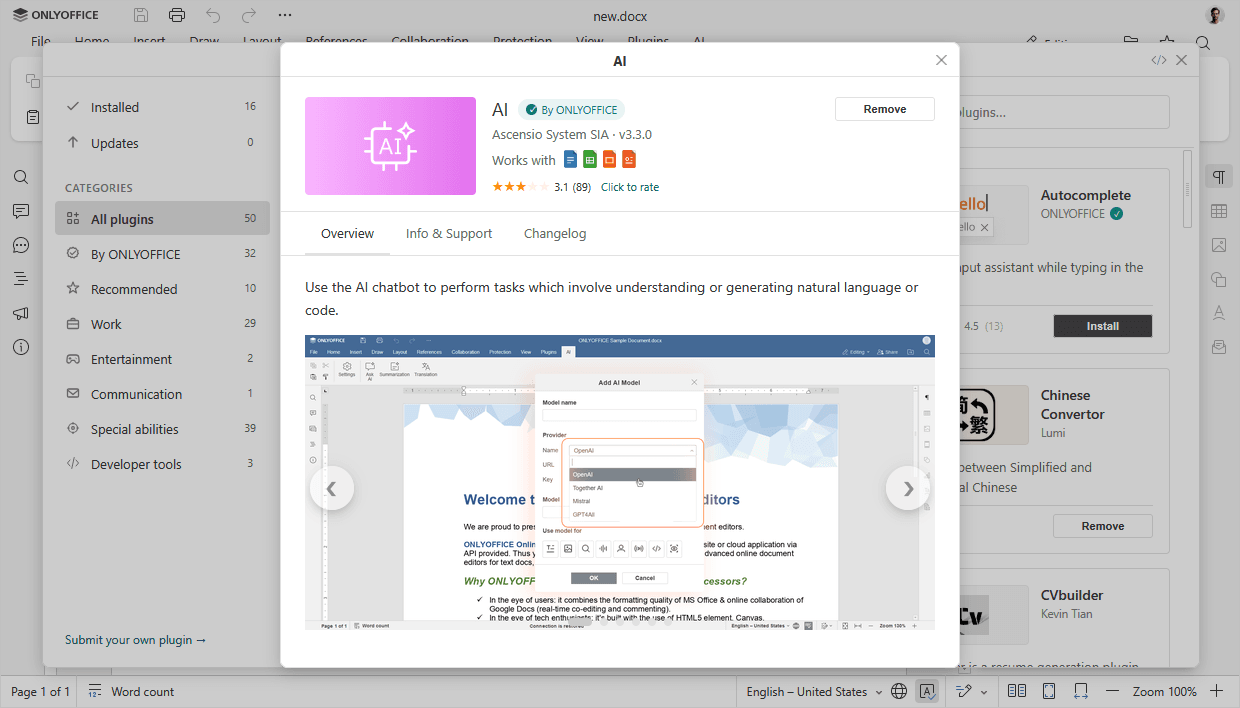
- To install a plugin, find it in the list and click the Install button on its card. The plugin installs automatically, and you can access it on the Plugins tab.
- To update a plugin, find it in the list of Installed plugins or use the Search plugins... field in the top right corner. Click the plugin to open the managing window. If there is an update available, click the Update button. The plugins that have a newer version will be marked with a green Update sign.
- To remove a plugin, find it in the list or use the Search plugins... field in the top right corner, and click the Remove button below.
- To submit your own plugin, click the Submit your own plugin link at the bottom of the left-hand panel. You will be redirected to the GitHub page.
Server commands for plugin manager in the Document Server
The pluginsmanager utility can help you manage the plugins in the server solution.
-
Enter the directory:
- For Docker, DEB, and RPM, the command is as follows:
cd /usr/bin - For Windows, the command is as follows:
cd C:\Program Files\ONLYOFFICE\DocumentServer\bin
- For Docker, DEB, and RPM, the command is as follows:
-
Address the Plugin Manager with the following command (the paths in the examples are default ones, please change them if necessary):
-
For Docker, DEB, and RPM, the command is as follows:
./documentserver-pluginsmanager --your_command="pluginname" -
For Windows, the command is as follows:
documentserver-pluginsmanager.bat --your_command="pluginname"
-
For Docker, DEB, and RPM, the command is as follows:
where --your_command contains one of the following options:
| Option | Description |
|---|---|
| --h OR --help | Print usage information |
| --directory | Required parameter. Set plugins folder in quotes. For example, --directory="/home/mark/plugins". The symbol = can be skipped for all parameters. Must be first on the command line |
| --marketplace | Optional parameter. Set plugins marketplace URL in quotes. Default is https://onlyoffice.github.io |
| --print-installed | Optional parameter. Print installed plugins. Parameter without value |
| --print-removed | Optional parameter. Print removed plugins. Parameter without value |
| --print-marketplace | Optional parameter. Print available plugins from the marketplace. Parameter without value |
| --print-backup | Optional parameter. Print backup plugins. Parameter without value. Backup plugins can be restored using --restore option |
| --reset | Optional parameter. Reset user setting. Parameter without value |
| --install | Optional parameter. Set comma-separated quoted list of plugins to install. Installing by
Combined installation is supported, for example, --install="photo editor, {7327FC95-16DA-41D9-9AF2-0E7F449F6800}", etc. File paths without quotes, plugin extensions: .zip, .plugin
|
| --restore | Optional parameter. Set comma-separated quoted list of plugins to restore. Restoring by plugin name or GUID is supported. For example, --restore="Youtube, {7327FC95-16DA-41D9-9AF2-0E7F449F6800}" |
| --update | Optional parameter. Set comma-separated quoted list of plugins to update. Updating by plugin name or GUID is supported. For example, --update="Youtube, PhotoEditor, {7327FC95-16DA-41D9-9AF2-0E7F449F6800}" |
| --update-all | Optional parameter. Update all installed plugins from marketplace. Parameter without value |
| --remove | Optional parameter. Set comma-separated quoted list of plugins to remove. Removing by plugin name or GUID is supported. For example, --remove="Youtube, PhotoEditor, {7327FC95-16DA-41D9-9AF2-0E7F449F6800}" |
| --remove-all | Optional parameter. Remove all installed plugins. Parameter without value |