Reattaching tasks to other milestones
This guide describes how to attach an existing task to another milestone without creating the same task again.
Quick Start
Follow the steps below to attach a task to another milestone:
- Sign in to your portal.
- Click the Projects link on the start page.
- In the Projects module that opens, the list of the existing tasks will be displayed if there is at least one open task. You can also click the Tasks option in the left-side panel to open the task list.
- Click the
 icon next to the task you need and select the Move to milestone option.
 - In the window that opens, select the milestone you need from the available ones. You can also select the none option; in this case, the task will not belong to any milestone.
- Click Move to milestone.
Now you can find your task under the selected milestone.
You can also quickly move multiple tasks at once from one milestone to another. To do that, select the tasks that belong to the same milestone and click Move above the task list. In the confirmation window, select a different milestone and click Move to milestone.
Additional Information
Moving a task depending on its status
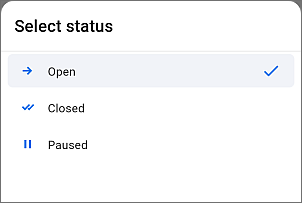
You can move a task when it is being performed. If the task is closed, you will need to change its status on the task page first and then proceed as described above.
You can also change the task status by selecting the option you need from the menu next to the task title in the tasks list, as shown in the picture on the right.