Impersonating other users in the server version
Impersonation Settings allow the portal owner and full-access administrators to sign in to the portal on behalf of any user.
Enabling the impersonation feature
By default, this feature is disabled. If the owner wants to use it, the feature must be enabled in the configuration file:
- Open the /var/www/onlyoffice/WebStudio/web.appsettings.config file with a text editor.
- Find the core.user.impersonate key.
- Set the value to
trueand save the changes. - Restart the monoserve service:
sudo service monoserve restart
After that, the Impersonation Settings section will appear in the portal settings. It will be available to the owner only.
Adjusting impersonation settings
Once the feature is enabled in the configuration file, the owner can adjust the portal settings:
- Sign in to your portal.
- Click the
 icon in the upper-right corner to open the Settings section.
 - Select the Access Rights tab in the left-side panel, then go to the Impersonation Settings subsection.
- Enable the Enable Impersonation toggle. If you save the settings, only the owner will be able to sign in to the portal on behalf of any user.
- If you want to allow full-access administrators to impersonate other users, go to the Access for Admins section and select the full-access administrators who can use this feature.
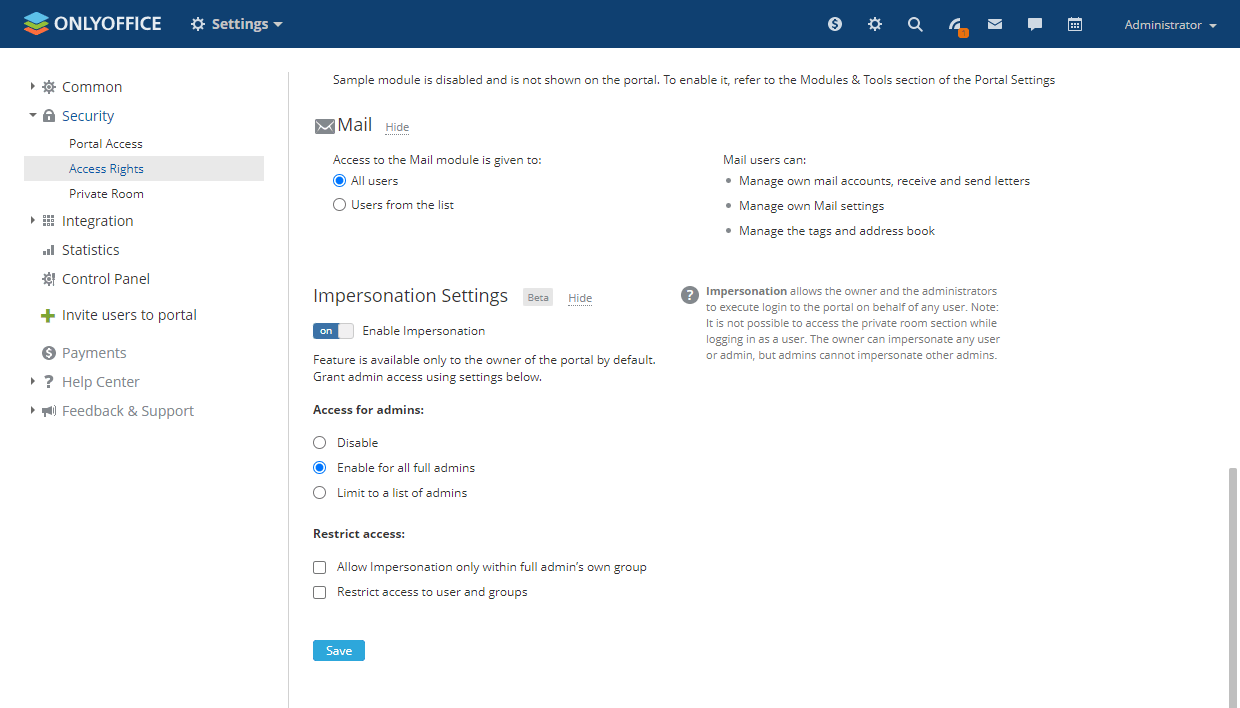
- Disable: to make this feature available to the owner only.
- Enable for all admins: to make this feature available to the owner and all full-access administrators.
- Limit to a list of admins: to make this feature available to the owner and the full-access administrators selected from the list. Click Add and select the full-access administrators you need.
- If the feature is enabled for administrators, the Restrict access section appears. It allows you to restrict signing in on behalf of specific users.
- Allow Impersonation only within full admin’s own group: to restrict signing in on behalf of the users who do not belong to the full administrator's group.
- Restrict access to users and groups: to restrict signing in on behalf of the users selected from the list. Click Add users or Add groups and select the users or groups you need.
These restrictions are applied to full-access administrators only. The owner can impersonate any user or administrator regardless of the restrictions. - Click Save at the bottom of the section to apply the parameters you set.
Logging in on behalf of a user
Once the feature is enabled in the portal settings, the owner or full-access administrators can sign in to the portal on behalf of a user.
It is not possible to access the private room section while signing in as a user. The owner can impersonate any user or administrator, but administrators cannot impersonate other administrators.
- Go to the People module.
- Click the
 icon to the right of the user you need.
 - Select the Login as User option from the menu.
- In the confirmation window, click Yes.
- You will be signed in under the selected user. To return to your account, use the Sign Out option.
Article with the tag:
Browse all tags