Integrating ONLYOFFICE with VK

Connect your VK account to sign in to your portal quickly.

Obtaining VK access keys

To obtain the access keys required to connect VK to your portal:

  1. Go to https://vk.com/apps?act=manage.
  2. Sign in to your account.
  3. Click the Create app link.
  4. Enter the app Title.
  5. In the Platform section, select Website.
  6. Specify https://service.onlyoffice.com in the Website address field.
  7. Specify onlyoffice.com in the Base domain field.
  8. Click Connect website.
  9. Link a device for managing the app if one is not already linked. Open the notification sent to the device and follow the instructions. You will receive a call. Enter the last four digits of the incoming phone number as the confirmation code and click Confirm.
  10. Go to the app Settings.
  11. Enter https://service.onlyoffice.com/oauth2.aspx in the Authorized redirect URI field and click Save.
  12. Copy the App ID and Secure key.

Connecting VK to ONLYOFFICE

To connect VK to your portal:

  1. Click the Settings Icon icon in the upper-right corner to open Settings.
  2. Select the Integration tab.
  3. Open the Third-Party Services page.
  4. Scroll down to VK and click the toggle to enable it.
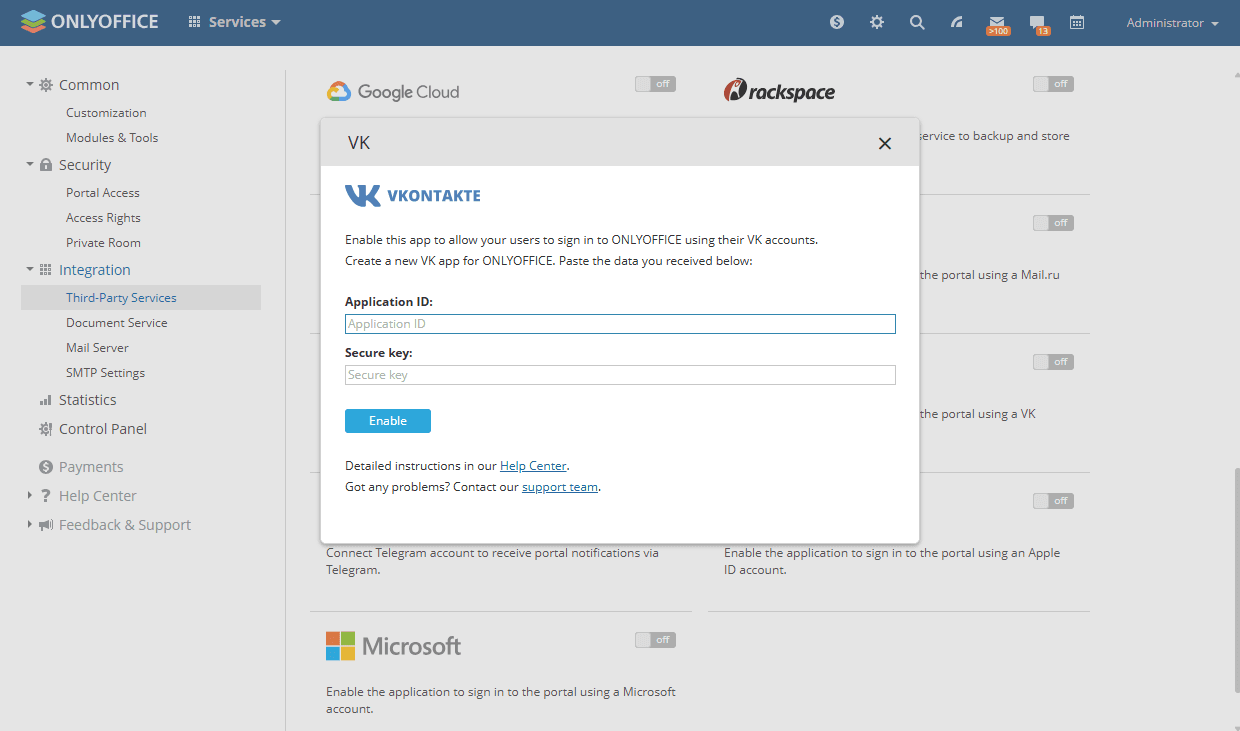
  5. In the VK window that opens, enter the App ID and Secure key obtained in the previous section.
    Integrate VK Integrate VK
  6. Click Enable to connect the service.
Article with the tag:
Browse all tags