Integrating ONLYOFFICE with SMSC
Connect the SMSC service to enable two-factor authentication and allow portal users to receive an SMS verification code when signing in.
Connecting SMSC to ONLYOFFICE
To connect SMSC to your portal:
- Click the
 icon in the upper-right corner to open Settings.
 - Select the Integration tab.
- Open the Third-Party Services page.
- Scroll down to SMSC and click the toggle to enable it.
- In the SMSC window that opens, enter the credentials obtained in the previous section.
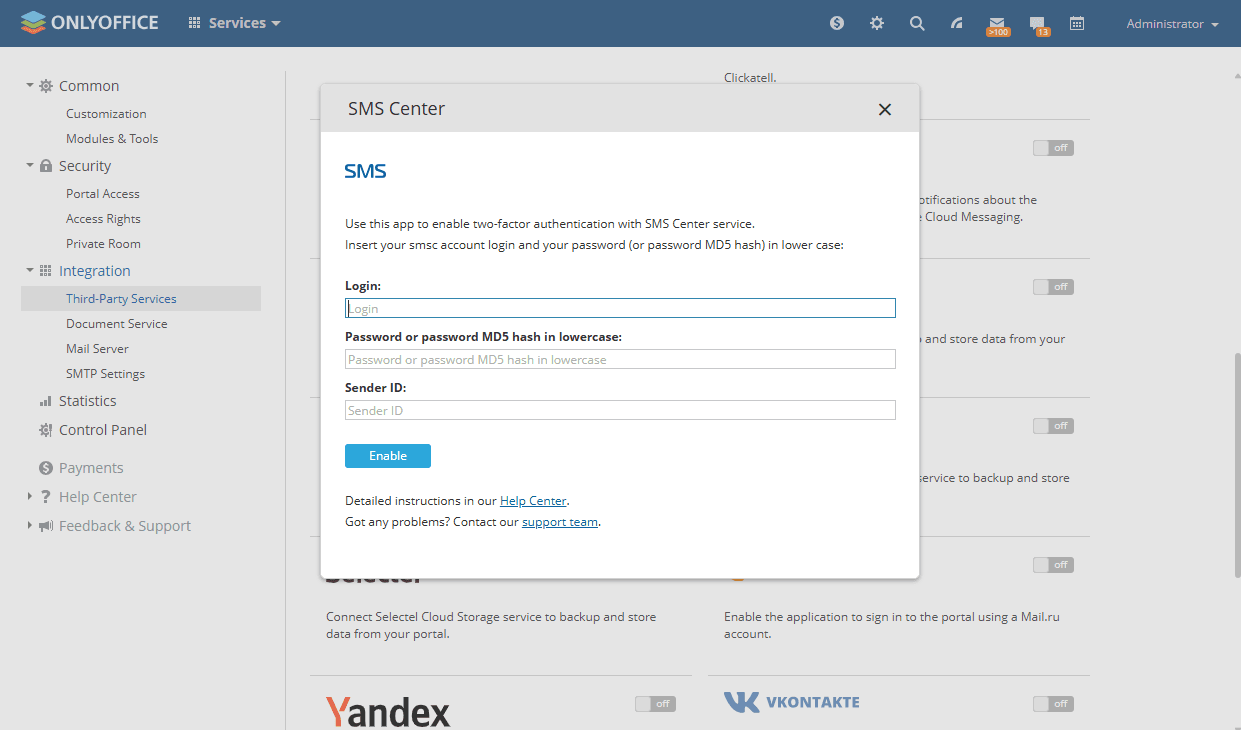
- Click Enable to connect the service.
Once connected, refer to this article to learn how to enable two-factor authentication on your portal.
Article with the tag:
Browse all tags