Integrating ONLYOFFICE with OneDrive
Connect your OneDrive account to edit documents stored in OneDrive directly from the Documents portal module.
Server version
Step 1. Creating authorization keys
To create the authorization keys required to connect OneDrive to your portal:
- Go to Microsoft Azure.
- Sign in to your account.
- Click New registration on the App registrations page.
- Enter your application Name.
- Enter
https://service.onlyoffice.com/oauth2.aspxin the Redirect URL field. - Click Register.
- Copy or note down the
Application (client) IDdisplayed on the Overview page. - Select the Certificates & secrets section on the left.
- Click New client secret.
- Enter a description and click Add.
- Copy or note down the
Client secretdisplayed in the Value field.
Step 2. Connecting OneDrive on the portal
To connect OneDrive on your portal:
- Click the
 icon in the upper-right corner to open Settings.
 - Select the Integration tab.
- Open the Third-Party Services page.
- Scroll down to OneDrive and click the toggle to enable it.
- In the OneDrive window that opens, enter the
Application (client) IDandClient secretobtained in the previous step. - Click Enable to connect the service.
Cloud version
Connecting OneDrive for Business or SharePoint
OneDrive for Business and SharePoint can be connected under an Office 365 Global admin account only.
To connect OneDrive for Business or SharePoint:
- In the left sidebar, click the three dots
 under the Connect section and select SharePoint or OneDrive for Business in the Connecting account window, or go to Settings > Connected clouds and click Connect cloud.
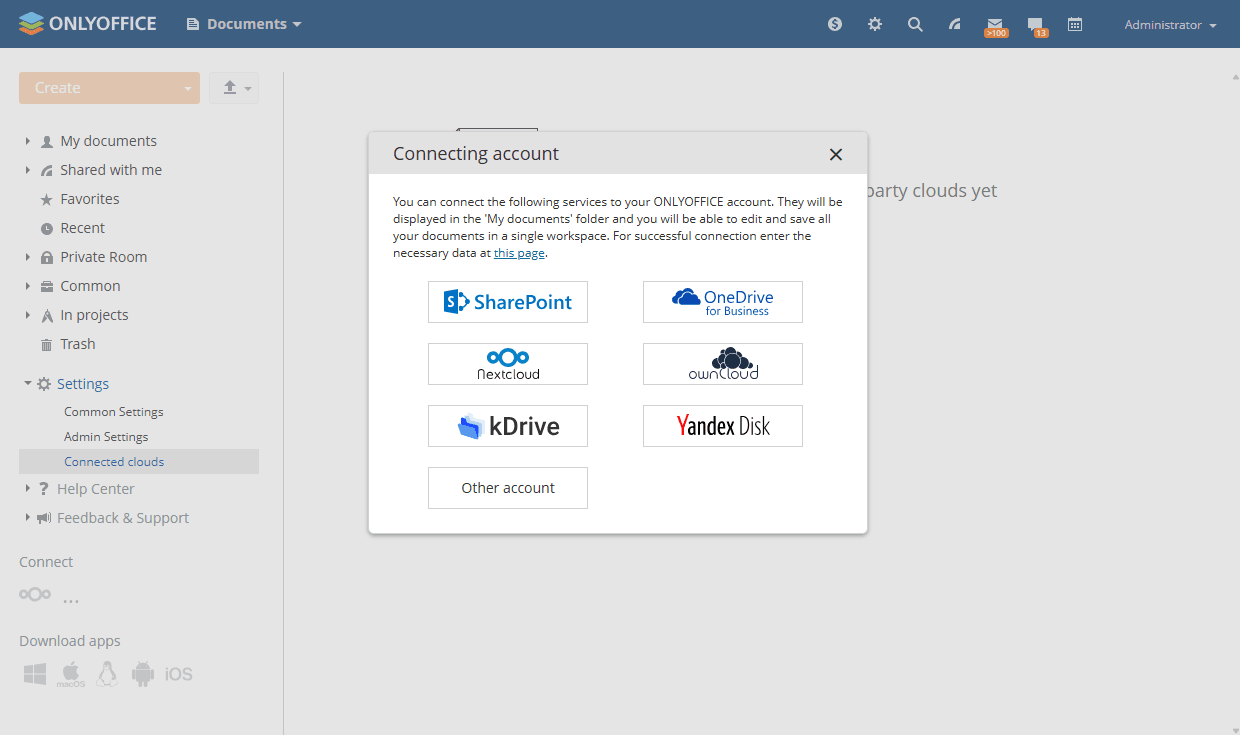
- Enter the Connection URL. The URL must follow this format:
https://****-my.sharepoint.com/. Do not include any path segments after the top-level domain. - Enter the Login and Password for your Office 365 account.
- Specify the name of the folder where the documents will be stored, or leave the default name.
- Click Save.
Article with the tag:
Browse all tags