- Home
- Workspace
- Administration
- Connecting external services
- Integrating ONLYOFFICE with Microsoft
Integrating ONLYOFFICE with Microsoft
Connect your Microsoft account to log in to your portal quickly.
Obtaining Microsoft access keys
To obtain the access keys required to connect Microsoft to your portal:
- Go to Microsoft Azure.
- Sign in to your account.
- Click New registration on the App registrations page.
- Enter your application Name.
- Select Web and enter
https://service.onlyoffice.com/oauth2.aspxas the platform in the Redirect URL field. - Click Register.
- Copy or note down the
Application (client) IDdisplayed on the Overview page. - Select Certificates & secrets in the left-side menu.
- Click New client secret.
- Enter the description and click Add.
- Copy or note down the
Client secretdisplayed in the Value field.
Connecting Microsoft to ONLYOFFICE
To connect Microsoft to your portal:
- Click the
icon in the upper-right corner to open Settings. - Select the Integration tab.
- Open the Third-Party Services page.
- Scroll down to Microsoft and click the toggle to enable it.
- In the Microsoft window that opens, enter the
Application (client) IDandClient secretobtained in the previous section.
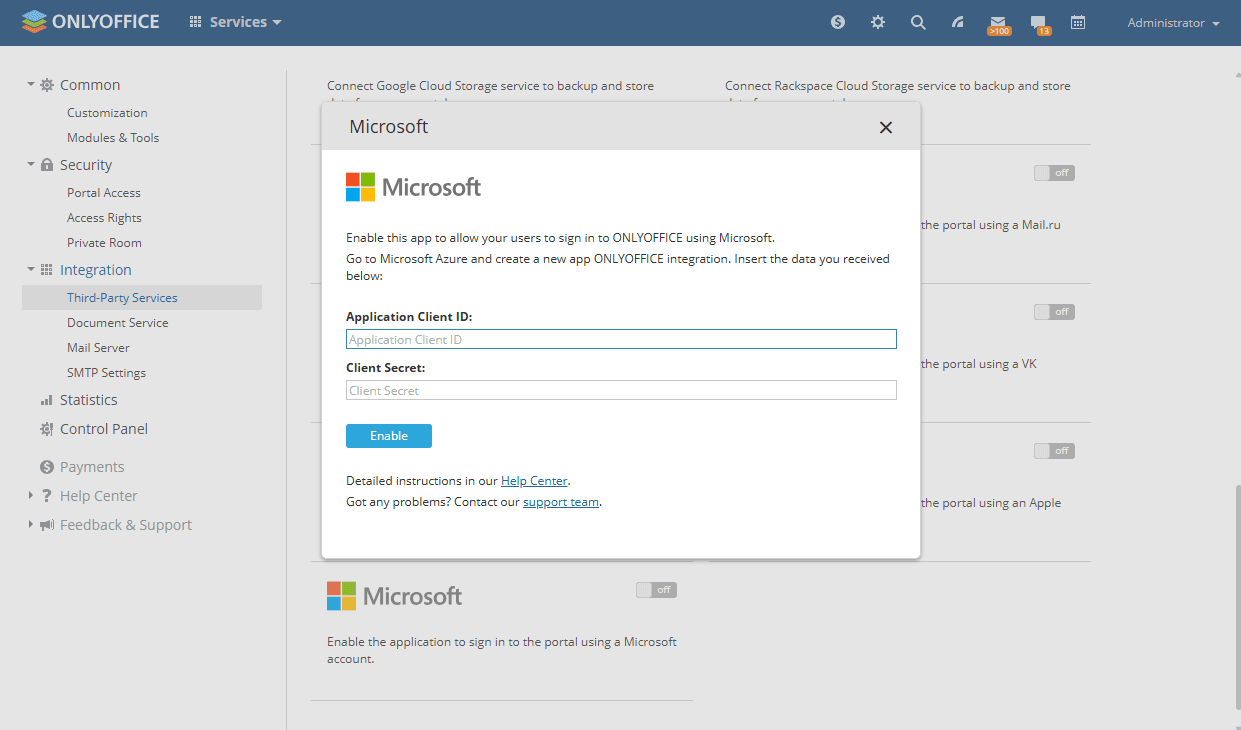
- Click Enable to connect the service.
Article with the tag:
Browse all tags