- Home
- Workspace
- Administration
- Connecting external services
- Integrating ONLYOFFICE with Firebase
Integrating ONLYOFFICE with Firebase
Connect the Firebase service to receive portal notifications even when you are offline.
Obtaining Firebase access keys
To obtain the access keys required to connect Firebase to your portal:
- Go to the Firebase console.
- Sign in to your account.
- Click Add project.
- Enter your project name in the Project name field or select an existing Google Cloud project.
- Click Continue in the wizard, then click Create project. Once the project is created, click Continue.
- Click the Settings icon in the upper-left part of the page and select Project settings.
- In the General section, copy or note down the
Project ID. - Switch to the Cloud Messaging section and copy or note down the
Sender ID. - To get the
Server key, generate a key pair and copy the public key. - To find your
Web API Key, go to the Google Cloud Platform console, find your project, and go to APIs & Services > Credentials. Copy the Browser key (auto-created by Firebase).
Connecting Firebase to ONLYOFFICE
To connect Firebase to your portal:
- Click the
icon in the upper-right corner to open Settings. - Select the Integration tab.
- Open the Third-Party Services page.
- Scroll down to Firebase and click the toggle to enable it.
- In the Firebase window that opens, enter the access keys obtained in the previous section.
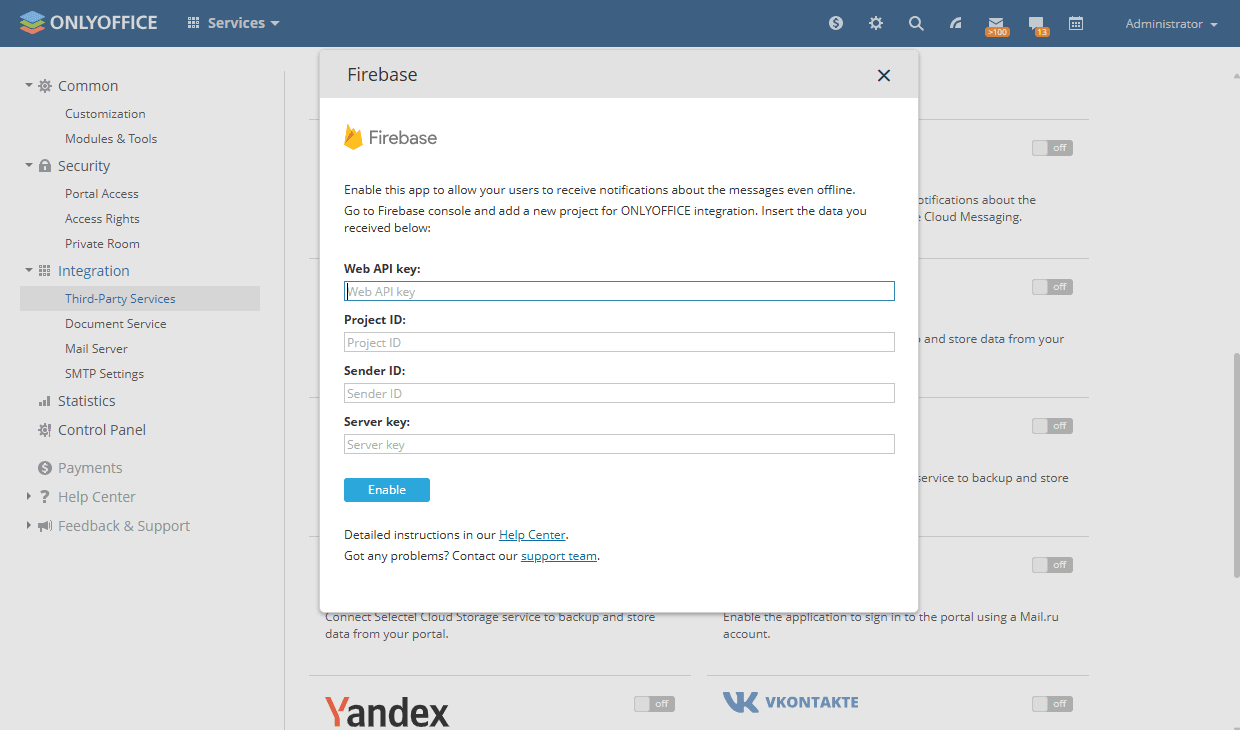
- Click Enable to connect the service.
Article with the tag:
Browse all tags