Integrating ONLYOFFICE with Dropbox

Connect your Dropbox account to edit documents stored in Dropbox directly from the Documents portal module.

This option is available for ONLYOFFICE Workspace and ONLYOFFICE Workspace Enterprise users only. Cloud users can skip the Creating authorization keys section and proceed directly to Connecting Dropbox to ONLYOFFICE.

Creating authorization keys

To create the authorization keys required to connect Dropbox to your portal:

  1. Go to the Dropbox Developers website.
  2. Click Create apps .
  3. Sign in to your account.
  4. Select the Dropbox API radio button.
  5. Select the following access type: Full Dropbox — Access to all files and folders in a user's Dropbox.
  6. Enter a name for your application.
  7. Select the I agree to Dropbox API Terms and Conditions checkbox and click Create app.
  8. On the application Settings tab, enter https://service.onlyoffice.com/oauth2.aspx in the Redirect URIs field and click Add.
  9. Copy or write down the Client ID and Client secret from the Settings page.
  10. On the Permissions tab, in the Files and folders section, select the files.metadata.read checkbox and click Submit.

Connecting Dropbox to ONLYOFFICE

To connect Dropbox to your portal:

  1. Click the Settings Icon icon in the upper-right corner to open Settings.
  2. Select the Integration tab.
  3. Open the Third-Party Services page.
  4. Scroll down to Dropbox and click the toggle to enable it.
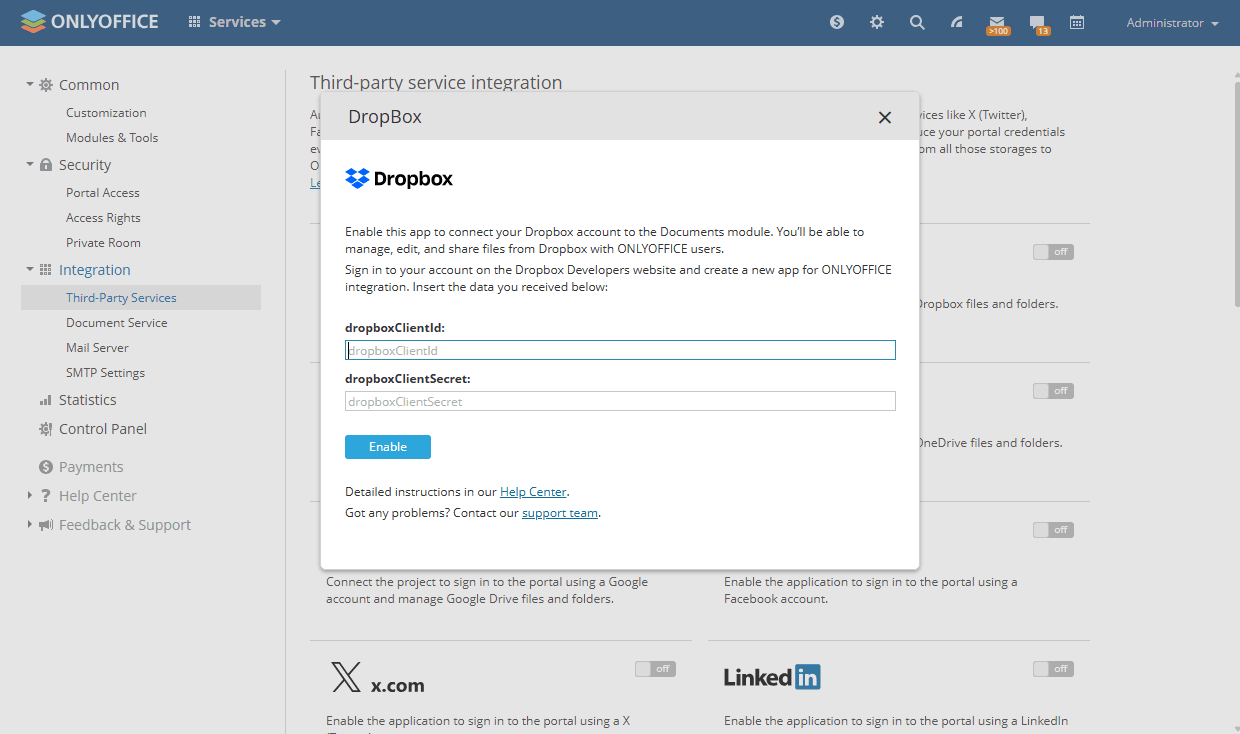
  5. In the Dropbox window that opens, enter the Client ID and Client secret obtained in the previous section.
    Integrate Dropbox Integrate Dropbox
  6. Click Enable to connect the service.

A full-access administrator or the Documents module administrator must also enable the Allow users to connect third-party storages toggle in the Admin Settings section to allow portal users to connect third-party cloud storage in the Documents module.

Editing Dropbox documents

To edit a document stored in Dropbox:

  1. Locate the Dropbox folder in the Documents module and open it.
  2. Browse to the file you want to edit and click it. If necessary, a dialog will prompt you to convert the document to the OpenOffice XML format for faster viewing and editing. To keep the original file, check the Save the file copy in the original format as well box.
  3. Click Convert.
  4. Click Open when the message appears that the document has been successfully converted.

After editing, close the document to save the changes.

If you delete a document from the Dropbox folder, it will also be deleted from your Dropbox account. The file will not be placed in the Trash section of the Documents module — the deletion is irreversible.
Article with the tag:
Browse all tags