Integrating ONLYOFFICE with Apple

Connect your Apple account to log in to your portal quickly.

Obtaining Apple access keys

To obtain the access keys required to connect Apple to your portal:

  1. Go to the Apple Developers Portal.
  2. Sign in to your account.
  3. Get an App ID:
    • Go to Certificates, Identifiers & Profiles > Identifiers and click the + icon in the upper-left corner.
    • Select App IDs and click Continue.
    • Enter a Description and a Bundle ID (a reverse-domain name style string: com.domainname.appname). Ensure that Sign In with Apple is checked. Click Continue and click Register.
  4. Get a Services ID:
    • Go to Certificates, Identifiers & Profiles > Identifiers and click the + icon in the upper-left corner.
    • Select Services IDs and click Continue.
    • Enter a Description and an Identifier (a reverse-domain name style string: com.domainname.appname). Ensure that Sign In with Apple is checked. Click Configure next to Sign In with Apple.
    • Ensure the App ID is selected as the Primary App ID. Add the return URL https://service.onlyoffice.com/oauth2.aspx. Click Save.
    • Click Continue and click Register.
  5. Create a private key:
    • Go to Certificates, Identifiers & Profiles > Keys and click the + icon in the upper-left corner.
    • Enter a unique name for the key. Ensure that Sign In with Apple is checked.
    • Click Configure. In the Choose a Primary App ID field, select the App ID and click Save.
    • Click Continue and click Register.
    • Click Download to download the private key.
  6. Get a key identifier:

Connecting Apple to ONLYOFFICE

To connect Apple to your portal:

  1. Click the Settings Icon icon in the upper-right corner to open Settings.
  2. Select the Integration tab.
  3. Open the Third-Party Services page.
  4. Scroll down to Apple and click the toggle to enable it.
  5. In the Apple window that opens, enter the access keys obtained in the previous section.
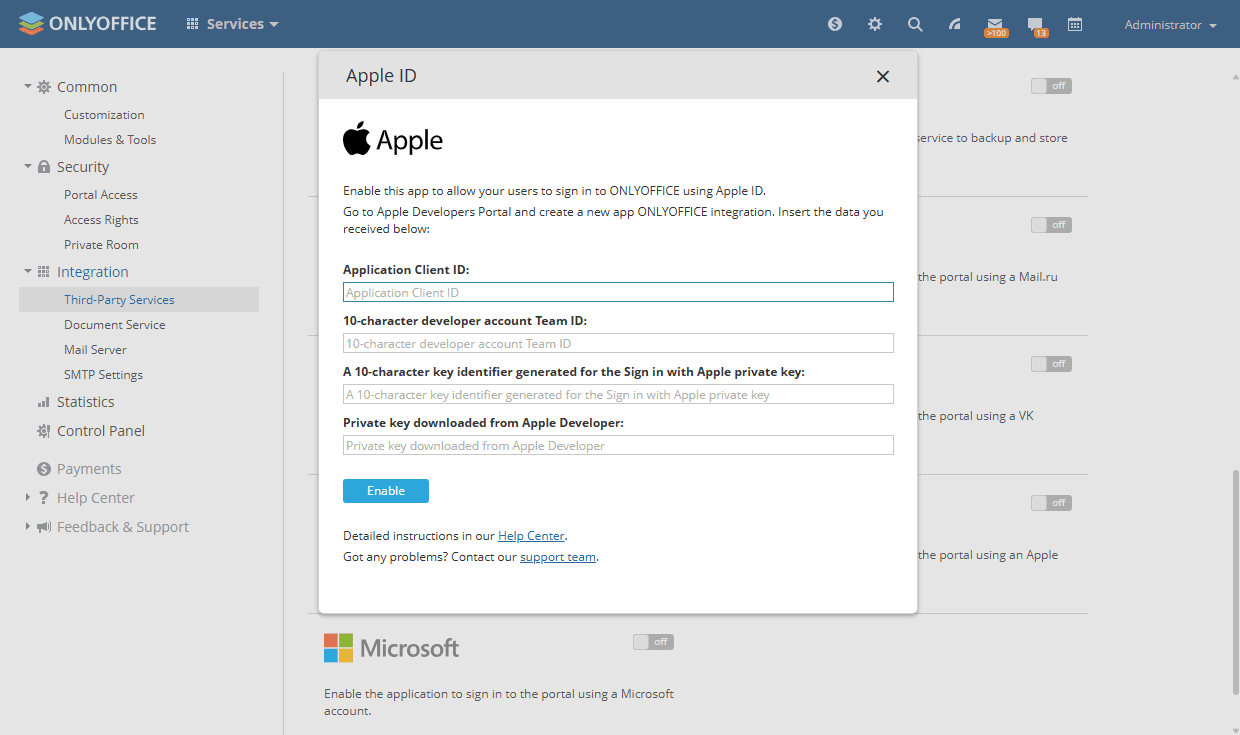
    Integrate Apple Integrate Apple
  6. Click Enable to connect the service.
Article with the tag:
Browse all tags