Integrating ONLYOFFICE with Amazon AWS S3
Connect the Amazon AWS S3 service to use the connected cloud storage as a third-party storage when creating backups. It is also possible to use this cloud storage to store data and static content from your portal.
If you use the SaaS version, the authorization key parameters for most services are set up automatically. In the SaaS version, you can connect DocuSign, Twilio, AWS, Google Cloud, Rackspace, and Selectel.
Connecting Amazon AWS S3 to ONLYOFFICE
To connect Amazon AWS S3 to your portal:
- Click the
 icon in the upper-right corner to open Settings.
 - Select the Integration tab.
- Open the Third-Party Services page.
- Scroll down to AWS and click the toggle to enable it.
- In the Amazon AWS S3 window that opens, enter the access keys obtained in the previous section.
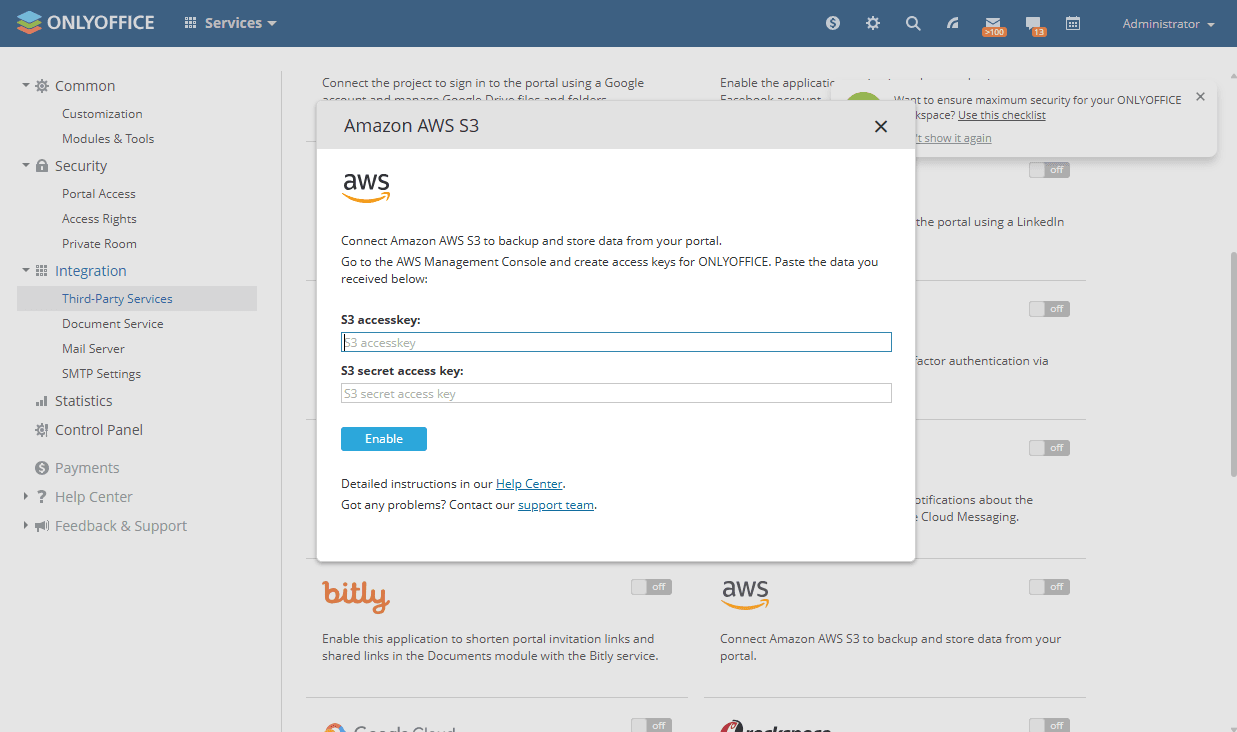
- Click Enable to connect the service.
Article with the tag:
Browse all tags