Drawing freehand on a document
Add a drawing
Use the Draw feature to draw freehand, add custom graphic objects, and handwritten notes.
- Tap the
 icon at the top toolbar to open the new object insertion panel.
 - Switch to the
 Other tab.
 - Select the
 Draw option.
 - Start drawing directly on the document.
- Access drawing settings:
- Top toolbar: tap the
 icon to save your drawing and exit drawing mode, Undo
  , Redo
  , and
, and  icon for additional options.
 - Bottom toolbar: the Pen tool, the Highlighter tool, the color switcher, and the Hand tool (switches to selection/pan mode without drawing).
- Top toolbar: tap the
- To customize the brush, tap the color switcher:

- Line size - set the size of the stroke by dragging the slider.
- Opacity - set the opacity level of the stroke by dragging the slider.
- Color - select one of the available colors for the stroke or choose your own Custom color.
To add a new Custom Color, follow these steps:
- Tap the
 icon in the Custom colors section.
 - Using the color palette, choose the necessary color and select its hue level.
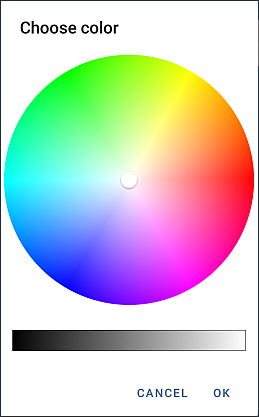
- Tap the OK button to apply the color.
- Tap the
- Save the changes by tapping the cross icon in the top left corner of the pop-up window.
Now you can start drawing. Each drawn figure represents a shape that can be edited later. Tap the icon  (the icon's color matches the current brush color) to open the Draw settings.
Adjust shape settings
- Select the drawing by tapping its border (the rectangular box around the shape should be displayed as a solid line).
- Tap Edit to open the shape settings panel from the context menu.
- Tap the necessary menu item: Style, Change shape, or Advanced settings. Use the
 icon on the left to return to the previous settings section.
- Style - to change the current border style by switching the Stroke toggle on or off.
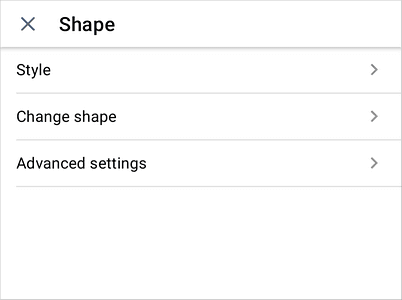
- Change shape - to replace the current shape with another one.
- Advanced settings - allows to set the Size of the drawing. Tap the Size option and define shape's Width and Height, select the Lock aspect ratio to preserve the relative width and height, if necessary.
- Style - to change the current border style by switching the Stroke toggle on or off.
- Close the shape settings panel by tapping the
 cross on the left.
Remove the drawing
Select the drawing by tapping on it and tap the Delete option in the pop-up menu that appears.
Article with the tag:
Browse all tags