Collaborative document editing
View comments
To view all comments that have been added to the document:
- Tap the
 Collaboration icon at the top toolbar.
 - Select the Comments menu item.
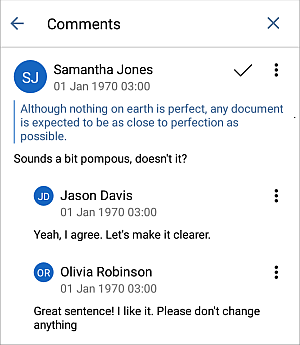
You can manage comments and replies in the following way:
- Reply to comments added by other users by tapping the
 icon and selecting the Add Reply option. Then enter your text in the Add Reply field and tap the
 icon in the upper right corner.
 - Edit replies and comments by tapping the icon and selecting the Edit comment / Edit reply option.
- Delete replies and comments by tapping the icon and selecting the Delete comment / Delete reply option.
- Close the discussion by tapping the
icon to the right of the comment. You can also tap the
icon and select the Close option.
After that the discussion you opened with your comment gets the resolved status. To open it again, tap the
 icon to the right of the comment or tap the
icon and select the Reopen option.
icon to the right of the comment or tap the
icon and select the Reopen option.
Use Review options
To use the review options:
- Tap the
Collaboration icon at the top toolbar.
- Select the Review menu item.
Alternatively, you can select a text passage and use the Review option from the pop-up menu.
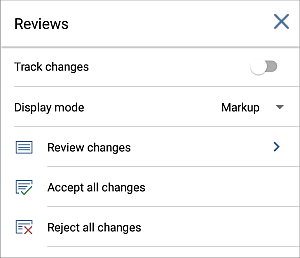
The Review panel will open, which allows you to use the following options:
- The Track Changes menu allows you to activate the track changes mode. Choose one of the following options:
- ON for me
- OFF for me
- ON for me & everyone
- OFF for me & everyone
- Display Mode - allows you to choose one of the changes display modes. The following ones are available:
- Markup - this mode allows you to view all changes and accept or reject them. When this mode is selected, you can edit the document.
- Final - this mode allows you to display all changes as they were accepted. When this mode is selected, you cannot edit the document.
- Original - this mode allows you to display all changes as they were rejected. When this mode is selected, you cannot edit the document.
- Review Changes - allows you to navigate between the changes and accept or reject them.
The current change will be displayed at the Review Change panel and highlighted in the document text. At the Viewing changes panel, you can see the name of the user who made this change, the date and time when the change was made, and the change description (e.g., Paragraph Inserted). Use the
 arrow to go to the previous change, and the
  arrow to go to the next change.
The ACCEPT option allows you to accept the current change, the REJECT option allows you to reject the current change.
arrow to go to the next change.
The ACCEPT option allows you to accept the current change, the REJECT option allows you to reject the current change.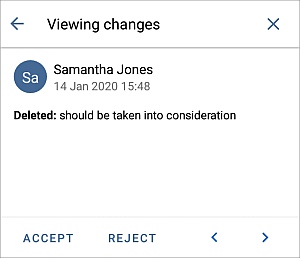
- Accept All Changes - allows you to accept all the changes at once.
- Reject All Changes - allows you to reject all the changes at once.