Questo articolo è stato tradotto dall'AI
Selettore di Date: Inserimento di date formattate nelle celle
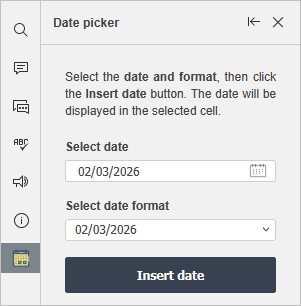
Nell'Editor di Fogli di Calcolo, puoi inserire rapidamente le date nelle celle selezionate utilizzando il plugin  Selettore di Date. Questo plugin offre un widget calendario integrato e ti consente di scegliere tra vari formati di data e applicarli a più celle contemporaneamente.
ImportanteA partire da ONLYOFFICE Docs 8.2, nessun plugin è incluso negli editor di default. I plugin devono essere installati tramite il  Gestore Plugin.
- Passa alla scheda Plugin e scegli Selettore di Date.
- Seleziona le celle in cui desideri inserire la data.
- Clicca sul campo Seleziona data e scegli la data dal calendario.
- Clicca sul campo Seleziona formato data e scegli il formato di data preferito.
- Clicca sul pulsante Inserisci data.
Dopo aver inserito la data, l'interfaccia del Selettore di Date si resetta alla data odierna, e puoi quindi inserire un'altra data nello stesso modo.
Formati di data disponibili
Il plugin supporta vari formati di data, tra cui:
- mm/dd/yyyy
- dd-Mon-aa
- Giorno della settimana, Mese gg, aaaa
- E altri formati comuni
Voci con l'etichetta tag:
Sfoglia tutti i tag