Este artículo está traducido por IA
Proteger presentaciones con una contraseña
Proteger presentaciones con una contraseña
Puedes proteger tu presentación con una contraseña para restringir el acceso. Este artículo describe cómo establecer, cambiar y eliminar una contraseña.
Para proteger tu presentación con una contraseña:
- Toca el icono de
 Herramientas en la esquina derecha de la barra de herramientas superior.
 - Toca la opción de menú
 Cifrar Archivo.
 - Se abrirá la pantalla de Cifrar Archivo.
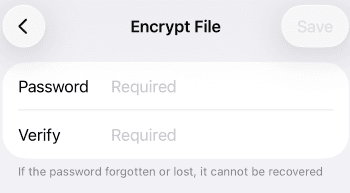
- Introduce la contraseña requerida en el campo Contraseña.
- Vuelve a introducir la contraseña en el campo Verificar.
Advertencia Si la contraseña se olvida o se pierde, no se puede recuperar. Guárdala en un lugar seguro. - Toca el botón Guardar en la esquina superior derecha.
La próxima vez que abras esta presentación, necesitarás introducir la contraseña.

Cambiar o eliminar la contraseña
Para cambiar o eliminar la contraseña:
- Toca el icono de Herramientas en la esquina derecha de la barra de herramientas superior.
- Toca la opción de menú Cifrar Archivo.
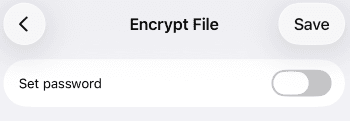
- Para cambiar la contraseña, introduce una nueva contraseña en el campo Contraseña, verifícala y toca Guardar.
- Para eliminar la contraseña, desactiva el interruptor Establecer Contraseña.
Artículos con etiqueta:
Ver todas las etiquetas