Odoo
Introduction
ONLYOFFICE allows you to edit the files stored in your Odoo account and collaborate on them using both online and desktop editors. Once your Odoo account is connected, you can open it from the Clouds tab, next to the other cloud services you use, and work on your Odoo files without switching to a browser.
Before you connect Desktop Editors to Odoo, the integration itself must be up and running:
- An Odoo instance is installed and configured.
- ONLYOFFICE Docs is installed, or you use ONLYOFFICE Docs Cloud. Odoo and ONLYOFFICE Docs must be accessible to each other over the network.
- The official ONLYOFFICE integration modules are installed and configured in Odoo:
- ONLYOFFICE – the main module that opens and edits the office files attached to the Odoo modules. It is required for the other two modules to work and has no paid license.
- ONLYOFFICE Documents – for creating, editing, and co-authoring office files inside the Documents module of Odoo Enterprise Edition.
- ONLYOFFICE Templates – for creating and editing fillable forms within a separate module. It requires an ONLYOFFICE license with the Automation API.
For the installation and configuration of ONLYOFFICE Docs and the integration modules, the supported formats, and the description of the features available within Odoo, refer to the ONLYOFFICE and Odoo integration article.
Step 1. Connect to Odoo
Launch ONLYOFFICE Desktop Editors. To connect Desktop Editors to your Odoo account, follow the steps below:
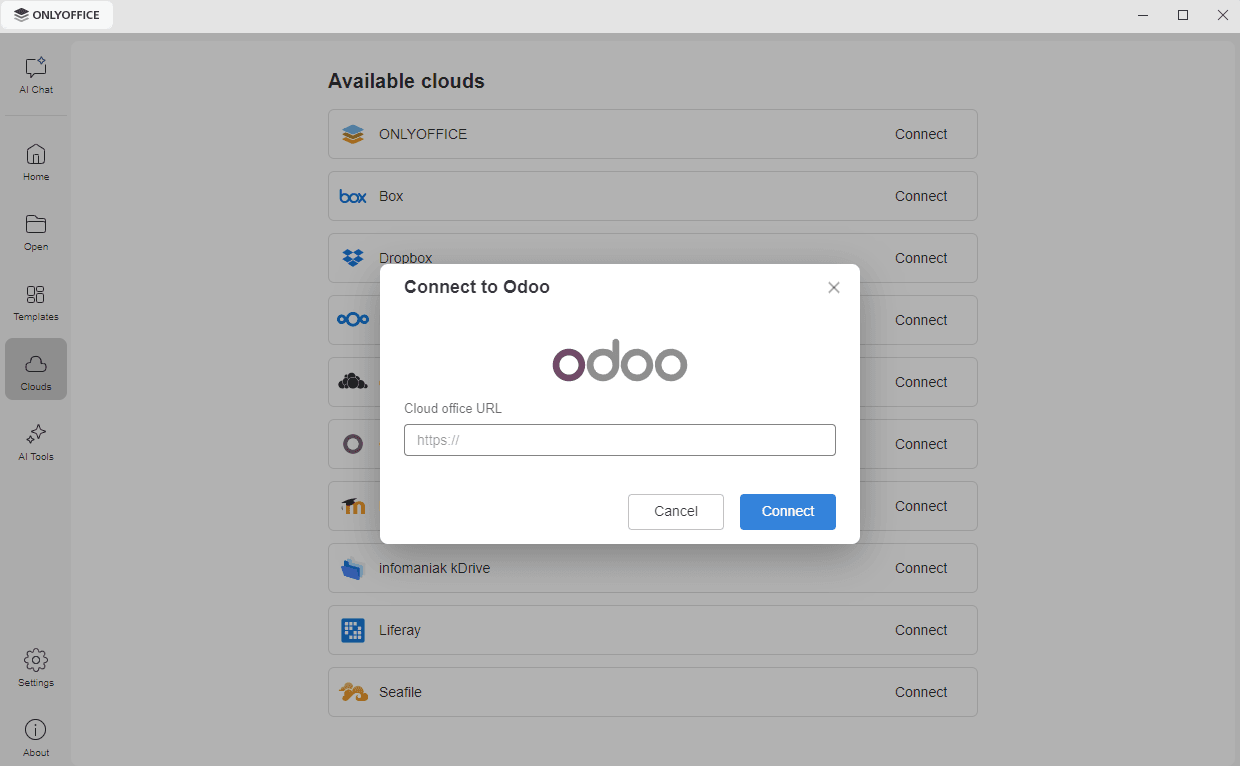
- Click the Clouds tab on the left navigation panel. The list of the available cloud services opens.
- Find Odoo in the Available clouds list and click the Connect link on the right.
- The Connect to Odoo window opens. In the Cloud office URL field, enter your Odoo server domain name or IP address. Click the Connect button.
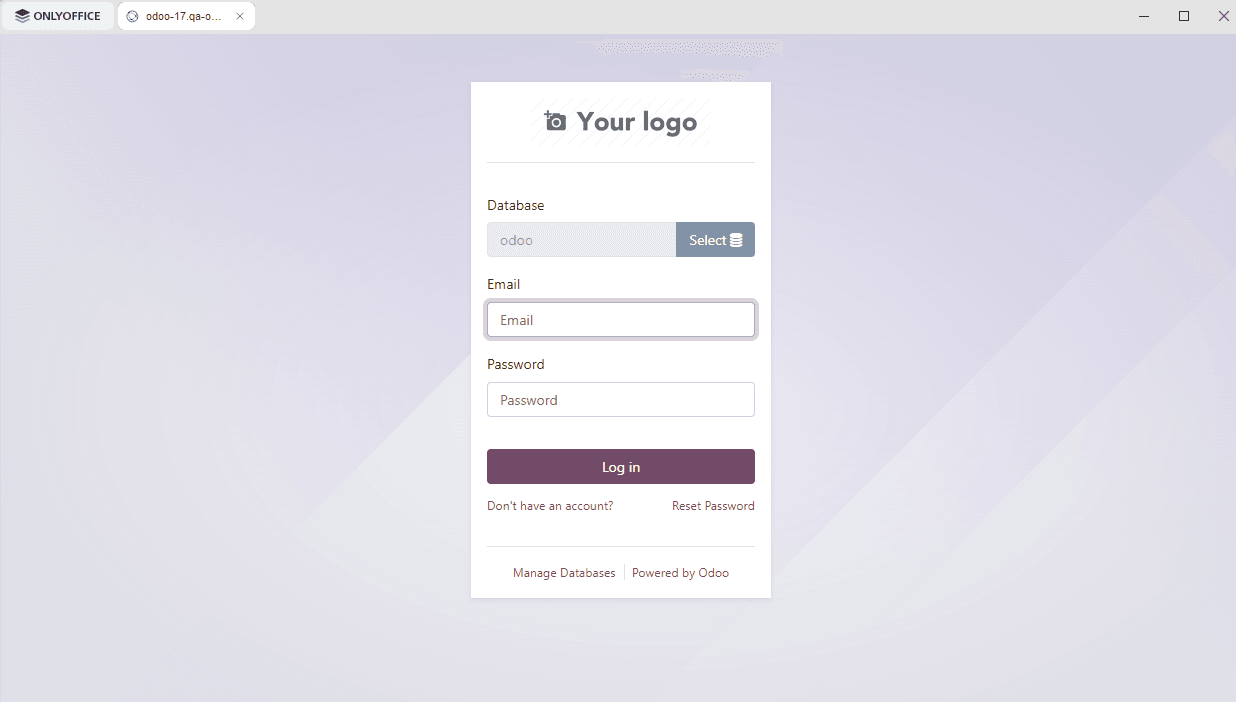
- The Odoo log-in page opens in a new tab of the Desktop Editors interface. The Database field is filled in with the database of the address you specified. Specify the Email and the Password you use to access your Odoo account and click the Log in button.
The main page of your Odoo account opens in the same tab. Now you can edit your existing files, create new ones, share your documents, and collaborate with Odoo users using ONLYOFFICE editors.
Step 2. Manage your connected accounts
Click the ONLYOFFICE tab in the upper left corner of the window to return to the main program window. The connected cloud accounts appear in the Connected clouds section at the top of the Clouds tab. Hover the mouse over a connected cloud and click the three dots  on the right to access the cloud context menu options:
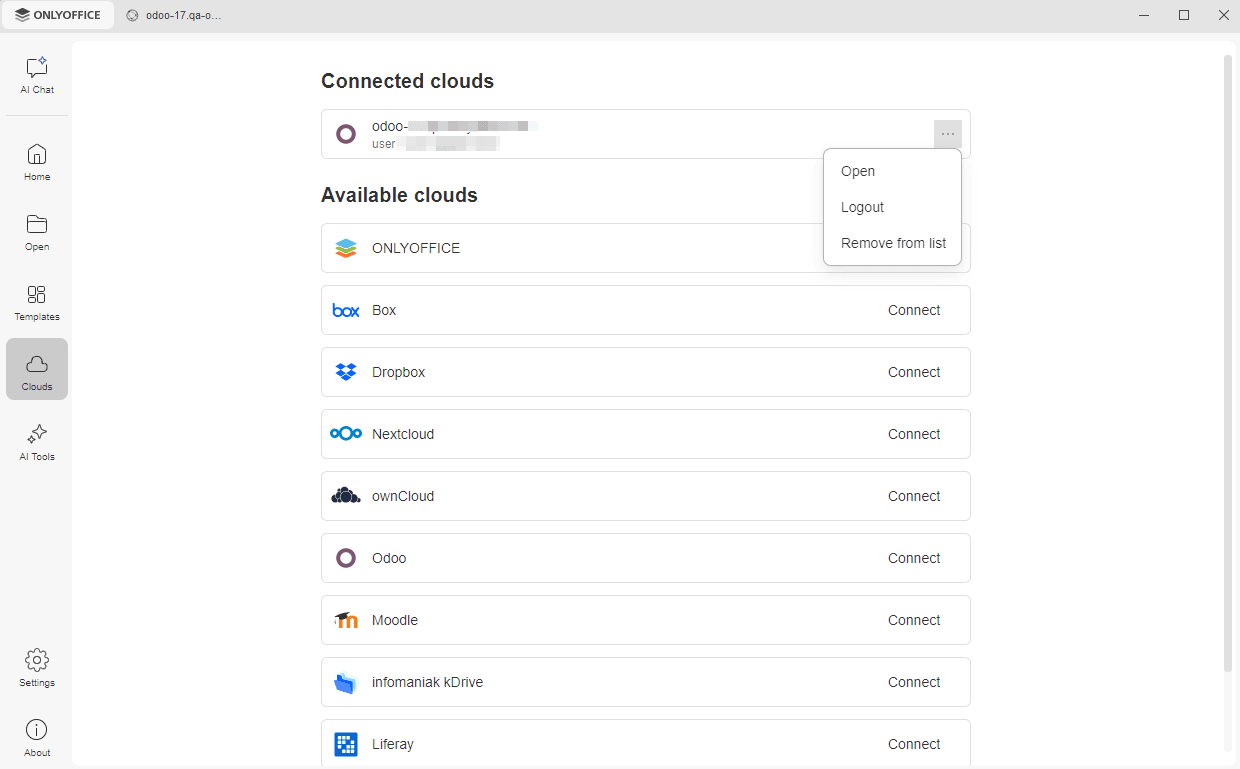
- Open – to switch to the corresponding cloud storage tab if you are already logged in to this account, or to open the Connect to Odoo window if you are not currently logged in (in such a case, you will need to enter your credentials).
- Logout – to exit from your account. The connected account still appears in the Connected clouds section, but you have to log in again next time to access your Odoo files.
- Remove from list – to disconnect the selected account and remove it from the list.
To add more accounts or clouds, use the Available clouds list below on the Clouds tab.