How ONLYOFFICE handles Google user data
Application
ONLYOFFICE portals interact with Google by making requests to the official Google API using the OAuth 2.0 authorization protocol. To work in accordance with this protocol, the ONLYOFFICE application (api-project-948651087073) was created in the Google API Console. The following services are connected to it: Google Drive API, People API, Contacts API.
Authorization keys with the redirect URL https://service.onlyoffice.com/oauth2.aspx were generated for the ONLYOFFICE application. When a user signs in to ONLYOFFICE with Google, the authorization code is requested, and the address of the user's current page is passed in the state parameter.
After the redirection to the Google API, the https://service.onlyoffice.com/oauth2.aspx URL automatically redirects to the page specified in the state parameter. This is needed because the addresses and domains the ONLYOFFICE application will use are not known in advance.
Handling Google user data within ONLYOFFICE portals
Login
Connecting Google to a user profile
To sign in to the ONLYOFFICE portal with Google under an existing user profile, the user links their Google account to their ONLYOFFICE account.
On the ONLYOFFICE user profile page, the Login via Social Networks section has a Google button:
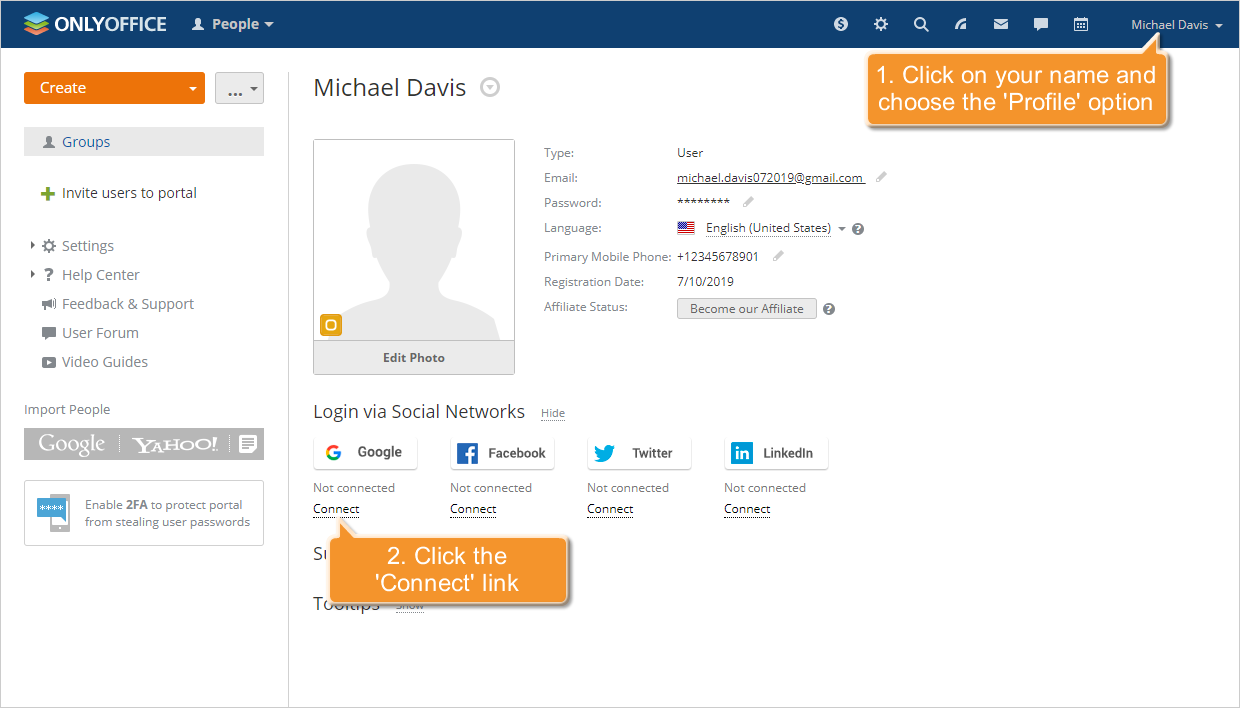
Clicking this button opens a Google page that gives the ONLYOFFICE application access to data with the following scope:
With this scope, the ONLYOFFICE application can:
- see your personal info, including any personal info you've made publicly available;
- view your email address.
This action uses the people.get request. The ONLYOFFICE database stores the correspondence between the user's identifier and email address in Google and the user profile identifier in ONLYOFFICE.
Signing in to a portal
The authorization page of ONLYOFFICE portals has a button to sign in with Google:
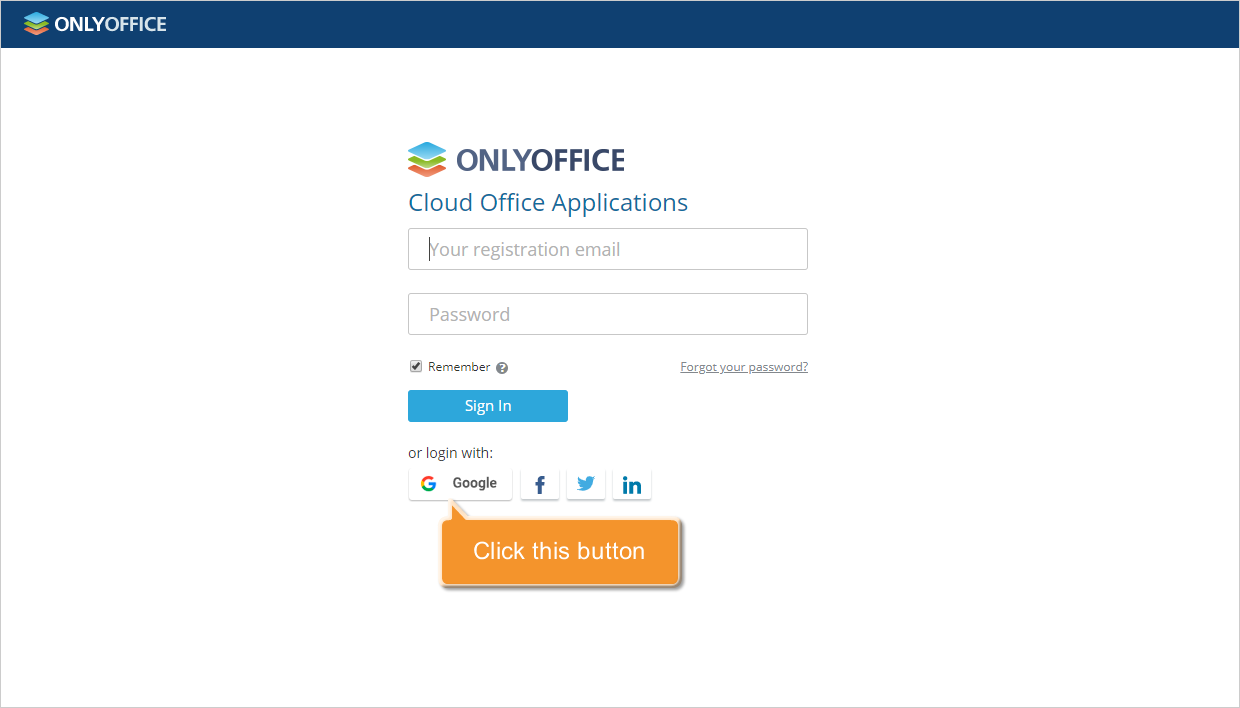
Clicking this button opens a Google page that gives the ONLYOFFICE application access to data with the following scope:
With this scope, the ONLYOFFICE application can:
- see your personal info, including any personal info you've made publicly available;
- view your email address.
This action uses the people.get request. ONLYOFFICE searches its database for the correspondence between the user's identifier and email address in Google and a user profile identifier in ONLYOFFICE. If it finds one, the user is signed in under that ONLYOFFICE profile.
Signing in on the ONLYOFFICE website
The sign-in page on the ONLYOFFICE website has a button to sign in with Google:
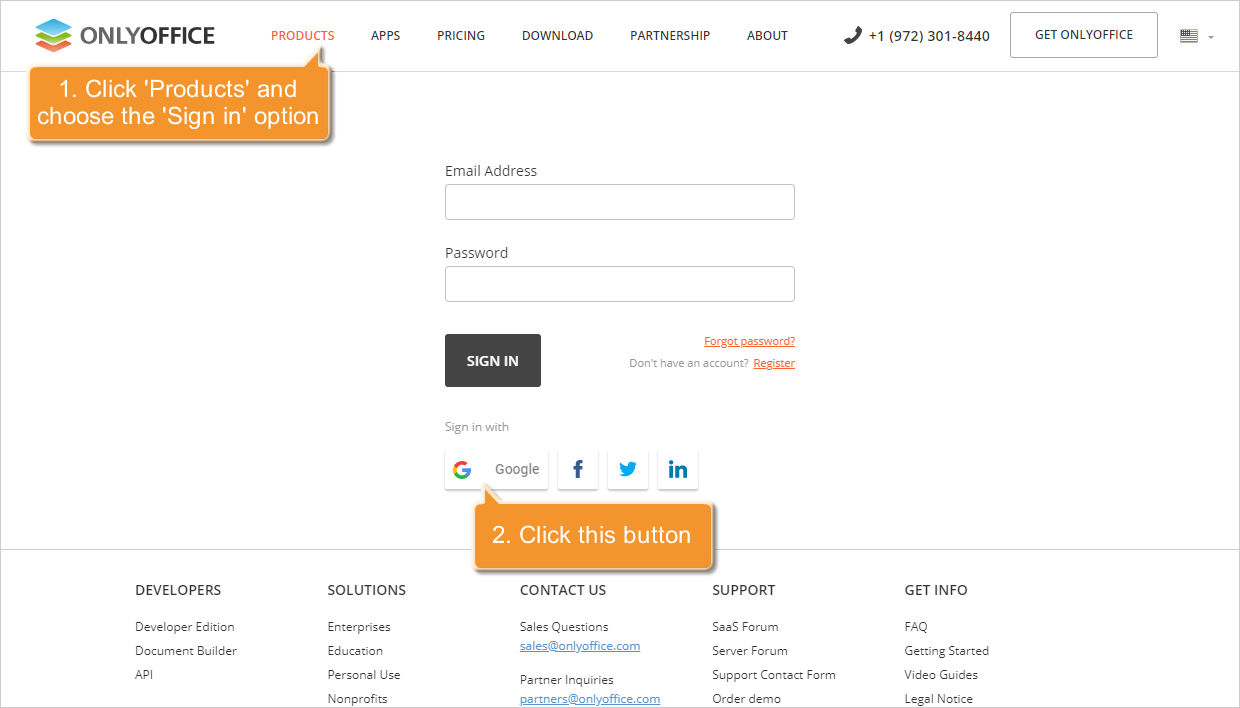
Clicking this button opens a Google page that gives the ONLYOFFICE application access to data with the following scope:
With this scope, the ONLYOFFICE application can:
- see your personal info, including any personal info you've made publicly available;
- view your email address.
This action uses the people.get request. ONLYOFFICE searches all portals for the correspondence between the user's identifier and email address in Google and a user profile identifier in ONLYOFFICE. If it finds one, the user is signed in to that portal under that ONLYOFFICE profile.
Signing in to ONLYOFFICE Personal
The Login section of ONLYOFFICE Personal has a button to sign in with Google:
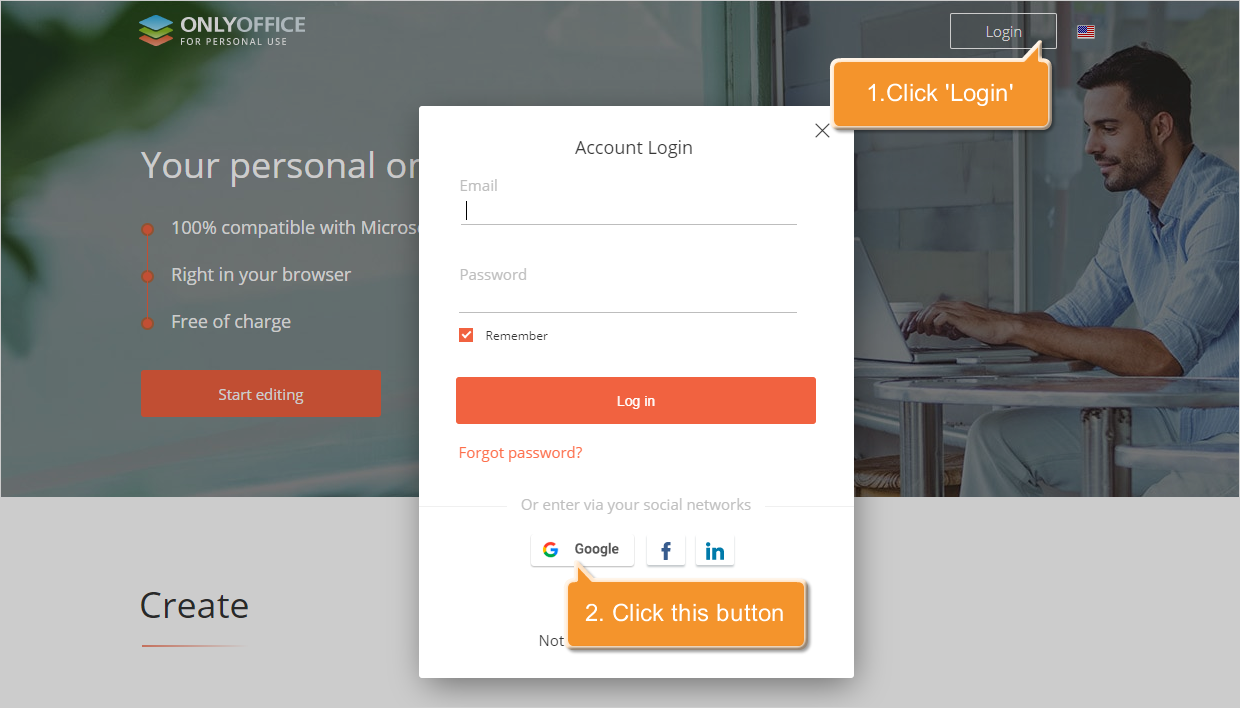
Clicking this button opens a Google page that gives the ONLYOFFICE application access to data with the following scope:
With this scope, the ONLYOFFICE application can:
- see your personal info, including any personal info you've made publicly available;
- view your email address.
This action uses the people.get request. ONLYOFFICE searches its database for the correspondence between the user's identifier and email address in Google and a user profile identifier in ONLYOFFICE. If it finds one, the user is signed in under that ONLYOFFICE profile.
If it finds none, a new profile is created with the Google user name and email address, and the ONLYOFFICE database stores the correspondence between the user's identifier and email address in Google and the new profile identifier in ONLYOFFICE.
User import
You can add several user profiles to your ONLYOFFICE portal at once by importing contacts from Google. To learn how, see Importing contacts from web.
In the People module, the Import People option has a button to select Google as the source of contact information:
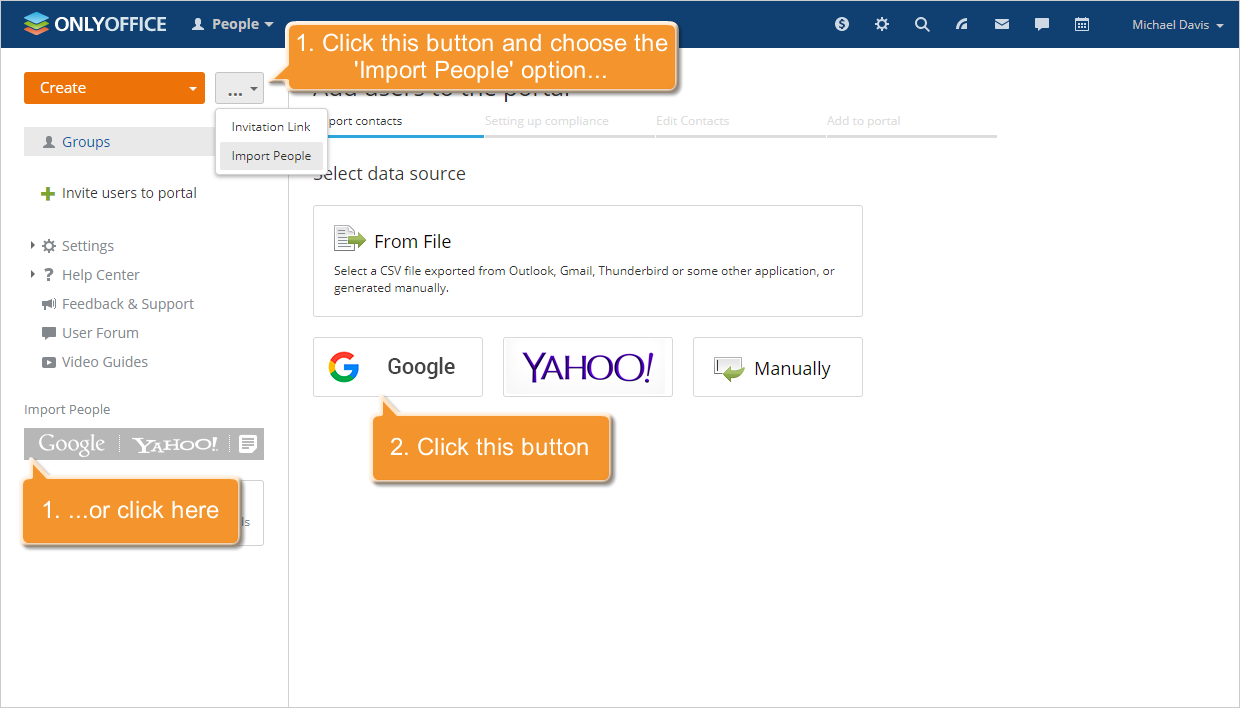
Clicking this button opens a Google page that gives the ONLYOFFICE application access to data with the https://www.googleapis.com/auth/contacts.readonly scope. With this scope, the ONLYOFFICE application can:
- see and download your contacts.
This action uses the Retrieving all contacts request. ONLYOFFICE creates new user profiles on the portal from the names and email addresses of your Google contacts.
Google Drive
You can connect your Google Drive account to the Documents module to manage and edit the documents stored in Google Drive with ONLYOFFICE editors. To learn how, see Connecting third-party services.
In the Documents module, the Add account caption has a button to select Google Drive:
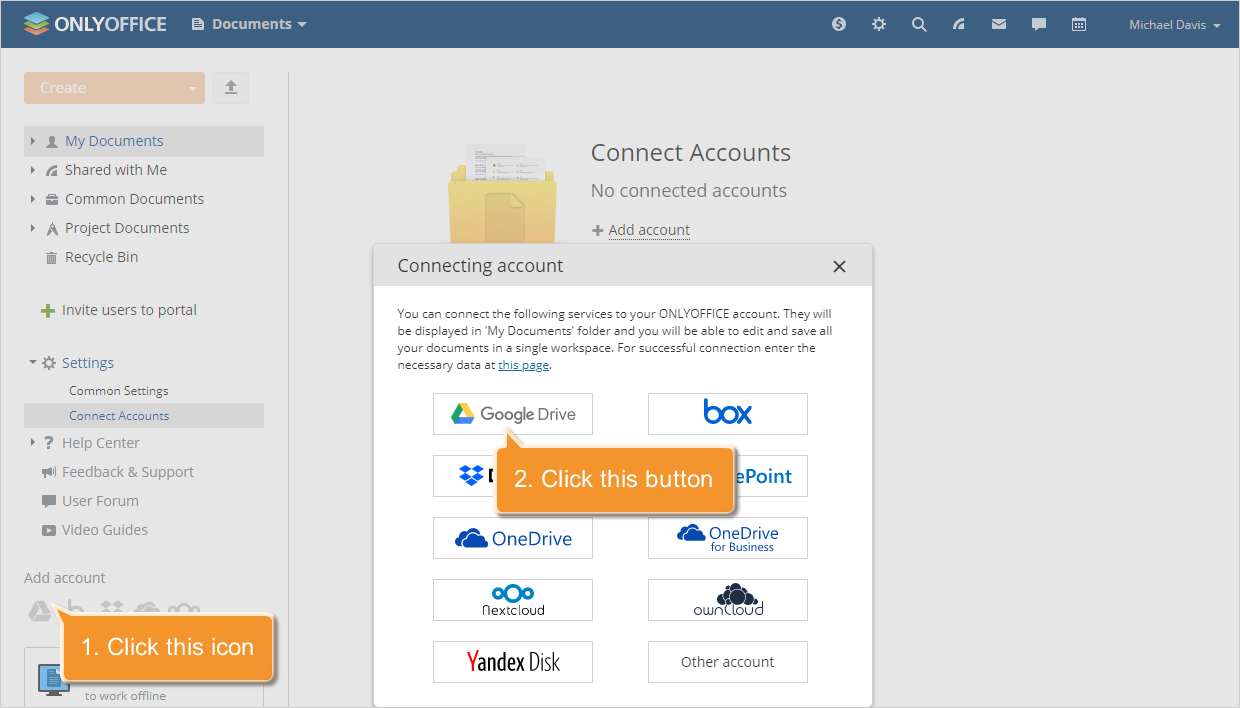
Clicking this button opens a Google page that gives the ONLYOFFICE application access to data with the https://www.googleapis.com/auth/drive scope. With this scope, the ONLYOFFICE application can:
- see, edit, create, and delete all of your Google Drive files.
The ONLYOFFICE database stores only the received authorization key needed for further requests. Actions are performed with the Google APIs Client Library.
The following methods are used:
- get the file list;
- create a file;
- delete a file;
- update, rename, and move a file;
- copy a file;
- get the maximum file size for uploading.
Other cases of using Google user data in ONLYOFFICE
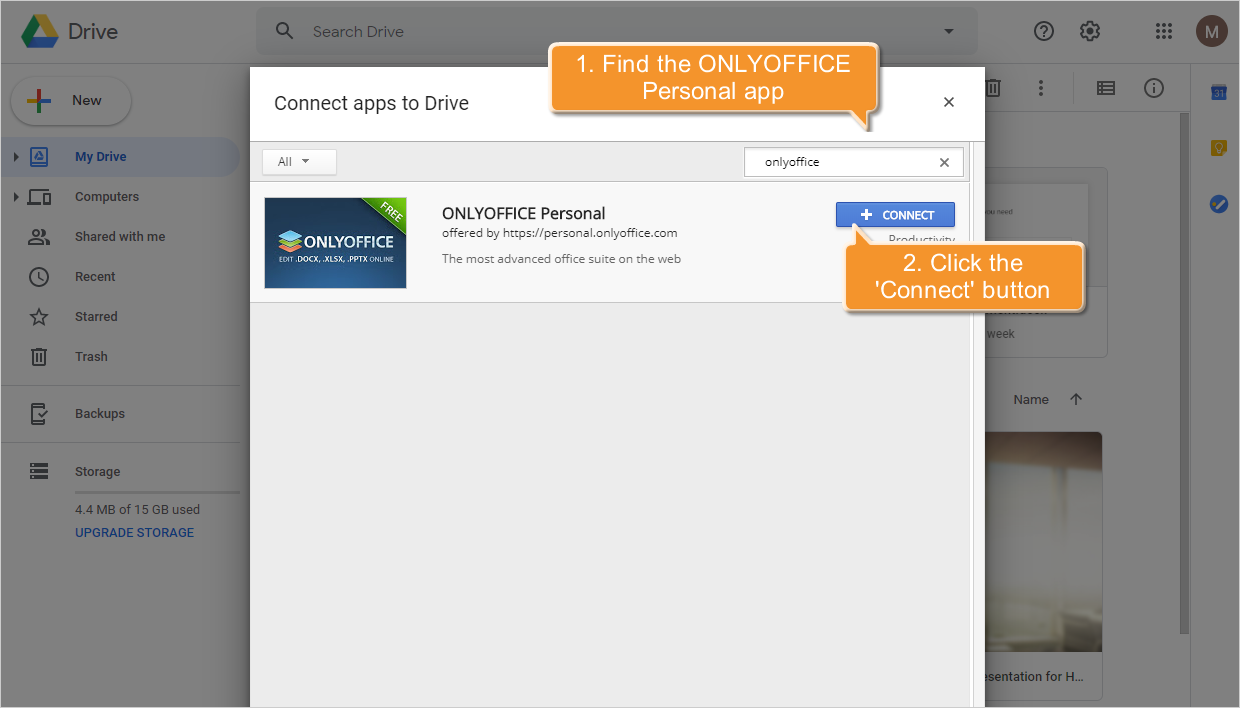
Users can open and edit documents with ONLYOFFICE online editors right in their Google Drive using the ONLYOFFICE Personal app. For this purpose, the ONLYOFFICE Personal application (api-project-438840568076) was created.
In Google Drive, connect the ONLYOFFICE Personal application with the New button (New > More > Connect more apps) or from the file context menu (Open with > Connect more apps):
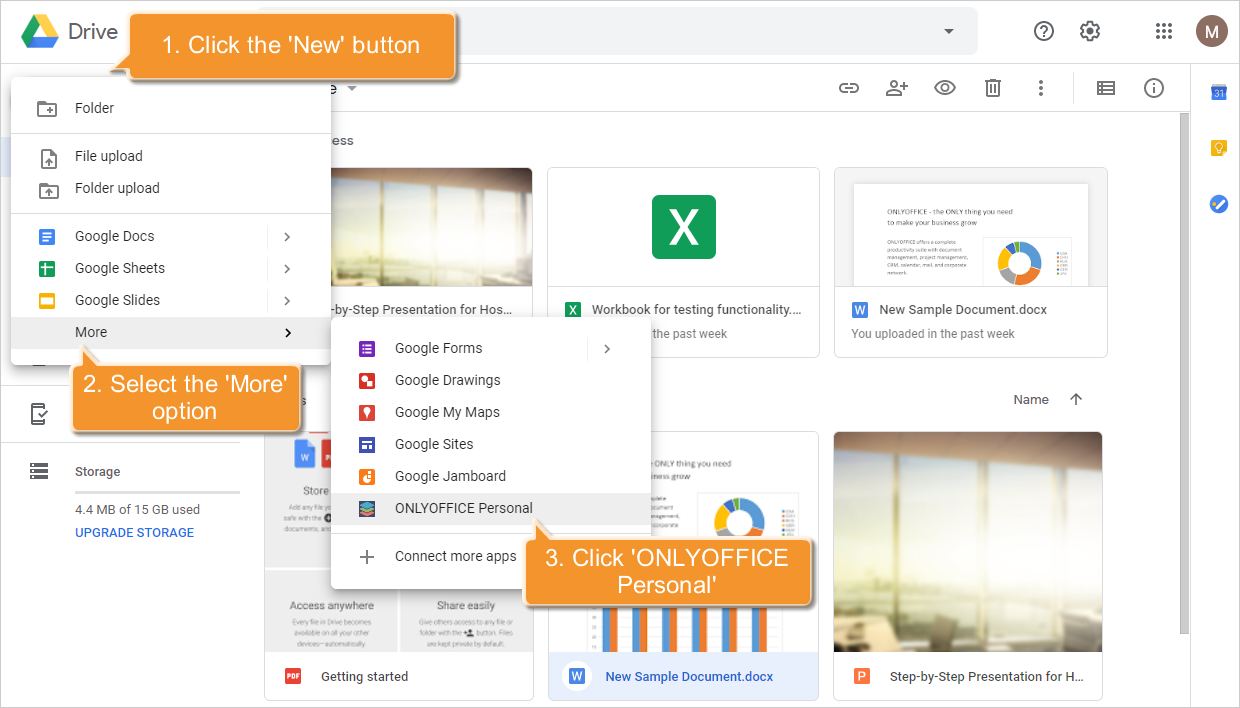
Once the ONLYOFFICE Personal application is connected to Google Drive, a file creation option is added to the list (New > More > ONLYOFFICE Personal):
The option is also added to the file context menu (Open with > ONLYOFFICE Personal):
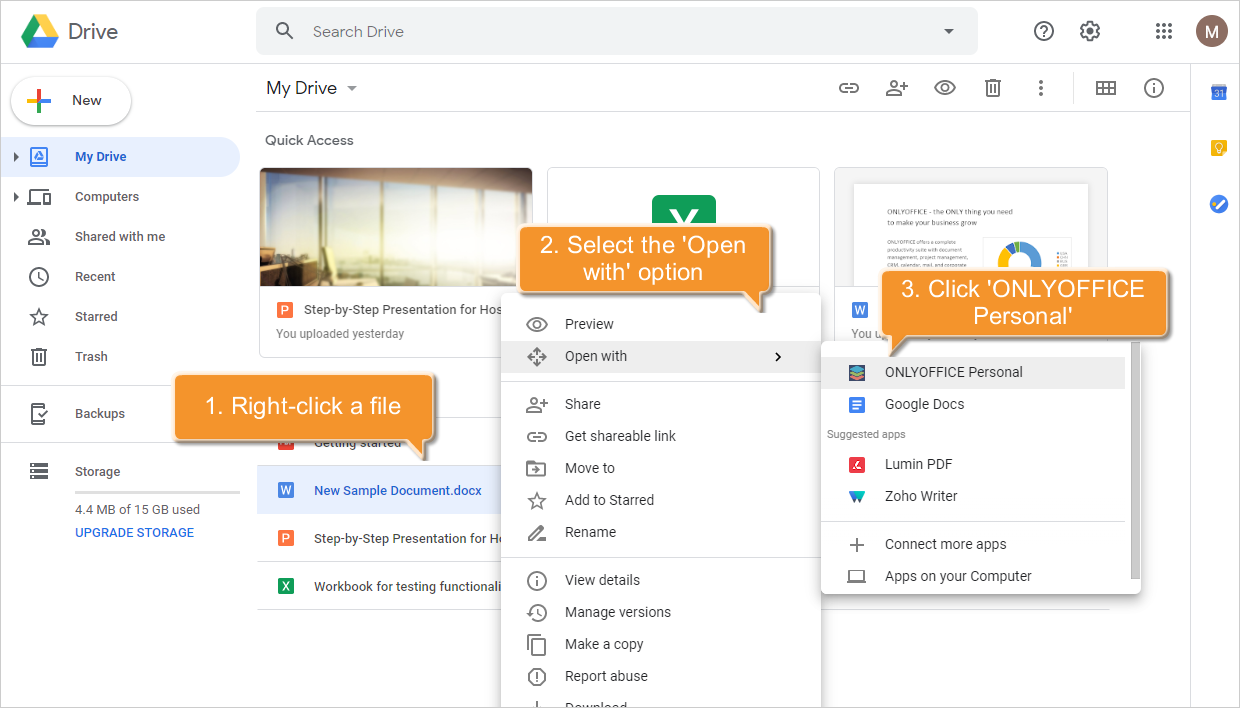
The option is available for the following formats:
- docx, pptx, xlsx, ppsx files open with ONLYOFFICE Personal by default when you click the file name;
- ppt, pps, odp, doc, odt, rtf, mht, html, htm, fb2, epub, txt, pdf, djvu, xps, xls, csv, ods, fods, fodt, pptm, potx, potm, pot, xlsm, xlt, xltx, xltm, docm, dotx, dotm, ots, otp, ott files open with ONLYOFFICE Personal from the context menu.
Both when you create a new file and when you open an existing file with the ONLYOFFICE Personal application, a Google page opens that gives the ONLYOFFICE application access to data with the following scope:
- https://www.googleapis.com/auth/drive
- https://www.googleapis.com/auth/userinfo.profile
- https://www.googleapis.com/auth/userinfo.email
With this scope, the ONLYOFFICE application can:
- view, create, edit, and delete all files on Google Drive;
- see your personal info, including any personal info you've made publicly available;
- view your email address.
The ONLYOFFICE Personal application requests user data with the people.get request. ONLYOFFICE Personal searches its database for the correspondence between the user's identifier and email address in Google and a user profile identifier in ONLYOFFICE. If it finds one, the user is signed in under that ONLYOFFICE Personal profile.
If it finds none, a new profile is created with the Google user name and email address, and the ONLYOFFICE Personal database stores the correspondence between the user's identifier and email address in Google and the new profile identifier in ONLYOFFICE. The ONLYOFFICE database also stores the received authorization key needed for further requests to the Drive API. The following methods are used:
- create a file;
- download a file;
- update a file.
Privacy Policy
The following document discloses how the ONLYOFFICE application requests, uses, and stores your Google user data.