Integrating ONLYOFFICE with Mail.ru
Connect your Mail.ru account to log in to your portal quickly.
Obtaining Mail.ru access keys
To obtain the access keys required to connect Mail.ru to your portal:
- Go to https://api.mail.ru/sites/my/.
- Sign in to your account.
- Click Connect site.
- Accept the terms of service and click Continue.
- Enter the site name.
- Enter
https://service.onlyoffice.com/as the main page URL address and click Continue. - Click Continue on the next screen and skip downloading the receiver.html page.
- Copy the site
IDandSecret key. - Go to My sites and click the Manage link next to the site name.
- In the site settings, enter the following URL for the receiver.html page:
https://service.onlyoffice.com/receiver.html. - Save the changes.
Connecting Mail.ru to ONLYOFFICE
To connect Mail.ru to your portal:
-
Click the
 icon in the upper-right corner to open Settings.
-
Select the Integration tab.
-
Open the Third-Party Services page.
-
Scroll down to Mail.ru and click the toggle to enable it.
-
In the Mail.ru window that opens, enter the
IDandSecret keyobtained in the previous section.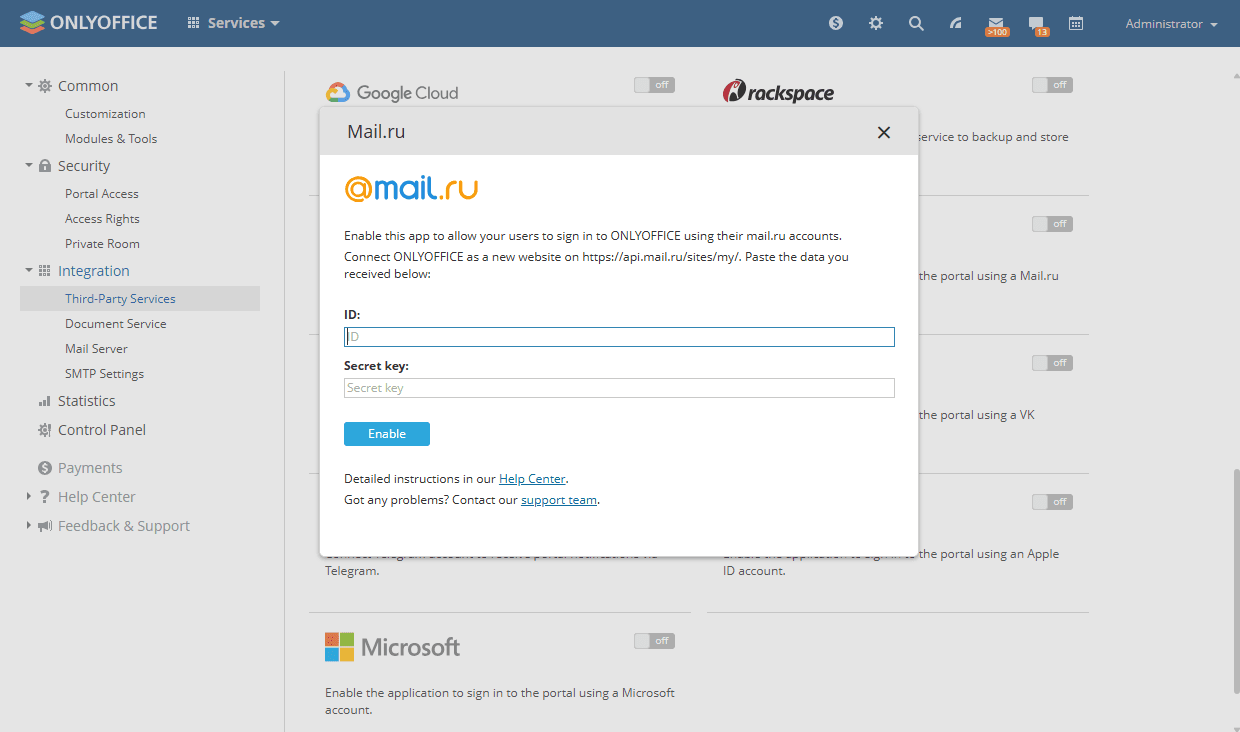
-
Click Enable to connect the service.