Adicionar links
Para adicionar um link no Document Editor,
- Selecione o objeto que você deseja exibir como um link, por exemplo, um fragmento de texto, uma imagem ou um grupo de objetos.
- Mude para a aba Inserir ou aba Referências da barra de ferramentas superior.
- Clique no ícone
 Link na barra de ferramentas superior.
 -
A janela Configurações de link aparecerá, onde você poderá especificar os parâmetros do link:
-
Selecione o tipo de link que deseja inserir:
Use a opção Link Externo e insira uma URL no formato
http://www.exemplo.comno campo Link para abaixo se precisar adicionar um link que leve a um site externo. Se precisar adicionar um link para um arquivo local, insira a URL no formatofile://caminho/Documento.docx(para Windows) oufile:///caminho/Documento.docx(para macOS e Linux) no campo Link para.O link
file://caminho/Documento.docxoufile:///caminho/Documento.docxpode ser aberto apenas na versão desktop do editor. No editor web, você só pode adicionar o link sem poder abri-lo.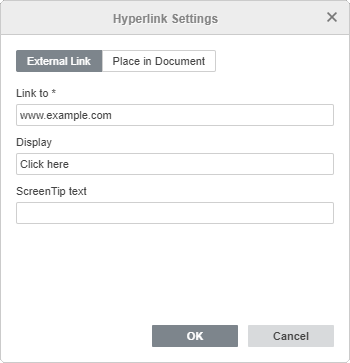
Use a opção Lugar no Documento e selecione um dos cabeçalhos existentes no texto do documento ou um dos indicadores adicionados anteriormente se precisar adicionar um link que leve a um determinado lugar no mesmo documento.
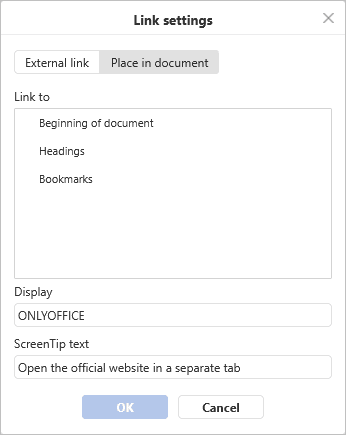
- Exibir — insira um texto que se tornará clicável e levará ao endereço especificado no campo superior.
- Texto da Dica de Tela — insira um texto que se tornará visível em uma pequena janela pop-up com uma breve nota ou rótulo referente ao link a ser apontado.
-
Selecione o tipo de link que deseja inserir:
- Clique no botão OK.
Para adicionar um link, você também pode usar a combinação de teclas Ctrl+K ou clicar com o botão direito do mouse na posição onde um link será adicionado e selecionar a opção Link no menu de contexto.
Também é possível selecionar um caractere, palavra, combinação de palavras ou trecho de texto com o mouse ou usando o teclado e abrir a janela Configurações de link como descrito acima. Nesse caso, o campo Exibir será preenchido com o fragmento de texto que você selecionou.
Passe o cursor sobre o link adicionado para exibir a Dica de Tela que contém o texto especificado. Você pode seguir o link pressionando a tecla Ctrl e clicando no link em seu documento.
Para editar ou excluir o link adicionado, clique nele com o botão direito do mouse, selecione a opção Link e depois a ação que deseja realizar, ou seja, Editar link ou Remover link.