Dropbox
Introdução
O ONLYOFFICE permite que você edite os arquivos armazenados em sua conta do Dropbox e colabore neles usando tanto os editores online quanto os editores de desktop do ONLYOFFICE. Assim, você pode usar não apenas as ferramentas de colaboração online, mas também os recursos disponíveis no seu aplicativo de desktop:
- acesso a fontes do sistema, à área de transferência e a impressoras do sistema.
Passo 1. Conectar ao Dropbox
Inicie o ONLYOFFICE Desktop Editors. Para conectar os Desktop Editors à sua conta do Dropbox, siga as instruções abaixo:
- Clique no botão Mais
 ao lado da seção Nuvens no painel lateral esquerdo.
 - Clique no botão do serviço de nuvem Dropbox, ou use o link Conectar agora na parte inferior.
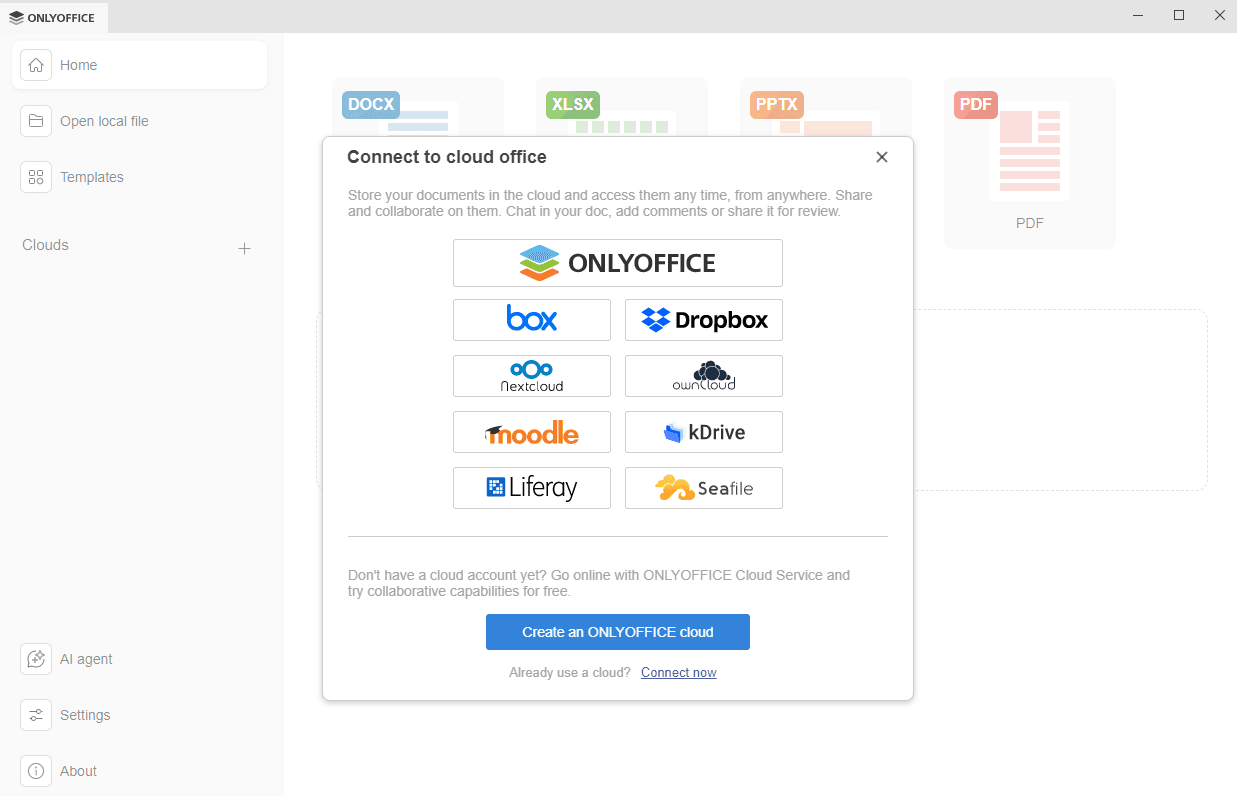
- Assim que você pressionar o botão do serviço de nuvem Dropbox, a janela Conectar ao escritório na nuvem será aberta com o Dropbox selecionado. Se você usar o link Conectar agora, escolha Dropbox na lista suspensa. A URL do serviço Dropbox é predefinida. Clique no botão Conectar agora.
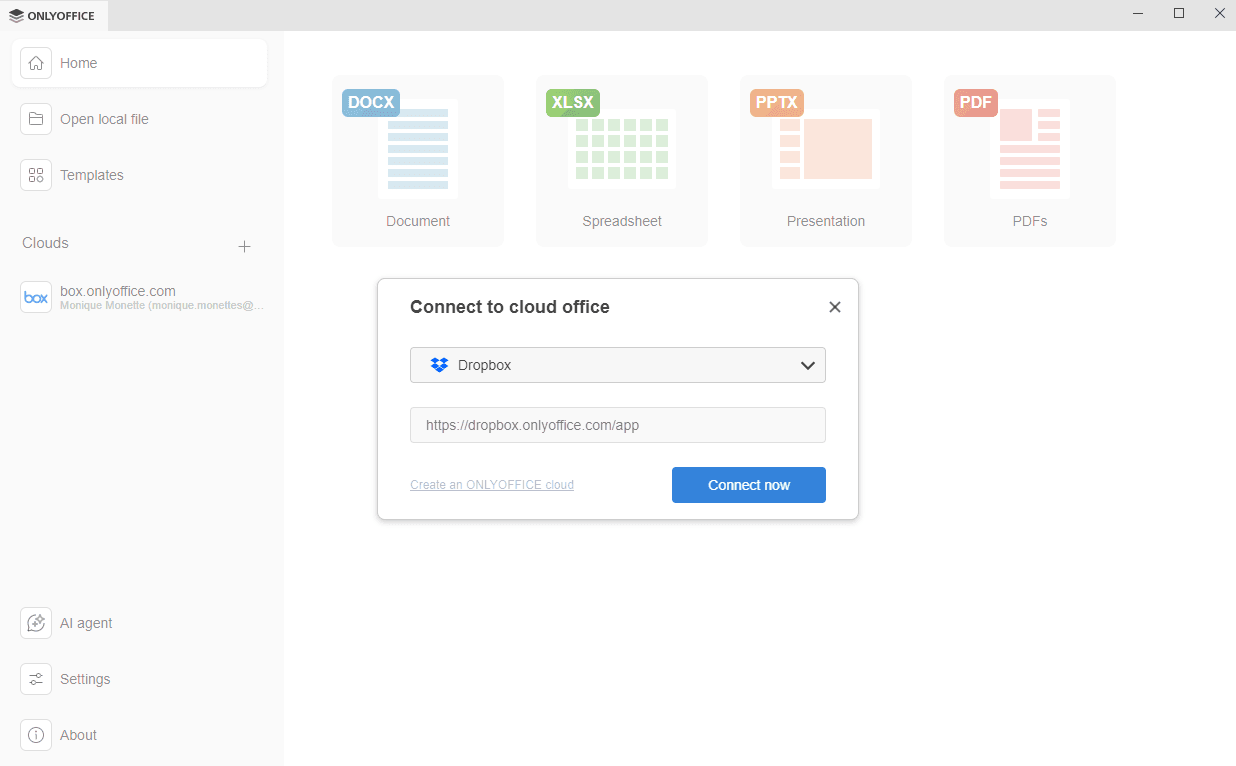
-
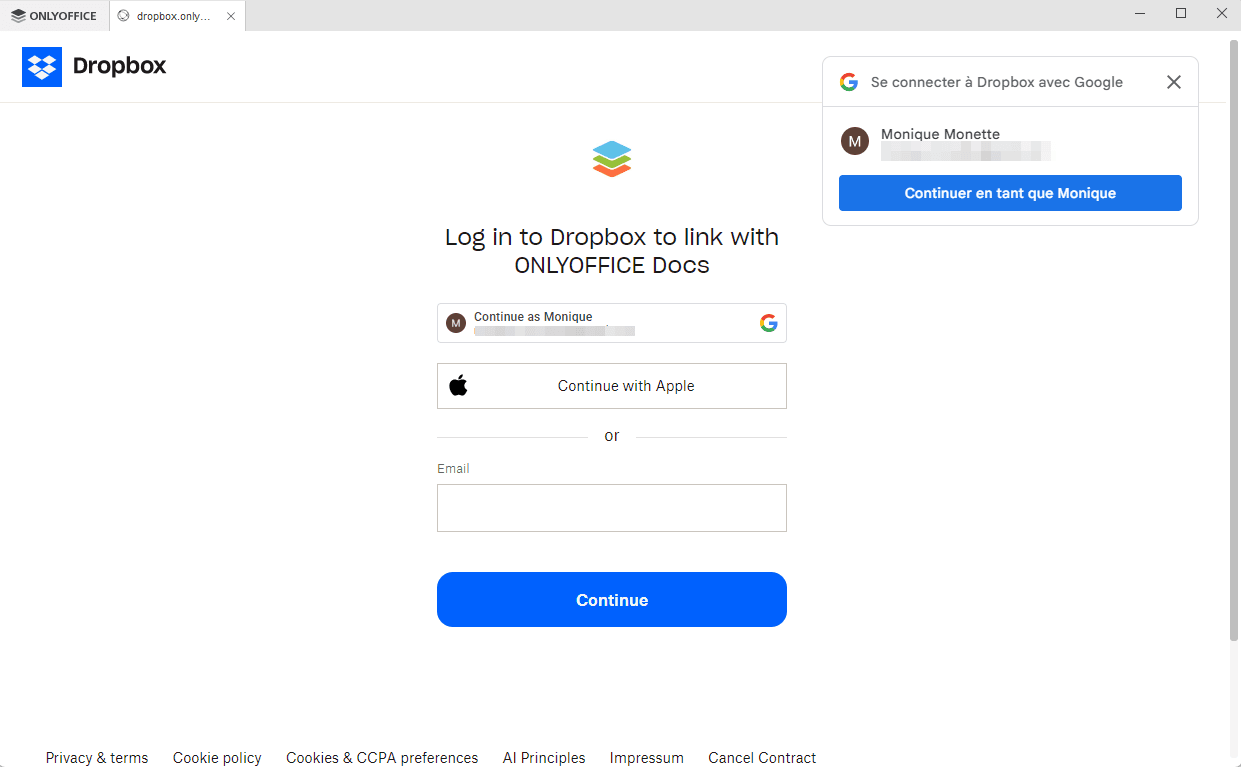
A página de login do Dropbox será aberta em uma nova aba da interface dos Desktop Editors.
- Faça login na sua conta do Dropbox usando suas credenciais do Google ou Apple, ou usando o email e senha que você usa para acessar sua conta do Dropbox.
- Clique no botão Continuar.
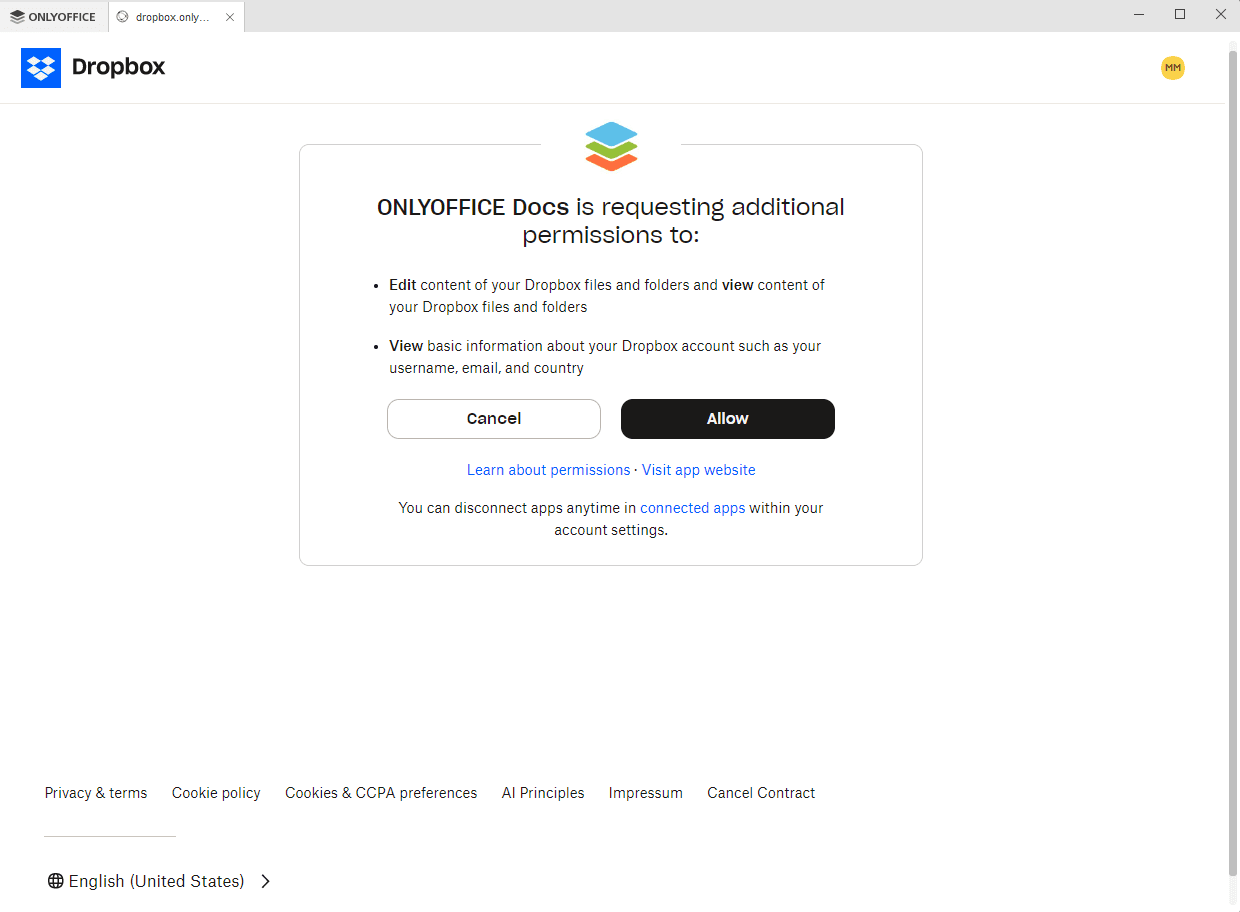
- Permita que o ONLYOFFICE acesse e edite seus arquivos do Dropbox e visualize as informações da sua conta do Dropbox.
A página principal da sua conta do Dropbox será aberta em uma nova aba do aplicativo Desktop Editor. Agora você pode editar seus arquivos existentes, criar novos, compartilhar seus documentos e colaborar com usuários do Dropbox usando os editores do ONLYOFFICE.
Passo 2. Gerenciar suas contas conectadas
Clique no logotipo no canto superior esquerdo da interface dos Desktop Editors para retornar à janela principal do programa. Todas as contas de nuvem conectadas aparecem no painel lateral esquerdo abaixo da seção Nuvens. Clique nos três pontos  que aparecem ao passar o mouse sobre a nuvem conectada para acessar as opções do menu de contexto da nuvem:
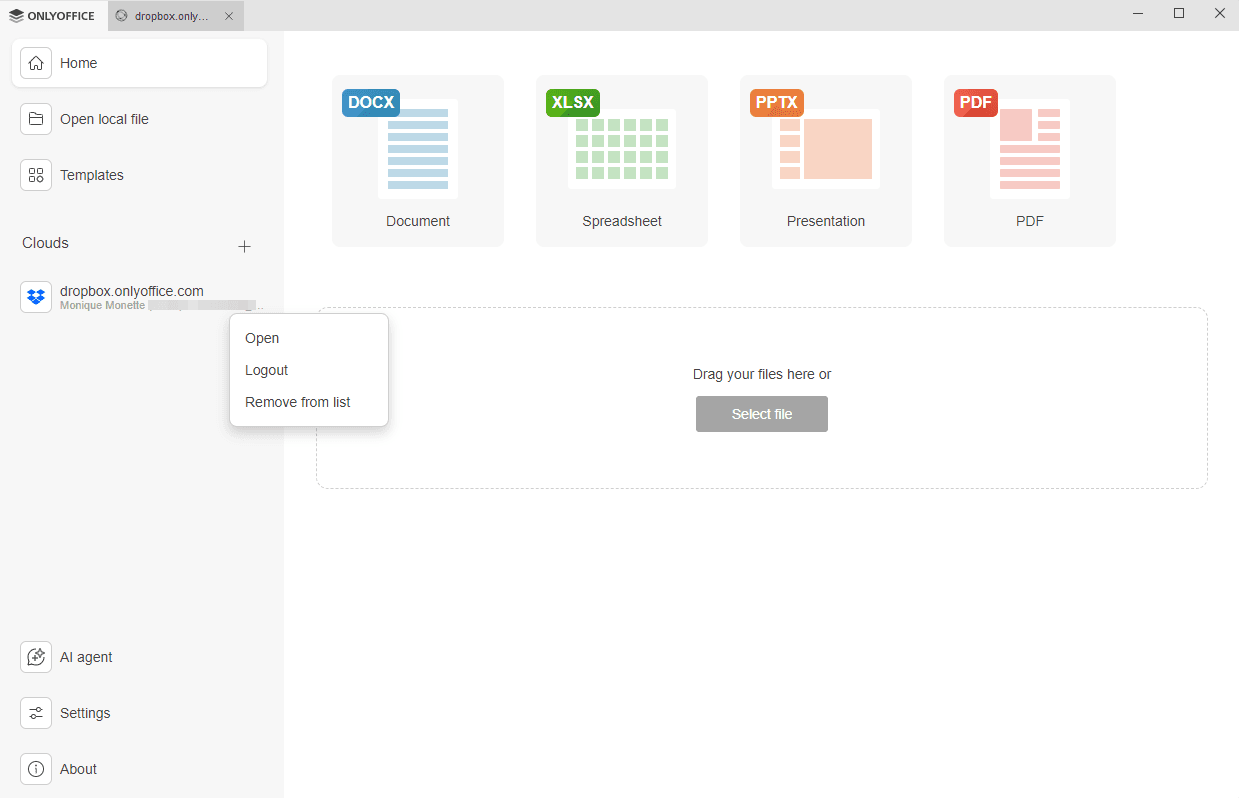
- Abrir - para alternar para a aba de armazenamento em nuvem correspondente se você já estiver logado nesta conta, ou para abrir a janela Conectar ao escritório na nuvem se você não estiver logado no momento (neste caso, será necessário inserir suas credenciais).
- Sair - para sair da sua conta. A conta conectada ainda aparece no painel lateral esquerdo, mas você precisará fazer login novamente na próxima vez para acessar seus arquivos do Dropbox.
- Remover da lista - para desconectar a conta selecionada e removê-la da lista.
Para adicionar várias contas ou nuvens, clique no botão Mais ao lado da seção Nuvens no painel lateral esquerdo.