Protecting documents with a password
Protect documents with a password
To protect your documents in the Document Editor:
-
Tap the
 Tools icon in the right corner of the top toolbar.
-
Tap the
 Protection menu option.
-
Choose whether you want to Encrypt File or to Protect Document.
To encrypt a file and to restrict unauthorized access to it:
-
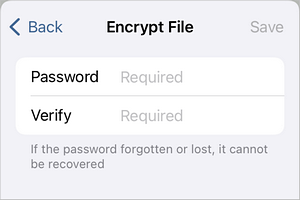
Tap the Encrypt File menu item.
-
Enter the required password and verify it.
 note
Please note that the password cannot be restored. Please keep it in a safe place so as not to forget it.
-
Tap the Save button in the top right corner.
To protect a document and restrict access rights to it:
-
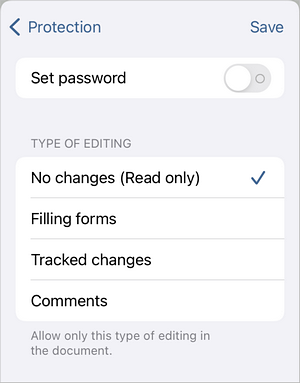
Tap the Protect Document menu item.
-
Enable the Set password switcher. Enter the required password and verify it.
 note
Please note that the password cannot be restored. Please keep it in a safe place so as not to forget it.
-
Choose the allowed editing rights for the document: No changes (Read only), Filling forms, Tracked changes or Comments.
-
Tap the Save button in the top right corner.
-
Next time you open this document you will need to enter the password.

Change the password
To change the password in the Document Editor:
- Tap the Tools icon in the right corner of the top toolbar.
- Tap the Protection menu option.
- Enter and verify the new password in the corresponding protection section.
- Tap the Save button in the top right corner.
Delete the password
To remove password protection from the Document Editor:
- Tap the Tools icon in the right corner of the top toolbar.
- Tap the Protection menu option.
- Disable the Set password switcher in the corresponding protection section.
- Tap the Save button in the top right corner.
Unprotect the document
To remove access restrictions from a protected document:
- Tap the Tools icon in the right corner of the top toolbar.
- Tap the Protection menu option.
- Tap the Unprotect menu option.
- Enter the password into the Unprotect Document window and tap OK.