Setting font type, size, and color
Set font type, size, and color
You can format the text using the text formatting toolbar at the bottom of the screen or using the text settings panel.
Select the text you want the formatting to be applied to and use the corresponding icons at the text formatting toolbar. The toolbar provides quick access to the following options:

- Bold, Italic, and Underline — refer to the Applying font decoration styles article.
- Font Color and Highlight Color — described in detail below.
- Text alignment — refer to the Aligning your text in a paragraph article.
- Lists and indents — refer to the Creating lists article.
It's also possible to change font properties via the text settings panel. Open the settings panel by tapping the  icon at the top toolbar.
On the Text tab, use one of the available settings. Use the  icon on the left to return to the previous settings section.
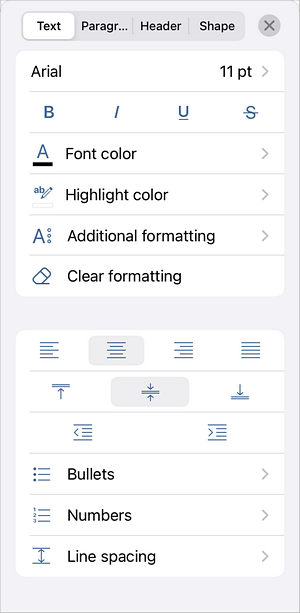
-
 Font Name — tap this icon to select one of the fonts from the list of the available ones.
-
 Font Size — tap this icon to select among the preset font size values from the list. You can also tap the
 or
 icons to decrease or increase the current value, or use the slider.
-
 Font Color — is used to change the color of the characters in the text. Tap this icon to open the color palettes window. Select the necessary color on the Theme colors or Standard colors palette, or create your own Custom color.
-
 Highlight Color — is used to mark the necessary part of the text by adding a color band that imitates highlighter pen effect around the text.
- Select the text passage you want to highlight.
- Tap the Highlight Color icon to open the color palettes window.
- Choose the required color.
To clear the highlight color, choose the
 No filling option below the palette.