この記事はAIによって翻訳されました
アイコン:ベクターアイコンの挿入とカスタマイズ
Document Editor、Spreadsheet Editor、Presentation Editor、およびPDF Editorでは、 Iconsプラグインを使用して、数千のベクターアイコンを挿入およびカスタマイズできます。このプラグインはFont Awesomeライブラリに基づいています。詳細については、プラグインのGitHubページをご覧ください。
重要ONLYOFFICE Docs 8.2以降、エディターにはデフォルトでプラグインが付属していません。プラグインは プラグインマネージャーを通じてインストールする必要があります。
- プラグインタブに切り替え、 Iconsを選択します。
- カテゴリドロップダウンメニューまたは検索フィールドを使用して挿入したいアイコンを見つけます。
-
希望するアイコンスタイルを選択します:レギュラー、ソリッド、またはブランド。
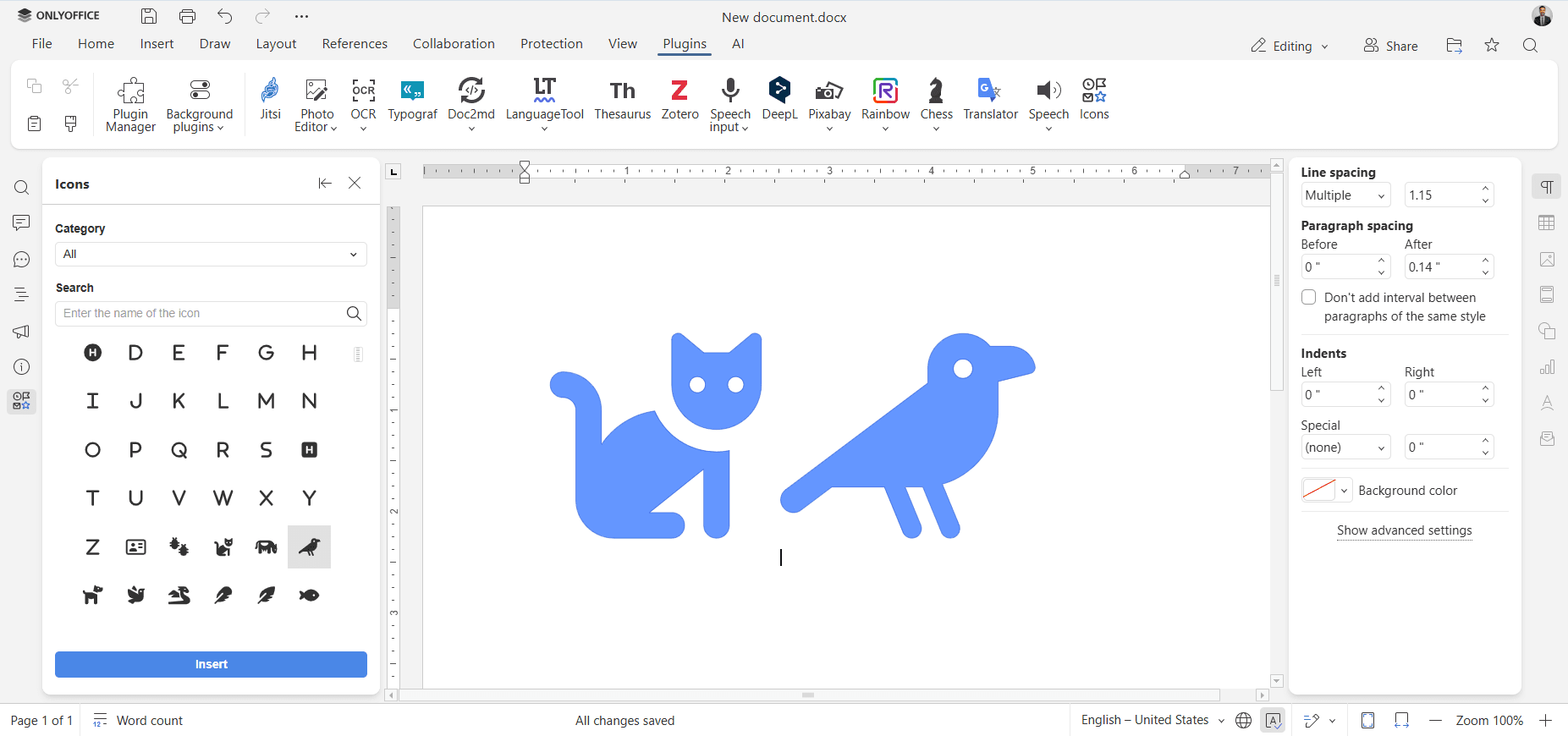
- アイコンを選択し、挿入をクリックします。
挿入したアイコンのカスタマイズ
アイコンを挿入した後、右側のパネルにある図形設定メニューを使用してカスタマイズできます:
- アイコンのサイズを変更します。
- アイコンの色を変更します。
- スタイルと形状を調整します。
- アイコンを図形に変換してさらに編集します。
次の項目が含まれている記事:タグ:
すべてのタグを見る