Questo articolo è stato tradotto dall'AI
Inserire i numeri di pagina
Inserire i numeri di pagina
- Tocca l'icona
 nella barra degli strumenti in alto per aprire il pannello di inserimento nuovo oggetto.
 - Passa alla scheda Altro.
- Seleziona l'opzione
 Numero di pagina.
 - Specifica la posizione del numero di pagina sulla pagina: In alto a sinistra, In alto al centro, In alto a destra, In basso a sinistra, In basso al centro, In basso a destra, Posizione attuale.
Regolare le impostazioni del numero di pagina
- Tocca il numero di pagina inserito per selezionarlo.
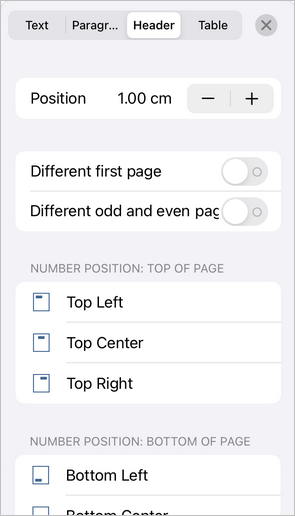
- Apri il pannello delle impostazioni
- toccando l'icona
 nella barra degli strumenti in alto e vai alla scheda Intestazione, oppure
 - toccando l'opzione Intestazione nel menu a comparsa, oppure
- facendo doppio tap direttamente nell'area dell'intestazione o del piè di pagina sul documento.
- toccando l'icona
 o
o  per regolare manualmente la posizione.
 Voci con l'etichetta tag:
Sfoglia tutti i tag