Zapier
About the ONLYOFFICE and Zapier integration
ONLYOFFICE provides an official connector for integrating ONLYOFFICE Apps with Zapier. With this app, users can create custom Apps integrations and set up "If X happens, then do Y" actions, known as Zaps, without needing any programming skills. The source code of the ONLYOFFICE Zapier integration is available on GitHub. The connector is distributed under the Apache-2.0 license.
Main features
- Connect ONLYOFFICE Apps with thousands of apps supported by Zapier.
- Automatically create rooms, folders, or files in Apps when specific events occur.
- Upload, download, and share documents between Apps and other services.
- Invite users to Apps and manage access through automated workflows.
- Send notifications about Apps events to messaging and collaboration tools.
- Build flexible automation workflows that fit your team’s daily processes.
Examples of Zaps
The list of implemented Zaps:
- Apps and Zoom. The User Added trigger was used. When a new user is added to Apps, a Zoom meeting is automatically scheduled for the company employee to provide training on using Apps.
- Apps and Google Docs. The File Created in My Documents trigger was used. After a user creates a document in Apps, its copy is added to Google Docs.
- Apps and Gmail. The File Created trigger was used. A user creates a file in Apps and gets its copy to Gmail email, for further work, or sharing with customers.
- Apps, Slack and Discord. The Room Created trigger was used. After creating a new room in Apps, a channel in Slack is automatically created and a notification is sent to Discord.
- Apps and Google Chat. The Room Archived trigger was used. After a user moves a room to the archive, a notification is automatically sent to a Google Chat.
- Asana and Apps: The Search Folder and Delete Folder actions were used. A folder is created in Apps based on the task name in Asana. Once the task is completed, the folder in Apps is automatically deleted.
- Apps and Telegram. The Room Created trigger and Share Room action were used. When creating a room in Apps, a Telegram notification is automatically sent to an administrator or a certain user.
- Linear.app and Apps. The Create Room action was used. When creating a new task in Linear.app, a room in Apps is automatically created.
- OneDrive and Apps. The Upload File action was used. When adding a file to OneDrive, its copy is automatically sent to Apps.
- HubSpot and Apps. The Invite User action was used. When a new contact is added in HubSpot, an invitation to register in the Apps workspace is automatically sent to the contact.
Connecting ONLYOFFICE Apps to Zapier
Requirements
- Zapier
- ONLYOFFICE Apps
- Zapier ONLYOFFICE integration app
Installing the ONLYOFFICE Apps connector for Zapier
The ONLYOFFICE Apps app can be found and connected in the Zapier Apps section:
- Sign up for a Zapier account or log in.
- Go to the Apps > My Apps section.
- Click the + Add connection button and find ONLYOFFICE Apps.
- Enter URL to your Apps, email and password to connect your account.
- Start creating a new Zap with using Apps.
Start using ONLYOFFICE Apps within Zapier
Creating Zaps
-
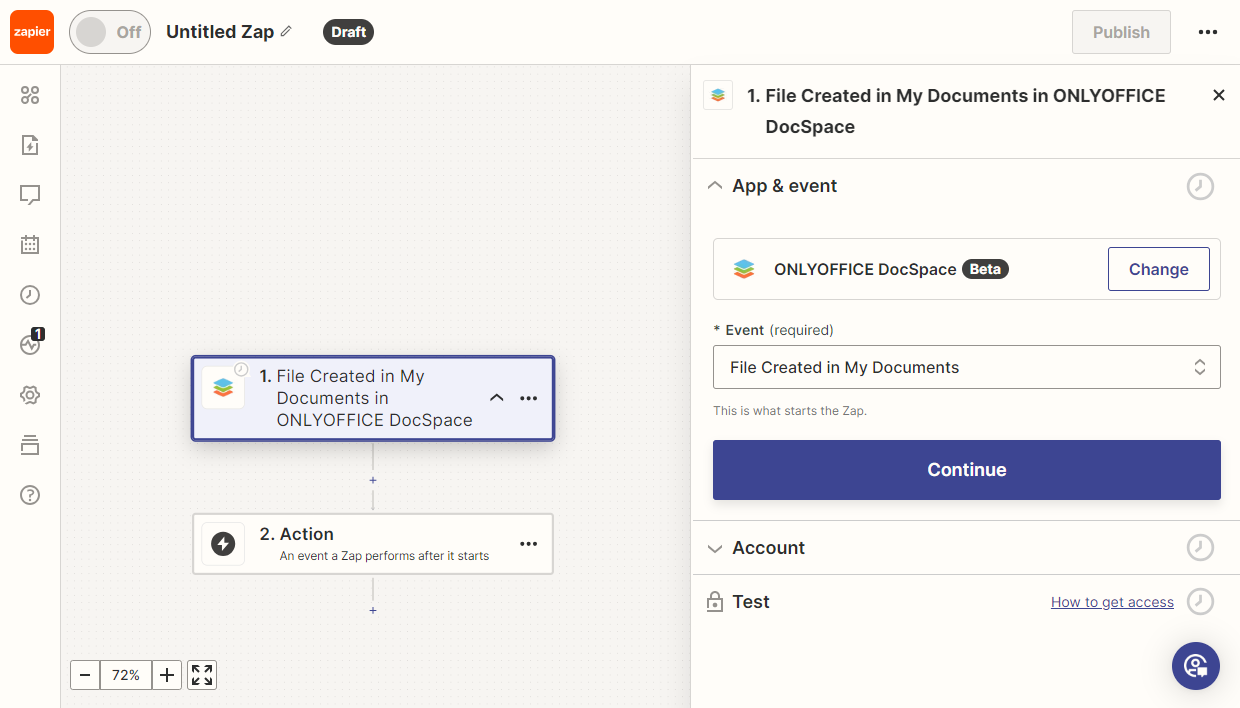
To create a chain of actions, select the trigger event from which the chain begins.
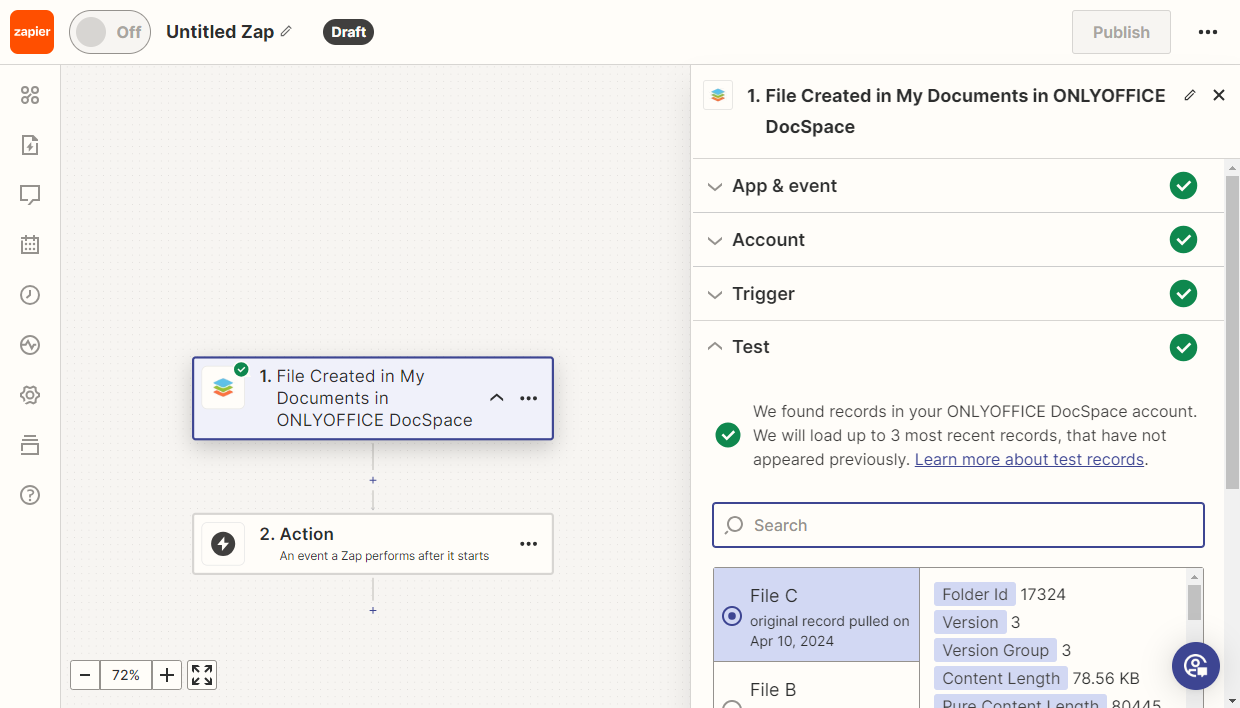
For example, we selected a trigger on creating a file in the My documents section. In the App & event section, choose the File Created in My Documents event.
-
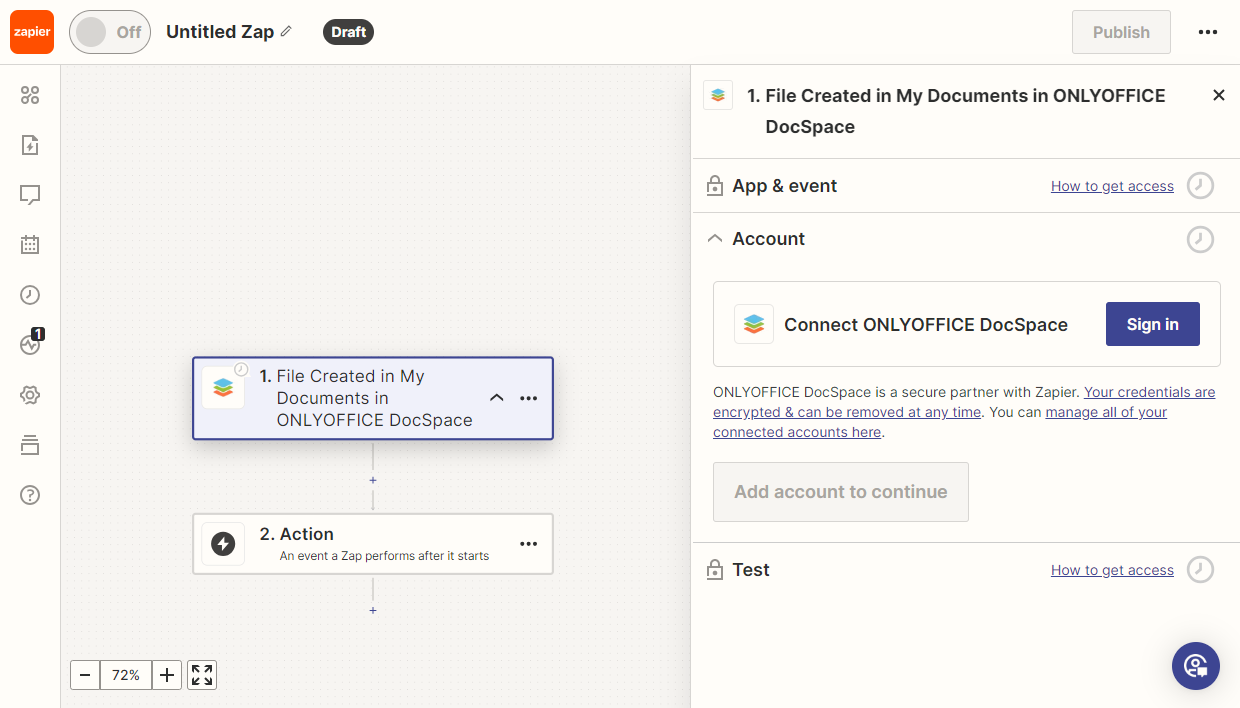
Then we need to authorize in Apps where we will track the file creation. In the Account section, click Sign in.
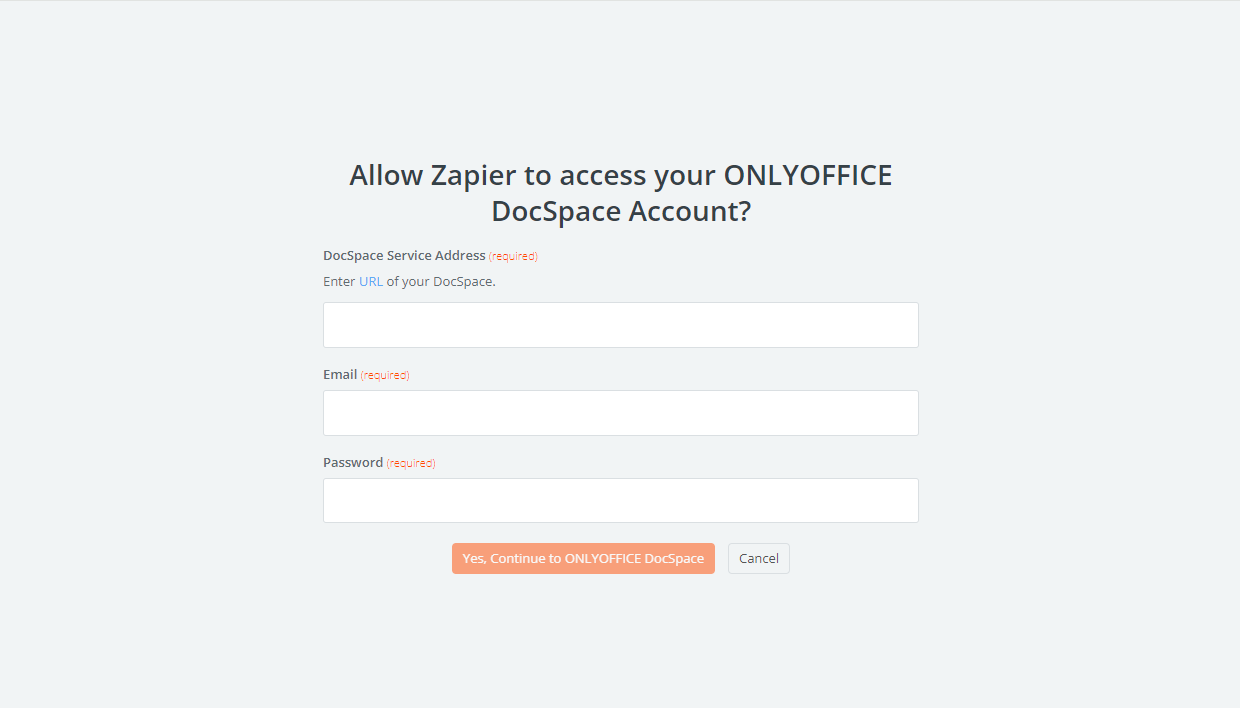
In the authorization window, specify the Apps portal URL, email address and password. Click Yes, Continue to ONLYOFFICE DocSpace.
-
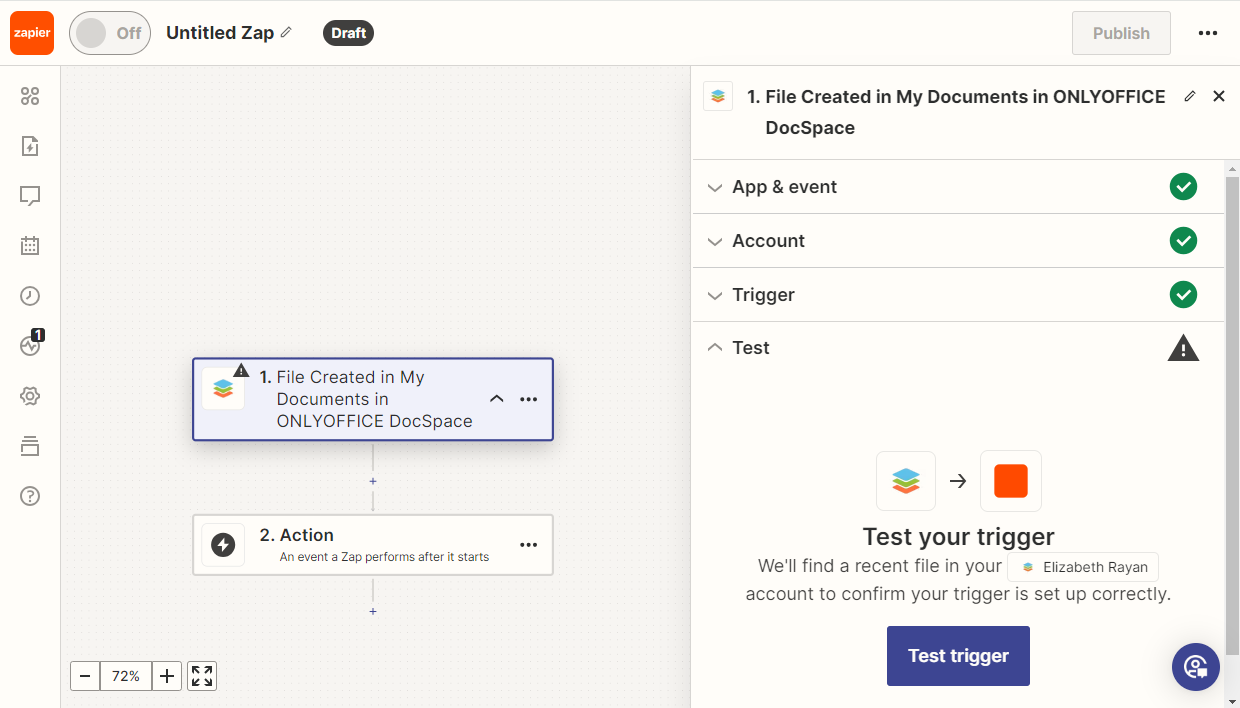
In the Trigger section, you can set up your trigger. In this case, you can optionally select the necessary folder or leave the default settings.
Then, it’s necessary to test the trigger. Click the Test trigger button.
-
Select a record and click the Continue with selected record button.
-
Then we can create the following events in the chain, test them and publish the Zap. More details for available Zaps are described below.
User Added trigger
Goal
When adding a new user in Apps, a Zoom meeting is automatically created for the company employee, with the topic on teaching a new user how to use Apps.
Implementation
-
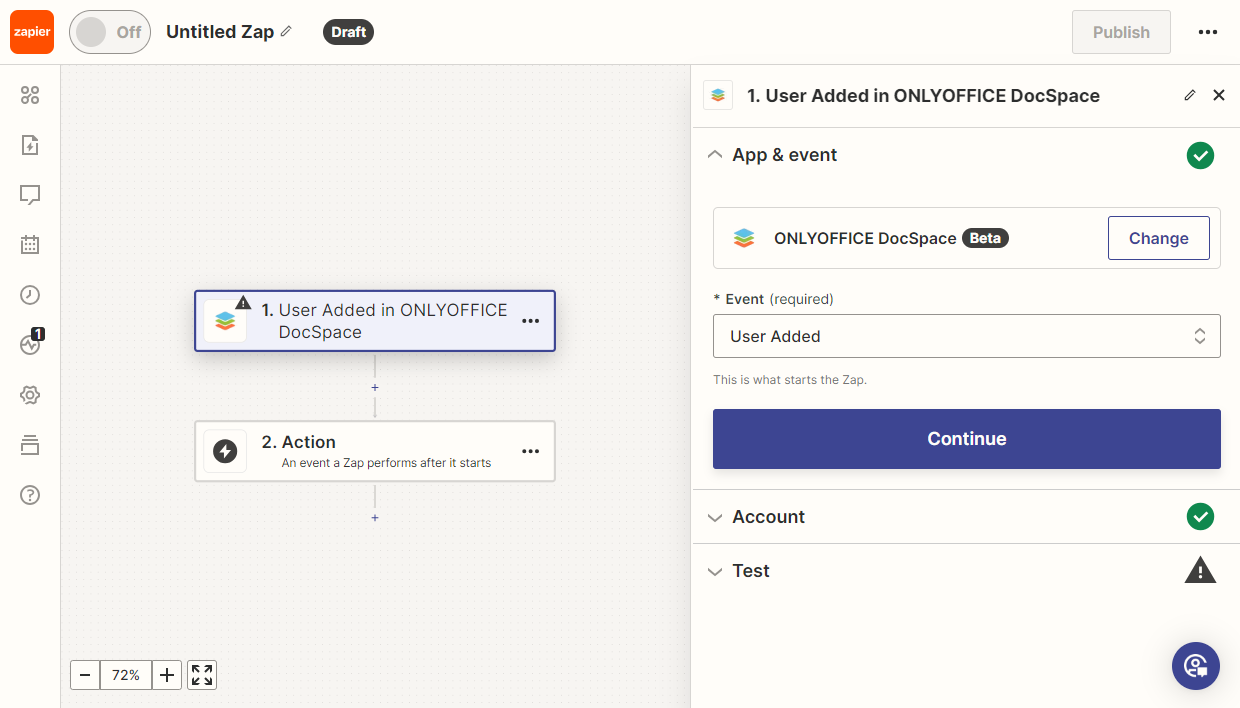
Add the Apps User Added trigger to receive data on new users within Apps.
-
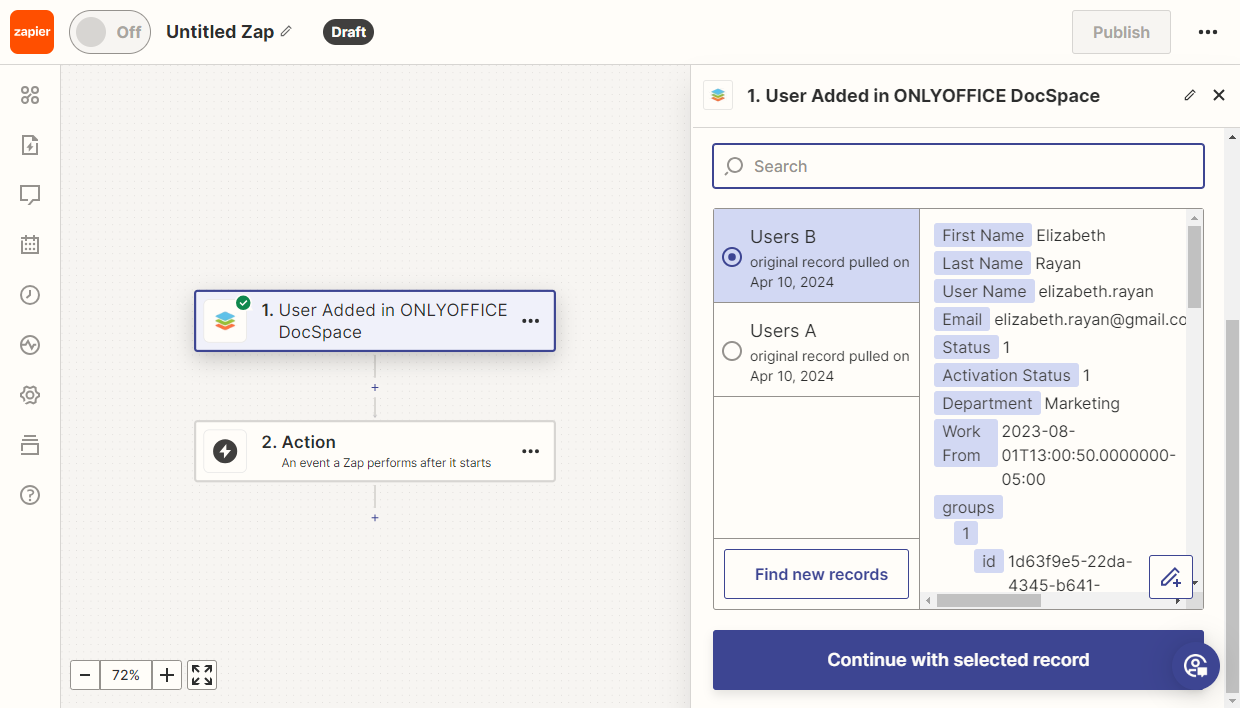
Test the trigger to ensure it functions correctly. Then, select a sample record for further use.
-
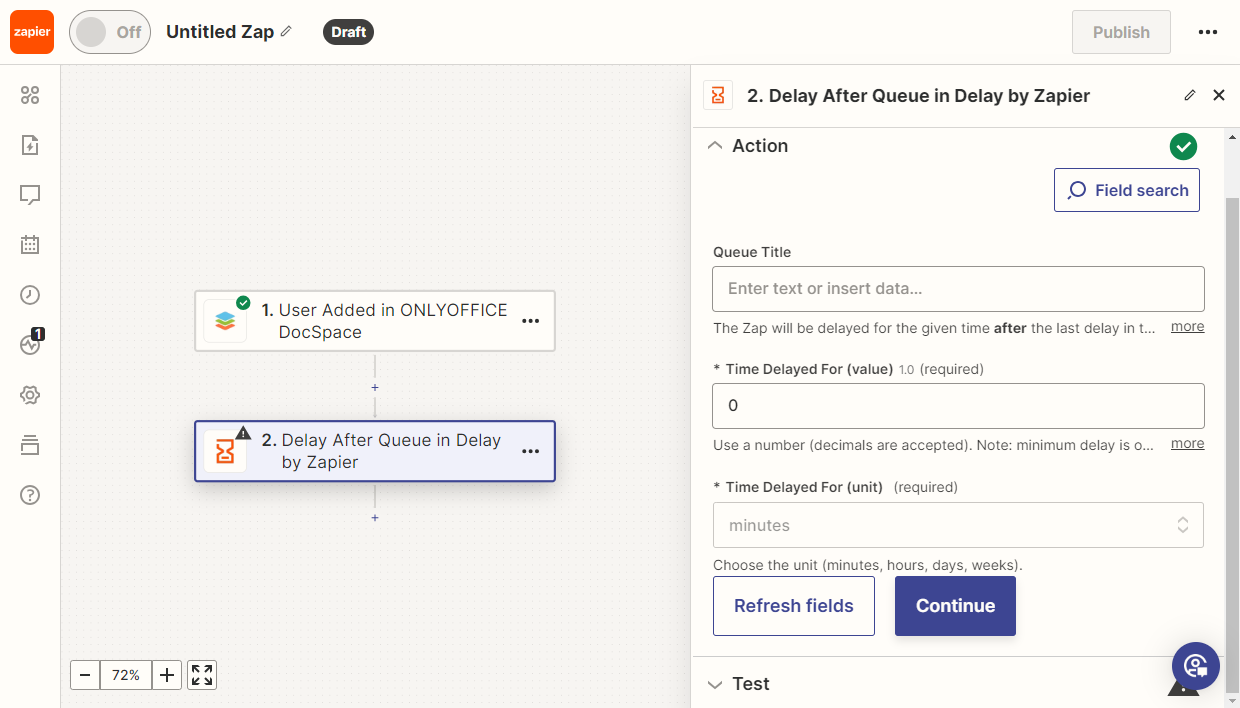
Add the Zapier Delay After Queue action to get current time.
Set the desired delay for the event (0 minutes in this example). Select the person responsible for the task; if necessary, choose multiple assignees.
-
Then add the Zoom Create Meeting action.
Set up the action depending on your needs. Enter the meeting topic, choose the date, duration, and a password if necessary.
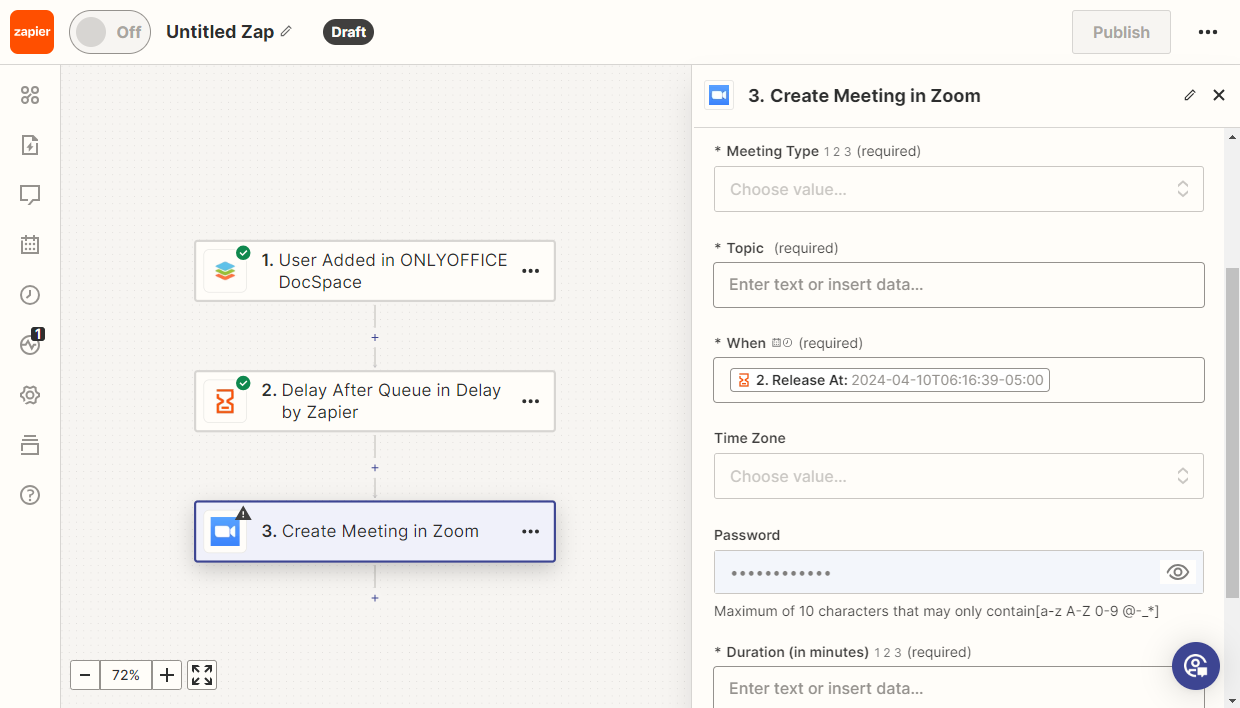
Then test the Zap. If all tests passed successfully, publish it.
File Created in My Documents trigger
Goal
After a user creates a document in Apps, its copy is added to Google Docs.
Implementation
-
Add the Apps File Created in My Documents trigger. This trigger is activated when creating or adding a new document.
If needed, select the folder where the trigger will apply.
-
Test the trigger to ensure everything is working correctly. Select a sample record for further testing.
-
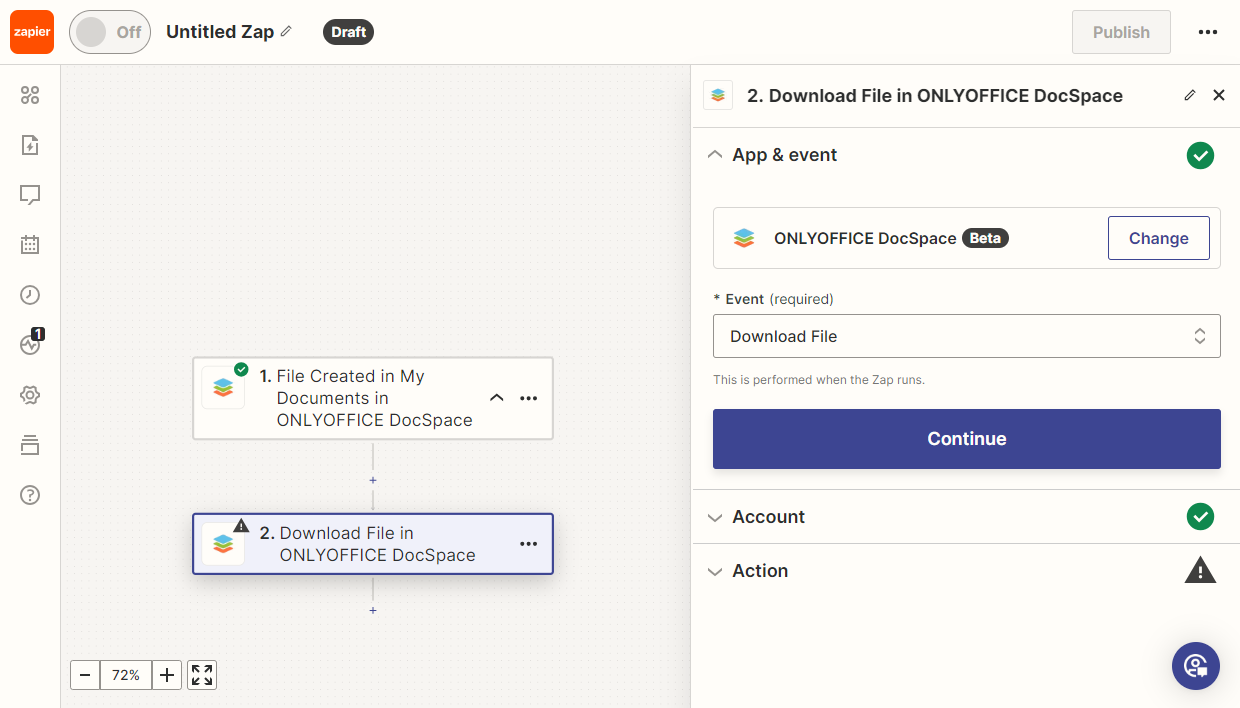
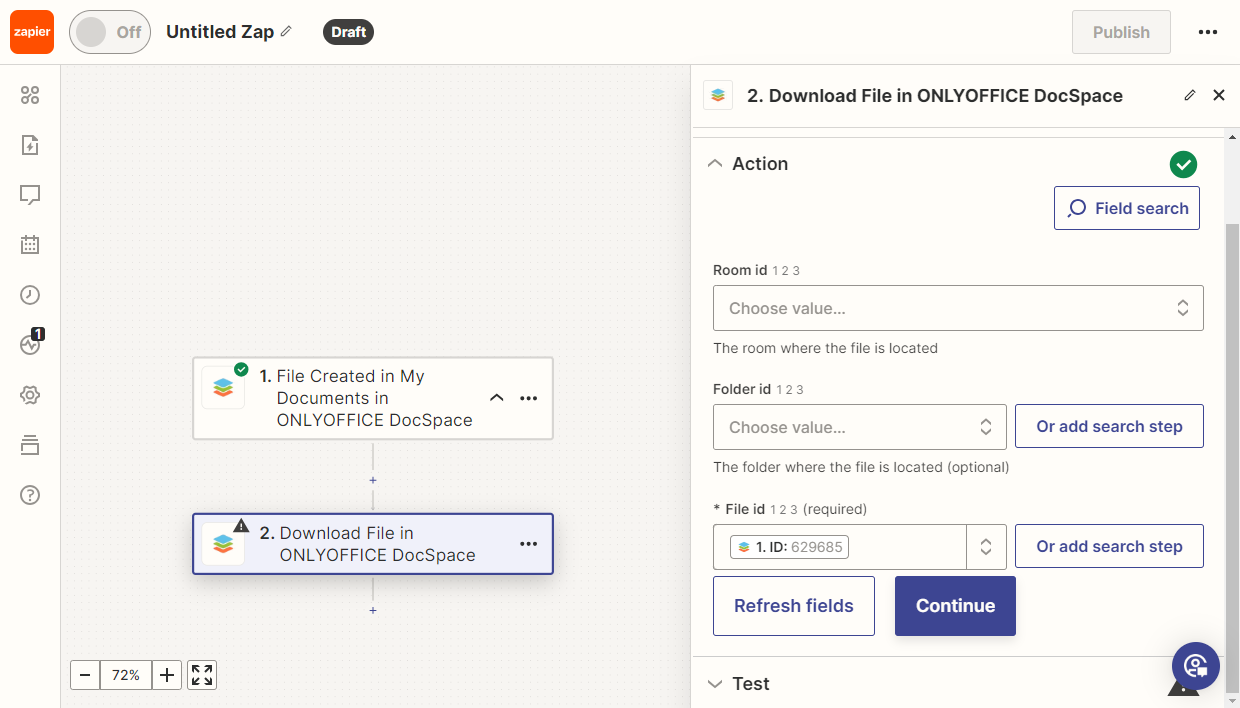
To obtain a file from Apps, it’s necessary to download it first. To do that, add the Download File action.
-
In the action settings, select the file ID.
-
Add the new Google Docs Upload Document action. Select the File field and choose the folder in Google Docs where the files will be uploaded.
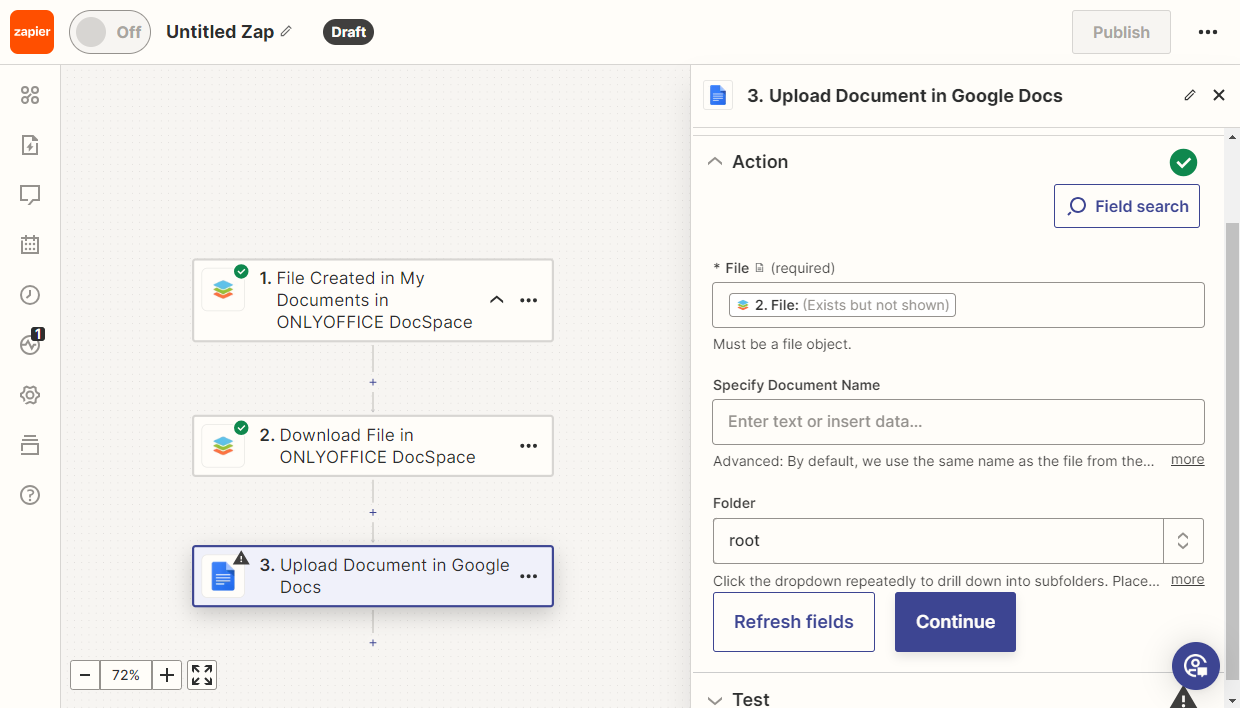
Then test the Zap. If all tests passed successfully, publish it.
File Created trigger
Goal
A user creates a file in Apps and gets its copy to a Gmail email, for further work, or sharing with customers.
Implementation
-
Add the Apps File Created trigger.
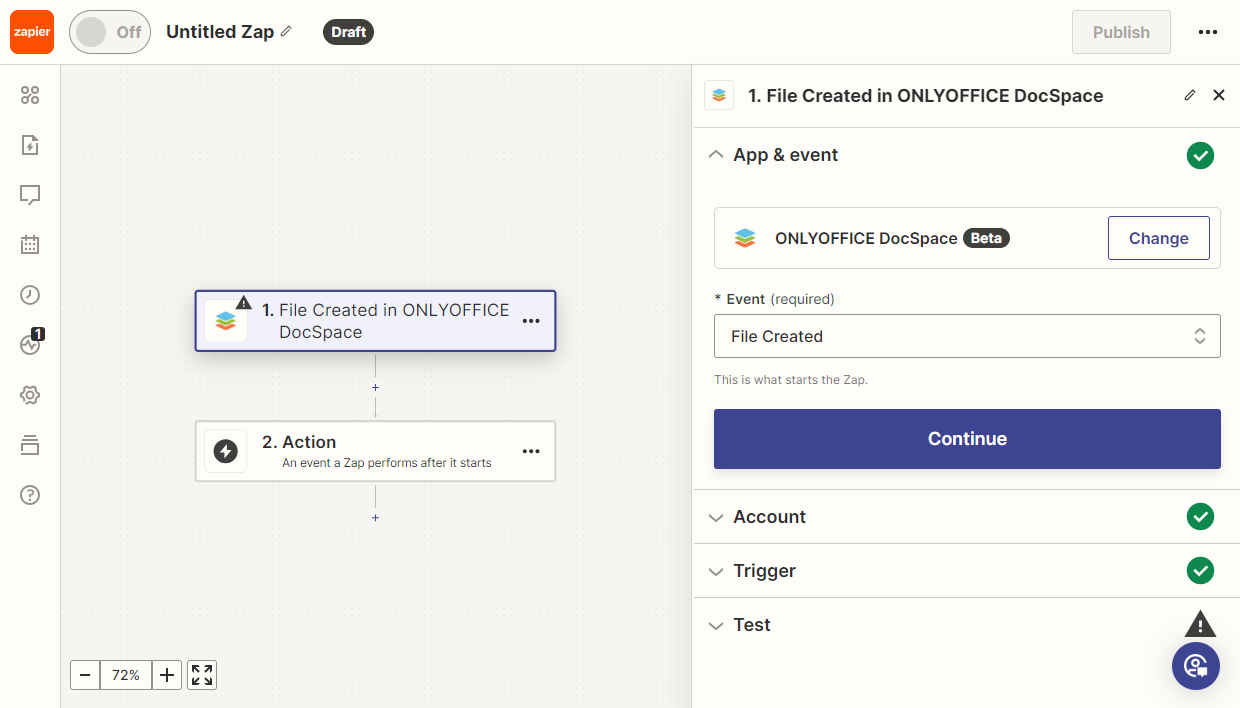
If needed, select the room and/or folder where the trigger will apply.
-
Test the trigger to ensure it functions correctly. Then, select a sample record for further use.
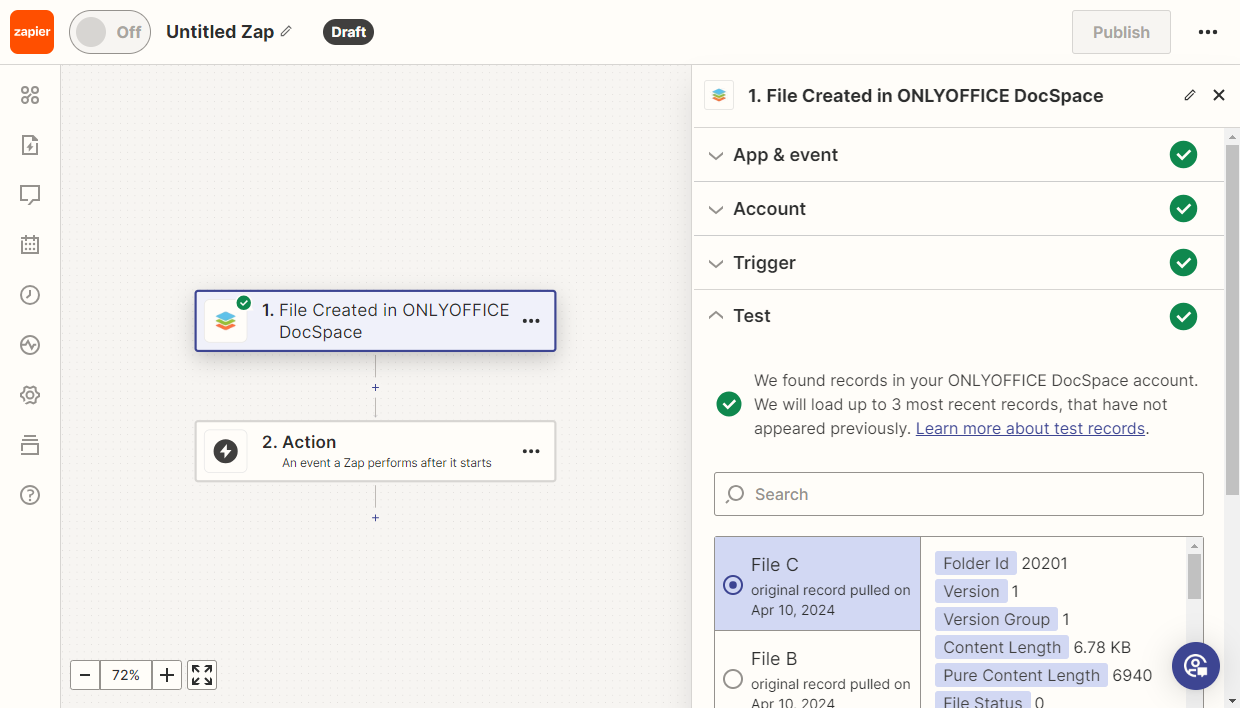
-
Add the new Apps Download File action, which will download the file.
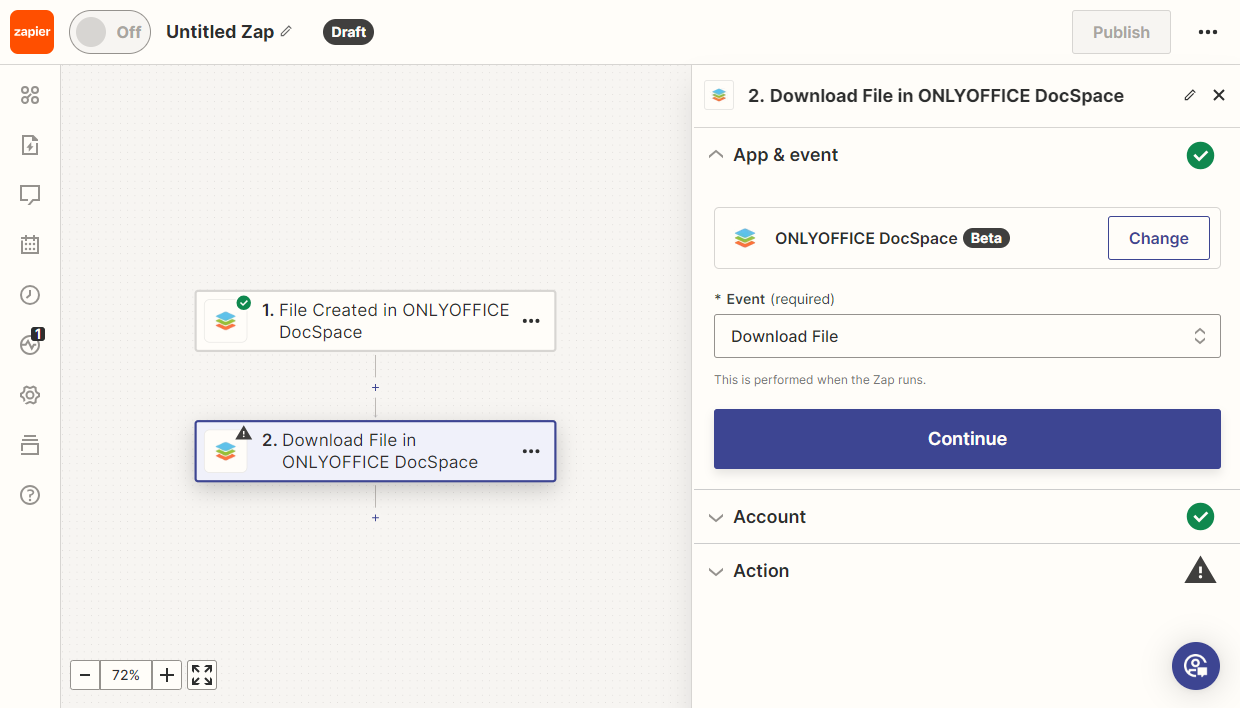
-
In the Action settings, select the file ID.
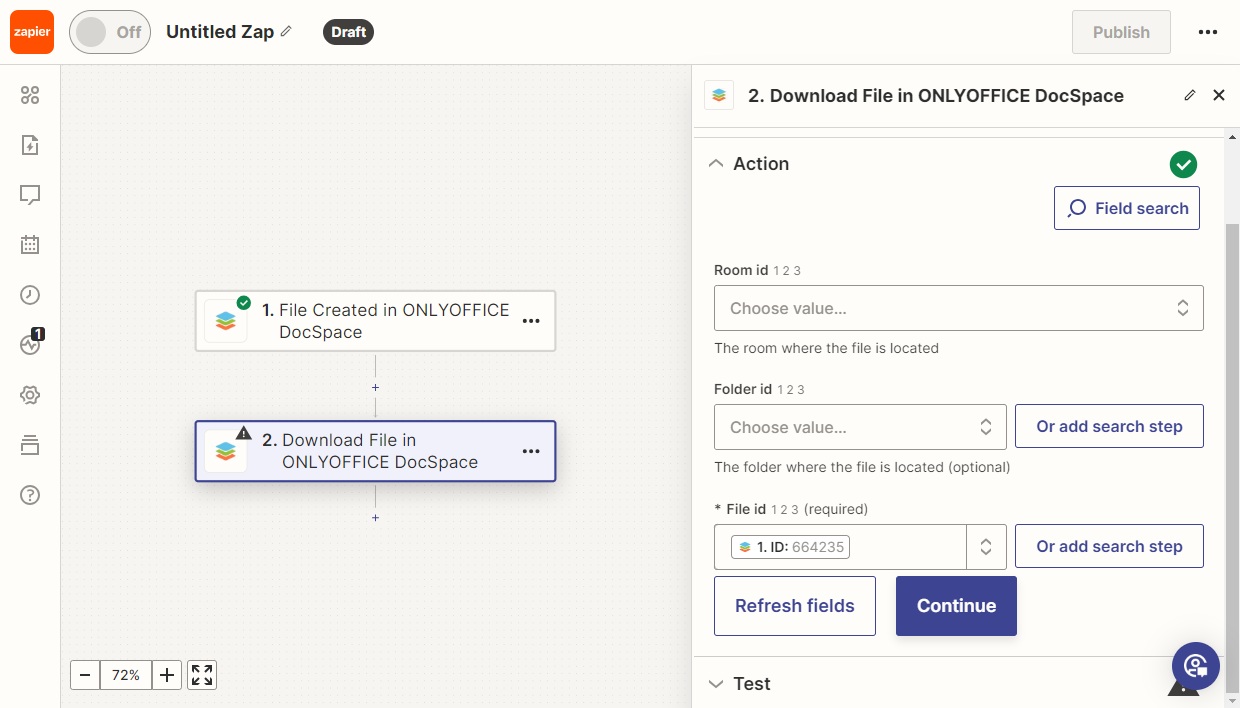
-
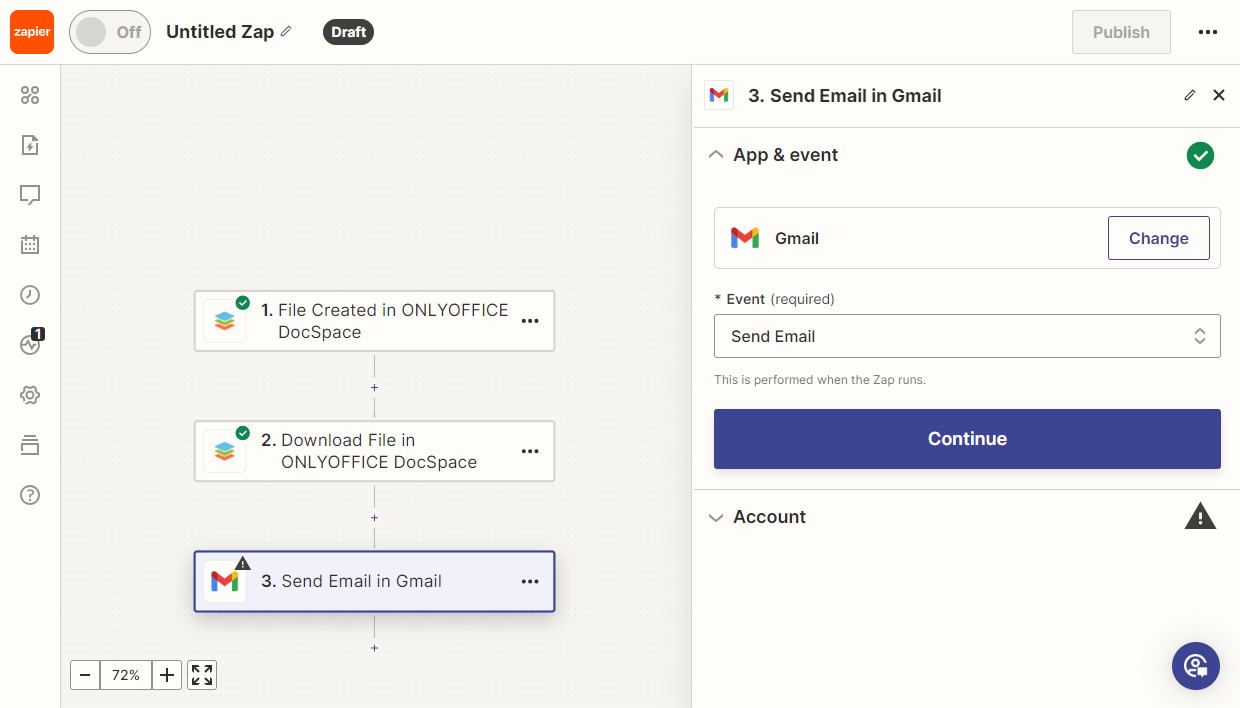
Add the new Gmail Send Email action. Enter necessary parameters in the settings.
-
In the Attachment field, specify the value from the Download File action.
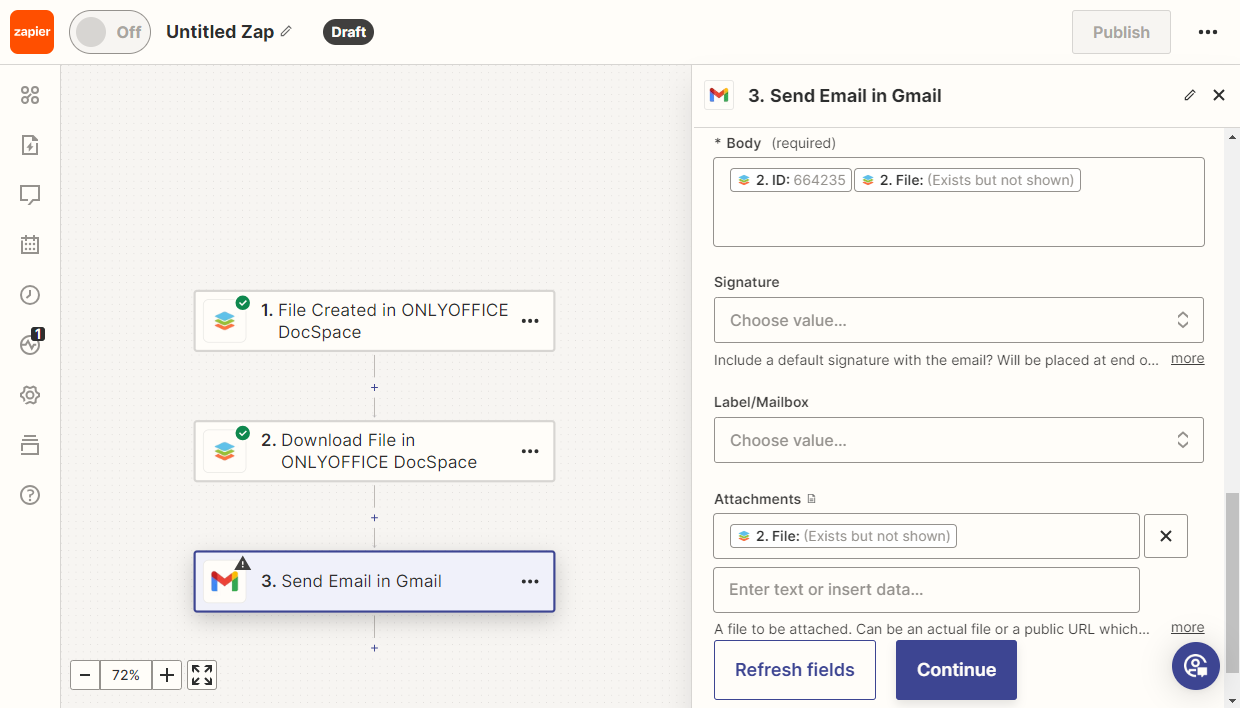
Then test the Zap. If all tests passed successfully, publish it.
Room Created trigger
Goal
After creating a new room in Apps, a channel in Slack is automatically created and a notification is sent to Discord.
Implementation
-
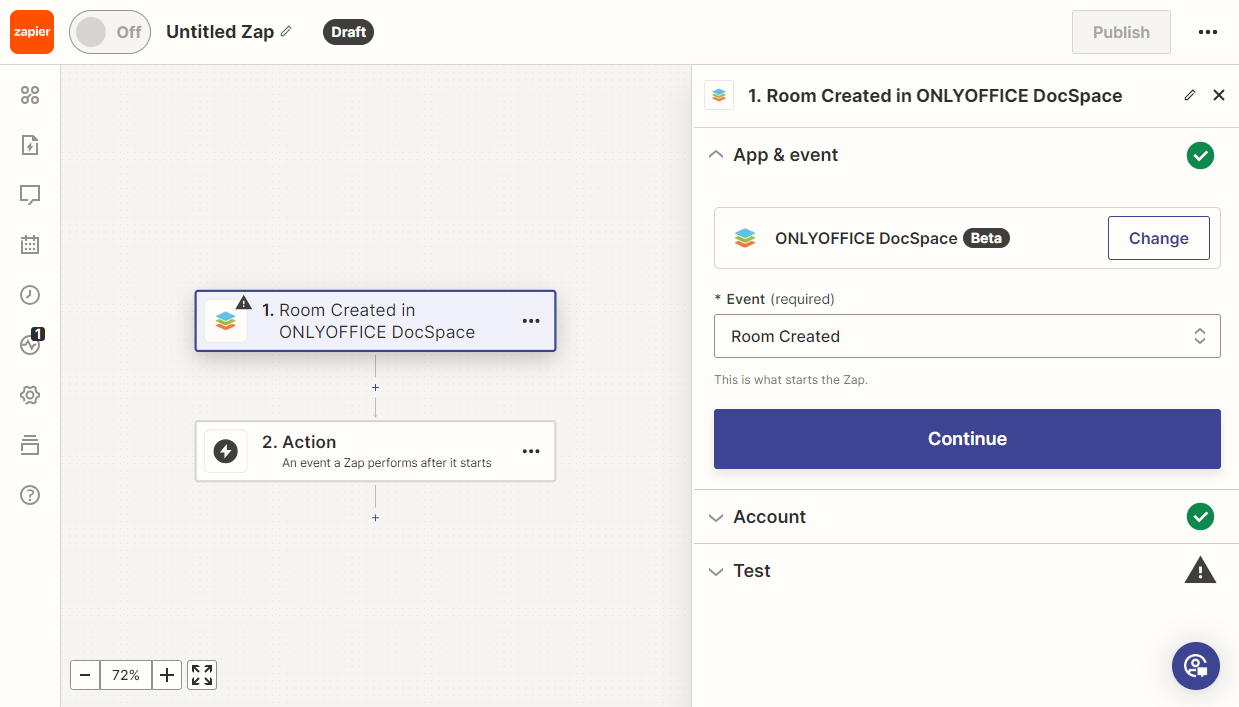
Add the Apps Room Created trigger.
-
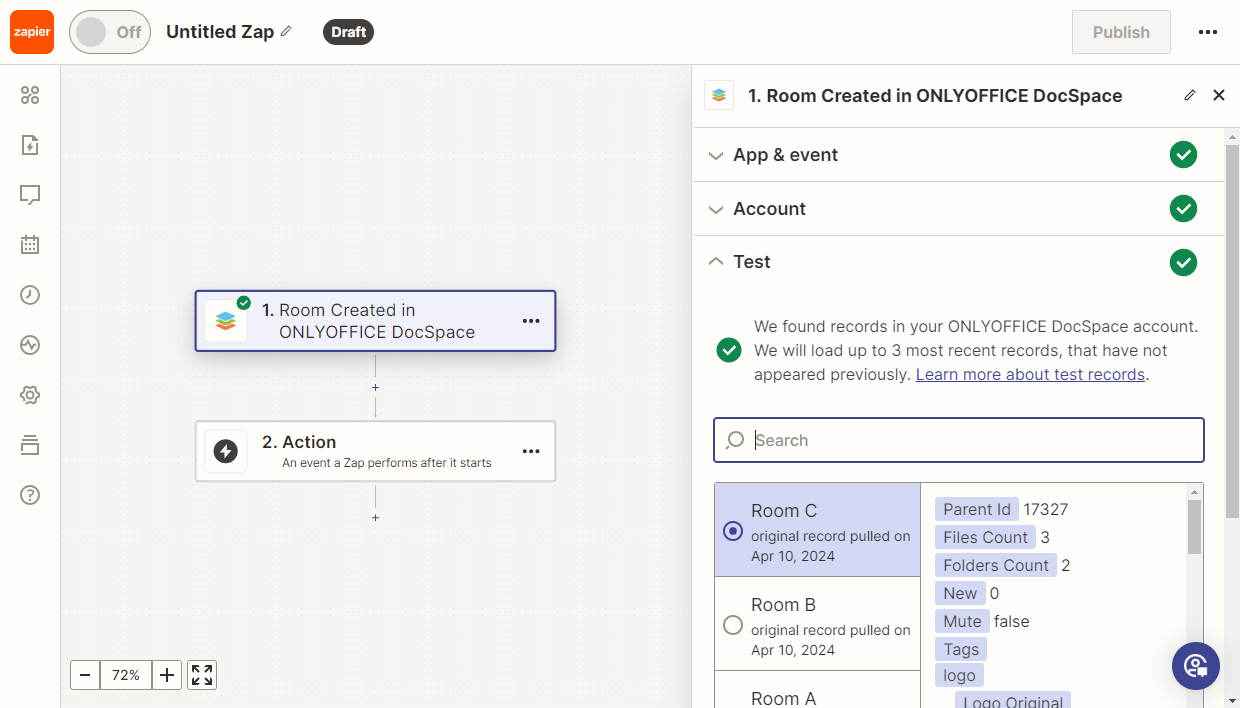
Test the trigger to ensure it functions correctly. Then, select a sample record for further use.
-
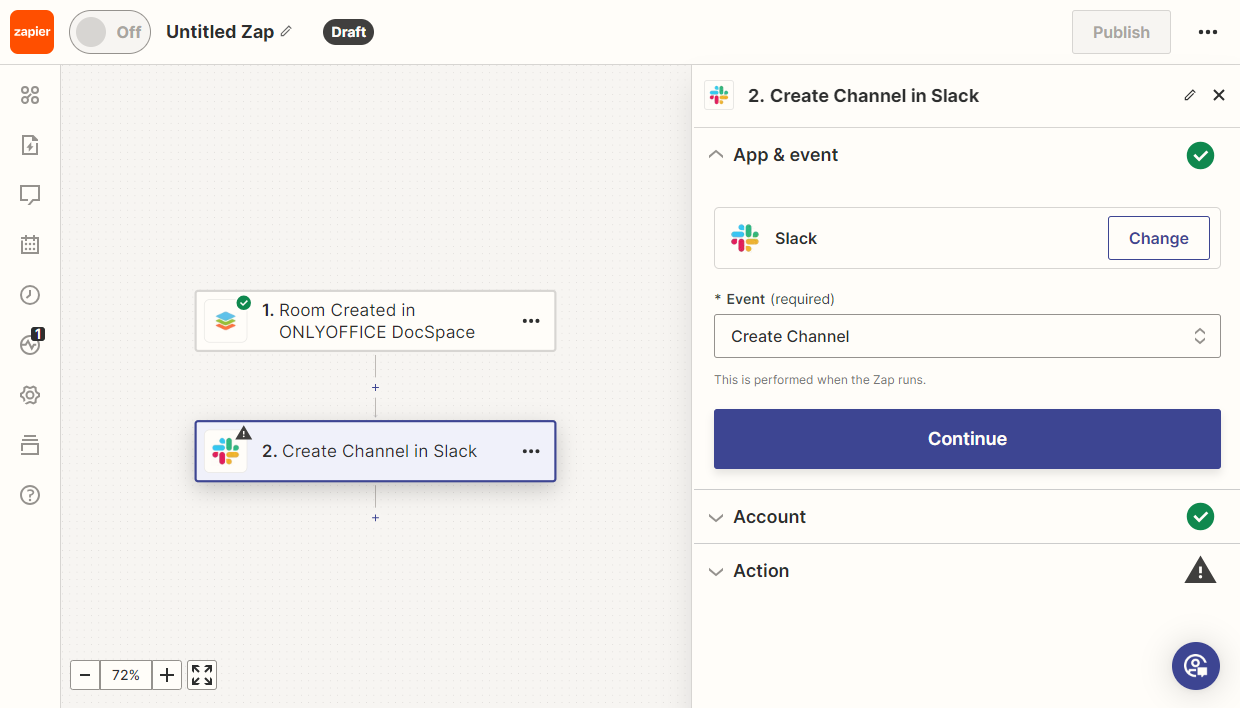
Add the Slack Create Channel action.
-
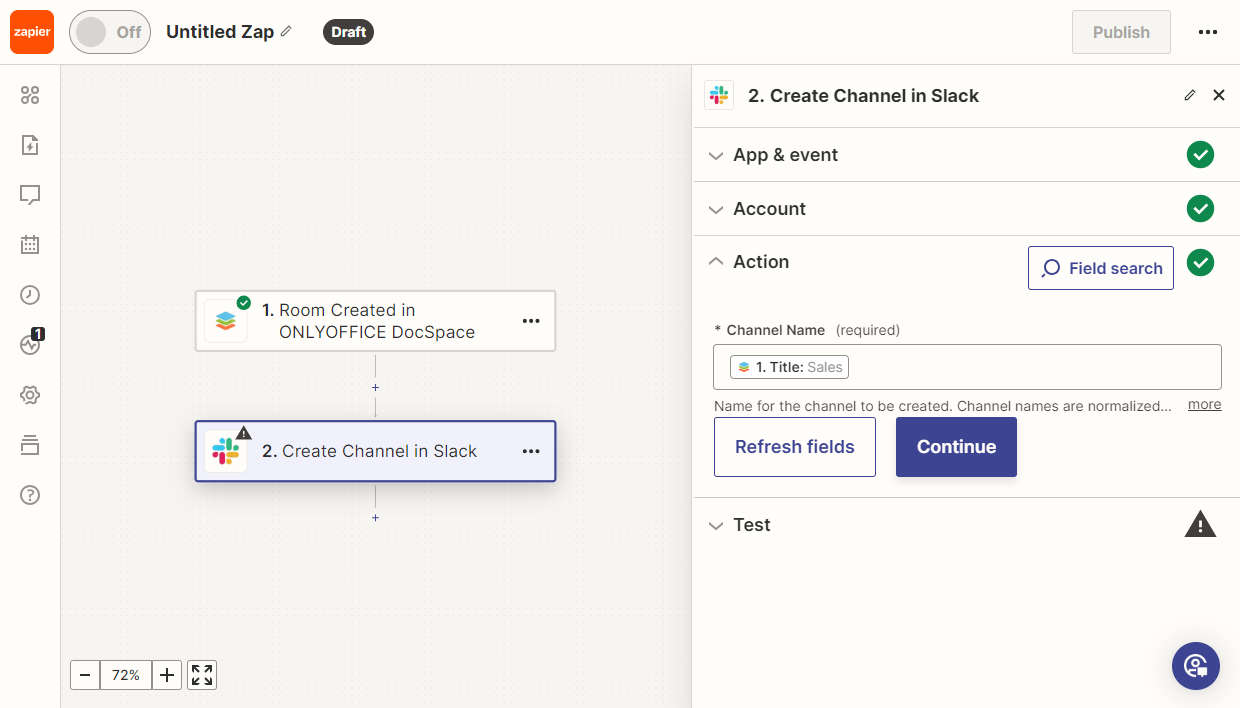
In the Action settings, select the Channel Name.
-
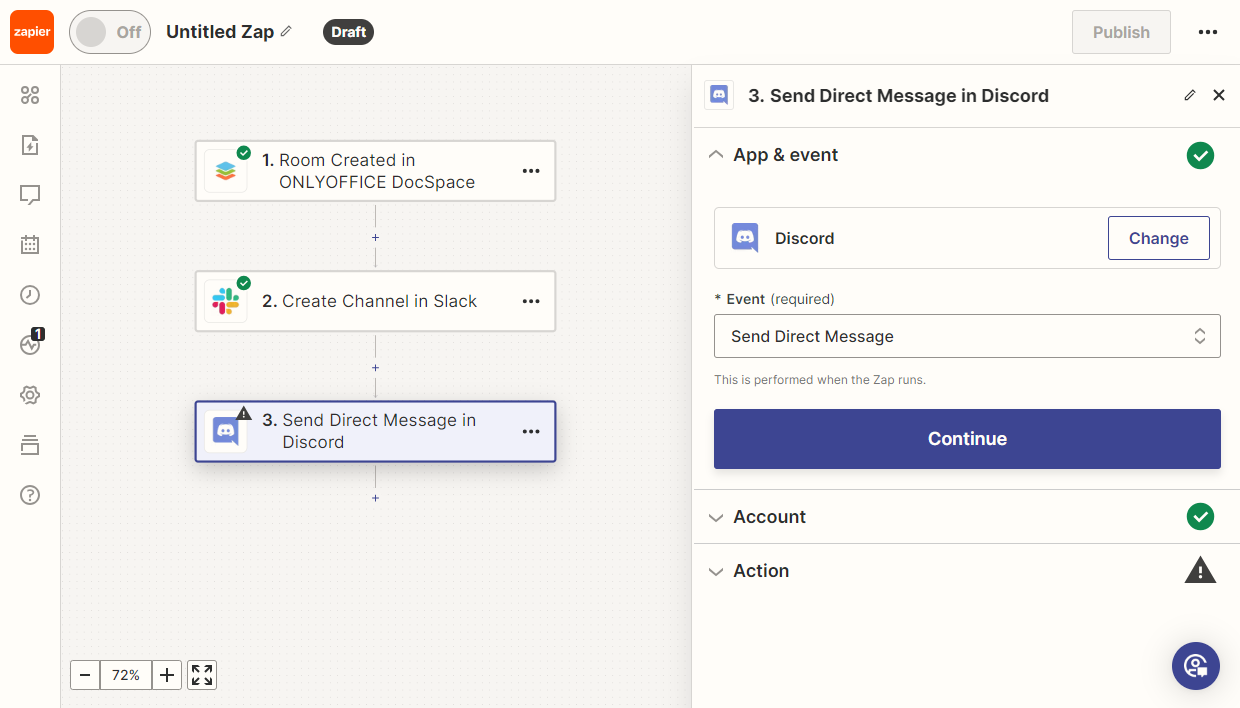
Add the new Discord Send Message action.
-
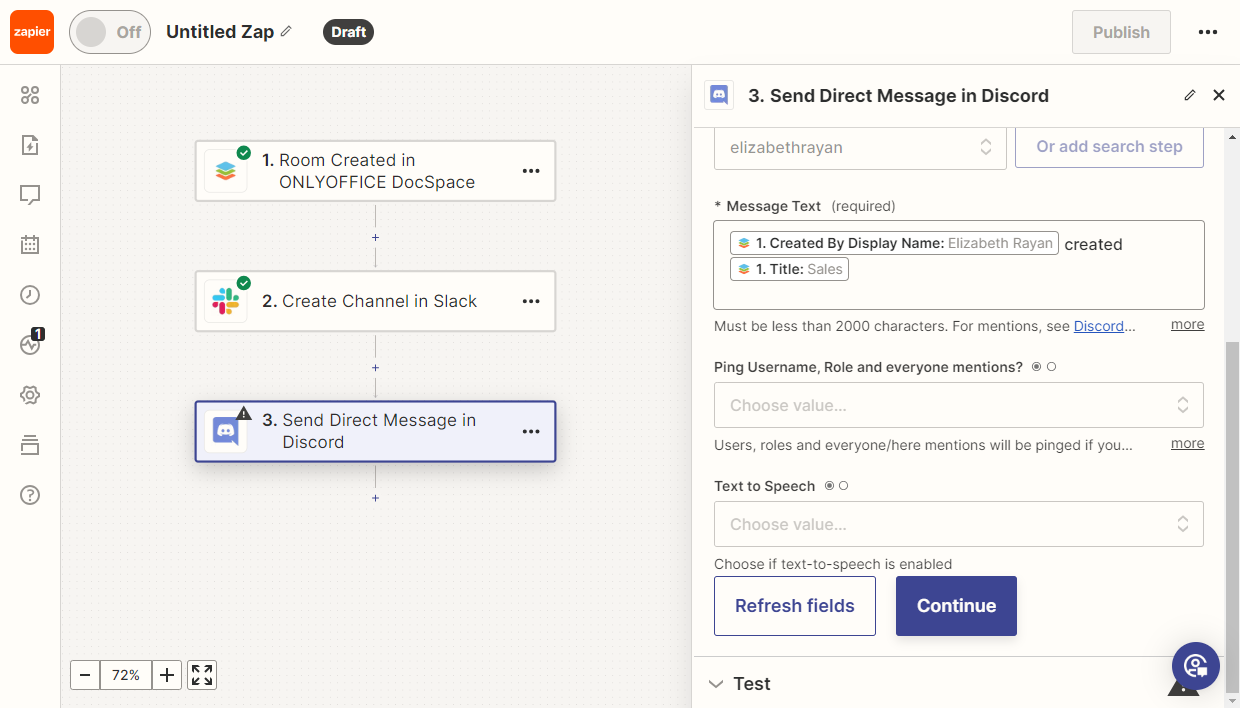
Select the recipient and the message text.
Then test the Zap. If all tests passed successfully, publish it.
Room Archived trigger
Goal
After a user moves a room to the archive, a notification is automatically sent to Google Chat.
Implementation
-
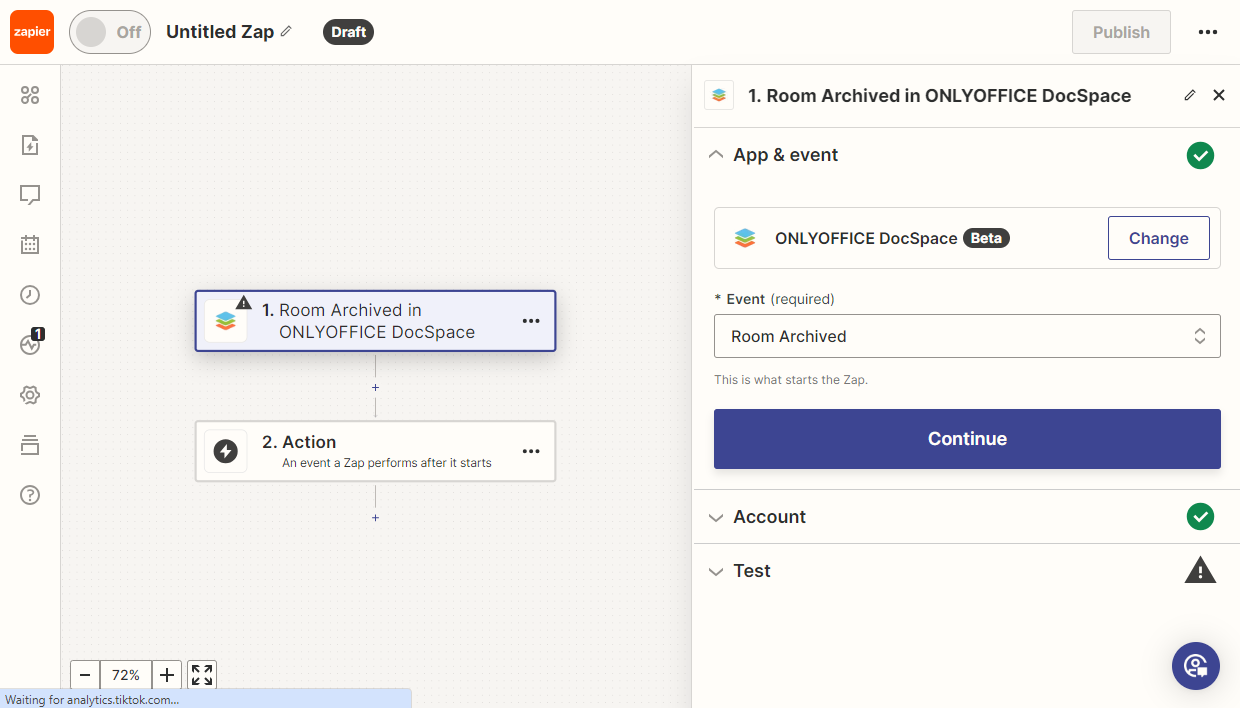
Add the Apps Room Archived trigger.
-
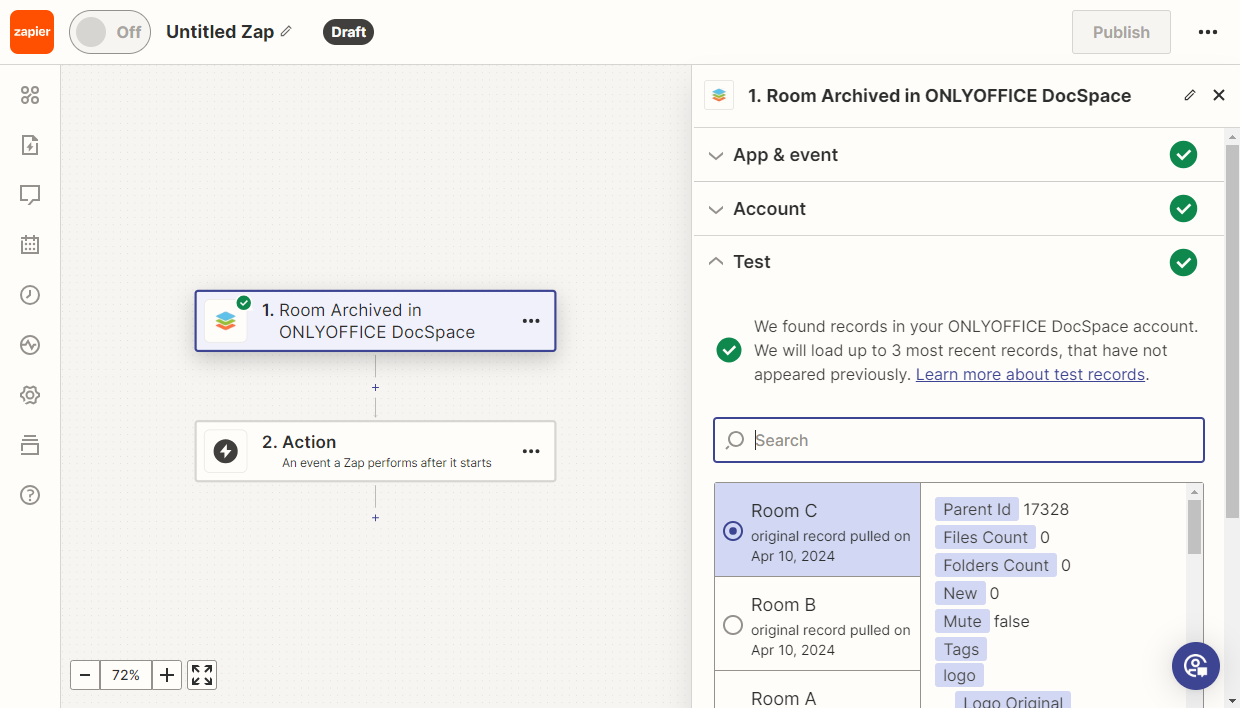
Test the trigger to ensure it functions correctly. Then, select a sample record for further use.
-
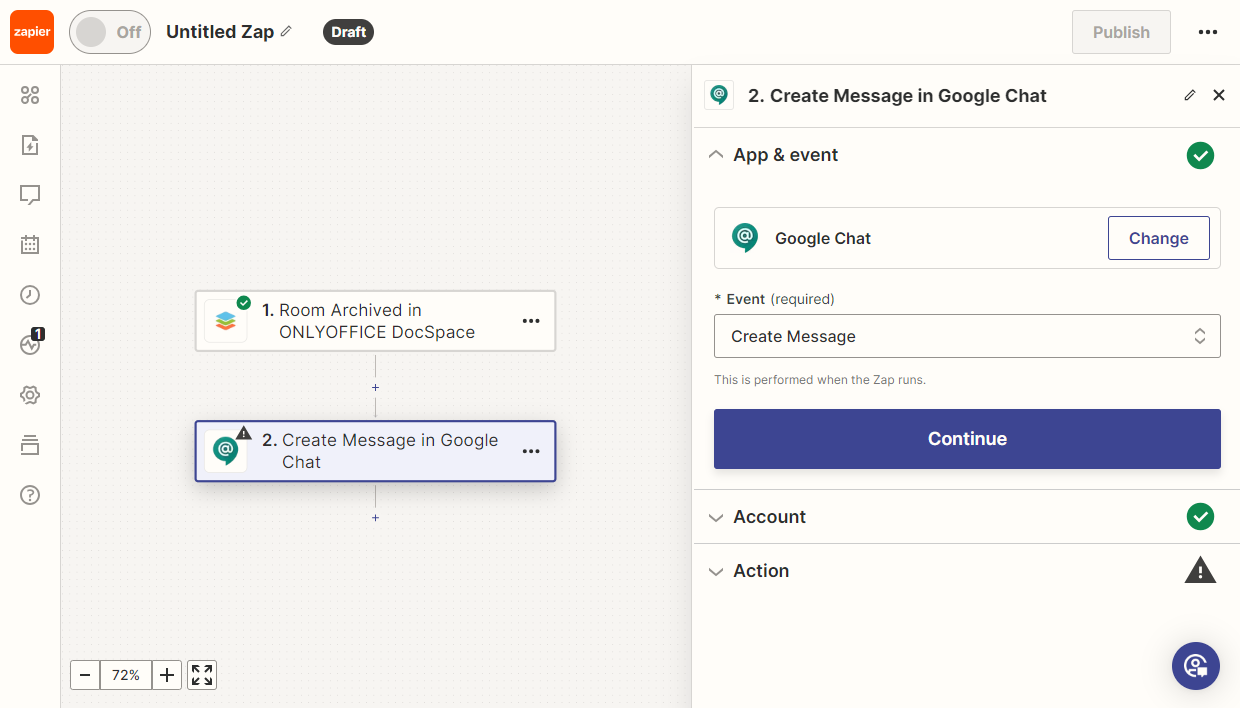
Add the Google Chat Create Message action.
-
In the settings, select a channel and use the message constructor to create your message text.
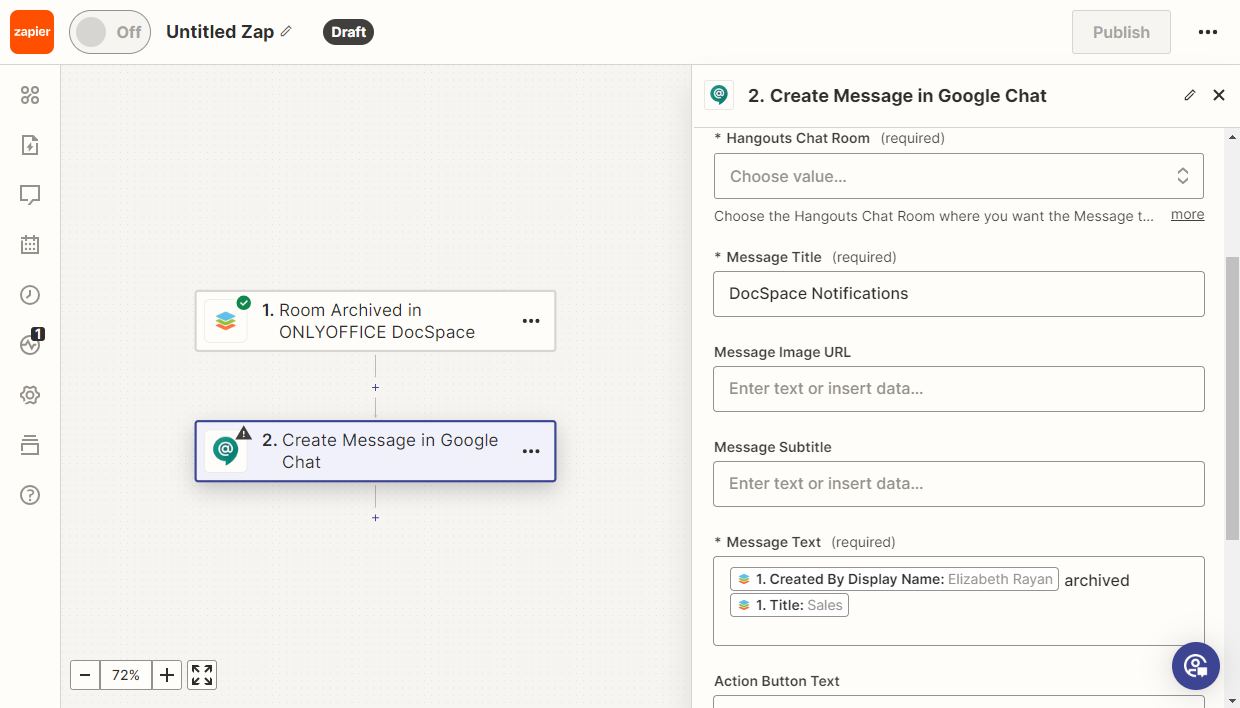
Then test the Zap. If all tests passed successfully, publish it.
Search Folder and Delete Folder actions
Goal
A folder is created in Apps according to the task name in Asana. When the task is closed, the folder in Apps will be automatically removed.
Implementation
-
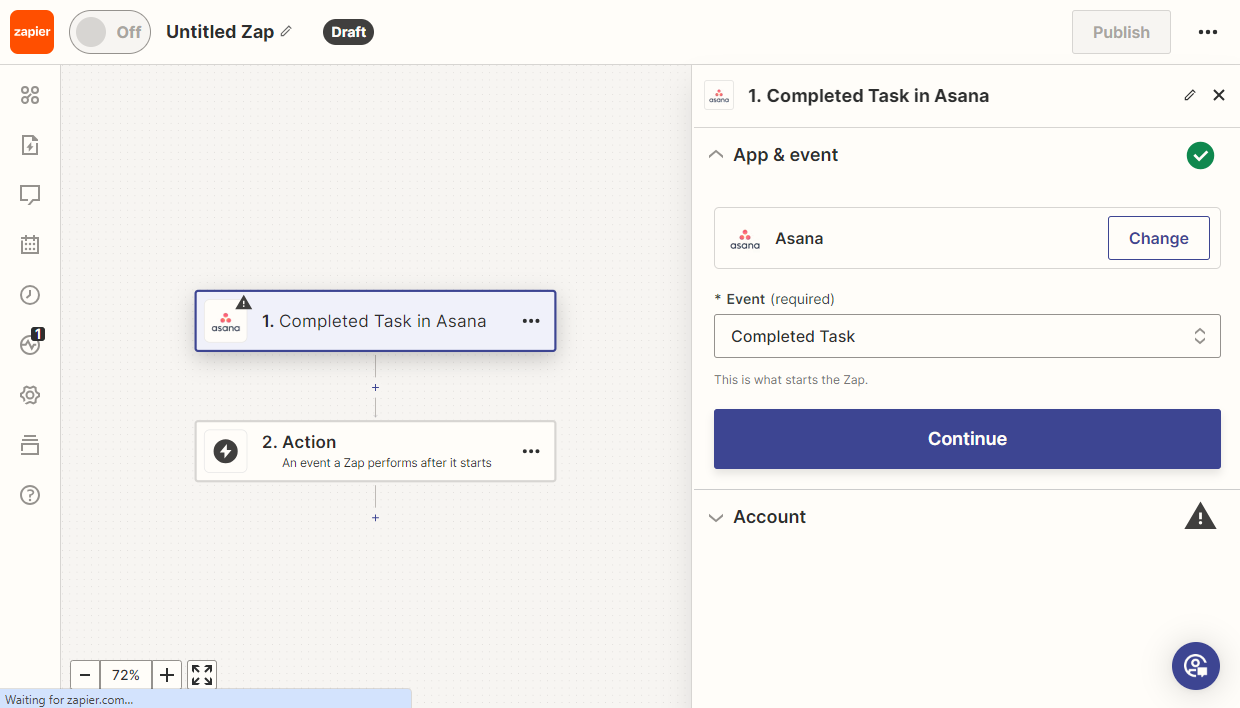
Add the Asana Completed Task trigger.
-
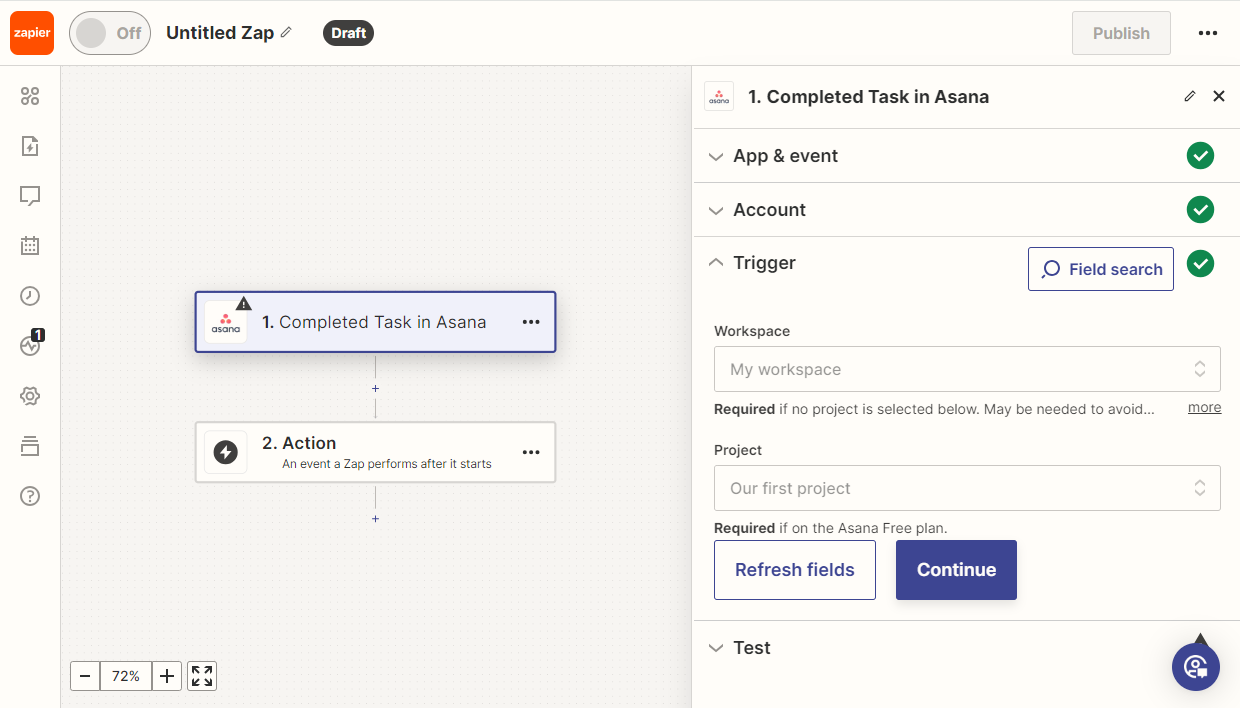
Select the Workspace and Project in Asana.
-
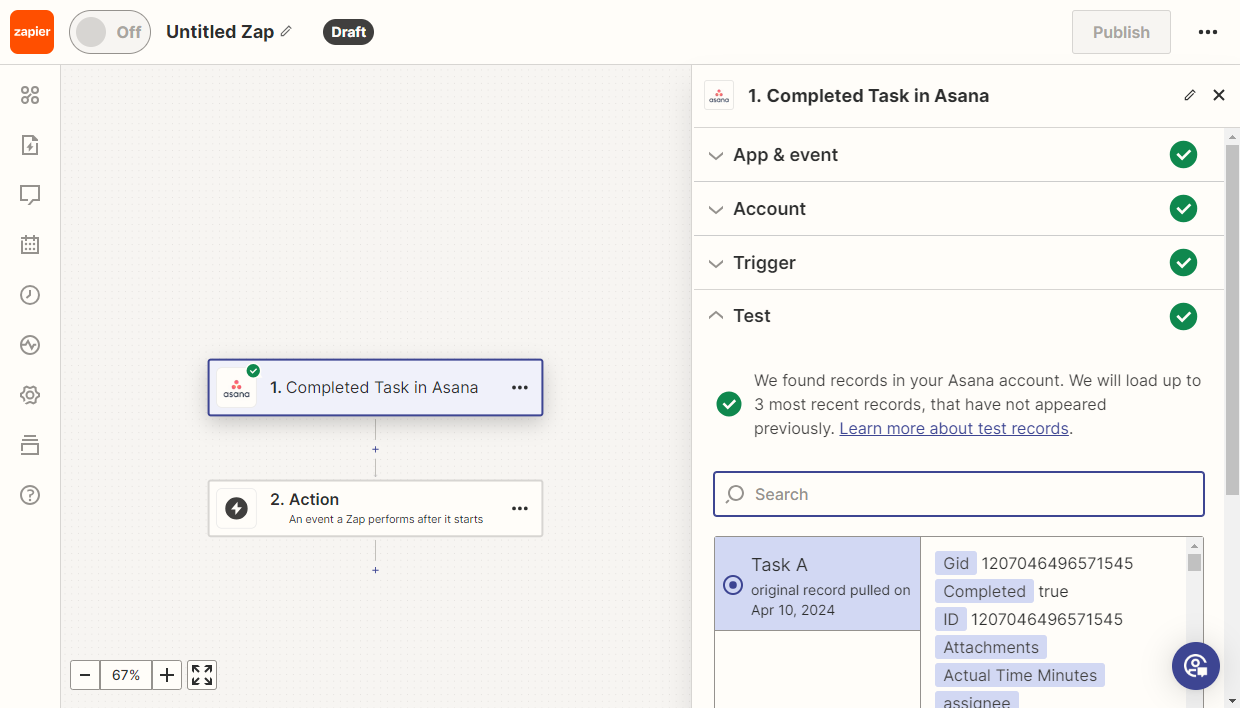
Test the trigger to ensure it functions correctly. Then, select a sample record for further use.
-
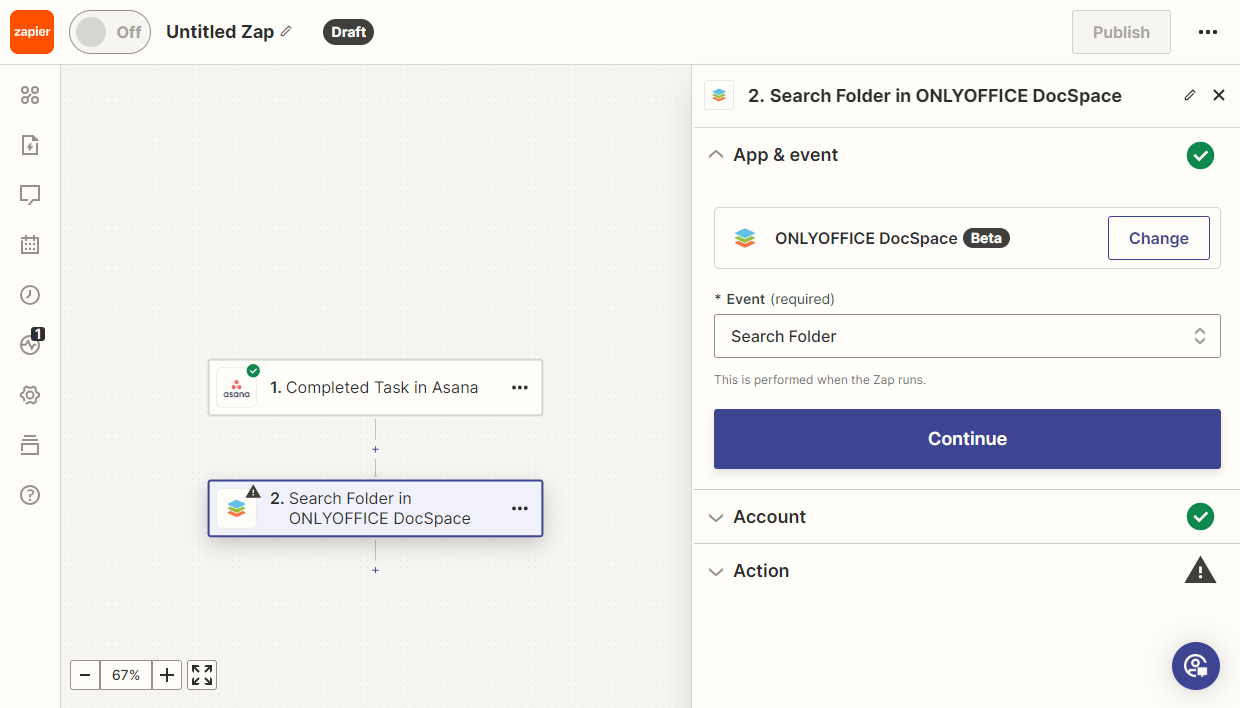
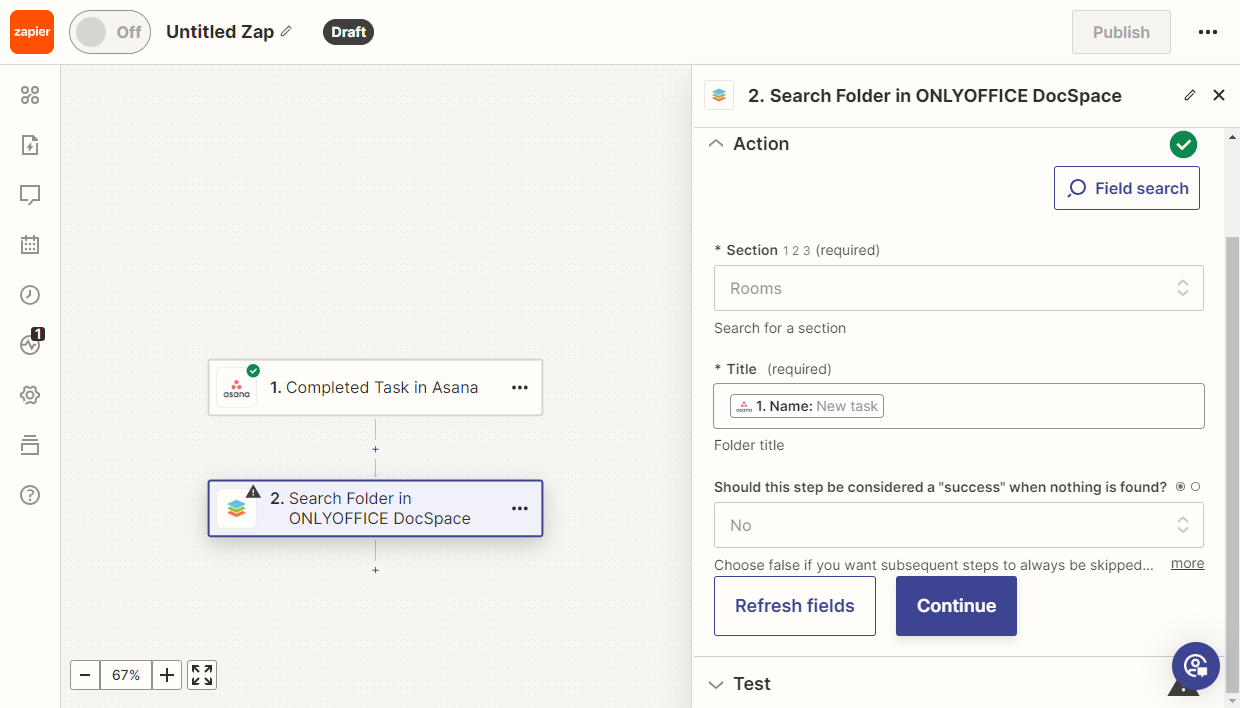
Add the new Apps Search Folder action, which searches for a folder based on the task name.
-
In the settings, select the section where to search for the folder and choose the field with the folder name.
-
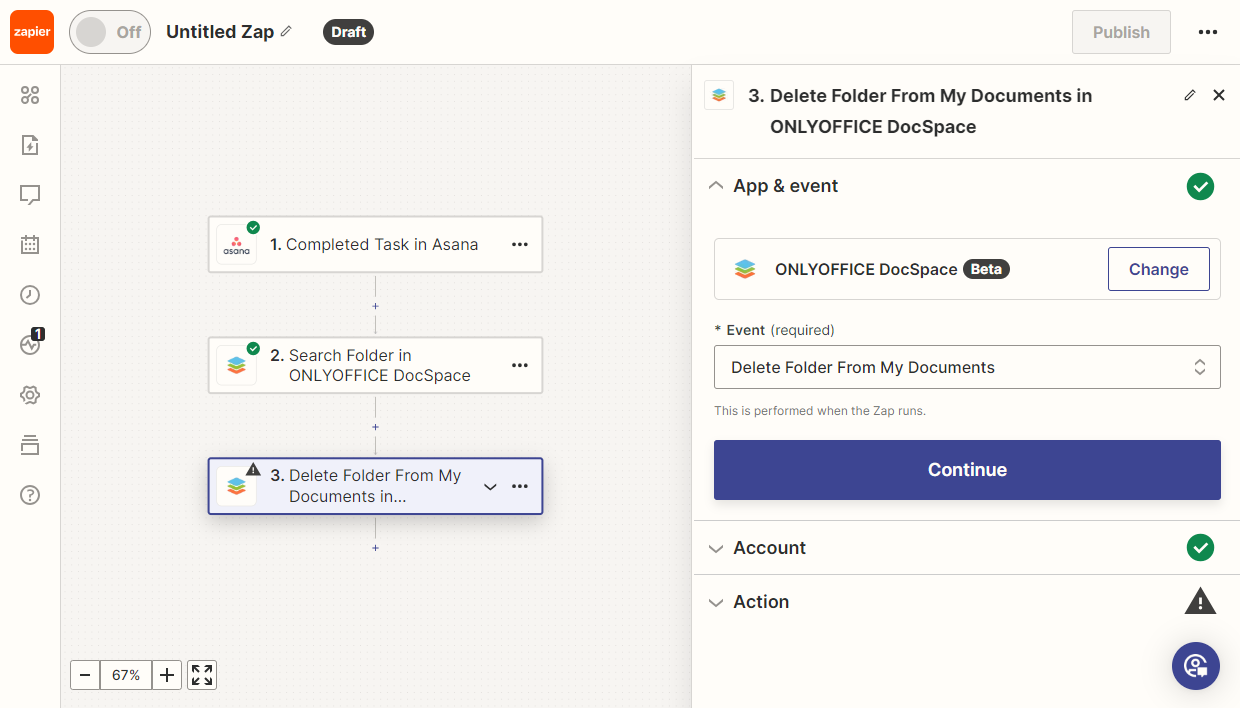
Add the Delete Folder action. Depending on the folder location, choose Delete Folder or Delete Folder From My Documents.
-
In the settings, choose the field with the folder ID.
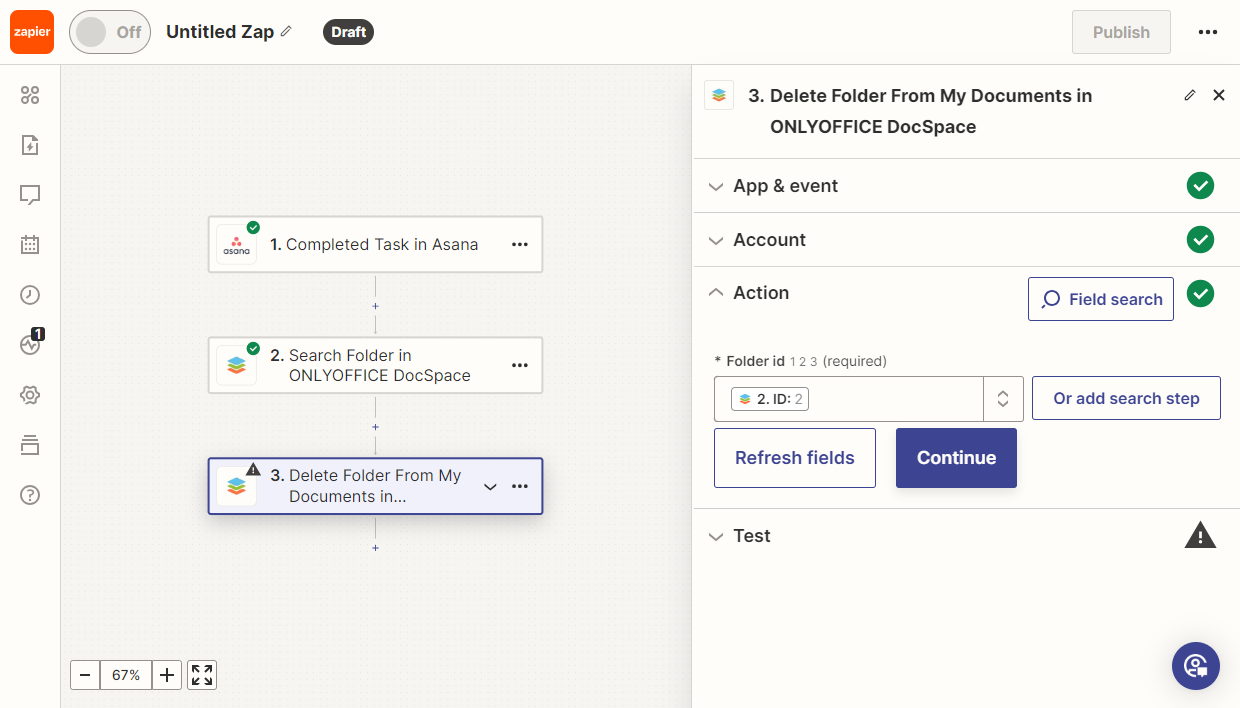
Then test the Zap. If all tests passed successfully, publish it.
Share Room action
Goal
The Apps administrator wants access to all newly created rooms and to receive Telegram notifications.
Implementation
-
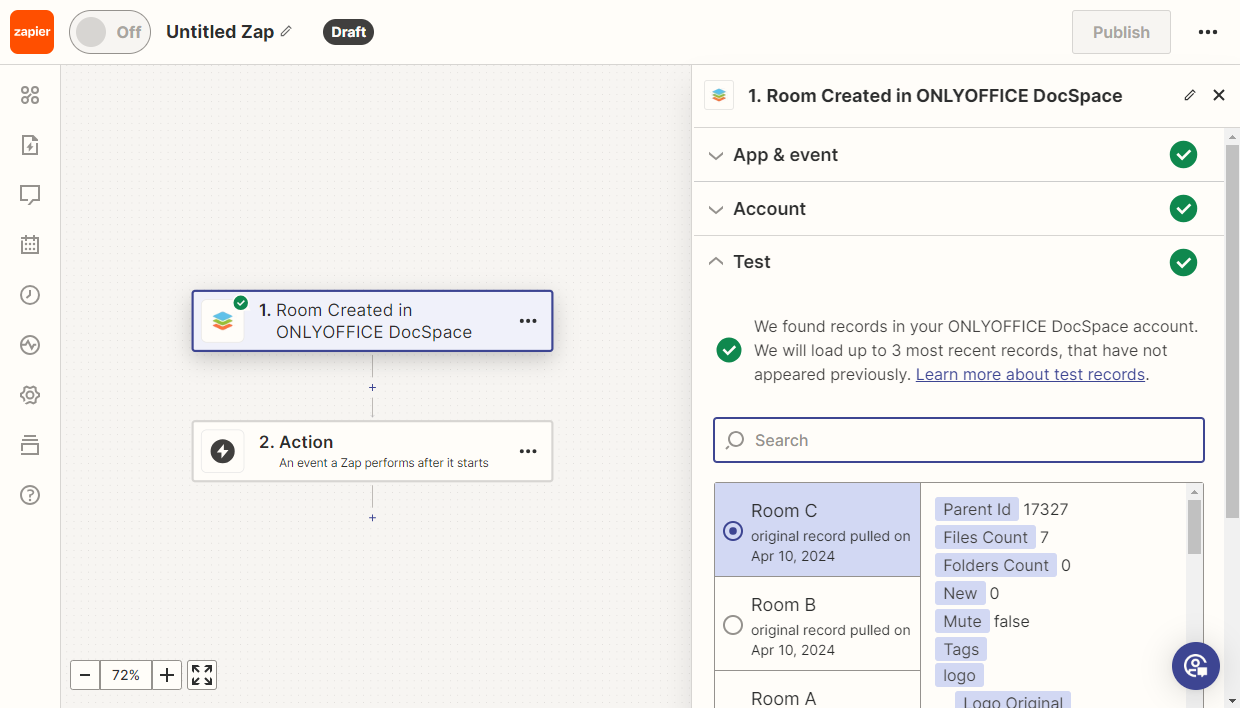
Add the Apps Room Created trigger.
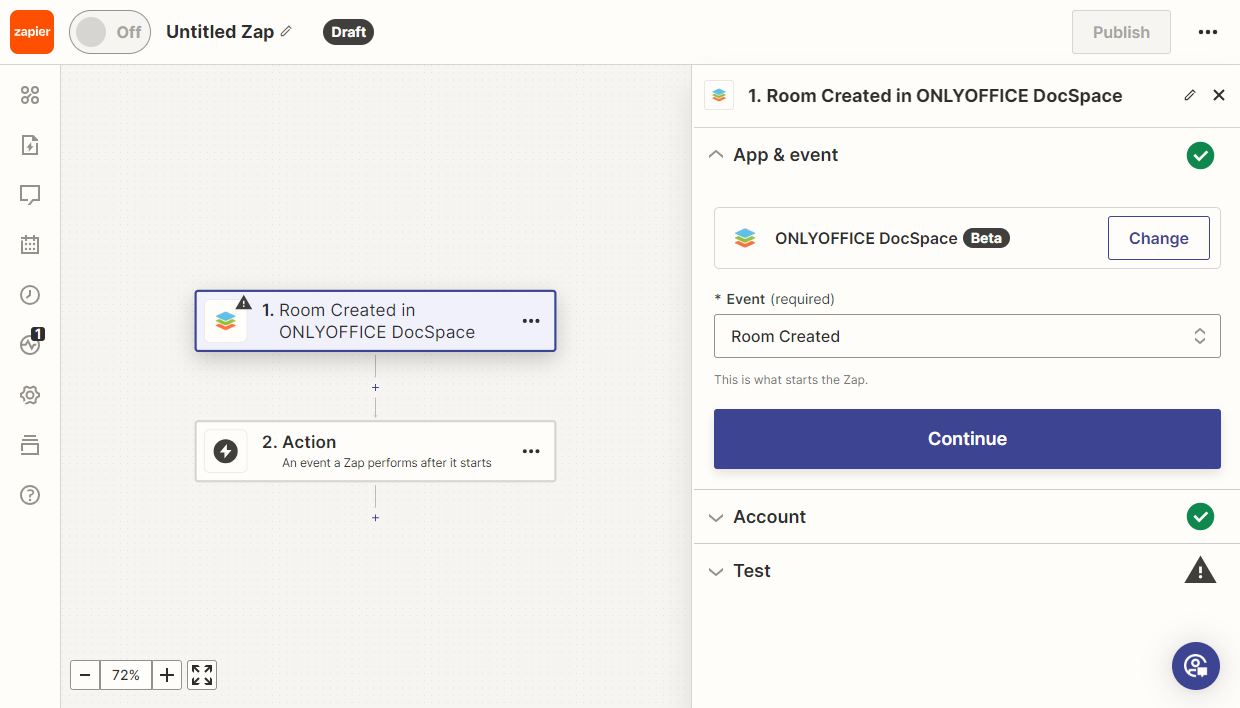
-
Test the trigger to ensure it works correctly. Then, select a sample record for further use.
-
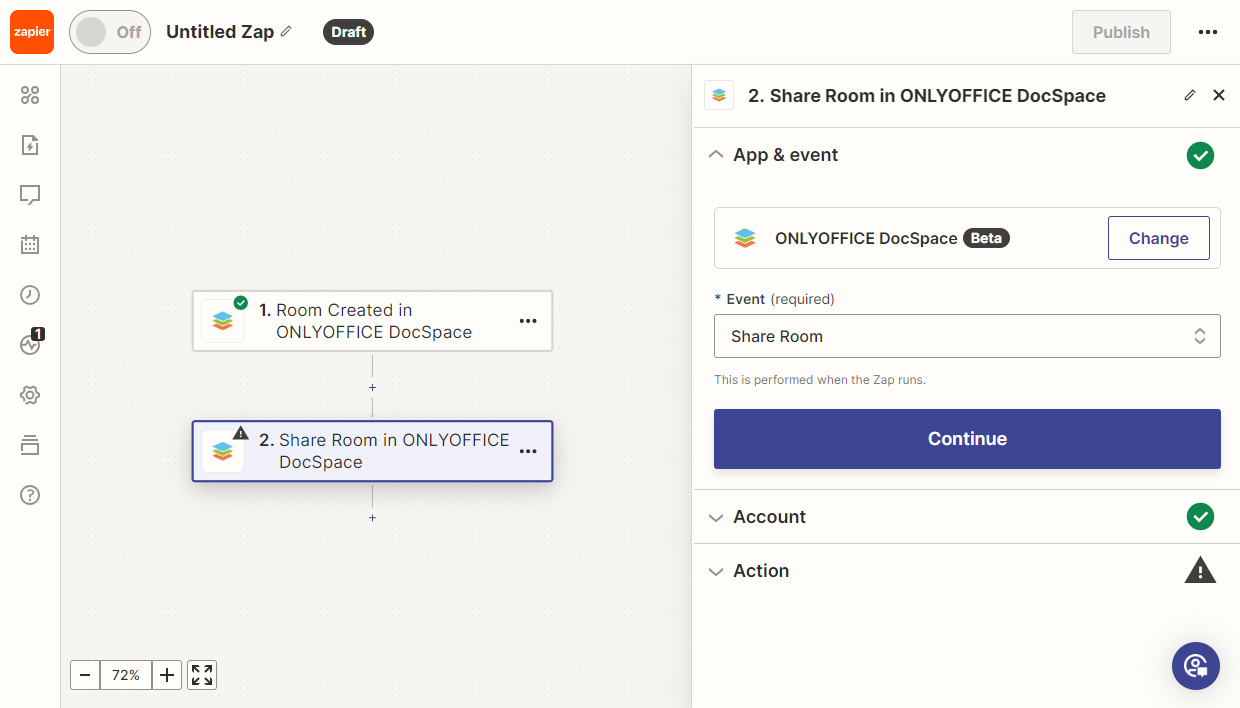
Add the Apps Share Room action, which will automatically provide access to a room.
-
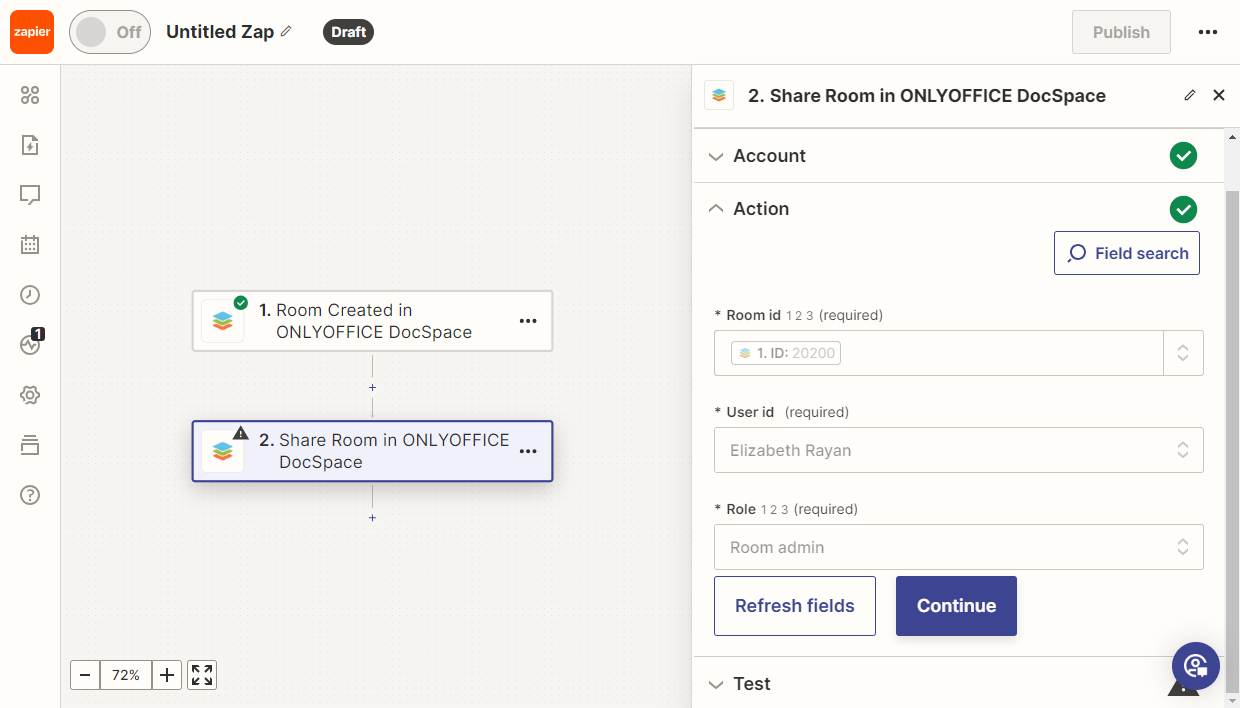
In the Action settings, choose the room ID, the user we grant access to, and the role.
-
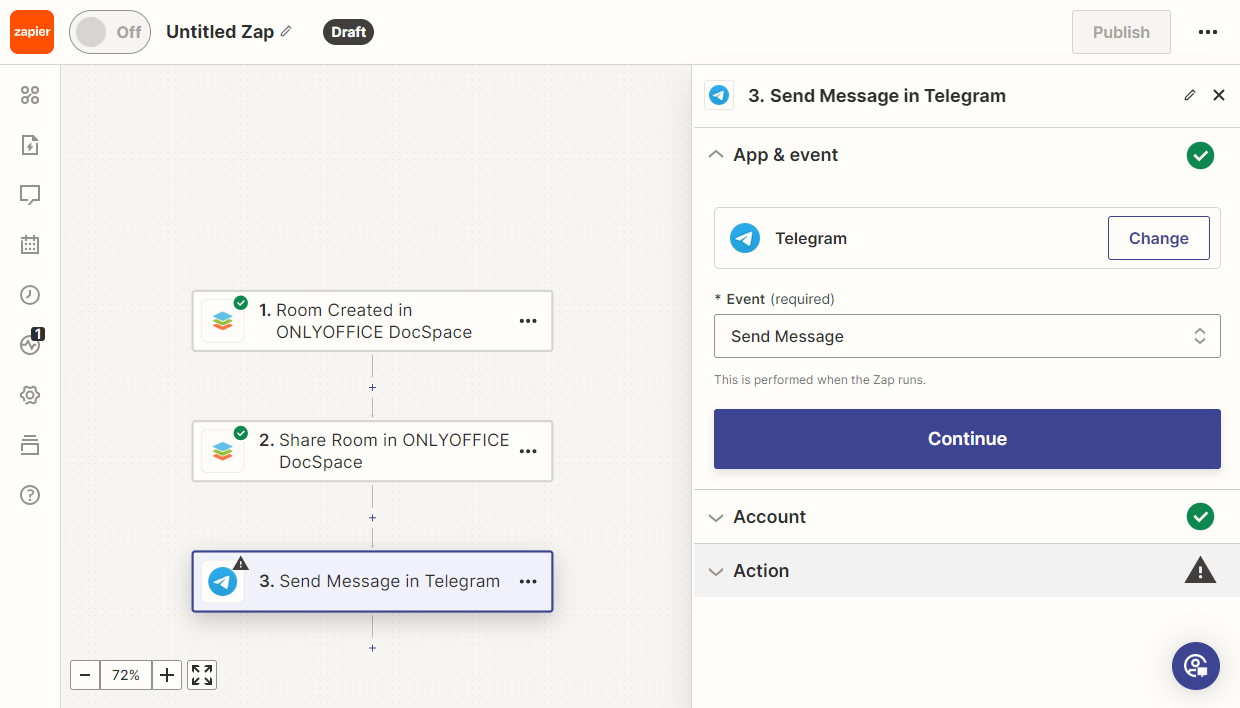
Add the Telegram Send Message action.
-
In the settings, choose Chat Id. In the Message Text field, create the message text using the constructor.
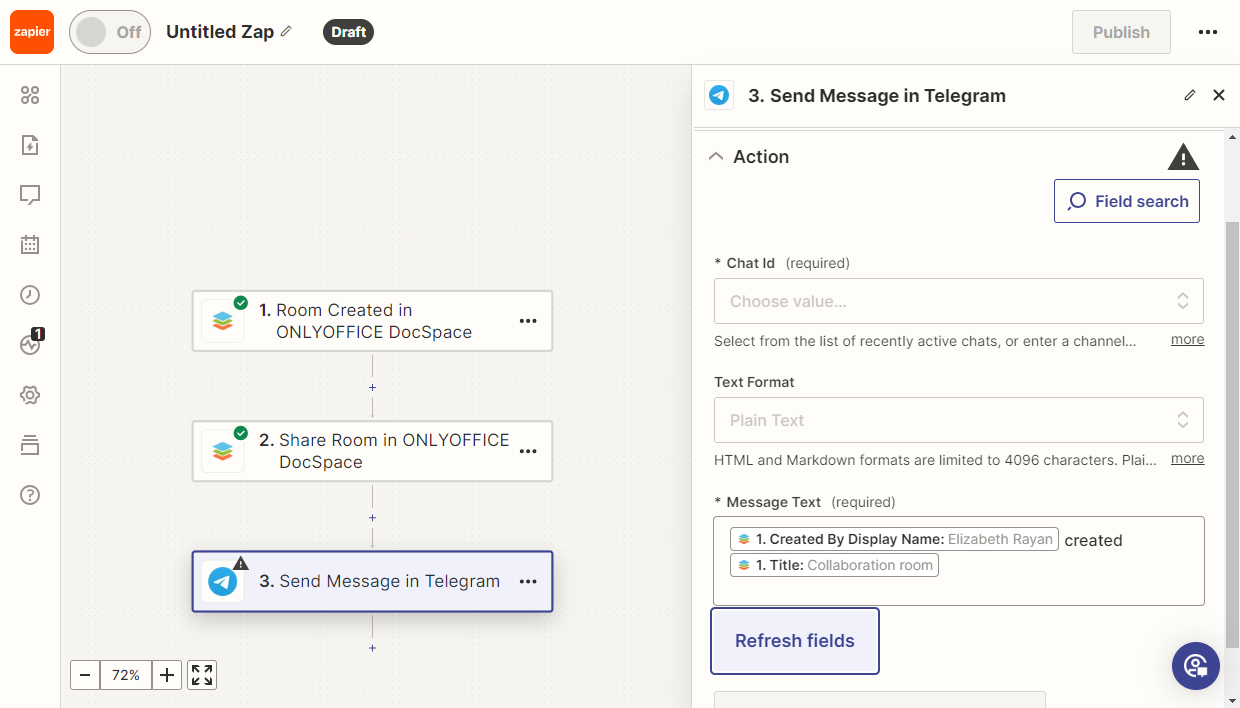
Then test the Zap. If all tests passed successfully, publish it.
Create Room action
Goal
When creating a new task in Linear.app, a room in Apps is automatically created.
Implementation
-
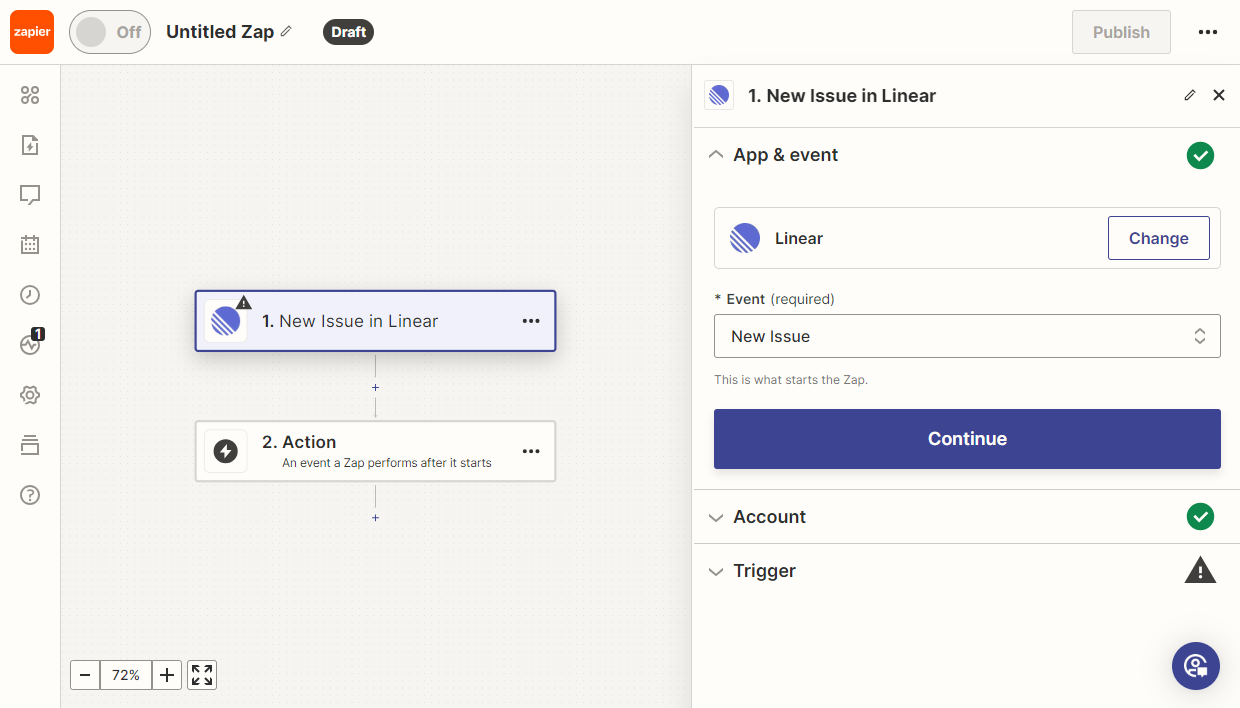
Add the Linear New Issue trigger.
-
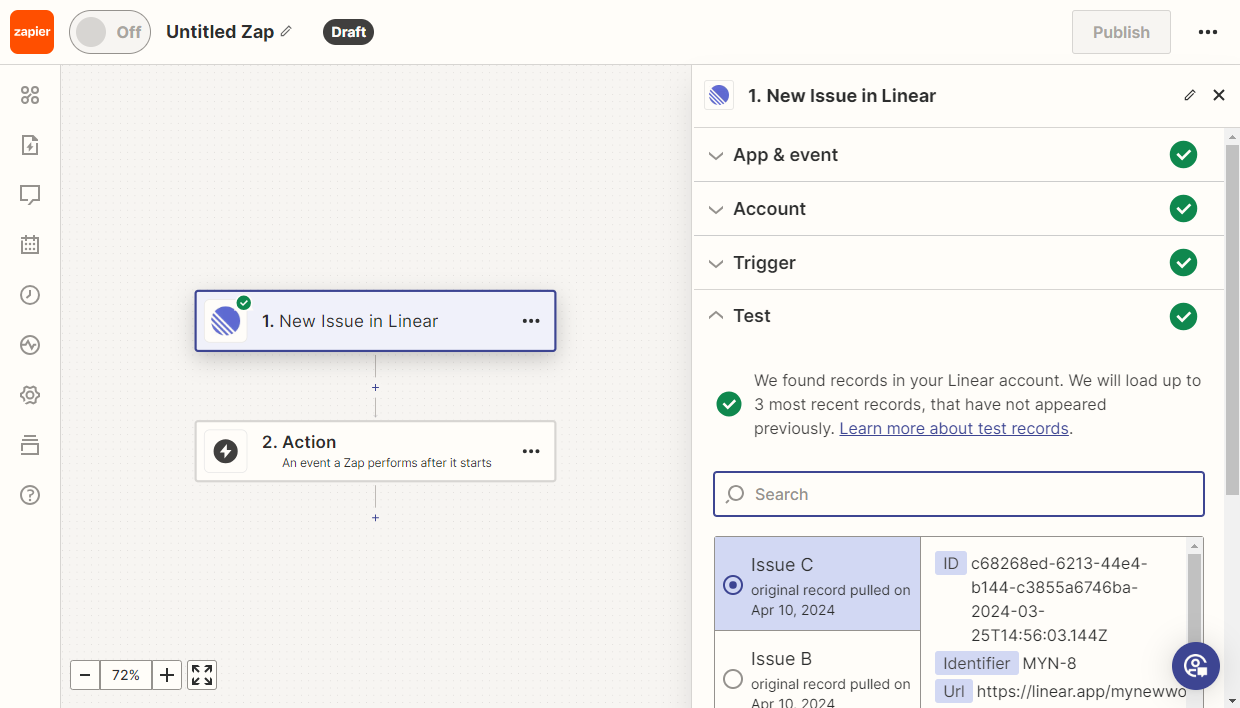
Test the trigger to ensure it works correctly. Then, select a sample record for further use.
-
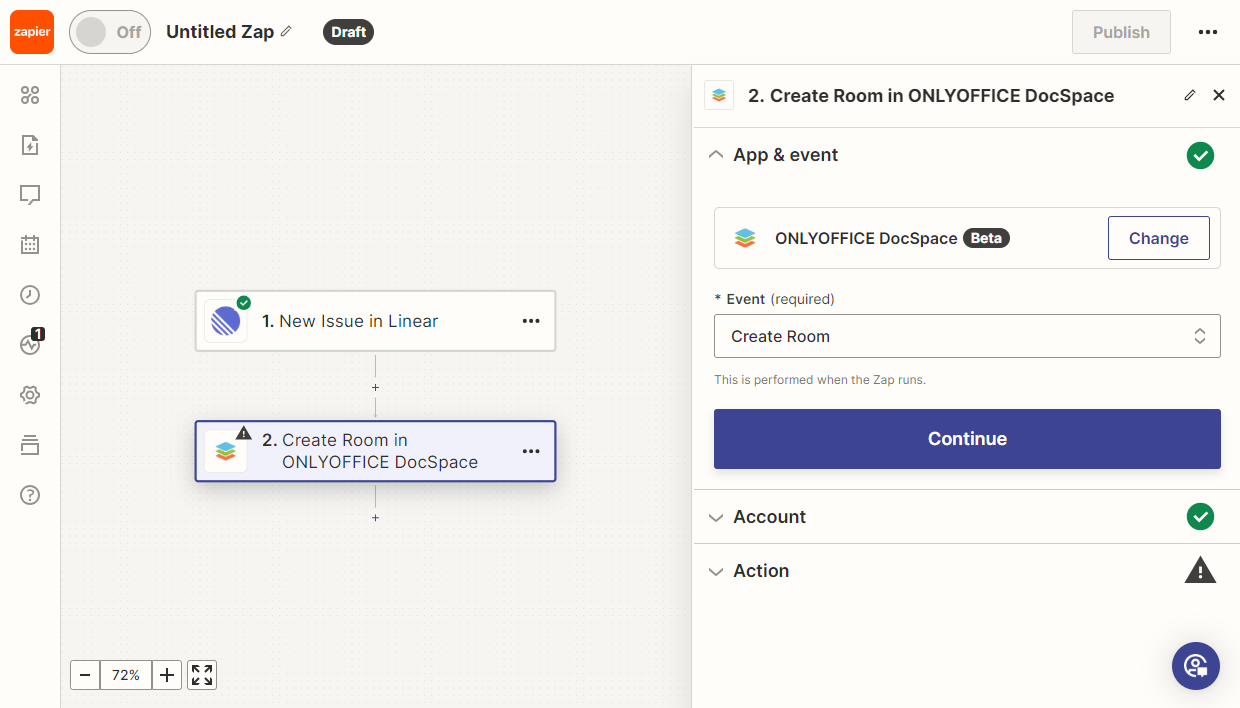
Add the new Apps Create Room action, which will automatically create a new room.
-
In the settings, select the room title and type.
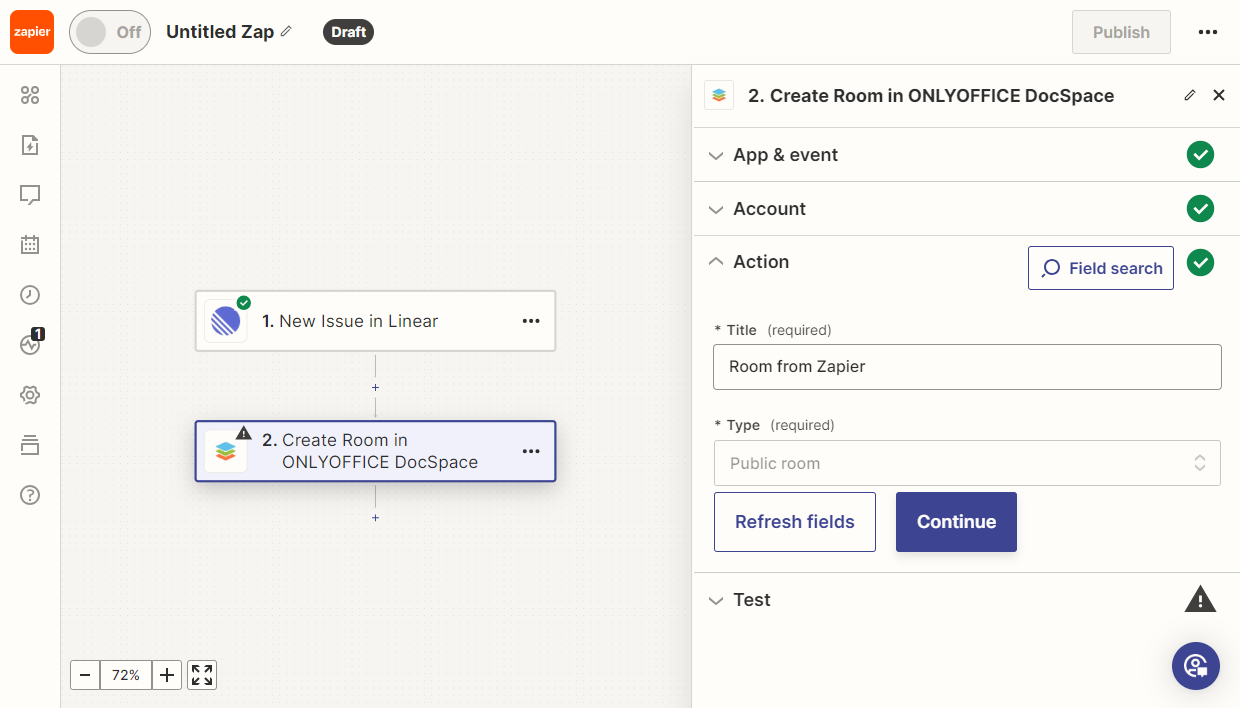
Then test the Zap. If all tests passed successfully, publish it.
Upload File action
Goal
When adding a file to OneDrive, its copy is automatically sent to Apps.
Implementation
-
Add the OneDrive New File trigger.
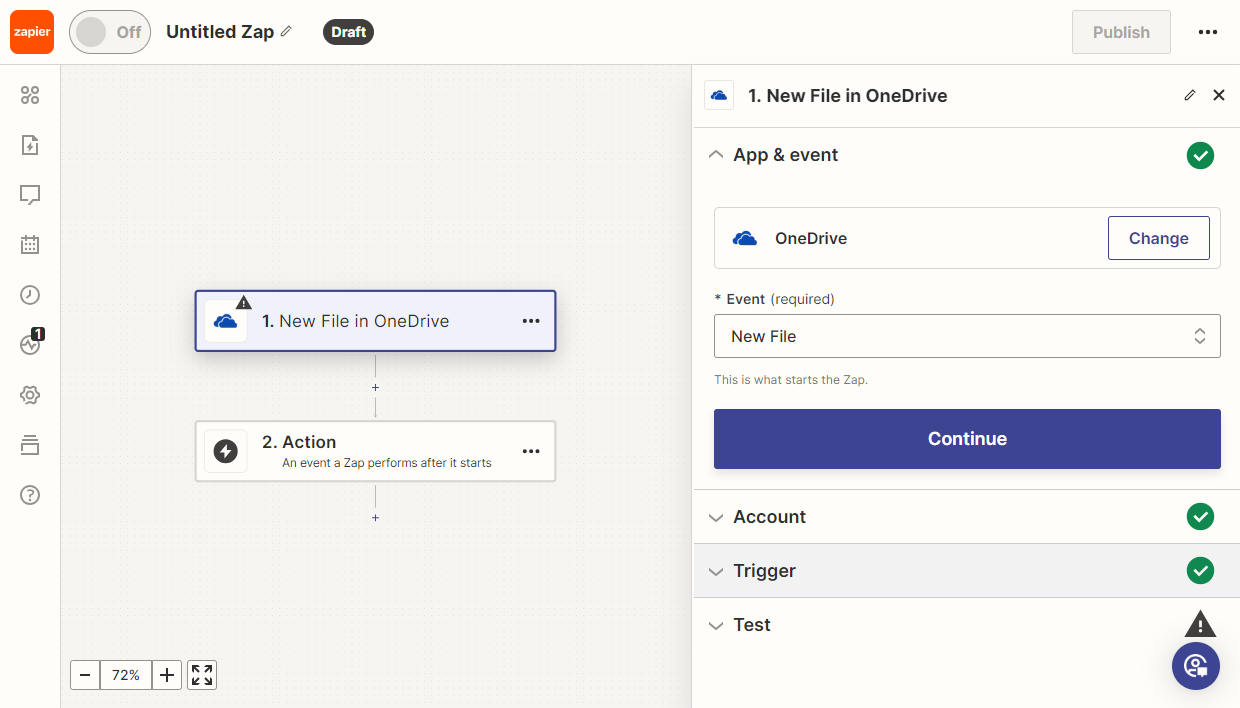
-
Test the trigger to ensure it works correctly. Then, select a sample record for further use.
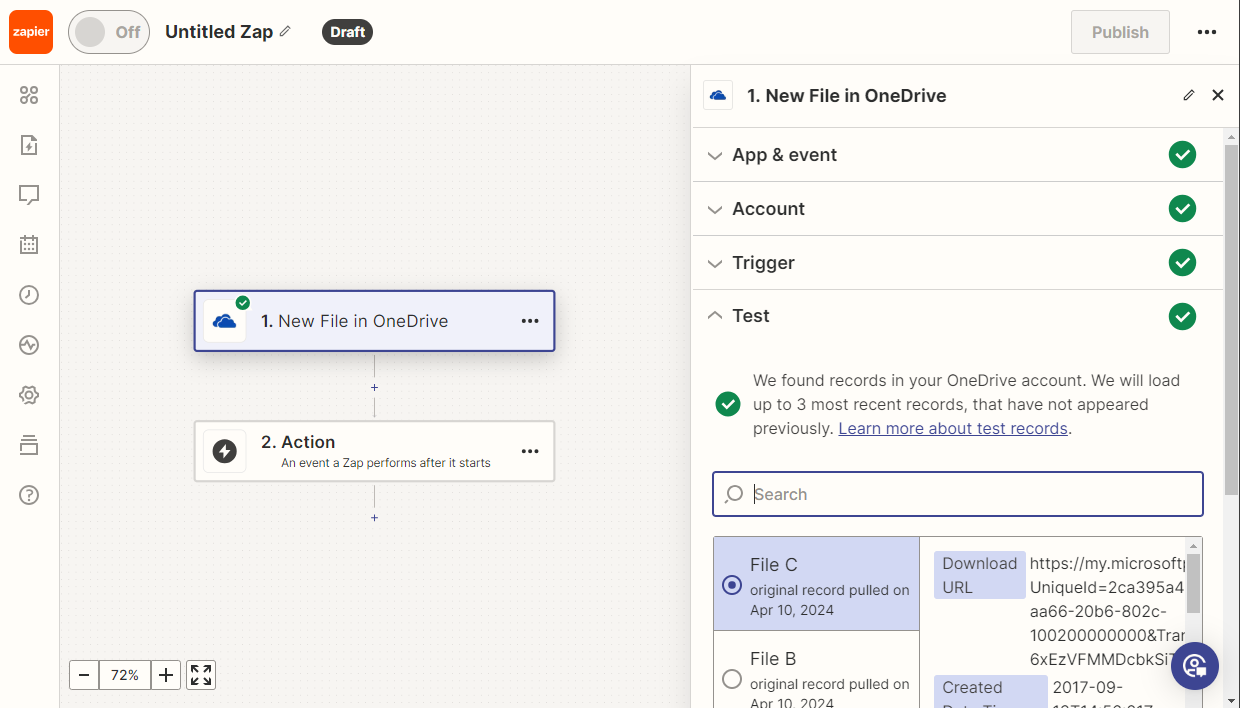
-
Add the new Apps Upload File to My Documents action.
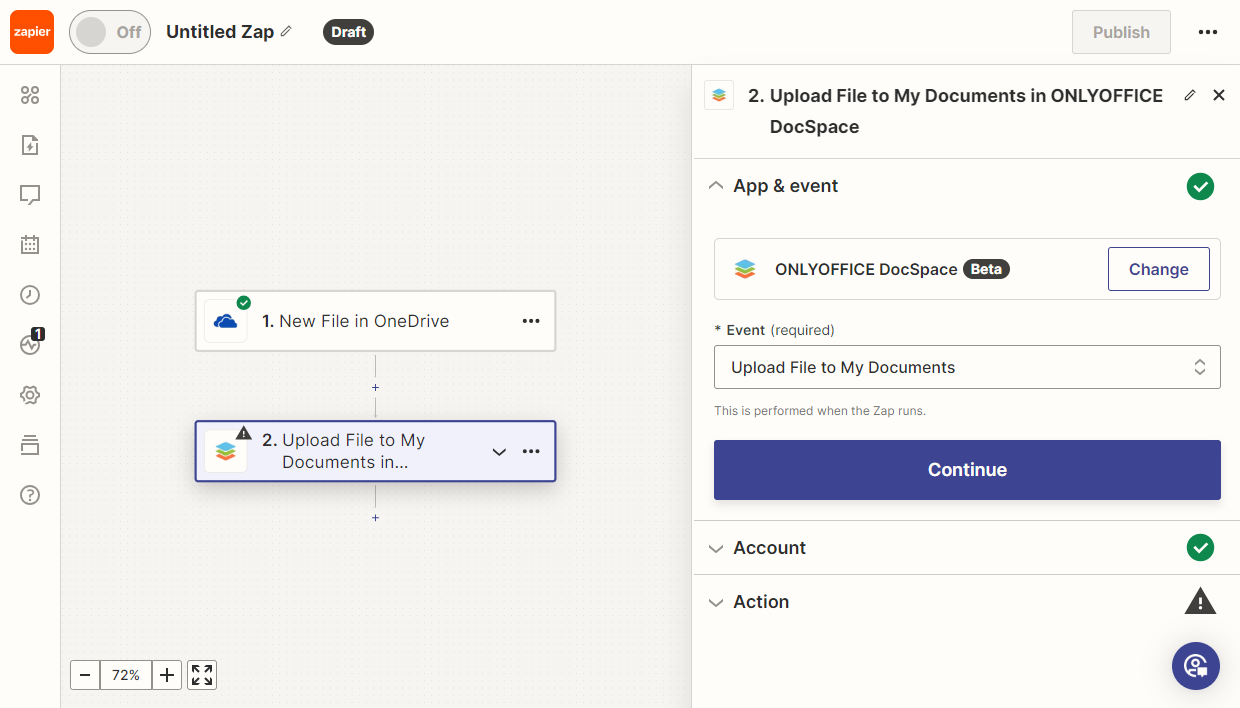
-
In the settings, choose the field with the attachment.
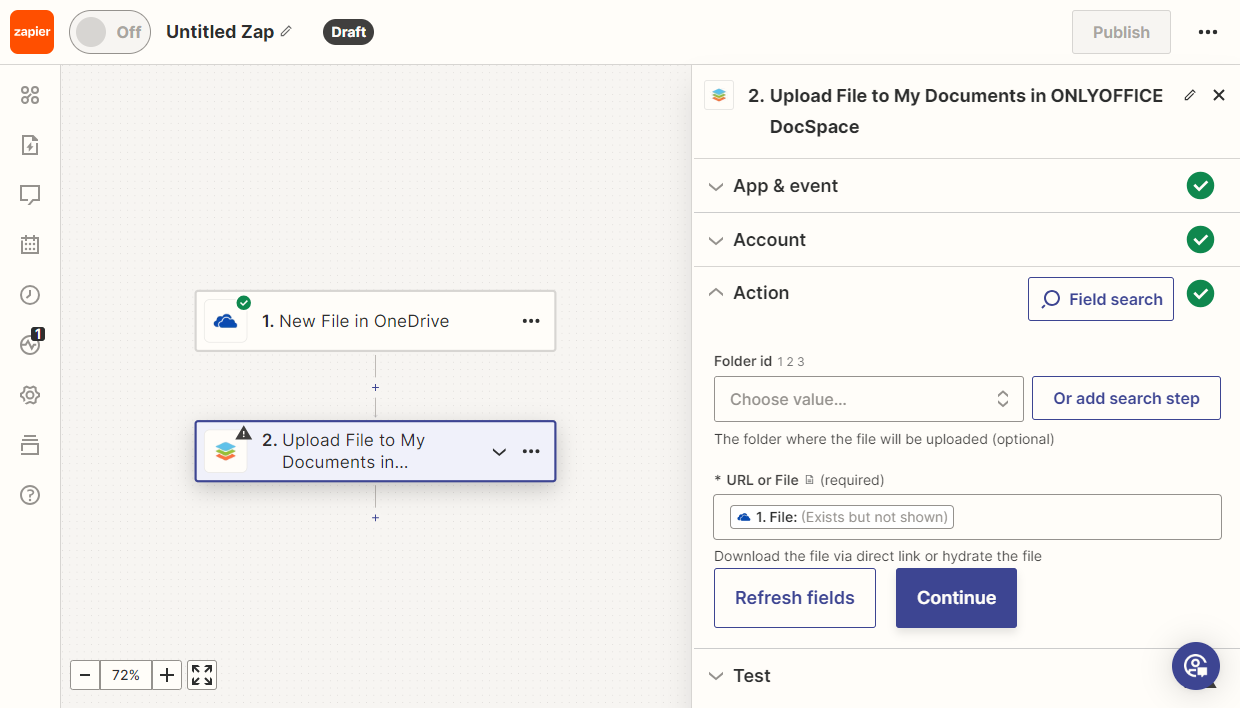
Then test the Zap. When testing the Zap, the value in the url field must begin and end with the
hydratetag. If all tests passed successfully, publish it.noteIf an error occurs when testing the "Upload File" action, it’s recommended to reconnect the app. To do that, in the Zapier Apps section, select the ONLYOFFICE app. Remove the existing connection and add it again.
Invite User action
Goal
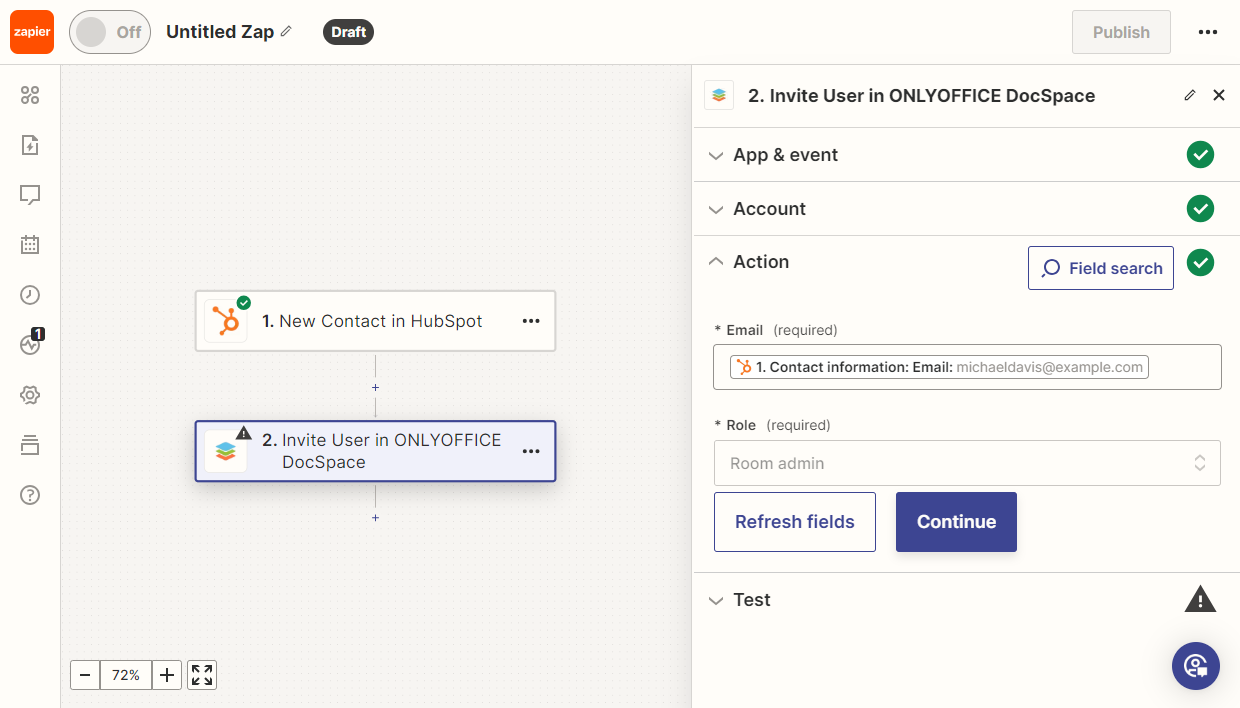
When adding a new contact in HubSpot, an invitation to register in the Apps workspace is automatically sent to this contact.
Implementation
-
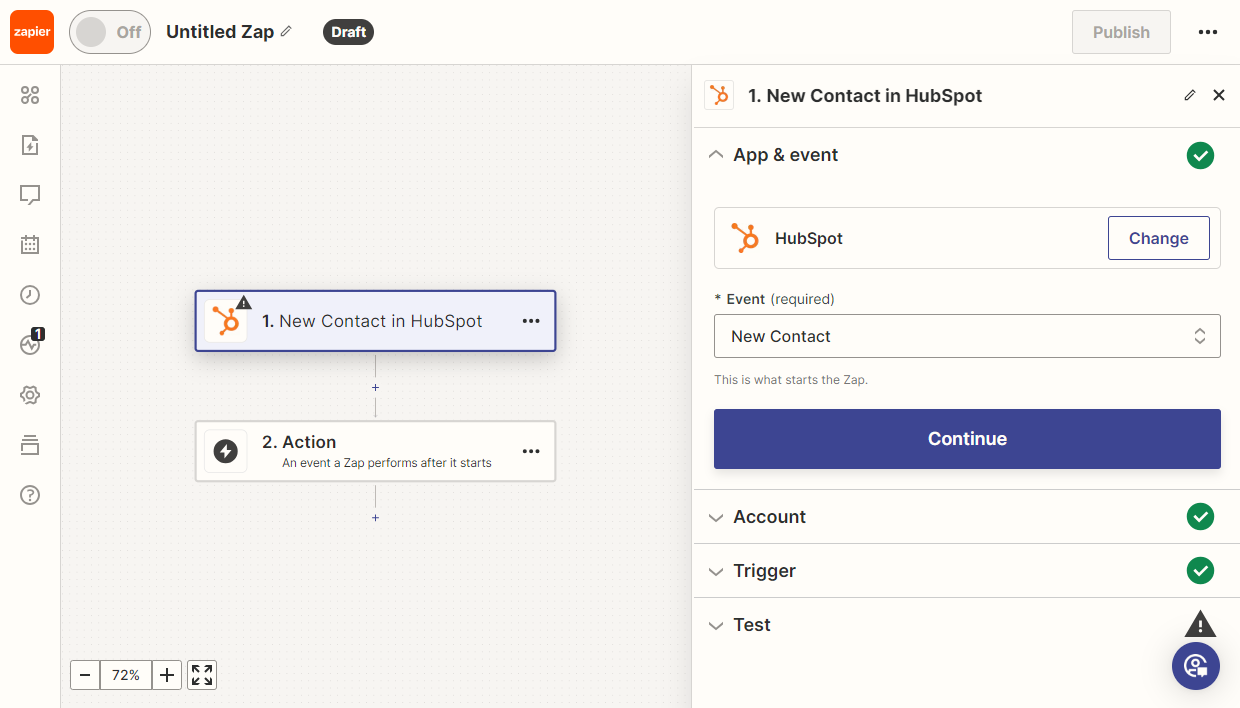
Add the HubSpot New Contact trigger.
-
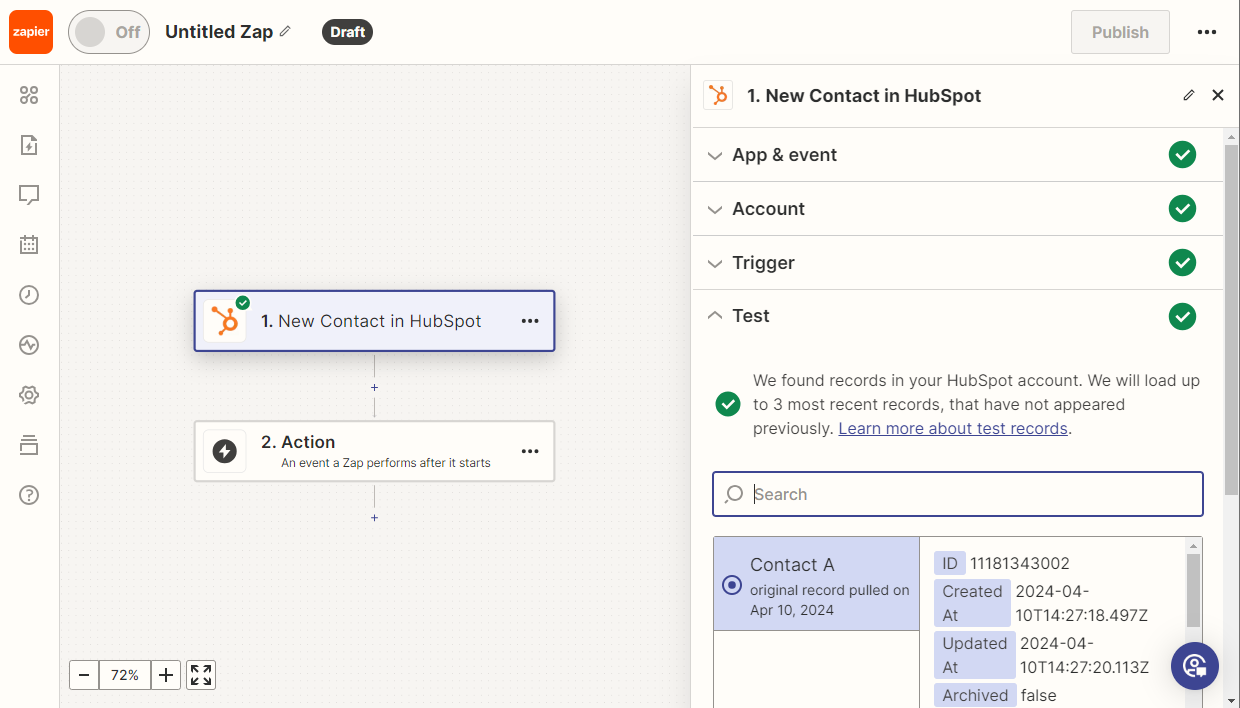
Test the trigger to ensure it works correctly. Then, select a sample record for further use.
-
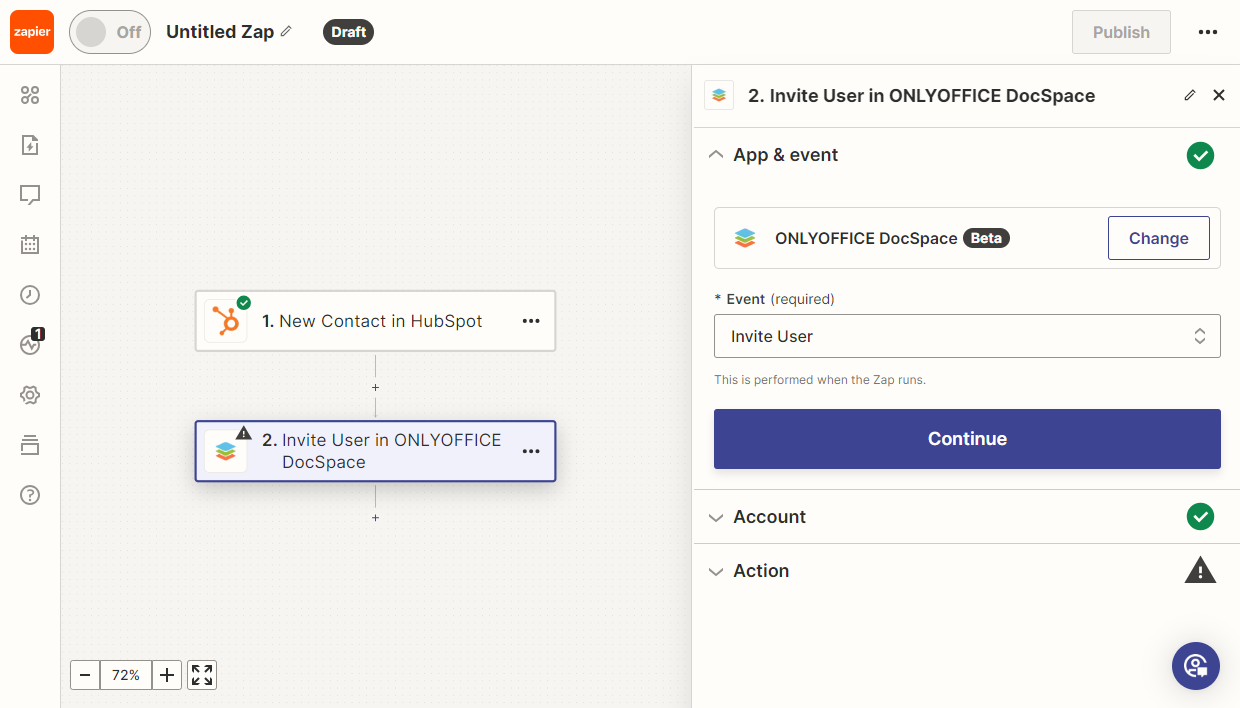
Add the new Apps Invite User action.
-
In the settings, choose the field containing Email and select the user role.
Then test the Zap. If all tests passed successfully, publish it.
To learn more about the most common problems and the ways to solve them, please visit our troubleshooting guide.