Pipedrive
ONLYOFFICE Apps app for Pipedrive
Pipedrive is a sales customer relationship management tool. ONLYOFFICE offers an official app to integrate ONLYOFFICE Apps with Pipedrive. This app allows working with office files related to your Pipedrive Deals in ONLYOFFICE Apps rooms. You can get the ONLYOFFICE Apps app from the official Pipedrive Marketplace. To learn more about the ONLYOFFICE Apps connector to Pipedrive, visit the GitHub page. The module is distributed under the Apache-2.0 license.
Main features
- Creating Apps rooms within Pipedrive Deals.
- Creating and editing documents, spreadsheets, presentations, and PDF forms within the Apps room in the Pipedrive Deal.
Supported formats
- For creating, editing, and viewing: DOCX, PPTX, XLSX.
- For filling forms: PDF.
- For viewing: CSV, DJVU, DOC, DOCM, DOT, DOTM, DOTX, EPUB, FB2, FODP, FODS, FODT, HTM, HTML, MHT, ODP, ODS, ODT, OTP, OTS, OTT, OXPS, PDF, POT, POTM, POTX, PPS, PPSM, PPSX, PPT, PPTM, RTF, TXT, XLS, XLSM, XLT, XLTM, XLTX, XML, XPS.
What's new in version 1.1.0
Added
- ability to select room type when creating
- using @onlyoffice/docspace-sdk-js
Changed
- support for DocSpace 3.0
- using DocSpace API Key instead of System User
- inviting a "Shared Group" to a room attached to a deal with the "Content Creator" rights
- inviting deal followers to a room attached to a deal with the "Content Creator" rights
- using API for creating rooms with tags
- creating a Public Room by default
The full change log is available here.
Connecting ONLYOFFICE Apps to Pipedrive
Requirements
Installing and configuring the ONLYOFFICE Apps app for Pipedrive
ONLYOFFICE Apps app can be installed via the Pipedrive Marketplace.
Each user needs to install the Apps app themselves. The Pipedrive admin is not able to install the app for everyone at once.
The Pipedrive admin can configure the app via the Marketplace apps section within Pipedrive: Tools and apps -> Marketplace apps -> ONLYOFFICE DocSpace app.
Configuring your Apps
-
Use the
 menu in the lower left corner and select the Settings option.
-
Switch to the Developer Tools -> API keys section.
-
Click the Create new secret key button.
noteThe API key must be created by a user with the DocSpace Admin role.
-
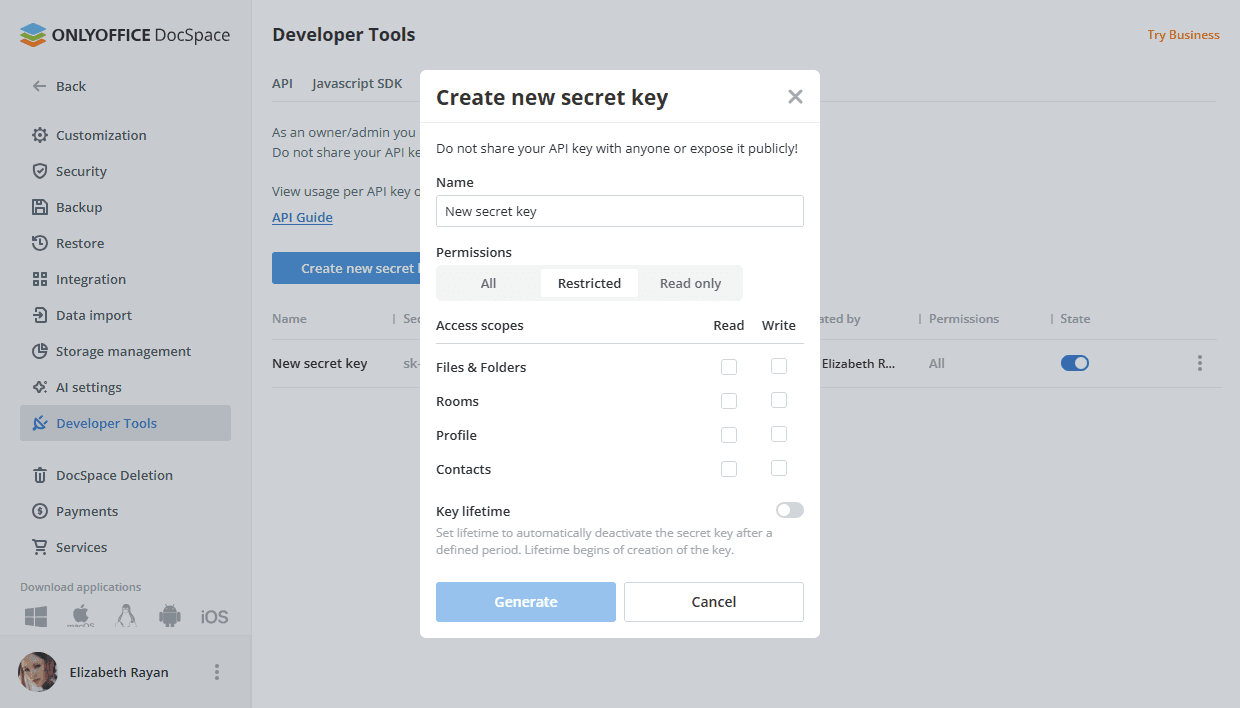
Fill in the form:
- Name - Specify the secret key name.
- Permissions - You can set permissions to All or select the Restricted option to set your own permissions.
- All - Enable read and write permissions to all sections.
- Restricted - Enable read or write permissions to certain sections. Check the Read or Write box next to the necessary options. Minimum permissions for the API key: Rooms - Write, Profile - Read, Contacts - Write.
-
Click the Generate button.
-
In a new window, copy the generated key and click Done.
Configuring your Pipedrive
To install the ONLYOFFICE Apps application:
- Open the Marketplace section.
- Find ONLYOFFICE DocSpace in the Apps section using the search bar at the top of the page.
- Click the Authorize button in the opened window.
- If you agree with the permissions you are granting to the app, click the Allow and Install button.
- The instructions 'How to use ONLYOFFICE DocSpace' are displayed. After that, the Connection settings will open.
- In the DocSpace Service Address field, specify the URL of the installed ONLYOFFICE Apps or the address of ONLYOFFICE Apps Cloud and press the arrow button.
- In the ONLYOFFICE DocSpace API Key field, specify your generated secret key.
- Click the Connect button.
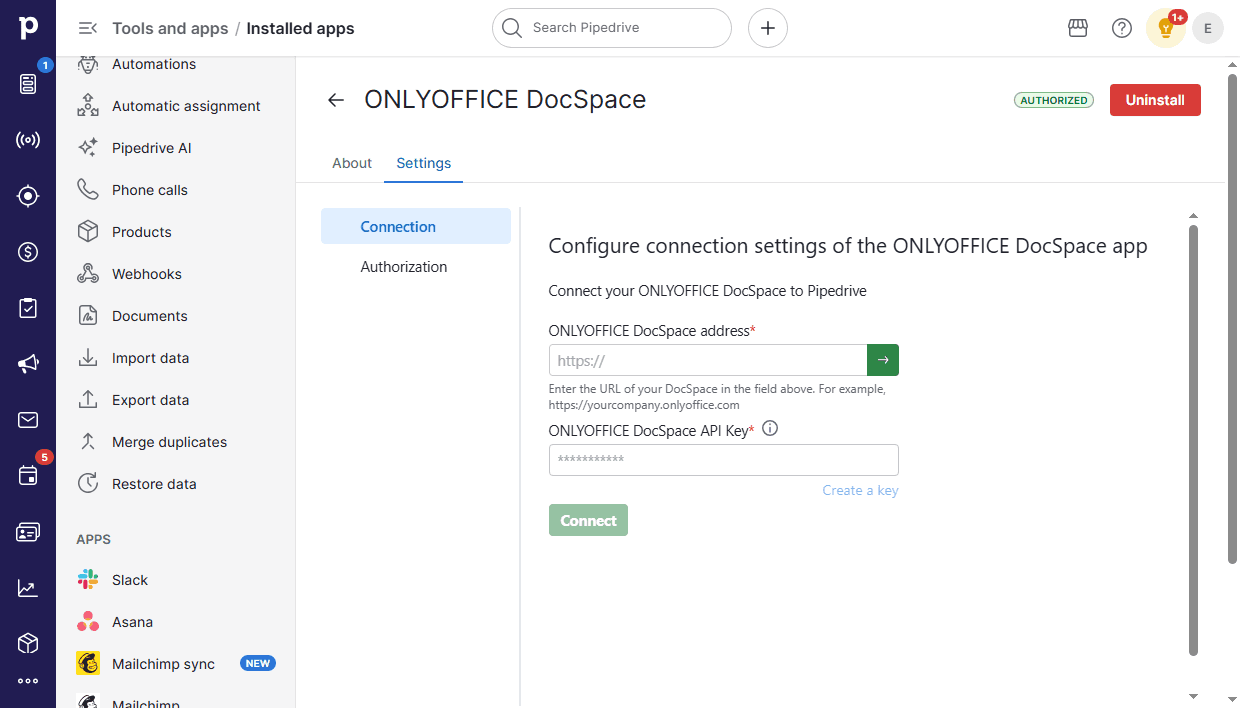
If the connection is successful, two buttons will appear on this page:
- Change: ability to connect another Apps. The data in the current Apps will not be deleted.
- Disconnect: completely disables the app (clearing user authorization and hooks). In this case, the connection of the Pipedrive Users group with Pipedrive will be removed. We recommended using this option only if there is a need to completely clear data in the Apps app.
Authorization settings
This section is available once the Connection settings are configured.
Here, enter your Apps credentials (email and password) and click Login.
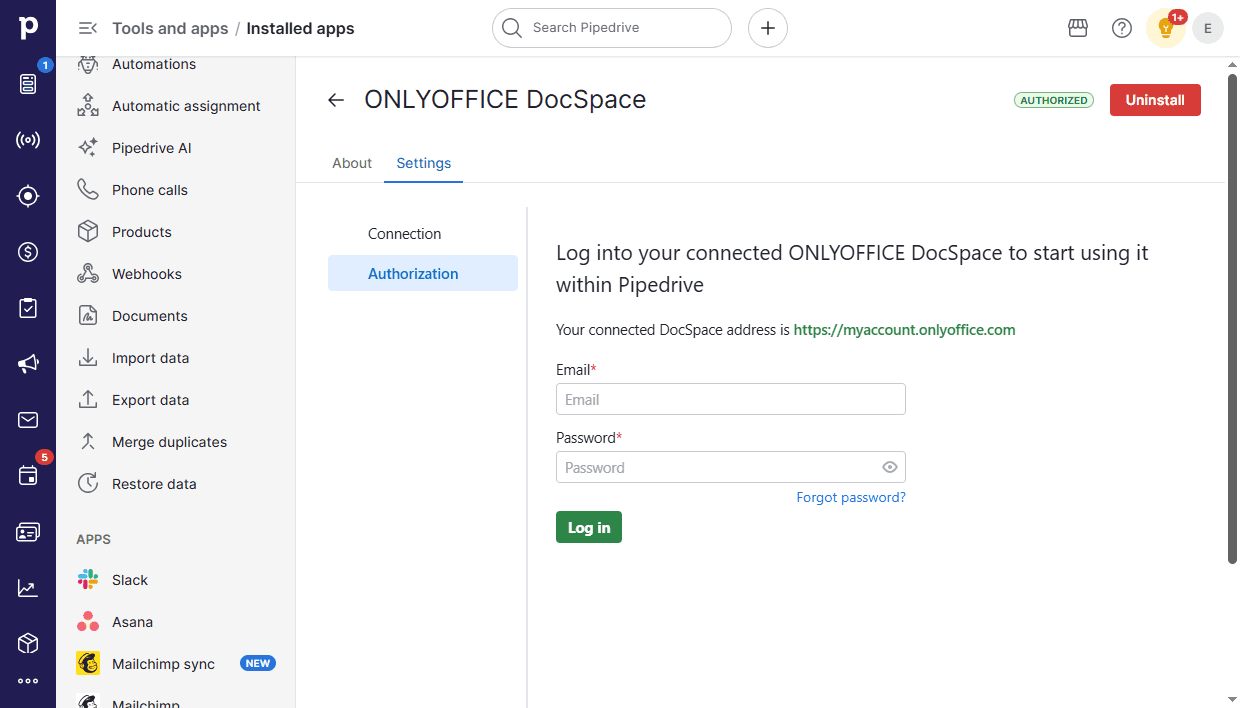
After successful authorization, instructions about working with the connector will be shown.
After viewing the instructions (when the Skip or Finish button is pressed), the authorization status and the Log out button are displayed on the authorization page. The Go to Deals button is also available so that you can switch to the necessary Pipedrive section. The Open guide button allows you to open the instructions about working with the connector once again.
Start using ONLYOFFICE Apps within Pipedrive
App usage
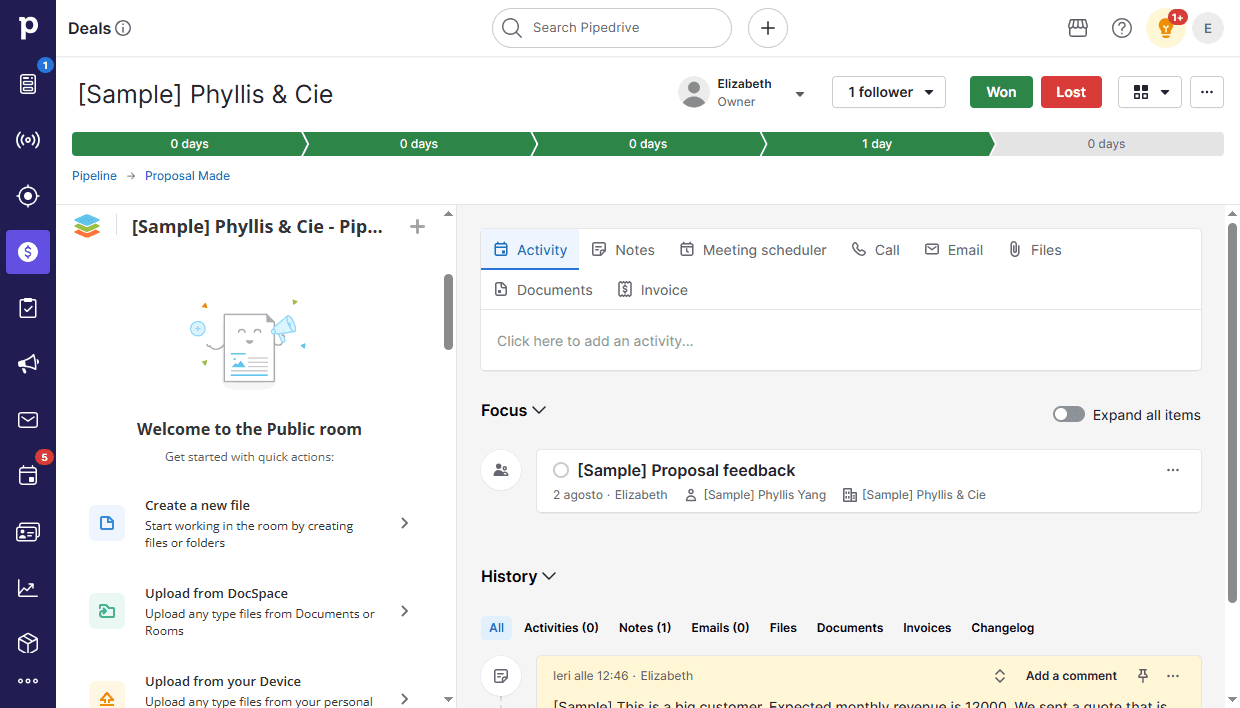
The ONLYOFFICE Apps app for Pipedrive can be accessed via the Deals section of Pipedrive: go to the corresponding deal and find the Apps frame.
For each deal, you can create a separate Apps room in which the deal participants can work together on office documents. To create a room, click the Create room button. A public room will be created in Apps.
If you need another room type, click the arrow next to the Create room button and select the appropriate option:
- Public room - To share files with external users and clients
- Collaboration room – To co-edit documents with your team
- VDR – To provide advanced file protection
- Form filling room – To collect data in PDF forms
- Custom room – To work according to your goals
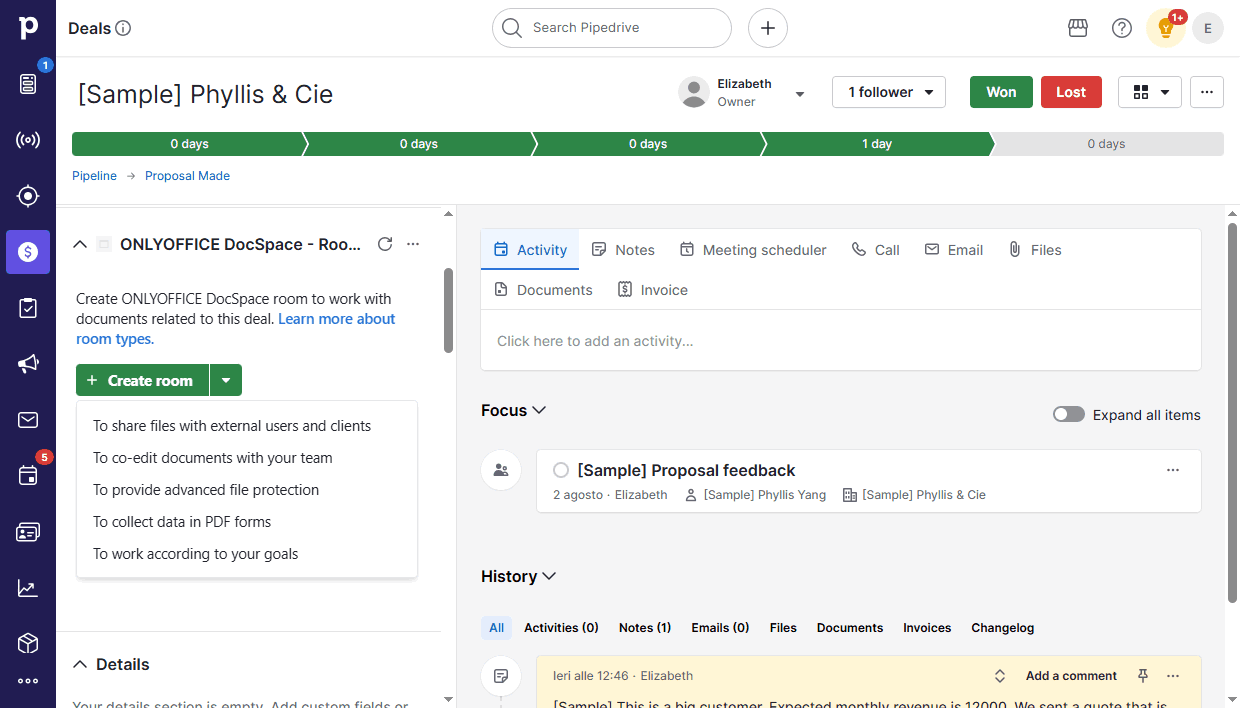
In a new window, confirm the room creation. Learn more about room types.
The room is named according to the rule Pipedrive - Company name - Deal name. The room is also labeled with the tag "Pipedrive Integration" for easier identification and organization.
Inside the Apps frame, deal participants can work depending on their access rights.
Access rights
All Pipedrive users who logged into the Apps app are added to the Pipedrive Users (Company Name) group. If a user logs out of Apps, they will be removed from the group.
Access rights to the room within a deal are determined by the Pipedrive access rights to the corresponding deal.
- All users: the room becomes available to the Pipedrive Users group as well as the followers are invited by name (only those who have installed the Apps app and have been authorized).
- Item owner: the room is accessible only to the deal owner and the followers by name. A mandatory condition in this case is that the deal owner and the followers must install the Apps app and pass authorization.
- Item owner’s visibility group: only the followers are synchronized (available in the paid version of Pipedrive).
- Item owner’s visibility group and sub-group: only the followers are synchronized (available in the paid version of Pipedrive).
Important to know
- If users manually deleted the Pipedrive Users group in Apps, it will be automatically restored upon the first access.
- If users manually deleted a room in Apps that is linked to a deal in Pipedrive, it's possible to create the room again by clicking the Create room button in the application frame.
- If a Pipedrive user does not have access to the room within a deal, they can request access by clicking on the corresponding button. This action checks whether the user should have access to the room. If they should, the user is added to the room based on the Access Rights. If they should not, the corresponding notification is shown.
- If the API key becomes invalid (due to expiration or changes in permissions), the application will be blocked. Click the Go to settings button and check the API key (see the Configuring your Pipedrive subsection).
- If webhooks are not configured, it's necessary to reinstall plugin by clicking the corresponding button.
To learn more about the most common problems and the ways to solve them, please visit our troubleshooting guide.