Drupal
ONLYOFFICE Apps module for Drupal
Drupal is an open-source content manager system used for building APIs. This module enables users to access ONLYOFFICE Apps, a room-based collaborative environment, from Drupal, as well as add Apps rooms and files to the Drupal page. The module is distributed under the GNU General Public License v.2.0.
Main features
- Creating and editing documents, spreadsheets, presentations, and forms within Drupal.
- Adding an Apps room or file to Drupal content.
- Viewing and editing documents within Drupal content without the necessity to download documents.
- Creating Apps rooms within Drupal.
Supported formats
- For editing: DOCX, XLSX, PPTX.
- For viewing only: DJVU, DOC, DOCM, DOT, DOTM, DOTX, EPUB, FB2, FODT, HTML, MHT, ODT, OTT, OXPS, PDF, RTF, TXT, XPS, XML, CSV, FODS, ODS, OTS, XLS, XLSM, XLT, XLTM, XLTX, FODP, ODP, OTP, POT, POTM, POTX, PPS, PPSM, PPSX, PPT, PPTM.
Connecting ONLYOFFICE Apps to Drupal
Requirements
Plugin installation and configuration
Configuring your Apps
- Use the Options
 icon menu in the lower left corner and select the Apps Settings option.
- For both SaaS and server versions: switch to the Developer tools > Javascript SDK section. In the Embed Apps as iframe field, enter your Drupal address and click the + icon.
- For the server version only: in the Customization section, make sure that the DNS Settings option is enabled and the domain name of the Apps portal is specified.
Configuring your Drupal
- Switch to the Extend section in the admin settings and click the Add new module menu item.
- Upload the ONLYOFFICE module and click Continue.
- When the uploaded module appears in the list, select it by checking and click the Install button.
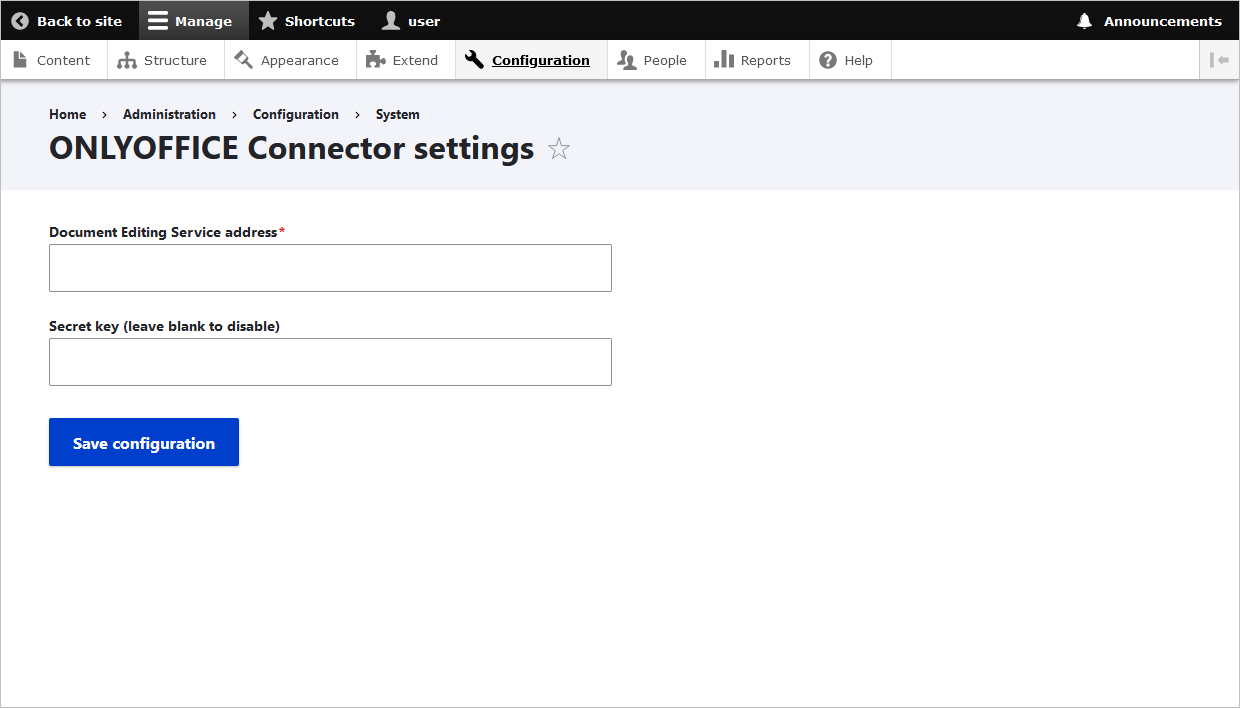
- Once ready, go to the module settings via Configuration > MEDIA > ONLYOFFICE Apps Connector settings and specify the following parameters:
- Apps Service Address
- Apps Admin Login and Password
- Click the Save button.
A user with the Room admin role will be created in ONLYOFFICE Apps, with the same data as the current Drupal user.
Exporting users to Apps
To export users from your Drupal to ONLYOFFICE Apps,
- Click the Export Now button on the module settings page. A page with the list which contains Drupal users will open.
- To add a user or several users to Apps:
- check the required users in the list;
- select Invite to Apps from the drop-down list;
- click the Apply to selected items button.
In the Apps User Status column of this list, you can track whether a Drupal user has been added to Apps or not:
 Green checkmark: a Drupal user with the specified email has been added to Apps. Synchronization was successful.
- Empty value: there is no Drupal user with the specified email in Apps. You can invite them.
 Hourglass: there is a user in Apps with the specified email, but there was a synchronization issue. When logging into the Apps plugin for the first time, the user will need to provide an Apps login and password to complete synchronization.
Start using ONLYOFFICE Apps within Drupal
Working in ONLYOFFICE Apps within Drupal
After setting up the module, Apps will become available for users with the Administer ONLYOFFICE Apps connector permission: People > Permissions > ONLYOFFICE Apps Connector.
These users are able to access ONLYOFFICE Apps where it's possible to create Collaboration, Public, and Custom rooms, invite users, and collaborate on documents within the rooms.
For more details on working with ONLYOFFICE Apps, please refer to our guides.
Adding Apps rooms and files to the Drupal page
Before you can add an Apps room or file to Drupal, you need to make changes to the table structure.
- Go to Structure > Content types.
- Click the Manage fields button next to the needed element.
- On the opened page, click the Create a new field button.
- In the drop-down list, select ONLYOFFICE Apps and specify the name.
If you would like to change the size of the Apps element on the published page:
- Go to Structure > Content types for the desired element.
- Click the Manage display button.
- In the previously created Apps field, click the gear icon and specify the desired sizes.
- Once ready, click the Save button.
When you are done with the preparatory steps:
- Go to the Content tab.
- Click the Add Content button.
- Select the content type to which you have added the ONLYOFFICE Apps element.
To add a room:
- Go to the Content tab.
- Click the Select room button.
- Select the available room from the list and press the Select button.
To add a file:
- Click the Select file button.
- Select the desired file from the room and press the Save button.
Access rights to rooms and files for Drupal users within created Drupal content are determined by the following principles:
- If the room should be available to all users, use a public room in Apps. It will be visible on the Drupal page for all users including anonymous, if Anonymous role has the "View published content" permission checked.
- If the room should be available only to logged in users, use a non-public room in Apps. A Drupal login will be required to view it, even if Anonymous role can view published content.
Please note the following specifics for Apps rooms created in Drupal:
- Apps left menu is not avaiable;
- Navigation is possible within the added room only;
- If users have the Room admin or Power user role, they can create new files.