Getting started
Overview
ONLYOFFICE Desktop Editors is an office suite that does not require a constant connection to the Internet and allows you to work with documents stored on your computer.
You can create, view, and edit text documents, spreadsheets, and presentations of the most popular formats: DOCX, ODT, XLSX, ODS, CSV, PPTX, ODP, etc. You can also create forms and fill out PDF fillable forms. View all the formats supported by Document Editor, Spreadsheet Editor, Presentation Editor, and PDF Editor.
ONLYOFFICE Desktop Editors is distributed in two versions: the Community version, available under AGPL v.3, and the Enterprise version. Both versions include the same set of editing, formatting, and collaboration tools. The Enterprise version is supplied with the ONLYOFFICE AI Tools add-on installed, while with the Community version you install it on your own. To learn more, refer to the Using AI Tools section.
Installing
ONLYOFFICE Desktop Editors is a cross-platform solution. You can install it on Windows, Linux, or Mac OS.
To download the latest version of the ONLYOFFICE Desktop Editors for your operating system, visit our website and follow our installation guides for Windows, Linux, and Mac OS.
Navigating the main window
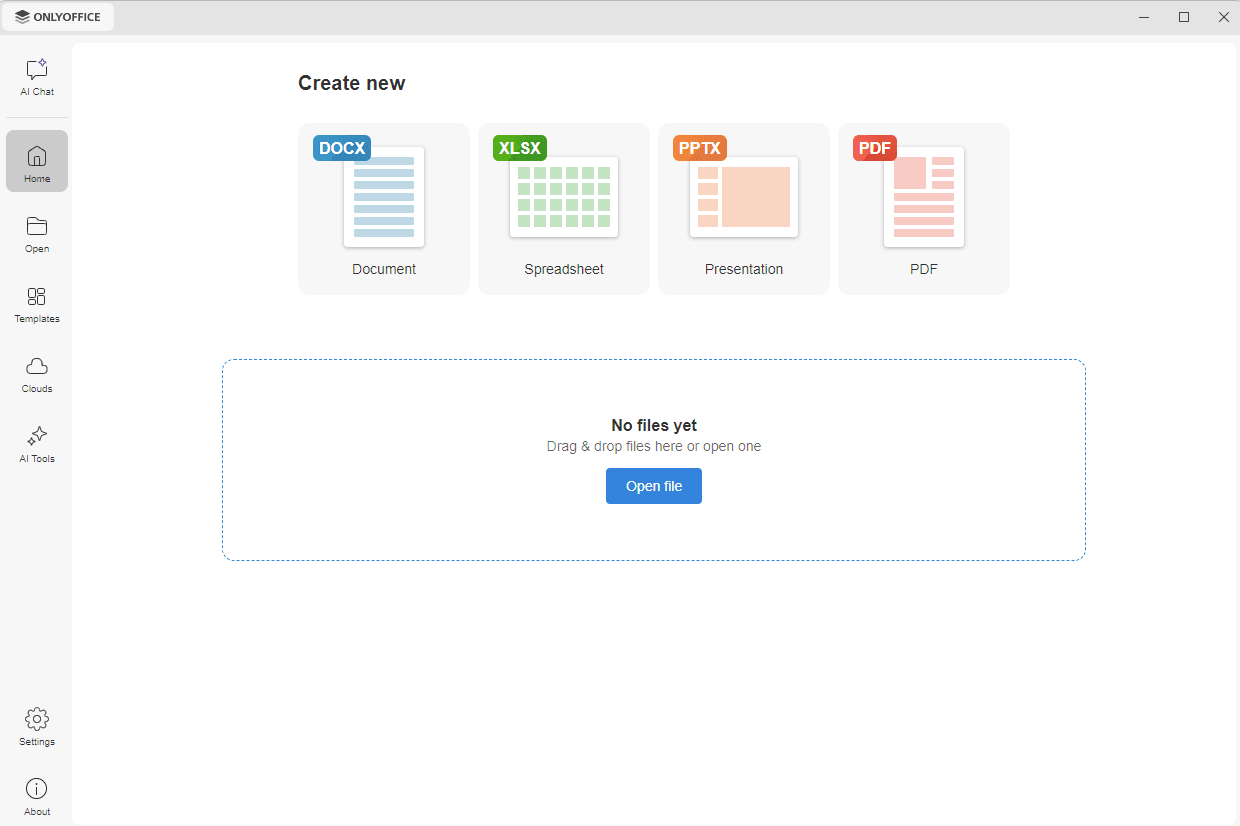
The left navigation panel of the main program window gives access to the following tabs:
- AI Chat – to ask the AI assistant a question or to work on a file with AI.
- Home – to create new files and to access the files you opened recently.
- Open – to open a file stored on your computer and to access the folders you used recently.
- Templates – to create a file from a ready-made template.
- Clouds – to connect the application to ONLYOFFICE or to a third-party cloud storage.
- AI Tools – to run a ready-made AI tool on a file, for example, to convert, compare, or redact it.
The Settings and About tabs are located at the bottom of the panel.
Creating and editing documents
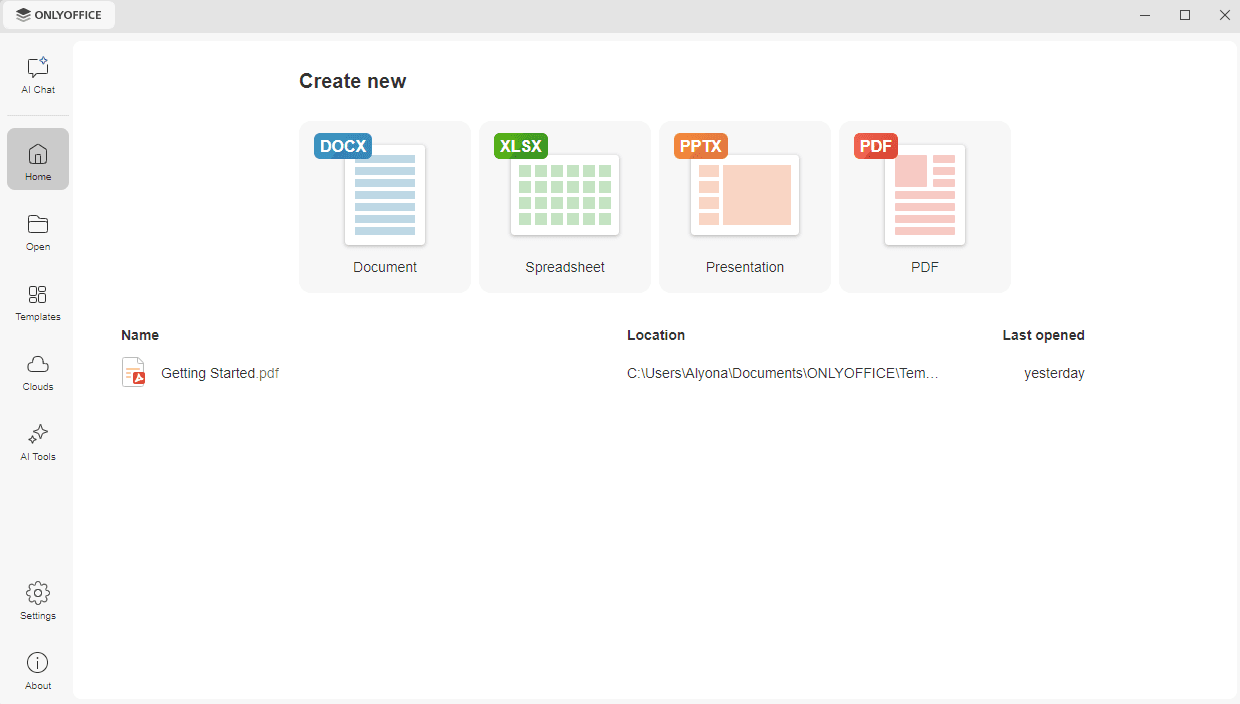
To create a new document, spreadsheet, presentation, or PDF, go to the Home tab on the left navigation panel and click the corresponding tile in the Create new section.
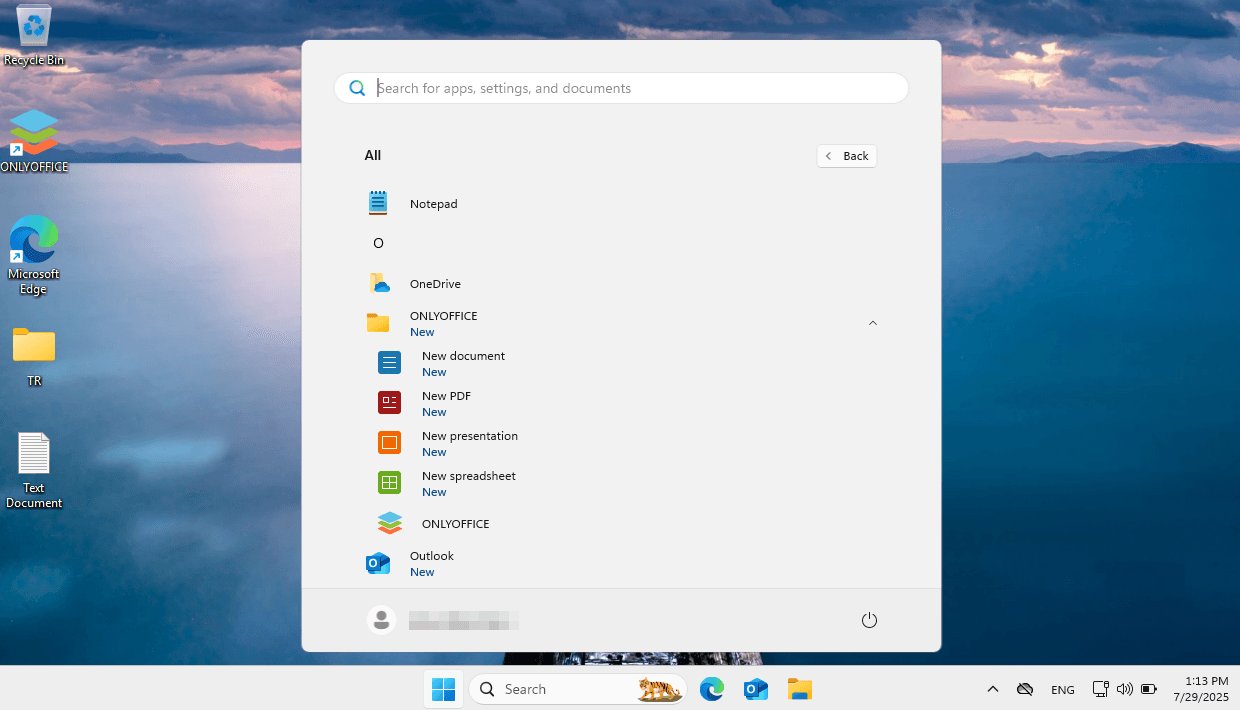
You can also use shortcuts in the Start menu or in the taskbar and choose the necessary option from the task list.
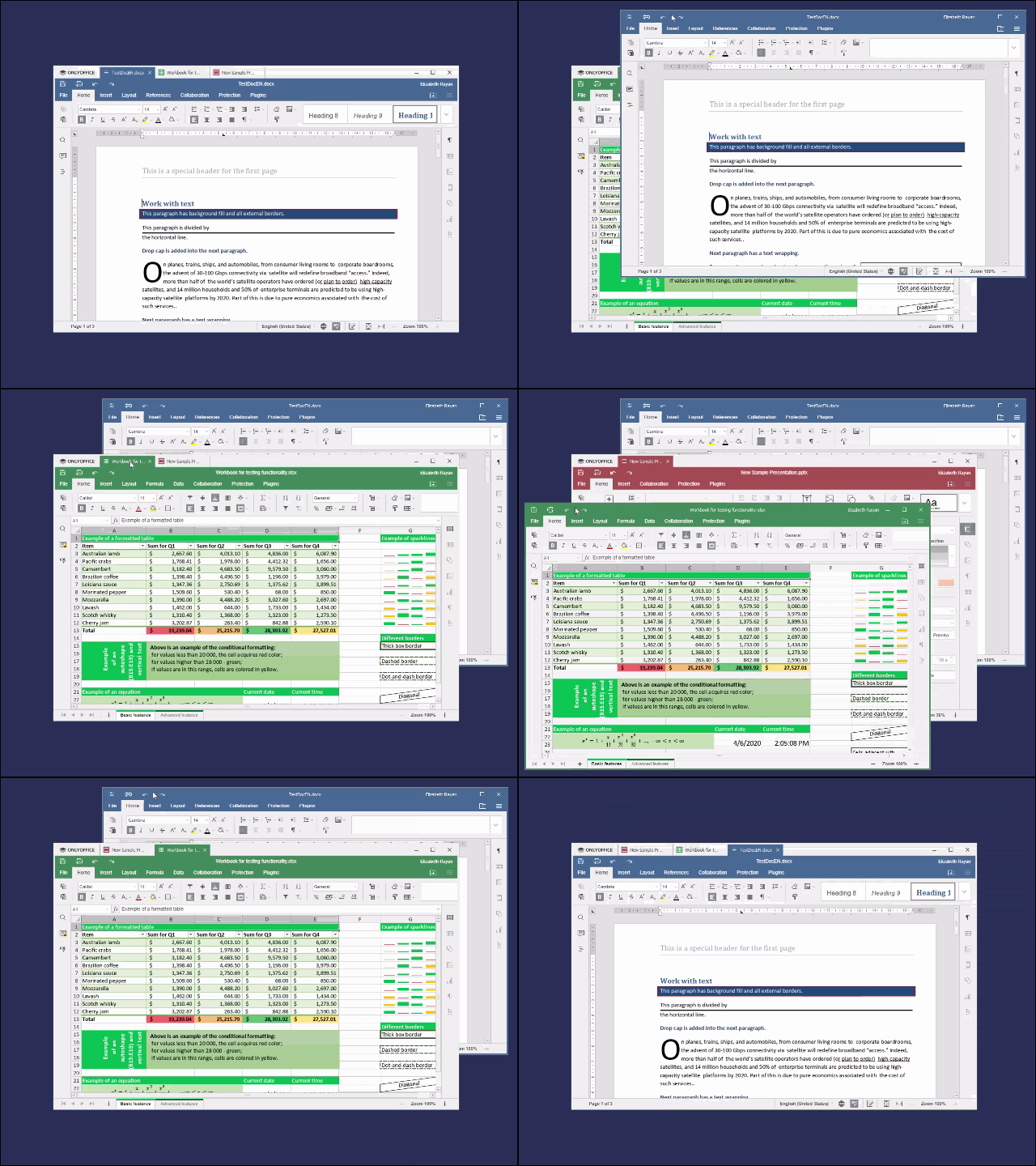
A new file will open in a new tab or in a new window, subject to the option you choose. To select the needed option, go to the Settings tab on the left navigation panel, scroll down to the Open file option, click the arrow to open the drop-down menu, and select In its own tab or In its own window. To differentiate between active and inactive windows, the inactive window appears in lower contrast. Click the Apply button at the bottom of the page for changes to take effect.
Using templates
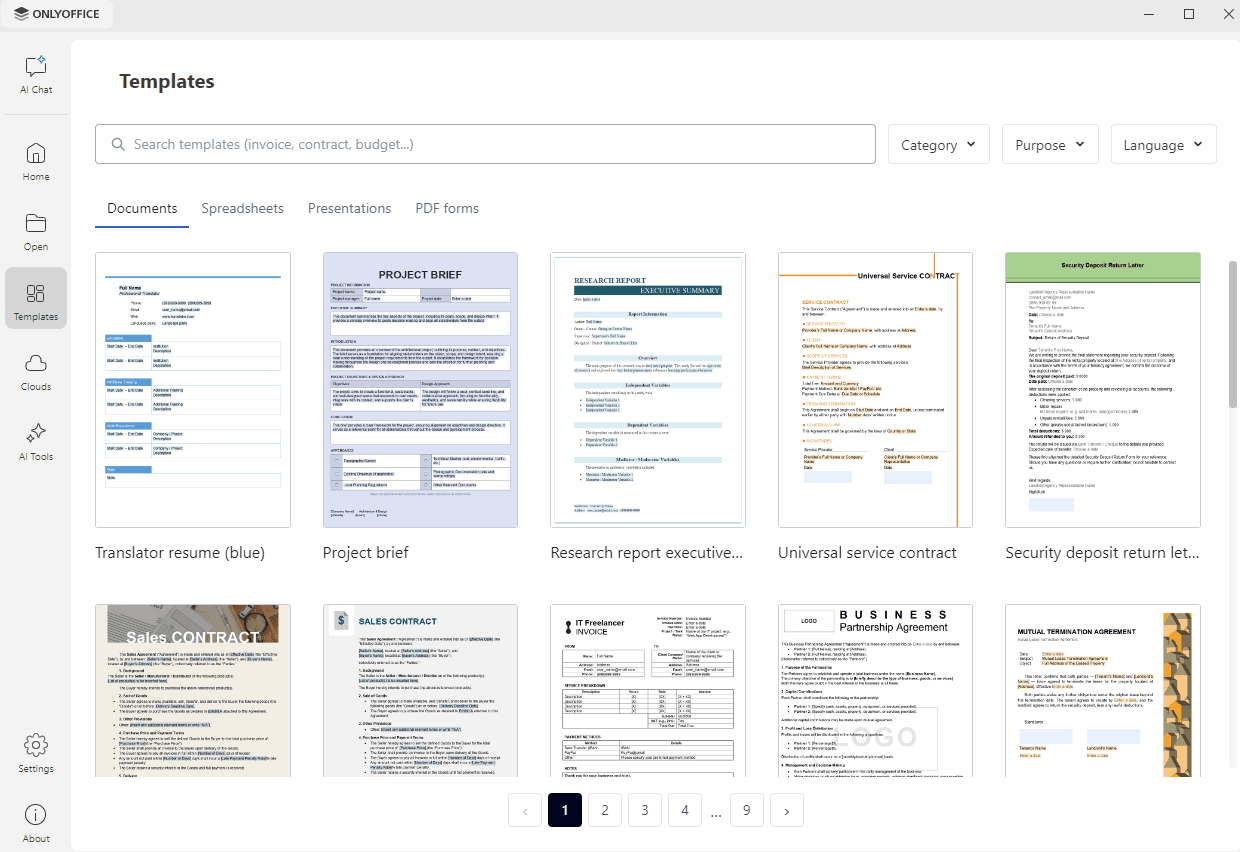
To quickly create a file from a ready-made template, go to the Templates tab on the left navigation panel. Switch between the Documents, Spreadsheets, Presentations, and PDF forms tabs to display the templates of the necessary type, and click a template to create a file based on it.
To find the necessary template, use one of the following options:
- enter a query in the Search templates box,
- use the Catregory drop-down list to narrow down the search to a particular template type,
- use the Purpose drop-down list to switch between the Business and Personal templates.
- use the Language drop-down list to change the template language,
If the templates do not fit on a single page, use the page numbers at the bottom of the list to navigate between them.
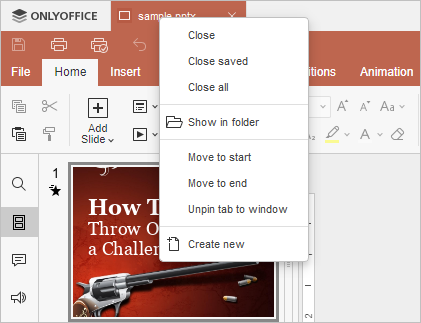
To manage tabs, you can also use the tab context menu. Right-click the tab to open the menu, and choose one of the available options.
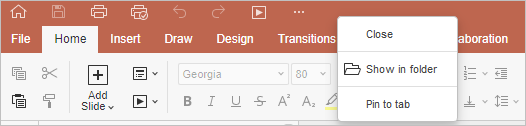
Context menu is also available with the unpinned windows. Right-click the editor header to access the menu, and choose one of the available options:
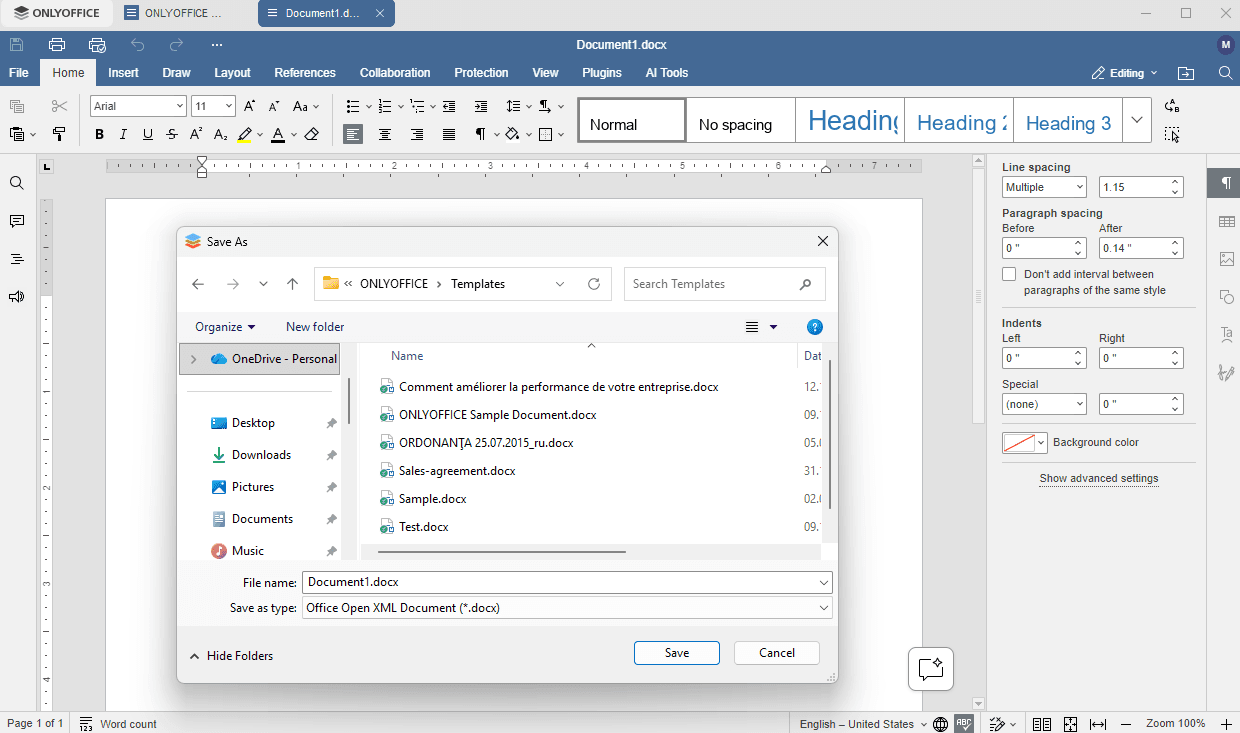
To save the created document, click the Save  icon at the top toolbar. In a new window that opens, select the location on your computer where you want to store the file, specify the file name, choose the necessary format, and click the Save button.
Opening recent files
The files you opened recently are listed in the lower part of the Home tab. The list displays the file name, its location on your computer, and the time when the file was last opened. Click a file to open it.
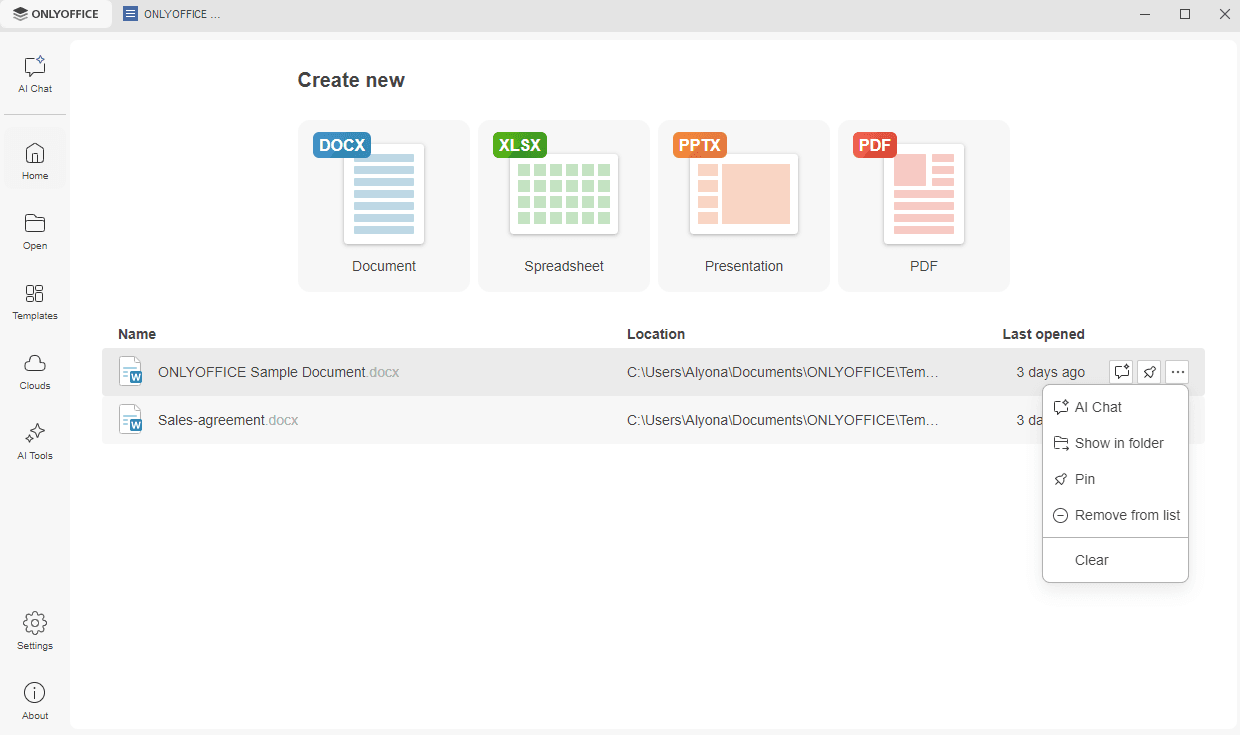
Right-click a file, or hover over it and click the ... icon that appears on the right, to use one of the available options:
- AI Chat – to open the file in the AI Chat panel and work on it with AI. The option is displayed only when AI features are enabled.
- Show in folder – to show the location of the file.
- Pin – to keep the file fixed at the top of the recent files list for quick access.
- Remove from list – to remove the file from the list (the file will not be deleted from your hard disk drive, it will just disappear from the list of recent files).
- Clear – to remove all the files from the list.
If you have not opened any files yet, the Home tab displays the Open file button instead of the list. Click it to browse for a file, or drag and drop a file onto the marked area.
Opening files stored on your computer
The Open tab on the left navigation panel allows you to access the documents stored on your computer. Click the Browse button in the lower left corner. A new window will open where you can select the file you need. If you have not opened any folders yet, the tab displays the Open file button instead, and you can also drag and drop a file onto the marked area.
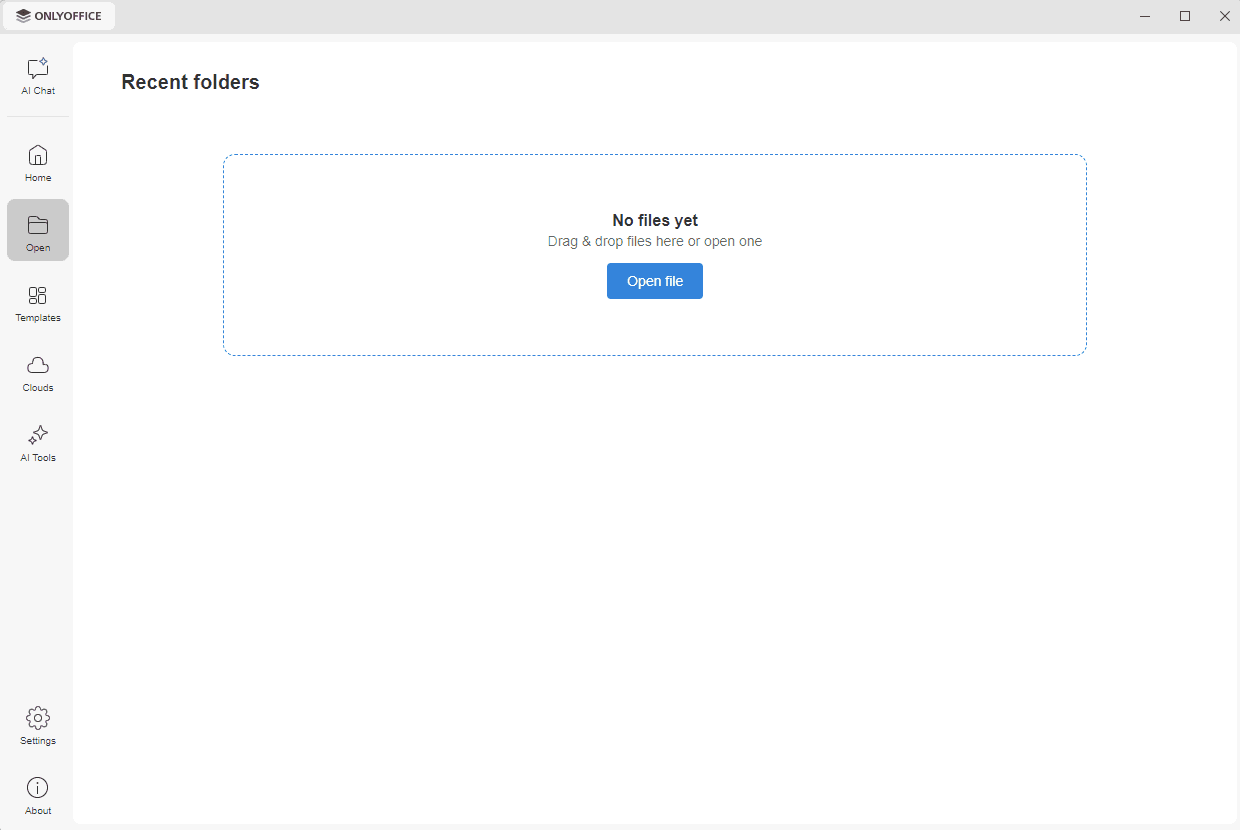
All the directories that you have accessed using ONLYOFFICE Desktop Editors will be displayed in the Recent folders list so that you can quickly access them afterward. Click the necessary folder to select one of the files stored in it. Use the Pin icon that shows on mouse hover over the folder to keep the folder fixed at the top of the recent folders list for quick access.
You can edit documents, spreadsheets, and presentations and fill in PDF forms using a great number of formatting and styling tools. To learn more, you can refer to the corresponding sections of the documentation for Document Editor, Spreadsheet Editor, Presentation Editor, and PDF Editor.
Connecting to the cloud
Connecting ONLYOFFICE Desktop Editors to the cloud allows you to get access to:
- collaborative features
- online features
- private rooms
To connect the application to a cloud, go to the Clouds tab on the left navigation panel. The Available clouds list displays the ONLYOFFICE cloud and the supported third-party storages: Box, Dropbox, Nextcloud, ownCloud, Odoo, Moodle, Infomaniak kDrive, Liferay, and Seafile. Click the Connect link next to the necessary cloud. The authorization page of the selected service opens in a new tab of the application window, where you need to sign in and allow ONLYOFFICE to access your files. An Internet connection is required.
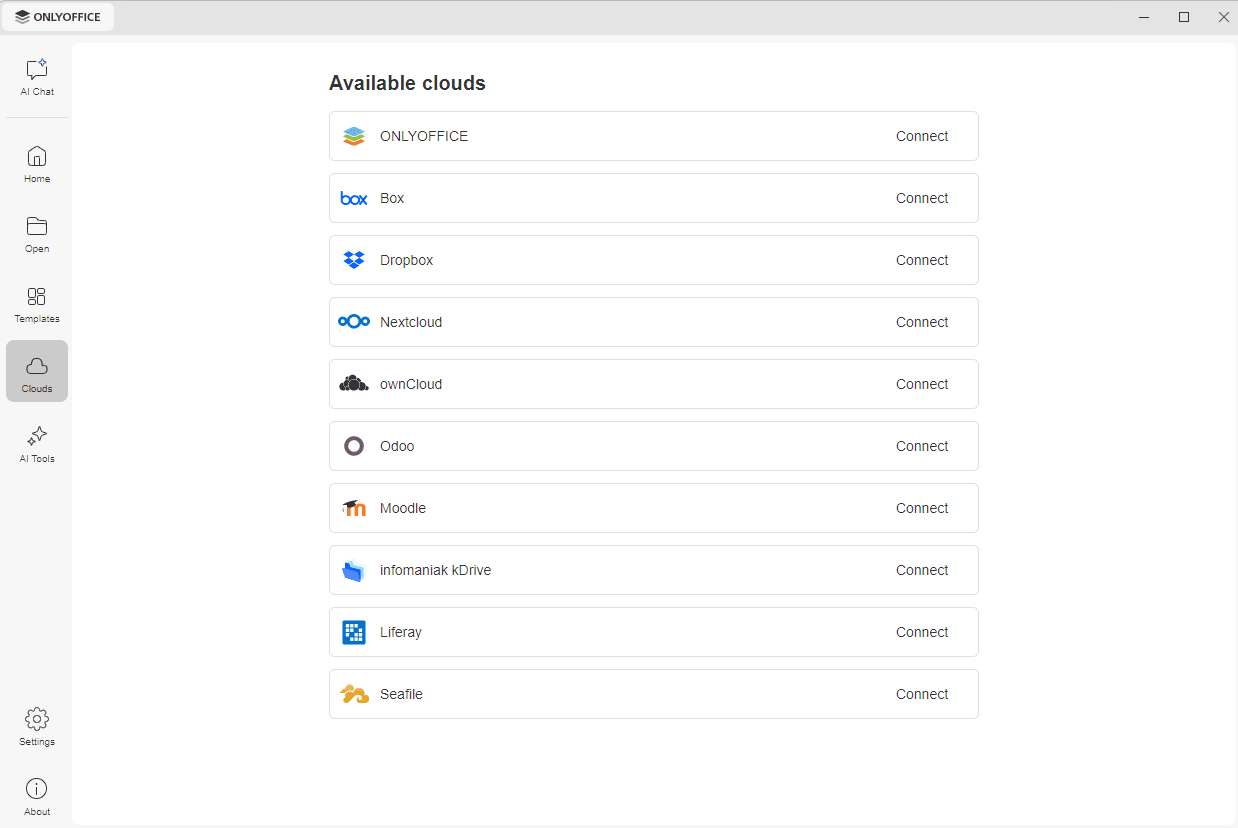
Once the connection is established, the cloud is added to the Connected clouds section at the top of the tab. The section displays the address of the cloud and the account you are signed in with. Click the cloud to open it, or click the ... icon on the right to use one of the available options:
- Open – to open the cloud in a new tab of the application window.
- Logout – to sign out of the cloud.
- Remove from list – to remove the cloud from the Connected clouds section.
Read the detailed instructions on how to connect ONLYOFFICE Desktop Editors to ONLYOFFICE DocSpace cloud, ONLYOFFICE server version, Nextcloud, ownCloud, Odoo, Seafile, Liferay, KDrive, and Moodle.
Collaborative features
Connecting ONLYOFFICE Desktop Editors to the cloud, you get access to the following collaborative features:
- collaborative editing,
- reviewing (for text documents only),
- commenting,
- communicating via the built-in chat.
Online features
Some editing features are only available in the online version (both in the paid ONLYOFFICE cloud and in the free Community version). You can use them through the ONLYOFFICE Desktop Editors interface only after connecting to the cloud:
- Mail Merge in the Document Editor.
Private rooms
After connecting to the ONLYOFFICE Cloud (server version), you can securely edit and co-author your documents within the Private Room, a special section in the Documents module where all documents and data transferred during collaboration are encrypted with the AES-256 encryption algorithm.
To learn more, you can refer to this article: Using the Private Room to work on your documents securely.
Using AI Tools
The ONLYOFFICE AI Tools add-on integrates AI into the desktop editors. You can use AI in documents, spreadsheets, presentations, and PDFs, connect your own AI providers and MCP servers, and enable web search.
When the Enable AI features option is switched on, the two AI tabs appear on the left navigation panel:
- AI Chat – an assistant panel where you can ask a question about a file or about anything else.
- AI Tools – a set of ready-made tools that perform a single operation on a file.
Installing the add-on
In the Enterprise version, the add-on is supplied with the application and is available right after the installation.
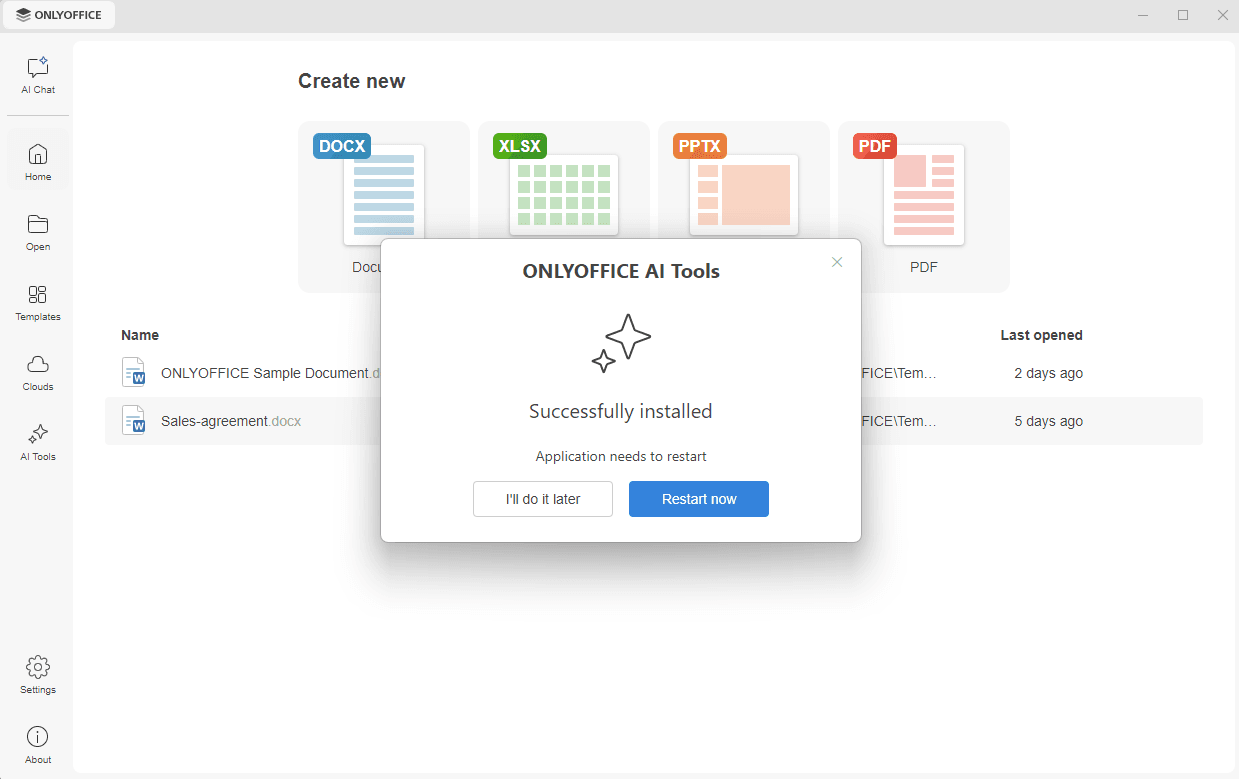
In the Community version, the add-on is not included in the installation package. When you start the application, a window inviting you to install the AI tools appears.
- click Accept & Install to accept the License Agreement and install the add-on, or Maybe later to close the window and be prompted again the next time you start the application,
- click Don't show me ONLYOFFICE AI Tools to close the window and stop displaying it. The Enable AI features option is switched off and the AI Chat and AI Tools tabs are hidden.
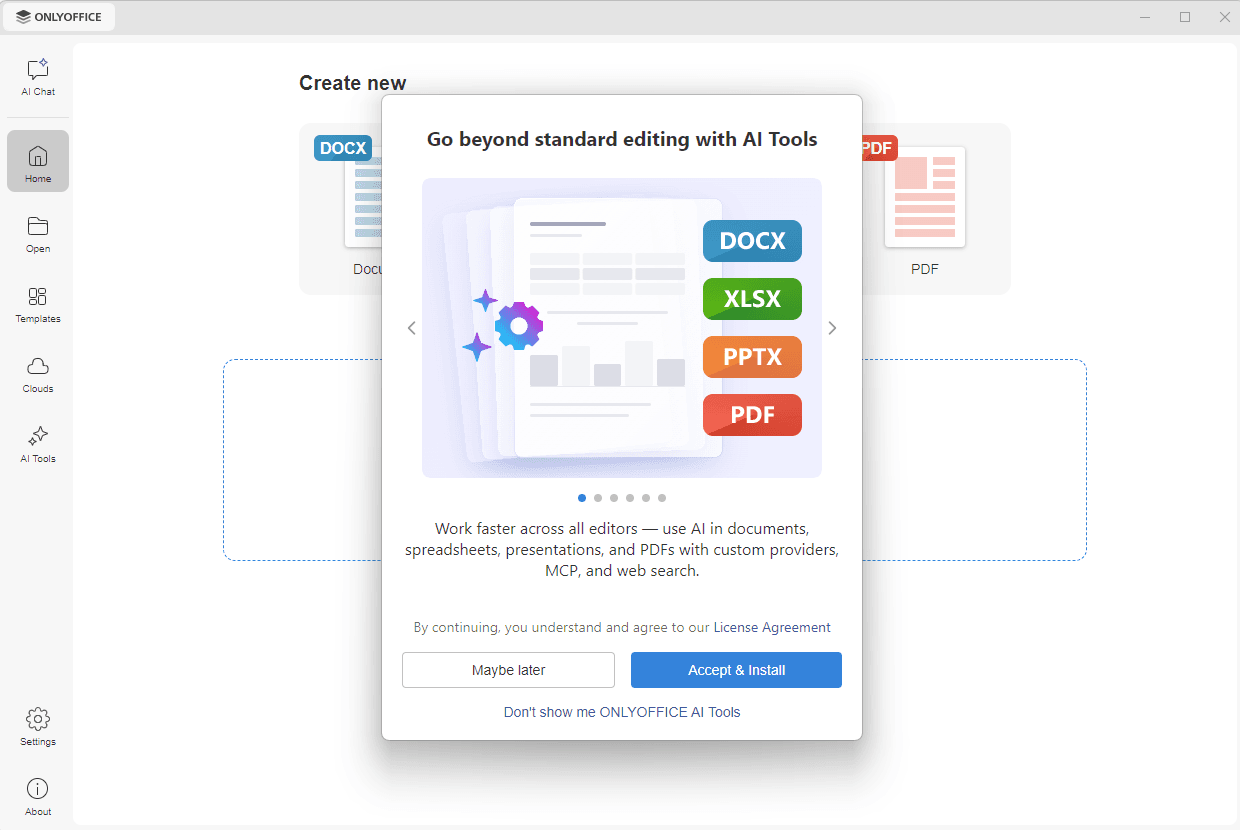
The download starts, and the Successfully installed message appears when it is complete. The application needs to be restarted for the add-on to become available: click Restart now to restart it immediately, or I'll do it later to restart it yourself afterward.
Running an AI tool
Go to the AI Tools tab on the left navigation panel. The available tools are grouped by the type of file they are applied to:
- PDF – merging, splitting, converting, compressing, and protecting PDF files, extracting pages and images, comparing files, adding comments, preparing and filling forms, and redacting sensitive information.
- Documents – comparing documents, converting a document to EPUB, and clearing formatting.
- Spreadsheets – removing duplicates, generating charts, and converting a file to CSV or ODS.
- Other Tools – converting files between formats and extracting text from scanned documents and images with OCR.

Click a tool card. The AI Chat panel opens on the right side of the window with the corresponding prompt already entered in the Ask anything box, where you can add your own details before submitting it.
Using AI Chat
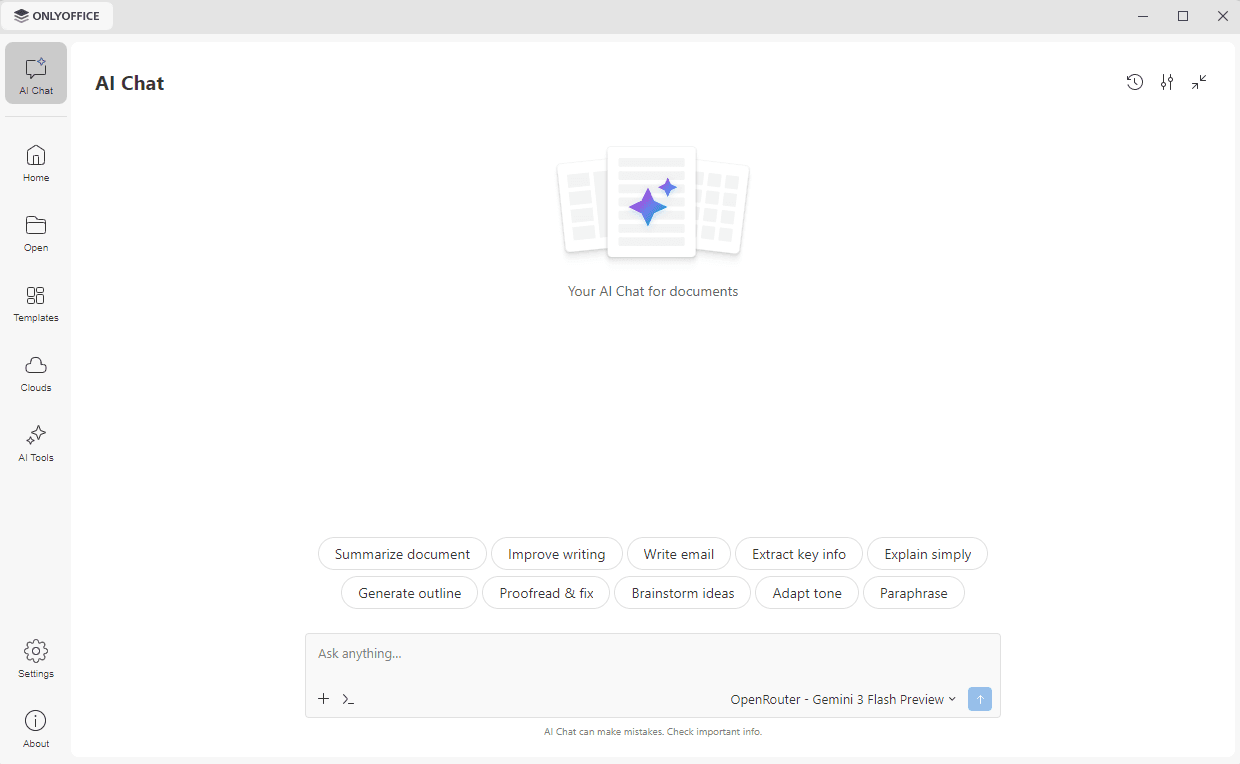
The AI Chat panel opens on the right side of the window. Enter your question in the Ask anything box, or click one of the suggested actions, such as Summarize document, Improve writing, or Proofread & fix. The model used for the current chat is displayed at the bottom of the panel, where you can change it.
Configuring AI
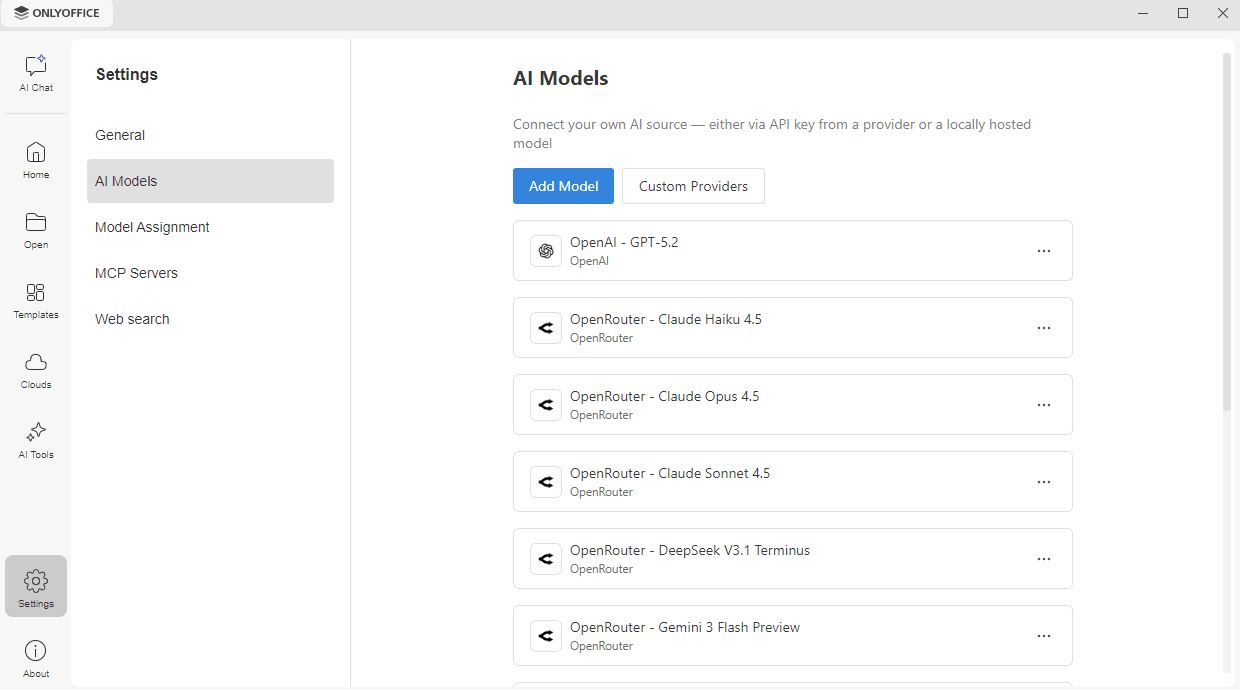
Once the add-on is installed and the Enable AI features option is switched on, the Settings tab displays the following sections in addition to General:
- AI Models – to connect your own AI source, either via an API key from a provider or as a locally hosted model.
- Model Assignment – to assign models to separate tasks, such as summarization, translation, or OCR, to customize performance and cost.
- MCP Servers – to set up MCP servers and enable their tools for use in AI Chat.
- Web search – to link a web search engine so that AI Chat can use real-time information from the Internet.
For the detailed description of the AI settings and the available functionality, please refer to the Setting up AI, Using AI Chat, and Using AI Tools articles.
Adding plugins to the ONLYOFFICE Desktop Editors
Plugins are designed to expand the capabilities and add new features to Desktop Editors.
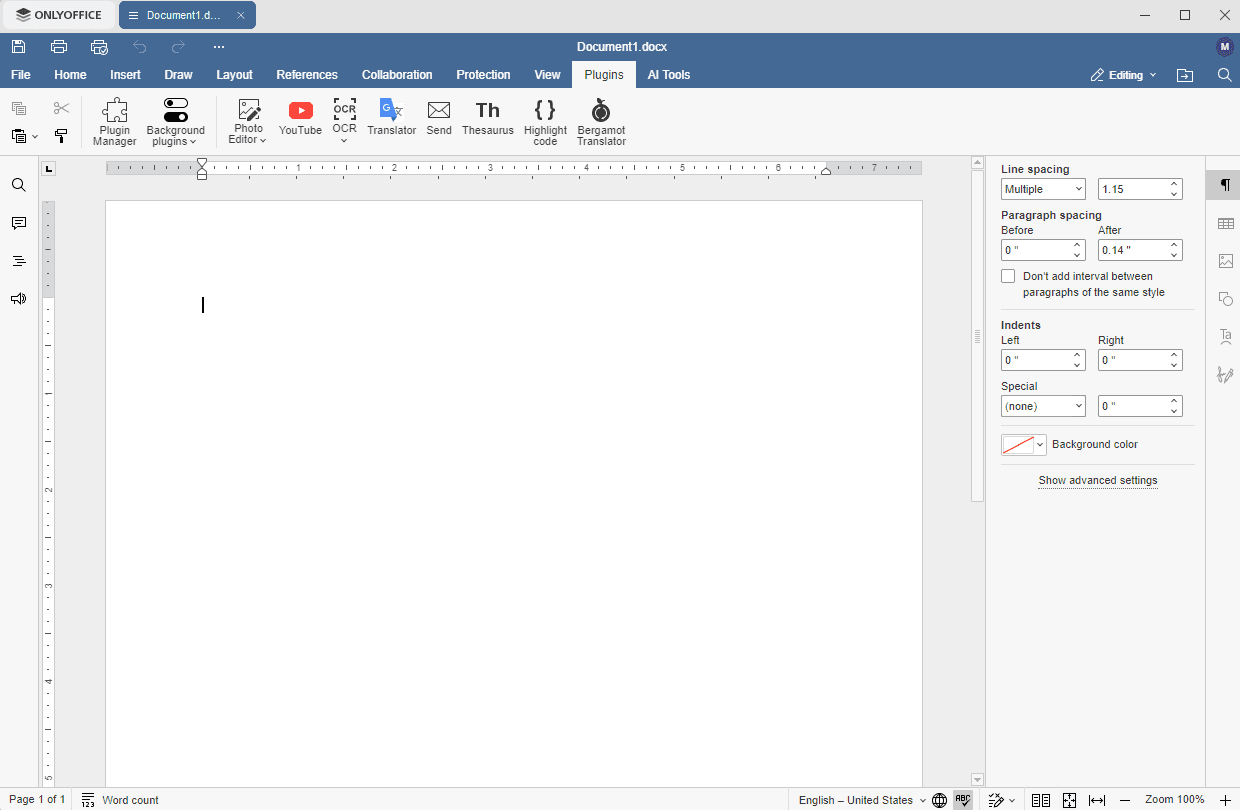
By default, ONLYOFFICE Desktop Editors is supplied with the following plugins: Photo Editor, YouTube, OCR, Translator, Send, Thesaurus, Highlight Code.
To extend the editors' functionality, you are free to add plugins that meet your needs. It only takes a few minutes and can easily be done by following the instructions below:
- Open the ONLYOFFICE Editors app, switch to the Plugins tab of the top toolbar, and click the Plugin Manager button. The Plugin Manager window will open.
- Use the panel on the left to browse the plugins. The Installed and Updates sections display the plugins you already have, and the Categories section groups the available plugins by purpose: All plugins, By ONLYOFFICE, Recommended, Work, Entertainment, Communication, Special abilities, and Developer tools.
- Find the necessary plugin and click the Install button on its card. To find a plugin by name, use the Search plugins box in the upper right corner.
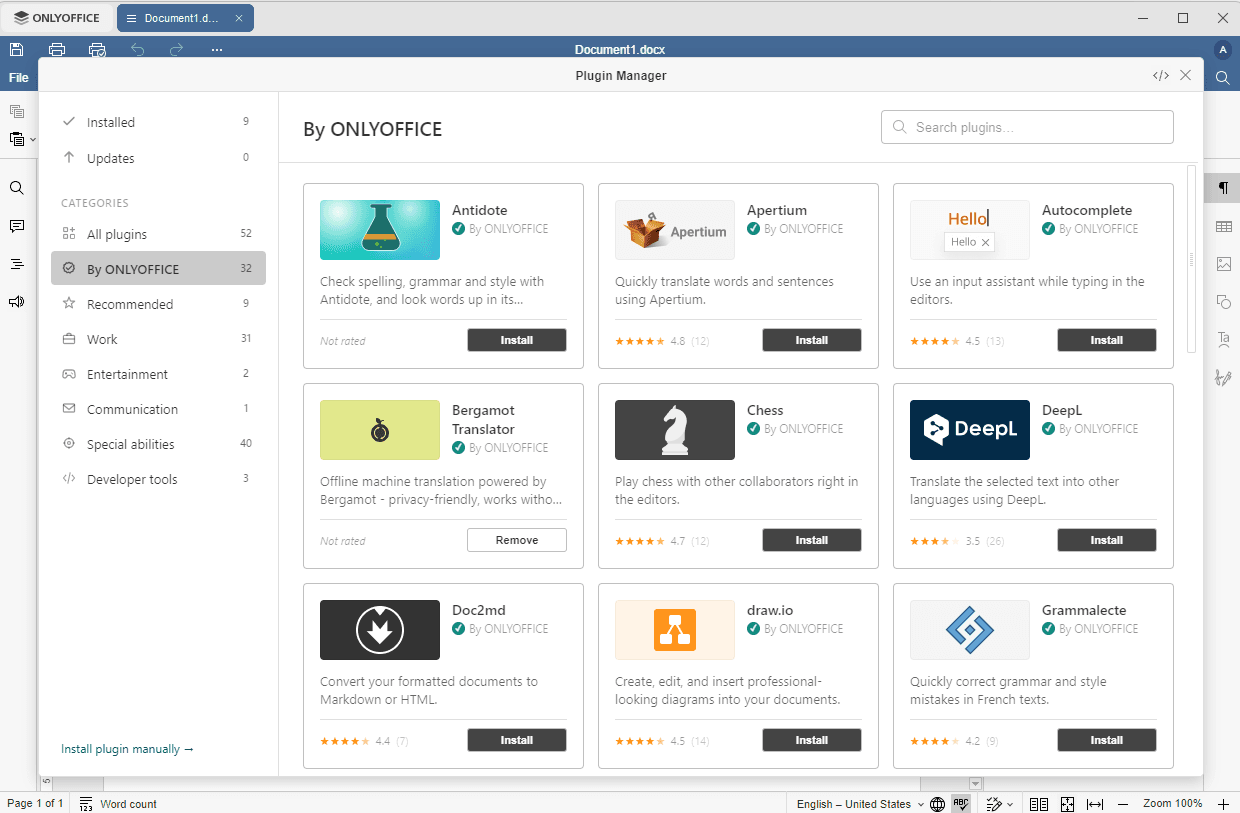
The plugin will be added to the opened editors and all the editors you will open afterward and displayed within the Plugins tab.
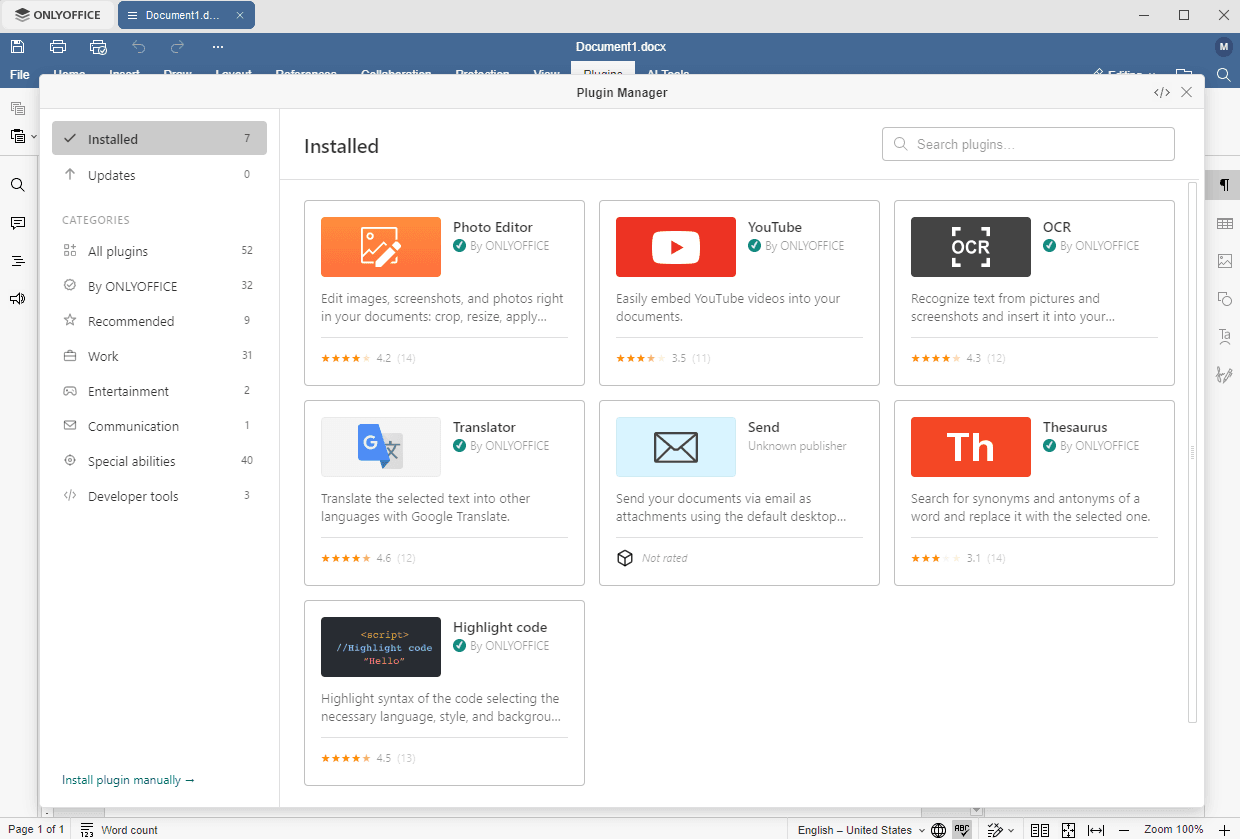
To remove the added plugin, open the Plugin Manager and click the Remove button on the card of the plugin you want to uninstall.
To install a plugin that is not available in the list, click the Install plugin manually link in the lower left corner of the window.
To learn more about the Plugin Manager, please refer to the Plugin Manager guide.
To find out how to remove default plugin from the ONLYOFFICE Desktop Editors, refer to this page: Uninstall default plugins from the desktop editors.
The plugin structure and the procedure of creating plugins are described in the Plugins and macros section of the https://api.onlyoffice.com website.
Changing application settings
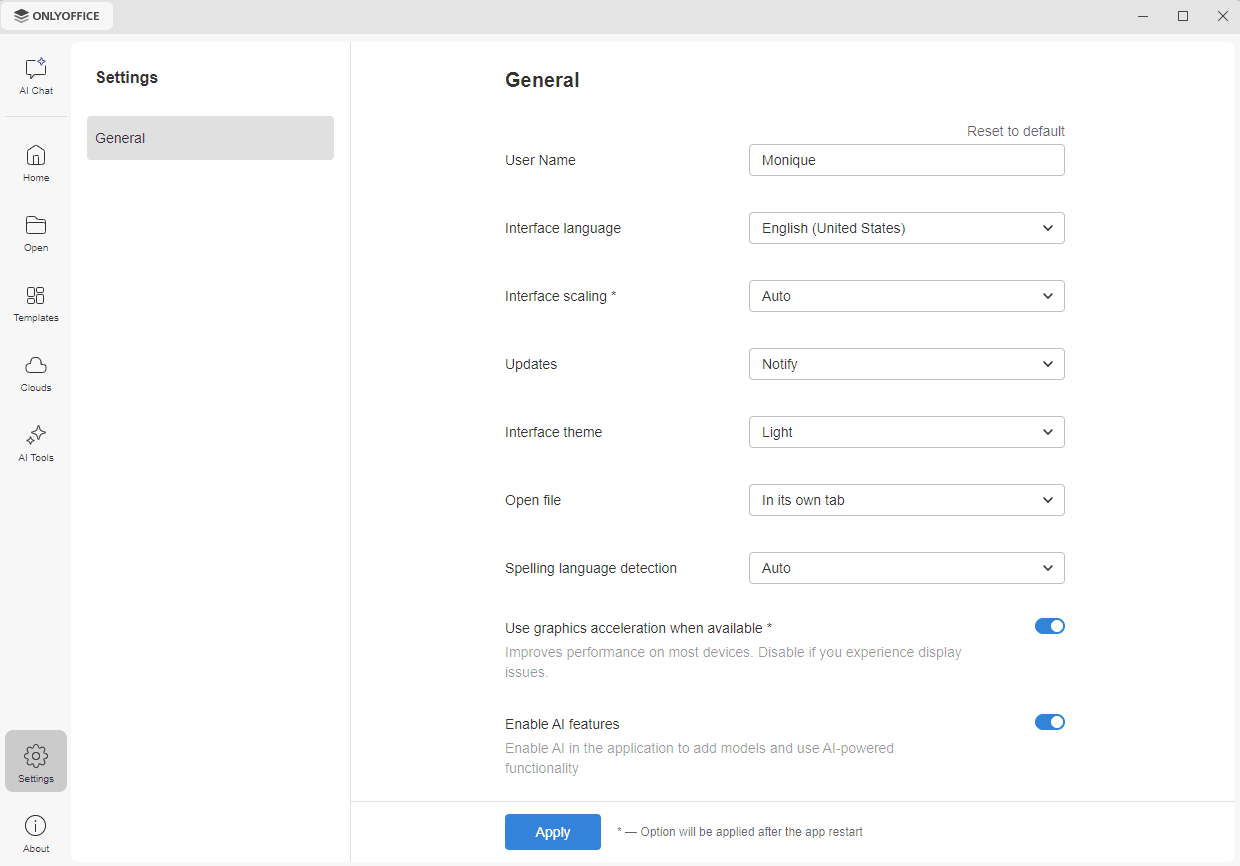
The Settings tab on the left navigation panel of the main program window opens the General section, which allows you to:
- change the user name displayed in the header of each opened document.
- select the interface language. The list of the available languages can be found here.
- adjust interface scaling (on Windows and Linux only). The available values are Auto, 100%, 125%, 150%, 175%, 200%, 225%, 250%, 275%, 300%, 350%, 400%, 450%, and 500%.
-
enable or disable Updates. Select the necessary option: Auto, Notify, or Manual.
you can also check for updates manually using the Check for updates button in the About section of the main program window.
- select the interface theme. The available themes are Same as system, Light, Classic Light, Dark, Contrast Dark, Gray, Modern Light, and Modern Dark. You can also add a local theme on Windows and Linux. If you select the Add local theme option, the dialog window will open where you can select the theme
jsonfile. The file will be copied to the user's application folder. - select the Editor’s launch mode when you open a new editor: In its own tab or In its own window. This will not affect your portal's launch mode. Portals always open in a tab.
- enable or disable Spelling language detection when switching the keyboard language. The available options are Auto and Disabled. When the Auto option is selected, the spell-checking language is detected automatically when you switch the keyboard language and start typing. When the Disabled option is selected, the spell-checking language does not depend on the keyboard language.
- enable or disable the Use graphics acceleration when available option. It improves performance on most devices. Disable it if you experience display issues.
- enable or disable the Enable AI features option. It allows you to add AI models and use AI-powered functionality in the application. When the option is switched off, the AI Chat and AI Tools tabs and the AI sections of the Settings tab are hidden.
Make the necessary changes, scroll down, and click the Apply button at the bottom of the page. The options marked with an asterisk are applied after the application restart. To discard your changes, use the Reset to default link in the upper right corner.
If the ONLYOFFICE AI Tools add-on is installed, the AI settings appear. You can also remove the add-on here using the Uninstall button.
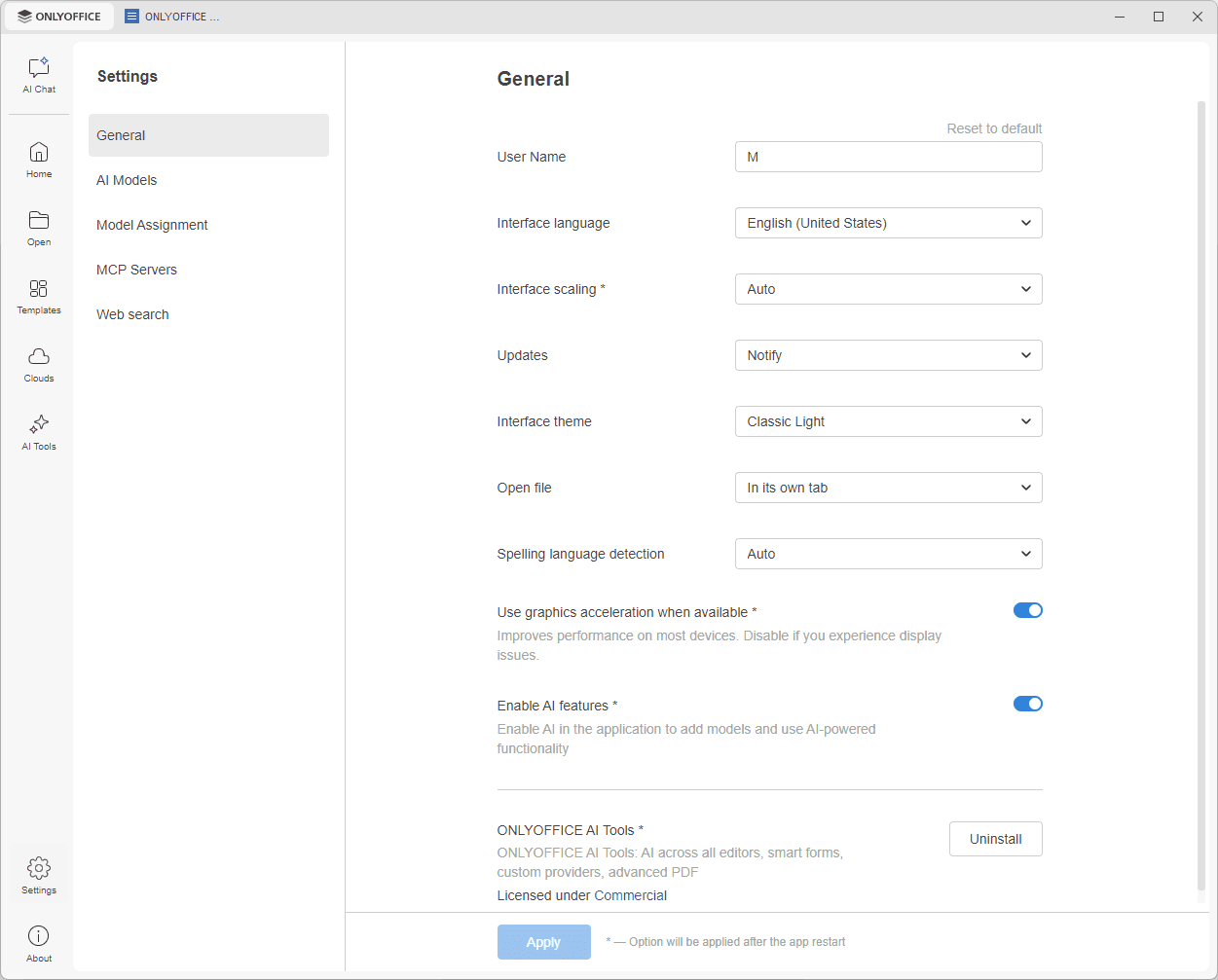
The AI-related sections of the Settings tab are described in the Using AI Tools section above.
Security settings
To protect your documents, spreadsheets, or presentations, you can set a password or sign a file using a digital signature. To learn more, you can refer to these instructions:
Additional operations
You might also need to perform some additional operations, for example, install additional fonts or associate office document files with ONLYOFFICE Desktop Editors on Windows. To learn more, you can refer to these instructions: