Conexión del Servidor MCP de ONLYOFFICE DocSpace a Mistral
Introducción
El Servidor MCP de ONLYOFFICE DocSpace es una herramienta para gestionar la interacción con modelos de lenguaje diseñados para mejorar la eficiencia, optimizar los flujos de trabajo impulsados por IA, la gestión de documentos y tareas, y para aprovechar al máximo el potencial de ONLYOFFICE DocSpace.
El Servidor MCP de ONLYOFFICE DocSpace puede conectarse a clientes que admitan la conexión a los servidores MCP que se ejecutan en una máquina remota.
La instancia pública está disponible en https://mcp.onlyoffice.com/mcp para clientes que admiten transporte HTTP Streamable moderno y en https://mcp.onlyoffice.com/sse para clientes que solo admiten el transporte SSE heredado. Recomendamos utilizar el transporte HTTP Streamable siempre que sea posible.
Se pueden utilizar los siguientes dos métodos de autenticación para conectar el Servidor MCP de ONLYOFFICE DocSpace a Mistral: OAuth y Autenticación por Token de API. Este último se utiliza con clientes que permiten pasar la configuración en encabezados personalizados y parámetros de consulta. Recomendamos usar autenticación OAuth siempre que sea posible.
Para añadir el conector del Servidor MCP de ONLYOFFICE DocSpace a Mistral:
- Accede a tu cuenta de Mistral Chat.
- Ve a Inteligencia –> Conectores en el panel izquierdo y haz clic en el botón Añadir conector.
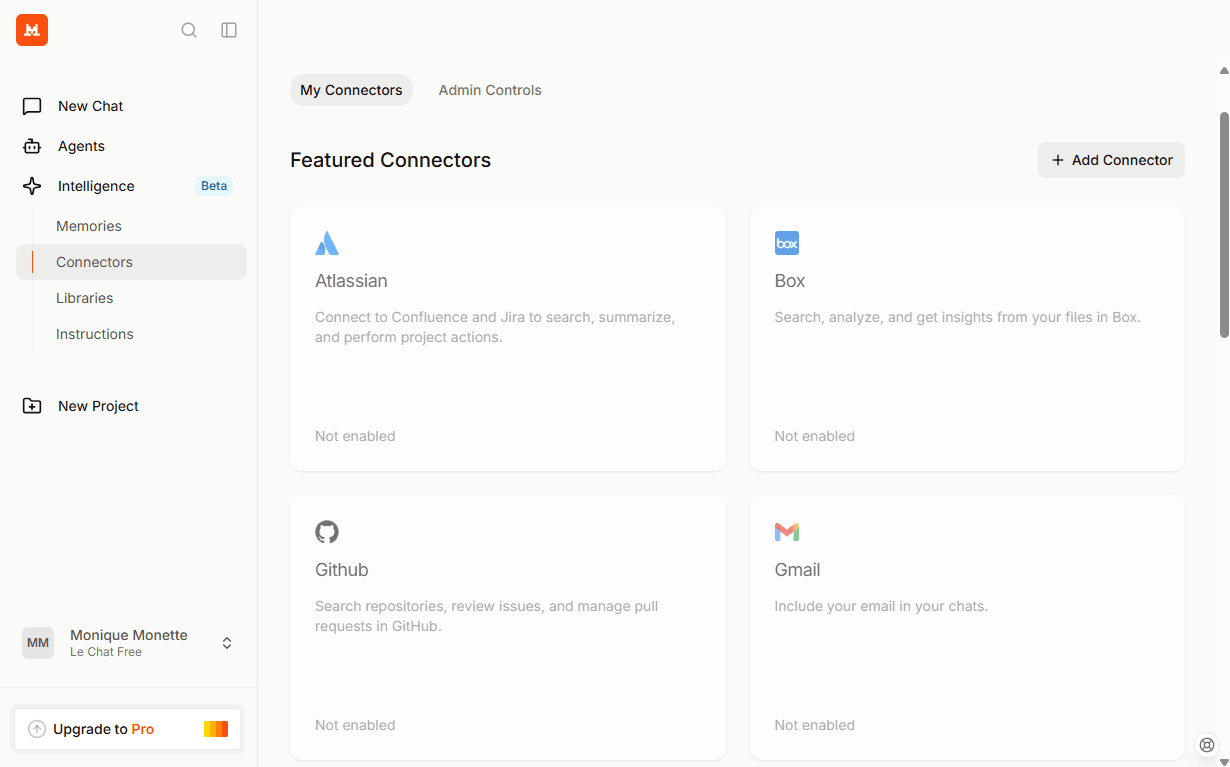
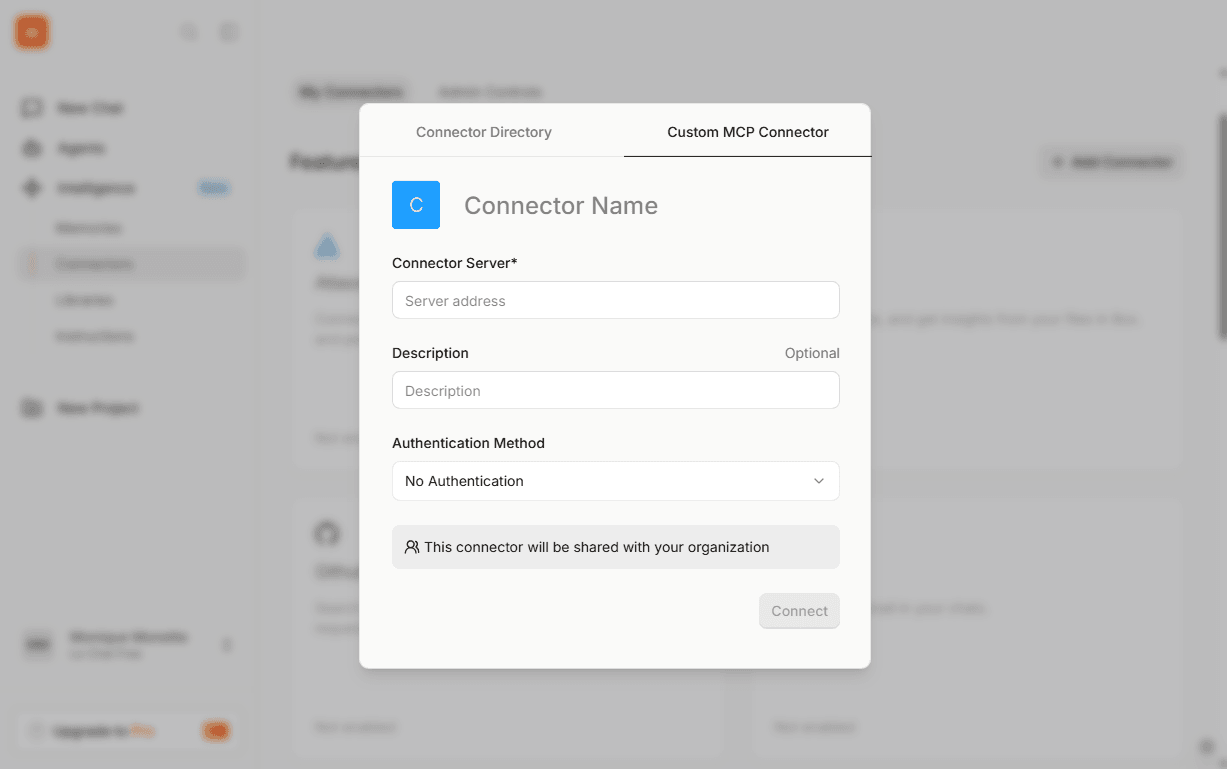
- Elige Conector MCP Personalizado en la esquina superior derecha y configura los parámetros del servidor MCP:
Autenticación OAuth
- Escribe el nombre del conector.
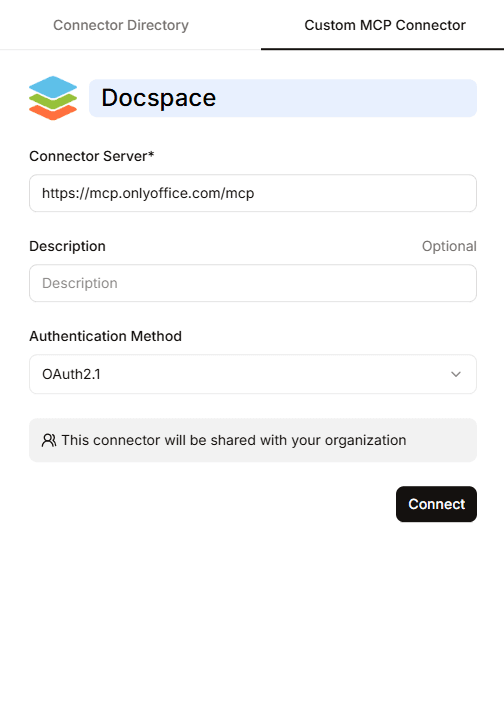
- Servidor del Conector - pega la URL del Servidor MCP de ONLYOFFICE:
https://mcp.onlyoffice.com/mcp - Descripción – proporciona una breve descripción para el Servidor MCP para mejorar la identificación del servidor. Es un parámetro opcional.
- Método de Autorización - elige OAuth2.1 como método de autorización para el Servidor MCP de DocSpace y haz clic en Conectar.
- Completa el proceso de autenticación OAuth
- Rellena tus credenciales de DocSpace.
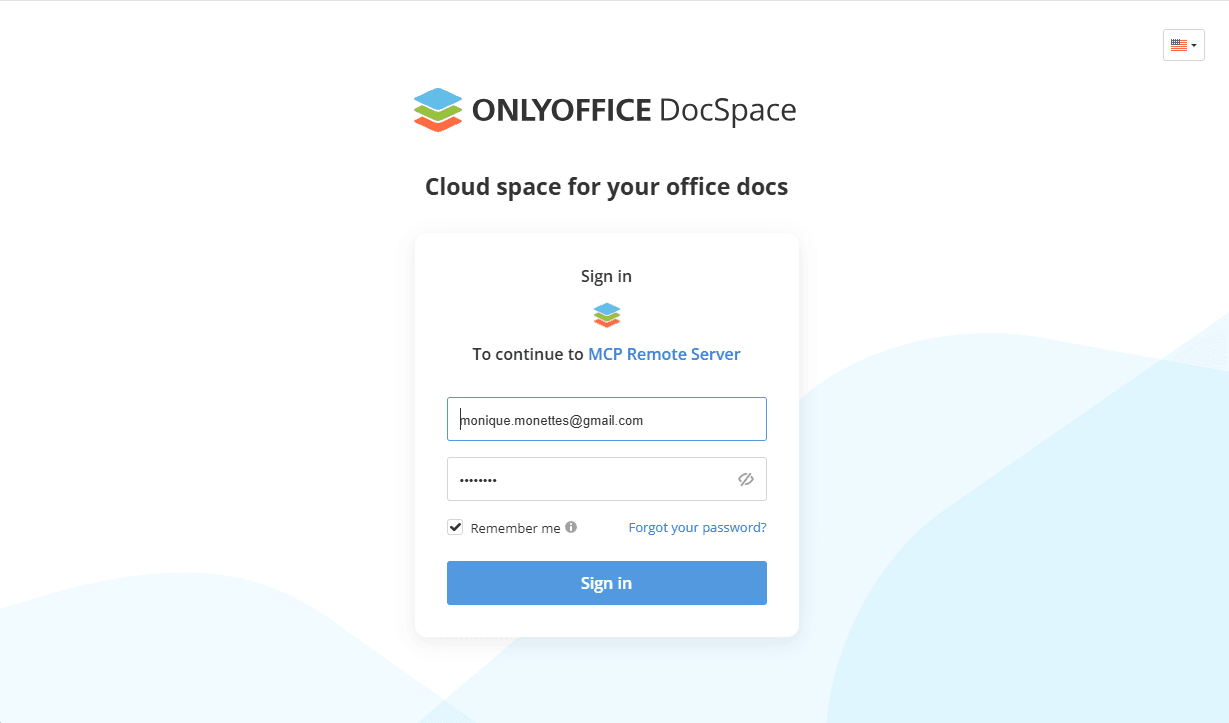
- Permite que el Servidor Remoto MCP acceda a tu cuenta de DocSpace.
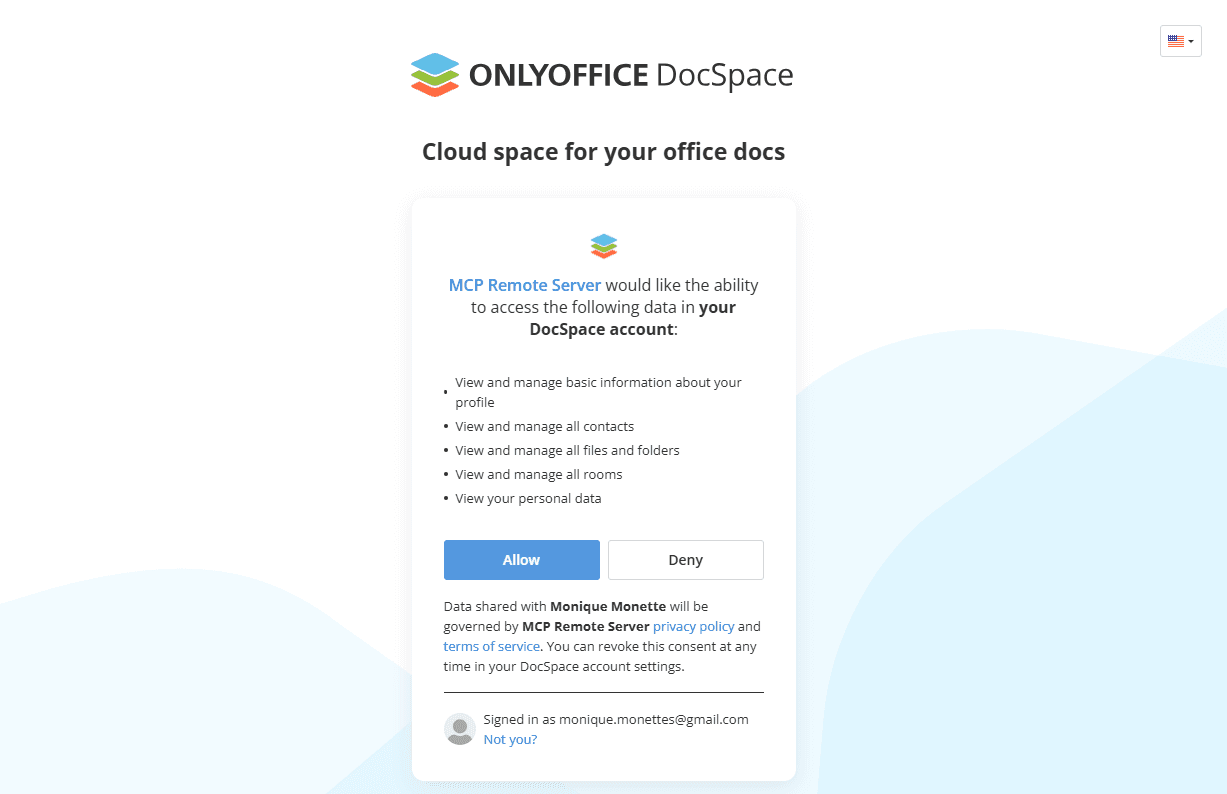
- Rellena tus credenciales de DocSpace.
Autenticación por Token de API
Utiliza este método de autenticación solo si no puedes usar OAuth por alguna razón, ya que es menos seguro. Este método te permite conectar el servidor MCP usando la clave de API en el encabezado predeterminado y la URL base en el parámetro de consulta.
- Genera tu propia clave de API de DocSpace. No es recomendable usar las claves de API del Propietario o del Gestor de Sala. Para generar una clave de API, ve a tu DocSpace. Haz clic en la pestaña Herramientas de Desarrollador en el panel izquierdo. Elige la pestaña de claves de API en la parte superior y haz clic en el botón Crear nueva clave secreta. Copia la clave generada.
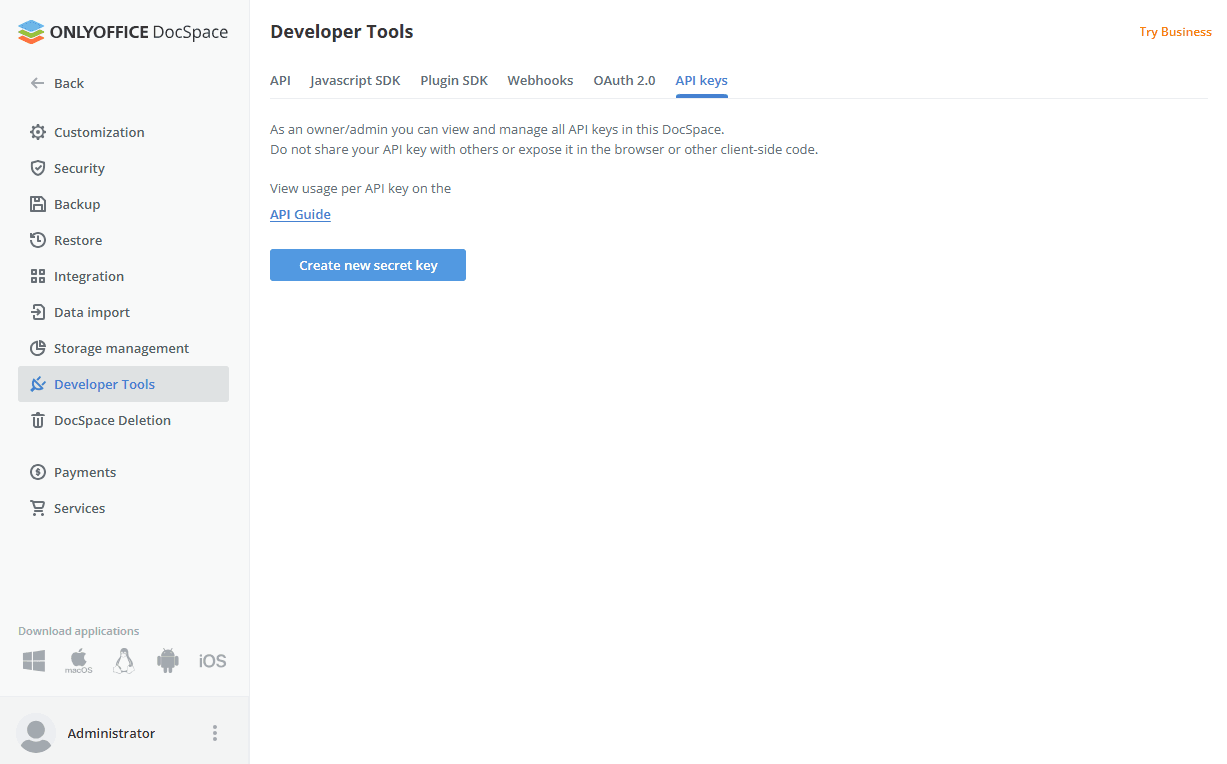
- Escribe el nombre del conector.
- Servidor del Conector - añade la URL base de tu instancia de DocSpace a la URL del Servidor MCP de ONLYOFFICE DocSpace, y pásala a través de parámetros de consulta siguiendo la estructura a continuación:
https://mcp.onlyoffice.com/mcp?base_url=https://tu-instancia.onlyoffice.com - Descripción – proporciona una breve descripción para el Servidor MCP para mejorar la identificación del servidor. Es un parámetro opcional.
- Método de Autorización - elige Autenticación por Token de API como método de autorización para el Servidor MCP de DocSpace.
Encabezado predeterminado - añade tu clave de API de DocSpace al encabezado de Autorización como un token Bearer. Es un parámetro obligatorio ya que este encabezado se utiliza para autorizar solicitudes a DocSpace.Authorization: Bearer sk-a499e... - Haz clic en Crear para añadir el Servidor MCP de DocSpace a los conectores de Mistral.
Uso del Servidor MCP de ONLYOFFICE
- Después de una autenticación exitosa, el conector de DocSpace aparece entre los conectores disponibles.
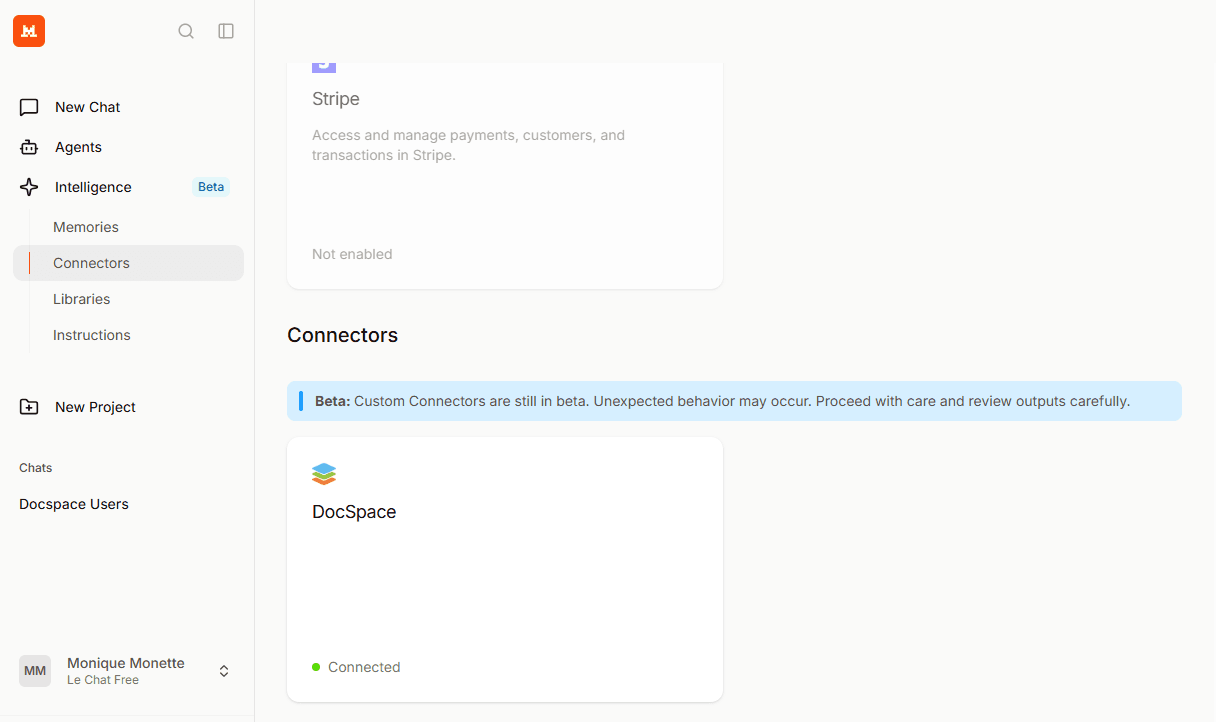
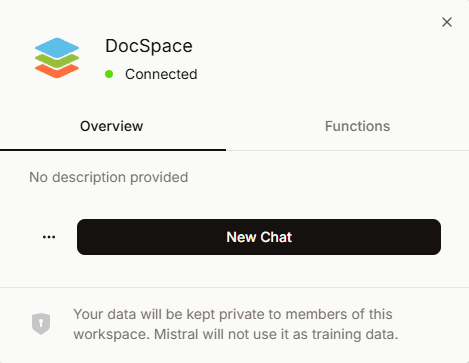
- Haz clic en él para mostrar la descripción general del conector y sus funciones. La pestaña Descripción general ofrece la descripción del conector que proporcionaste durante la configuración, y la posibilidad de eliminar el conector haciendo clic en los puntos suspensivos.
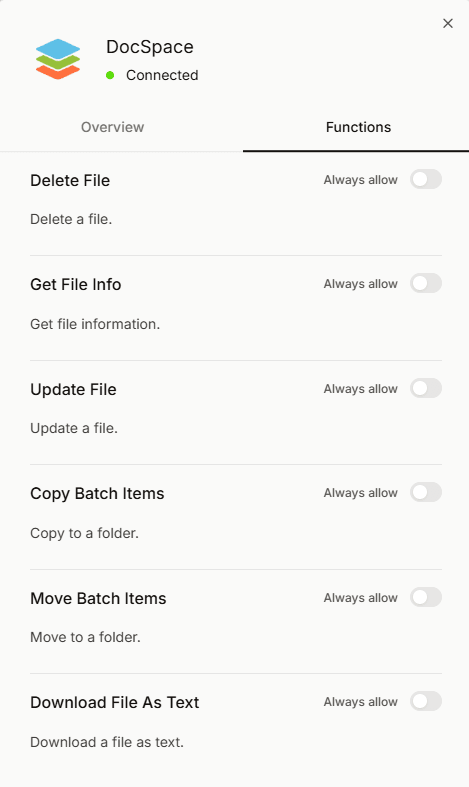
- La pestaña Funciones te permite desplazarte por las herramientas disponibles y habilitar las necesarias.
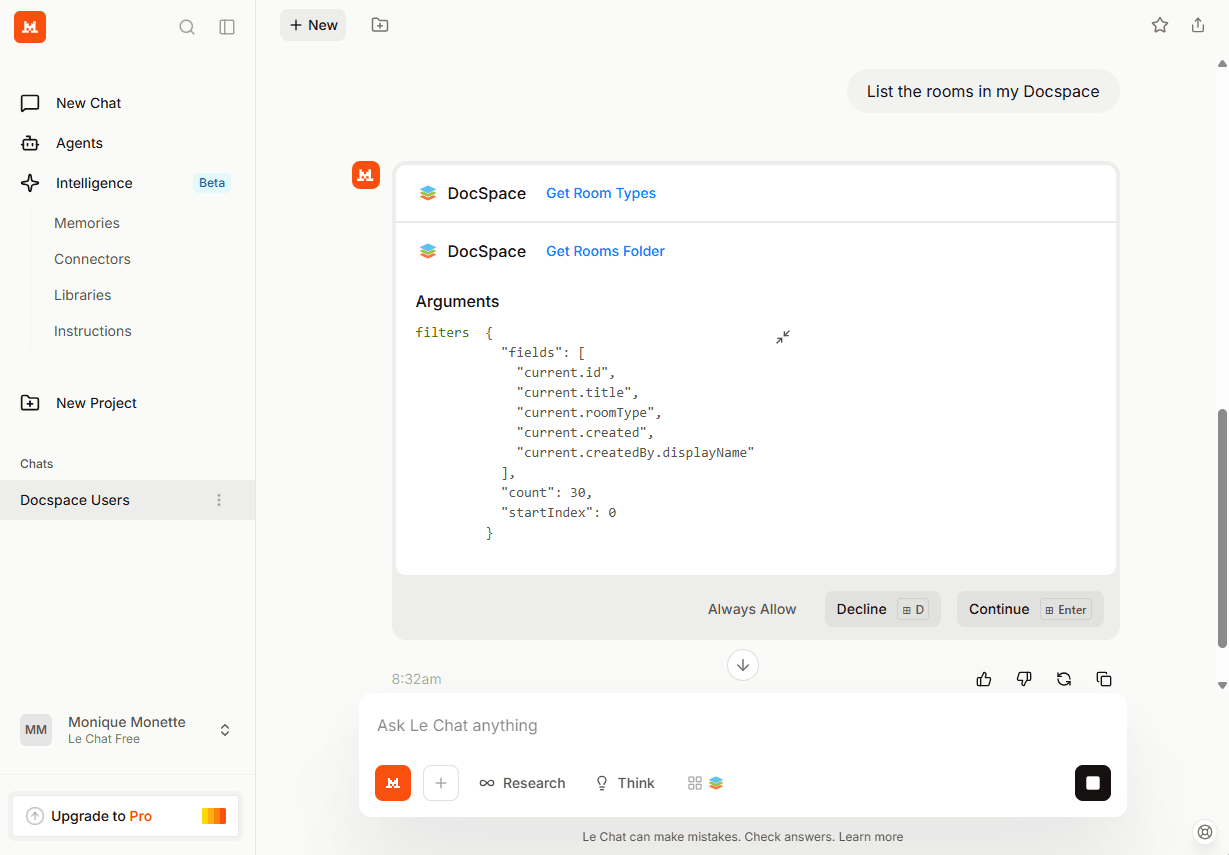
- Abre el chat y proporciona tu solicitud. En la lista de Conectores, asegúrate de que DocSpace (o el nombre que le hayas asignado) esté seleccionado.
- Haz clic en Continuar para confirmar la lista de herramientas utilizadas para responder a tu solicitud.